




We may not have the course you’re looking for. If you enquire or give us a call on +44 1344 203 999 and speak to our training experts, we may still be able to help with your training requirements.
How to Stop Pop-Up Ads on Android Phone: 8 Easy Steps
ByThe Knowledge AcademyLast updated on: 10 October 2026
Tired of intrusive pop-ups on your Android phone? Learn how to reduce them using browser settings, site permissions, app checks and reputable ad-blocking tools. This blog explains practical ways to stop unwanted pop-ups and identify where they may be coming from.
Things to Know Before We Dive in
1. Pop-up ads can originate from websites, browser permissions, installed apps or certain device features.2. Browser-based pop-ups can often be reduced by adjusting pop-up, redirect and site permission settings.3. Ads appearing outside the browser may require checking recently installed apps and their permissions.4. DNS-based filtering and reputable ad-blocking tools can reduce some ads, although they may not block every type.5. Careful app installation, permission reviews and regular updates can help prevent unwanted ads from returning.
Pop-up ads on android phones are like uninvited guests; they show up out of nowhere, interrupting your browsing, gaming, or streaming fun. They can disrupt your workflow and make screen time frustrating. Thankfully, there are simple ways to block them and improve your experience. From tweaking your settings to using dedicated tools, this blog will show you how to stop pop-up ads on android phone and enjoy a smoother, ad-free experience!
Why Do Pop-Up Ads Appear on Android Phones?
Pop-up ads can appear for different reasons. Some come directly from websites while browsing, while others may be caused by website notifications, installed apps or certain device features. If pop-ups start appearing suddenly, consider whether you recently installed an unfamiliar app or granted a website permission to send notifications. Identifying where and when the ads appear can make it much easier to find the right solution.

Effective Ways to Stop Pop-Up Ads on Android
Dealing with unwanted pop-ups can be frustrating, especially when you do not know where they are coming from. The following five methods cover common sources of pop-up ads on android devices:
1) Clear Browser Data if Pop-ups Persist
Sometimes, those pop-ups are like uninvited guests that overstay their welcome, lingering because of cached data and cookies stored by your browser. If you're looking to stop pop-up ads on android, giving your browser a good clean can help evict these nuisances.
Steps to Clear Browsing Data:
a) Open Your Browser: Fire up the browser you're using; let's say it's Chrome.
b) Access Settings: Tap on the three dots in the top-right corner and select 'Settings.'
c) Navigate to Privacy: Scroll down to find 'Privacy' or 'Privacy and Security.'
d) Clear Browsing Data: Tap on 'Clear browsing data.' Here, you can choose to clear cookies, cached images, and other site data. Select the time range (like 'All time' for a thorough clean) and hit 'Clear data.'
Trainer’s Insight
Before changing multiple settings, identify where the pop-up appears. Ads limited to your browser usually have a different source from ads appearing on the home screen or over other apps.
2) Changing the DNS
Some DNS providers offer filtering that blocks requests to known advertising or tracking domains. This can reduce certain ads across browsers and apps, but it cannot block every type of advertisement or pop-up.
Steps to Change DNS:
a) Open Settings: Go to your phone's 'Settings.'
b) Network & Internet: Tap on 'Network & Internet' or 'Connections,' depending on your device.
c) Private DNS: Look for 'Private DNS.' On some devices, you might need to tap on 'Advanced' to find it.
d) Configure DNS: Select 'Private DNS provider hostname' and enter the hostname provided by your chosen reputable DNS filtering service.
e) Save Settings: Tap 'Save' or 'OK' to apply the changes.
This directs DNS queries through the selected provider, which may block requests to known advertising domains.
Trainer’s Insight
DNS filtering can block connections to known advertising domains, but it cannot remove every ad. Some advertising content may be delivered from the same domains as the content you actually want to access.
Strengthen network foundations with up-to-date BIND DNS Skills in BIND DNS Administration Training – Sign up now!
3) Modifying the Browser Settings
Most browsers come with built-in settings to help you manage pop-ups and ads. Tweaking these settings can significantly cut down on interruptions.
For Google Chrome:
a) Open Chrome: Launch the Chrome app.
b) Access Settings: Tap on the three dots in the top-right corner and select 'Settings.'
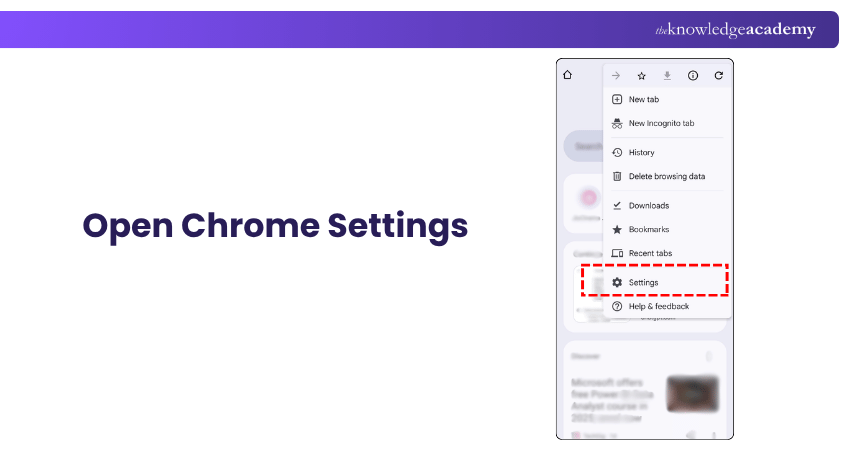
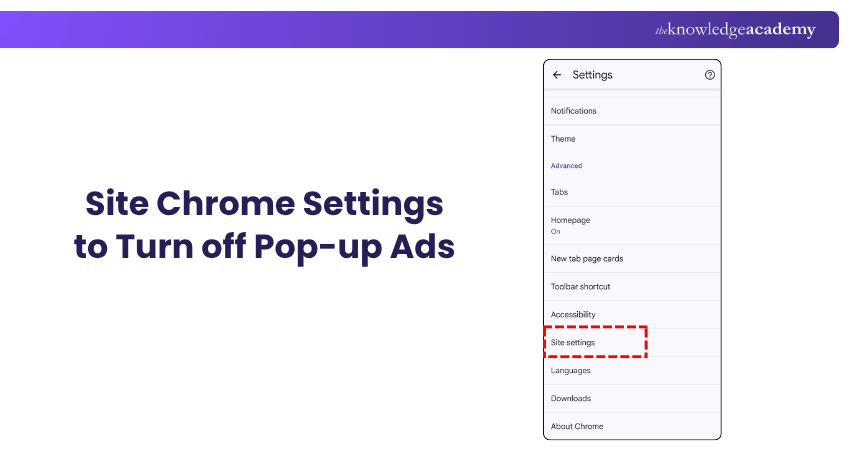
c) Site Settings: Scroll down and tap on 'Site settings.'
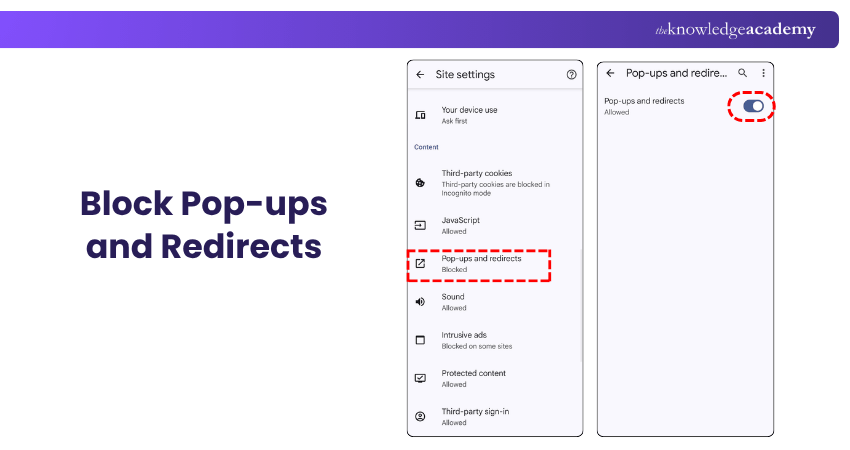
d) Pop-ups and Redirects: Tap on 'Pop-ups and redirects' and ensure it's set to 'Blocked.'
e) Ads: Go back to Site settings and review Intrusive ads. Chrome blocks ads on sites with intrusive ad experiences, while normal ads may still appear.
For Firefox:
a) Open Firefox: Launch the Firefox app.
b) Access Settings: Tap on the three dots in the top-right corner and select 'Settings.'
c) Enhanced Tracking Protection: You can set Enhanced Tracking Protection to Strict to block additional tracking content, including some ads that contain tracking code. Note that Strict mode can cause some websites to stop working correctly.
By adjusting these settings, you're telling your web browser to be more vigilant against pop-ups and intrusive ads.
4) Using a Third-party Pop-Up Blocker
If the built-in options aren't cutting it, there are reputable third-party ad-blocking apps that can reduce ads across supported browsers or apps. Some popular options include:
a) AdGuard: Blocks ads across apps and browsers.
b) Blokada: An open-source ad blocker.
c) AdBlock Plus: Known for browser-based ad blocking.
How to Use?
a) Install the App: Download your chosen app from a trusted source.
b) Set Up: Follow the on-screen instructions to configure the app. Some ad-blocking apps use Android's VPN interface to filter network traffic locally, while others use different filtering methods.
c) Customise: You can usually customise the level of protection and choose which apps to block ads in.
These tools add an extra layer of defense against intrusive ads and can enhance your overall experience.
Code your way to better mobile experiences with our Mobile App Development Course – Sign up now!
5) Detecting and Removing Problematic Apps
Sometimes, pop-up ads originate from apps installed on your phone. To identify and remove these apps:
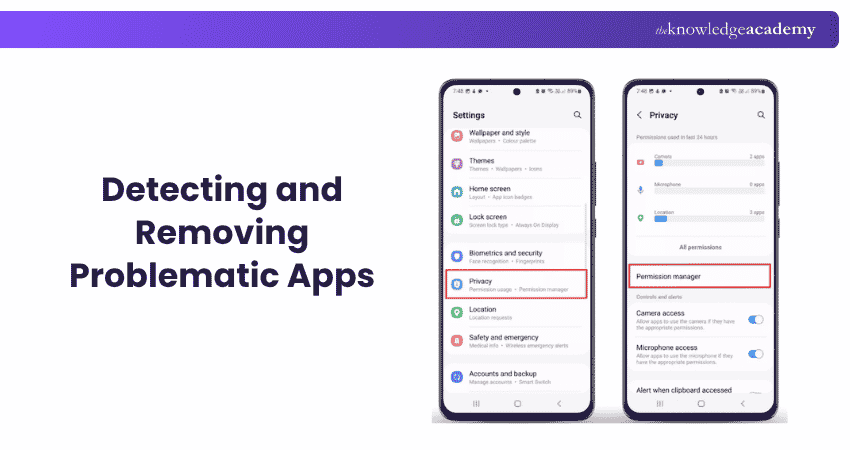
How to Do It?
a) Safe Mode: Boot your phone into safe mode to see if the pop-ups persist. If they don't, it's likely a Third-party app causing the issue.
b) Review Recent Apps: Think about any apps you've recently installed around the time the pop-ups started.
c) Check App Permissions: Go to 'Settings' > 'Apps' and review the permissions of suspicious apps. Review suspicious apps for permissions or special access that seem unnecessary, such as permission to display over other apps.
d) Uninstall Suspicious Apps: If an app seems fishy, uninstall it and see if the problem resolves.
By keeping an eye on your installed apps, you can nip potential ad issues in the bud.
Warning
Avoid tapping suspicious pop-ups claiming that your phone is infected, urgently needs an update or has won a prize. Close the page or app instead and use a trusted device or security settings to investigate the problem.
6) Block Pop-Up Ads and Pages in Chrome
Blocking pop-ups and intrusive pages in Chrome ensures a smoother browsing experience. Beyond basic settings, Chrome offers specific tools to fine-tune your ad-blocking preferences. Here are additional steps to strengthen your control:
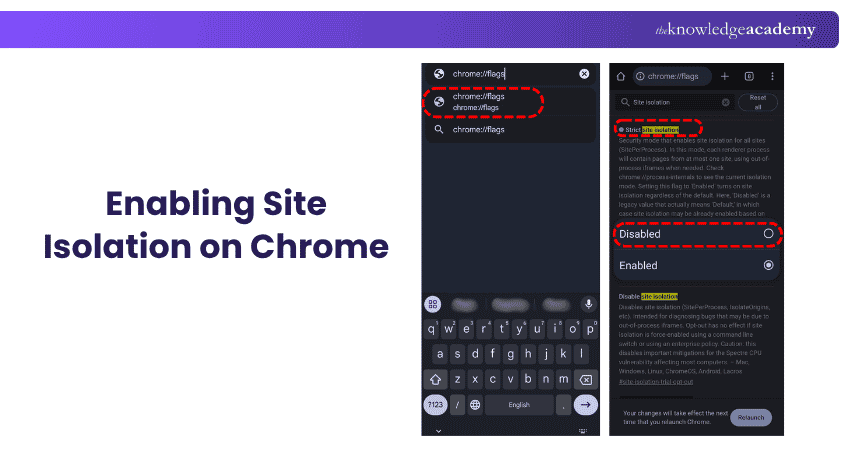
b) Use Chrome’s Ad Blocker: Chrome has a built-in ad blocker that restricts intrusive ads. Ensure it’s enabled under Settings > Site Settings > Ads. This prevents ads from sites that do not meet the Better Ads Standards.
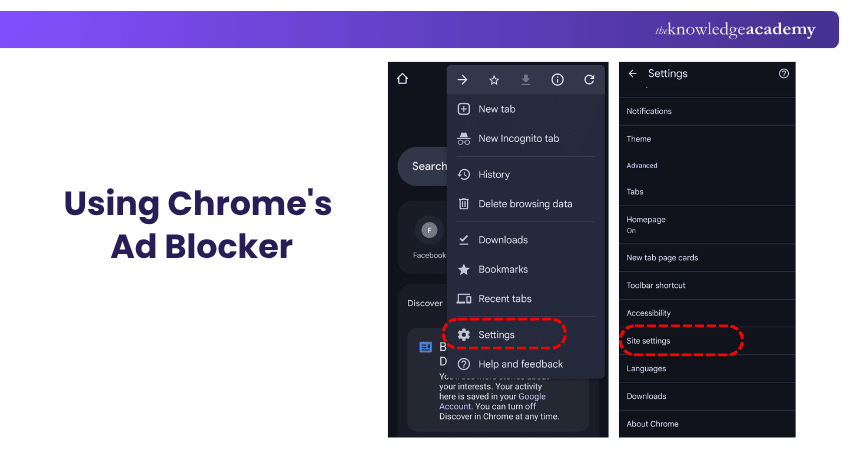
c) Manage Permissions: Visit Settings > Site Settings and check permissions like notifications, location, and redirects. Deny unnecessary permissions for websites known to cause pop-ups.
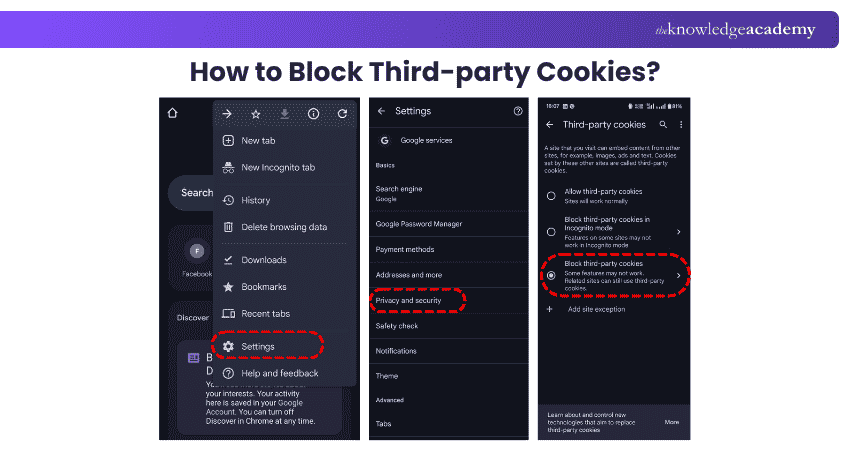
d) Block Third-party Cookies: Blocking third-party cookies can reduce some cross-site tracking, but it does not directly block pop-up ads.
e) Update Chrome Regularly: Ensure your browser is updated to the latest version. Updates often include improved security features to prevent pop-ups and protect against adware.
By combining these tools and settings, Chrome can effectively block intrusive pop-ups and unwanted pages, helping reduce unwanted interruptions while browsing on your Android phone.
7) Blocking Ads on the Home Screen
If ads appear over the home screen or other apps, a recently installed or suspicious app may be responsible.
a) Review Recent Apps: Uninstall any apps installed around the time the ads started appearing.
b) Check Widgets: Some apps install widgets that display ads. Remove any unfamiliar widgets from your home screen.
c) Disable Notifications: Go to 'Settings' > 'Apps,' select the suspicious app, and disable its notifications.
By taking these steps, you can reclaim your home screen from unwanted ads.
8) Deactivating Wallpaper Services on the Lock Screen
Some Android devices include lock-screen wallpaper, content or recommendation services that may display promotional content. Here’s how to disable them:
a) Open Settings: Go to your phone's 'Settings.'
b) Lock Screen: Tap on 'Lock Screen' or 'Display.'
c) Wallpaper Services: Look for 'Wallpaper Services' or a similar option.
d) Disable or Change: If a wallpaper service is enabled, disable it or switch to a static wallpaper.
This prevents ads from appearing on your lock screen, giving you a cleaner look.
Tips for Minimising Ads and Pop-ups on Android
Stopping existing pop-ups is useful, but good app and browsing habits can also reduce the likelihood of them returning. Consider these tips:
1) Be Careful When Installing Apps
Download apps only from trusted sources and review their ratings, permissions and developer information before installing them. Pay particular attention to applications requesting permissions that seem unrelated to their main purpose. Regularly review installed apps and remove those you no longer use or recognise.
2) Keep Apps and Browsers Updated
Keep Android, your browser and installed apps updated. Updates can include security fixes and improvements that help address known vulnerabilities or unwanted behaviour.
3) Review Permissions Regularly
Check app and website permissions periodically. Remove notification, location or special access permissions when they are no longer required.
4) Use Ad-free or Premium Versions Where Appropriate
Some free applications use advertising as part of their business model. If an app offers a legitimate paid or ad-free version and you use it regularly, upgrading may remove advertising within that app. However, paying for an app should not be treated as a security measure. Premium subscriptions can be a good way to avoid advertising in supported apps.
Pop-up Prevention Checklist
□ Install apps from trusted sources□ Check reviews before installing unfamiliar apps□ Review permissions before granting them□ Remove apps you no longer recognise or use□ Keep android, apps and browsers updated□ Block unnecessary website notifications□ Review apps allowed to display over other apps□ Keep browser pop-up and redirect controls enabled□ Avoid interacting with suspicious pop-ups□ Check recently installed apps when new ads suddenly appear
Go from browsing the web to building it. Sign up for our App & Web Development Training now!

The Knowledge Academy develops accessible learning content across Project Management, IT, Cybersecurity, Data Science, Business Analysis, HR, Accounting and Finance, Leadership and Health and Safety. Its resources combine subject research with clear explanations to help professionals build practical knowledge across a wide range of disciplines.
View Detail

 If you wish to make any changes to your course, please


