




We may not have the course you’re looking for. If you enquire or give us a call on + 1-866 272 8822 and speak to our training experts, we may still be able to help with your training requirements.
How to Show Critical Path in Microsoft Project?
ByThe Knowledge AcademyLast updated on: 21 August 2026
The Microsoft Project Critical Path is the sequence of tasks that determines the project’s finish date. A delay to a critical task can delay the project unless the lost time is recovered elsewhere.

Your project is running behind, but with dozens of interconnected tasks, how do you know which ones are actually delaying the finish date? Rather than scanning through the entire schedule, Microsoft Project's Critical Path feature helps you pinpoint the exact sequence of tasks that control your project's completion date.
In this blog, we'll walk you through how to show the critical path in Microsoft Project, step by step, along with tips to customise the view and get the most out of it.
Key Takeaways:
a) The Critical Path identifies the tasks that control the project's finish date.b) Microsoft Project can highlight critical tasks directly in the Gantt Chart.c) Critical tasks typically have zero slack, while low-slack tasks may become critical as the schedule changes.d) Multiple Critical Paths help monitor independent task sequences, phases, or subprojects, while one overall path still controls the project's finish date.e) Regularly reviewing dependencies, resources and slack helps identify schedule risks and changes to the Critical Path.
What Is the Critical Path in Microsoft Project?
The Critical Path is the sequence of linked tasks that directly affect the project's finish date. If a critical task is delayed, the project's finish date can also be delayed. Critical tasks generally have no total slack, meaning there is no available buffer before a delay affects the project's finish date.
Microsoft Project can highlight critical tasks in the Gantt Chart, helping Project Managers see which task sequence currently controls the project's finish date. This feature is simple but very powerful, making it easier for teams to focus on the tasks that matter most for meeting deadlines.

How to Show the Critical Path in Microsoft Project?
The Gantt Chart is the most common view for displaying the Critical Path in Microsoft Project.
Show Critical Tasks in the Gantt Chart
Follow these steps:
1. Select View > Gantt Chart
2. Select the Format tab under Gantt Chart Tools
3. Select the Critical Tasks checkbox
Microsoft Project will highlight the tasks on the Critical Path in red. You can then review the highlighted tasks and their dependencies to see which sequence is controlling the project's finish date.
View Critical Tasks in Other Task Views
You can also highlight critical tasks in other task views:
1. Select the View tab.
2. Choose a task view from the Task Usage group.
3. Select Critical from the Highlight list.
4. To display only critical tasks, open the Filter list and select Critical.
In a Network Diagram, tasks on the Critical Path are automatically displayed in red, so separate highlighting is not required.
|
Do This
|
What Happens
|
|
View → Gantt Chart
|
Opens the Gantt Chart
|
|
Format → Critical Tasks
|
Highlights critical tasks
|
|
Review the red tasks
|
Shows the sequence affecting the finish date
|
From blank timeline to confident planner, unlock the power of Microsoft Project 2019. Sign up for our Introduction to Microsoft Project 2019: Getting Started M55288 Course now!
How to Show Multiple Critical Paths in Microsoft Project?
Microsoft Project can calculate critical paths for separate task networks. This can help Project Managers monitor independent workstreams, subprojects, or task sequences that may have their own schedule risks.
Steps to Show Multiple Critical Paths
1. Select File > Options.
2. Select Advanced.
3. Scroll down to the calculation options for the project.
4. Select Calculate multiple critical paths.
5. Select OK.
6. Open View > Gantt Chart.
7. On the Format tab, select Critical Tasks.
Project will then calculate and display additional Critical Paths based on independent networks or task sequences.
When Should You Use Multiple Critical Paths?
This option can be useful when you need to:
1.Track critical tasks within individual subprojects
2. Monitor separate task networks
3. Identify schedule risks across independent workstreams
Important: Multiple calculated Critical Paths do not necessarily mean that every path controls the overall project finish date. Their impact depends on the structure and dependencies within the project schedule.
How to View the Critical Path in a Master Project
When managing a master project, entire subprojects can appear on the Critical Path. To check this, set Project to treat subprojects as summary tasks:
1. Go to File > Options
2. Select Schedule and scroll to the Calculation options for this project section
3. Ensure the "Inserted projects are calculated as summary tasks" option is selected
How to Manage the Critical Path in Microsoft Project?
To manage the Critical Path in Microsoft Project, follow these steps.
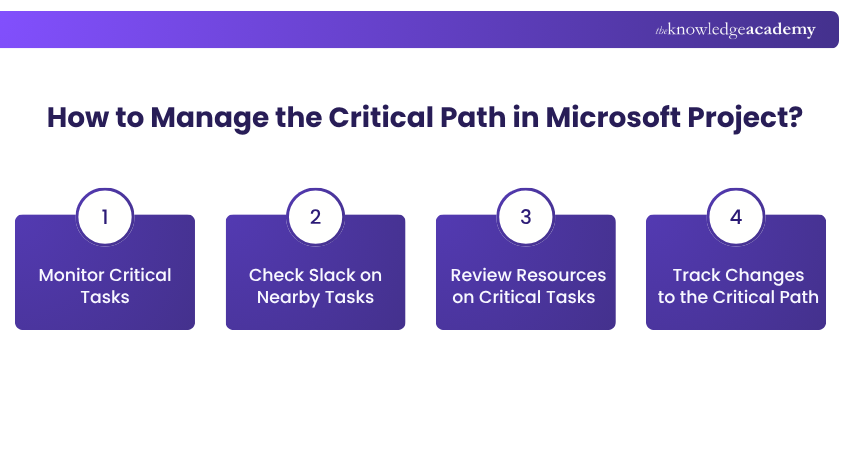
1. Monitor Critical Tasks
Keep a close watch on tasks currently on the Critical Path. A delay to a critical task can delay the project's finish date, so review their progress, durations and dependencies regularly.
2. Check Slack on Nearby Tasks
Don't focus only on tasks that are already critical. Review tasks with limited slack as well. If their available slack is used up, they can become critical and start affecting the project finish date.
3. Review Resources on Critical Tasks
Check the resources assigned to critical tasks and watch for availability or workload issues. A resource becoming unavailable or a critical task taking longer than planned can affect the project's scheduled finish date.
4. Track Changes to the Critical Path
The Critical Path is not necessarily fixed for the entire project. As tasks are completed or delays occur elsewhere in the schedule, another sequence of tasks can become critical. Regularly reviewing the path helps you identify these changes early.
Need to Shorten the Project?
If the project needs to finish earlier, focus on tasks currently controlling the finish date.
Depending on the task and schedule, options may include shortening task durations, reviewing dependencies, changing scheduling assumptions, or adjusting resources where appropriate.
Remember that shortening the current Critical Path may cause another sequence of tasks to become the new Critical Path.
Pro Tip
Recheck the Critical Path whenever you change task durations, dependencies, constraints, or resources. The sequence controlling the project finish date can change as the schedule changes
Master the art of turning complex plans into crystal-clear schedules. Sign up for our Microsoft Project Course now!
How to Change the Critical Task Slack Threshold?
Microsoft Project allows you to adjust the amount of slack a task can have before it is considered critical. Increasing this threshold can help you identify near-critical tasks that may soon affect the project schedule. To change the setting:
1. Select File > Options
2. Select Advanced
3. Scroll to Calculation options for this project
4. Find Tasks are critical if slack is less than or equal to
5. Enter the required number of days.
For example, increasing the threshold can allow tasks with a small amount of slack to be treated as critical for monitoring purposes.
What Should I Do Now?
Check dependencies → Review slack → Check resources → Monitor changes
When is a Task Considered Critical in MS Project?
A task is typically considered critical when it has little or no scheduling flexibility before it can affect the project finish date. In Microsoft Project, whether a task appears as critical can also depend on the project's scheduling settings, constraints, deadlines, and the configured slack threshold.
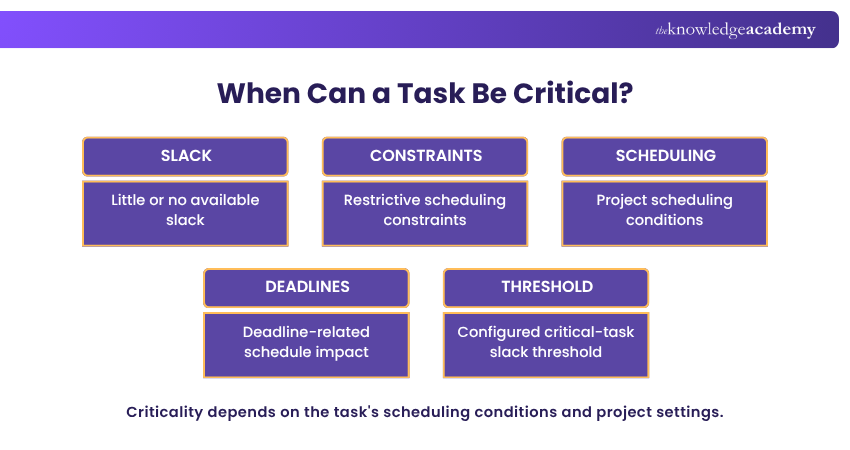
Common factors that can affect whether a task is treated as critical include:
1. Little or no total slack
2. Scheduling constraints that restrict when the task can occur
3. The direction from which the project is scheduled
4. Deadlines and other schedule conditions
5. The critical-task slack threshold configured in Microsoft Project
Quick Challenge: The 2-Day Delay
Your Testing task is on the Critical Path. It is running 2 days late.
What happens next?[A] Nothing[B] The project finish date may be delayed[C] Another task automatically absorbs the delay
Reveal Answer →B. Because the task is on the Critical Path, its delay can affect the project's calculated finish date.
Conclusion
Showing the Critical Path in Microsoft Project helps you identify the sequence of tasks currently controlling the project's finish date. It allows you to focus attention on schedule-sensitive tasks and identify potential risks before they affect delivery. Remember to review the Critical Path regularly. Changes to task durations, dependencies, constraints, slack, or resources can cause a different sequence of tasks to become critical.
Dig deeper into advanced scheduling, Resource Management and reporting with our Microsoft Project 2019: Digging Deeper 55289A Course - Sign up now!

The Knowledge Academy develops accessible learning content across Project Management, IT, Cybersecurity, Data Science, Business Analysis, HR, Accounting and Finance, Leadership and Health and Safety. Its resources combine subject research with clear explanations to help professionals build practical knowledge across a wide range of disciplines.
View Detail

 If you wish to make any changes to your course, please


