


 Top Rated Course

We may not have the course you’re looking for. If you enquire or give us a call on 01344203999 and speak to our training experts, we may still be able to help with your training requirements.
How to Remove Blank Rows in Excel: 5 Easy Methods
The Knowledge Academy 16 July 2026Wondering How to Remove blank rows in Excel? Say goodbye to cluttered spreadsheets by using simple tools like filters, Go To Special, and Power Query. These quick techniques help you clean up your data efficiently, making your sheets more organised and easier to work with. Master the process and keep your Excel files neat effortlessly!

Training Outcomes Within Your Budget!
We ensure quality, budget-alignment, and timely delivery by our expert instructors.
Table of Contents

Ever tried opening an Excel sheet only to find it filled with annoying blank rows? It’s like stumbling over potholes on a smooth road - frustrating and totally unnecessary! hese gaps mess up sorting, filtering, Formulas, and Functions in Excel, making your spreadsheet look messy and harder to work on. If you’re looking for a quick fix, learning How to Remove Blank Rows in Excel is essential to keeping your data clean and organised.
But don’t worry! If you’re wondering How to Remove Blank Rows in Excel, you’re in the right place. Whether you prefer a quick manual fix, a smart built-in tool, or even a little VBA wizardry, we’ve got five easy methods to clean up your Data in no time. Say goodbye to those pesky empty rows and hello to a neat, well-organised spreadsheet. Let’s dive in and fix this Excel chaos!
Table of Contents
1) How Do I Remove Blank Rows in Excel at Once?
2) How to Remove Blank Rows in Excel: 5 Easy Methods
3) How to Remove Empty Rows?
4) How to Remove Blank Cells in Excel with a Formula?
5) How to Remove Blank Rows in Excel Using Filter?
6) Conclusion
How Do I Remove Blank Rows in Excel at Once?
To remove all blank rows in Excel at once, select your dataset, go to Home > Find & Select > Go To Special, choose Blanks, then press Ctrl + - and select Delete entire row. Alternatively, use Filters to isolate blank rows and delete them or run a VBA macro for automation.

How to Remove Blank Rows in Excel: 5 Easy Methods
There are several ways to get rid of empty rows in Excel, ranging from simple manual deletion to automated techniques. Below, we’ll explore five effective methods to clean up your spreadsheet quickly.
1) Remove Individual Blank Rows
If your dataset contains just a few blank rows, the easiest method is to delete them manually. Here’s how:
1) Open your Excel worksheet.
2) Select the blank row(s) by clicking on the row number on the left-hand side.
3) Right-click and choose Delete from the context menu.
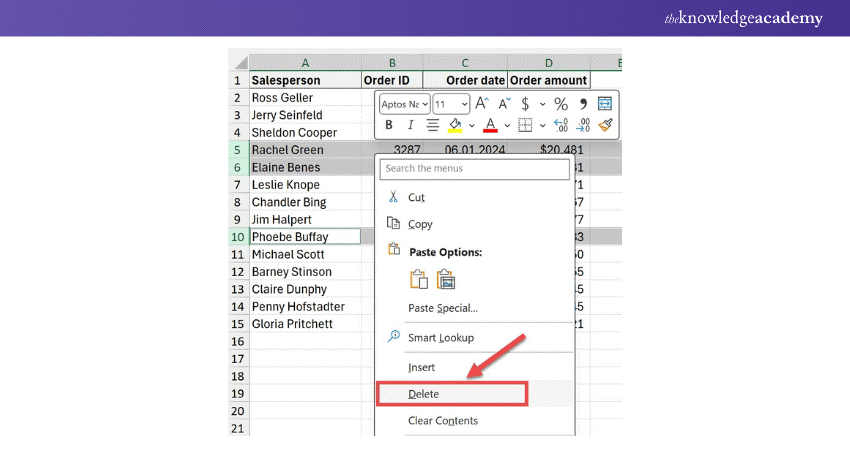
Alternatively, you can use the keyboard shortcut:
a) Select the blank row(s)
b) Press Ctrl + - (minus key)
c) Choose Shift cells up and click OK
This method is quick and effective for small datasets but can be time-consuming if you have multiple blank rows scattered throughout your worksheet.
2) Use Filter to Remove Blank Rows
For larger datasets, using the Filter function is a great way to isolate and remove blank rows efficiently. Follow these steps:
1) Select the entire dataset, including column headers
2) Click on the Data tab and choose Filter
3) Click the drop-down arrow in any column that contains blank rows
4) Untick all values except Blanks to display only the empty rows
5) Select all the visible blank rows, right-click, and choose Delete row
6) Remove the filter by clicking the Filter button again

This method ensures that only completely blank rows are removed, without affecting partially empty rows that contain some data.
3) Find & Select Tool
Excel’s Find & Select tool is another powerful way to remove blank rows quickly. Here’s how:
1) Select the entire worksheet or the specific range where you want to remove blank rows.
2) Go to the Home tab and click Find & Select (under the Editing group)
3) Choose Go To Special from the drop-down menu
4) In the Go To Special window, select Blanks and click OK
5) Excel will highlight all blank cells in the selected range
6) Press Ctrl + - (minus key) and choose Delete entire row
7) Click OK, and all blank rows will be deleted

This method is particularly useful when dealing with large datasets where manually selecting each blank row would be too slow.
Transform your accounting workflow with our Excel For Accounting Course - Sign Up Now!
4) Apply the COUNTA Function
Sometimes, rows may appear blank but contain invisible data such as spaces or formulas. The COUNTA function helps identify truly empty rows before removing them.
How to use COUNTA to find blank rows:
1) Insert a helper column next to your dataset
2) In the first cell of the new column, enter the formula:

(Adjust the range based on the number of columns in your dataset.)
3) Drag the formula down to apply it to all rows
4) Any row with a 0 value in the helper column is completely blank
5) Filter the helper column to display only rows with 0
6) Delete the filtered blank rows
7) Remove the helper column after cleaning up your data

This method is particularly useful for datasets with hidden characters or formulas that make rows appear blank.
5) Automate with an Excel VBA Macro
If you regularly work with large datasets and need a one-click solution, a VBA macro can automate the removal of blank rows. Here’s a simple VBA script to do this:
1) Press Alt + F11 to open the VBA Editor
2) Click Insert > Module

3) Copy and paste the following VBA code:
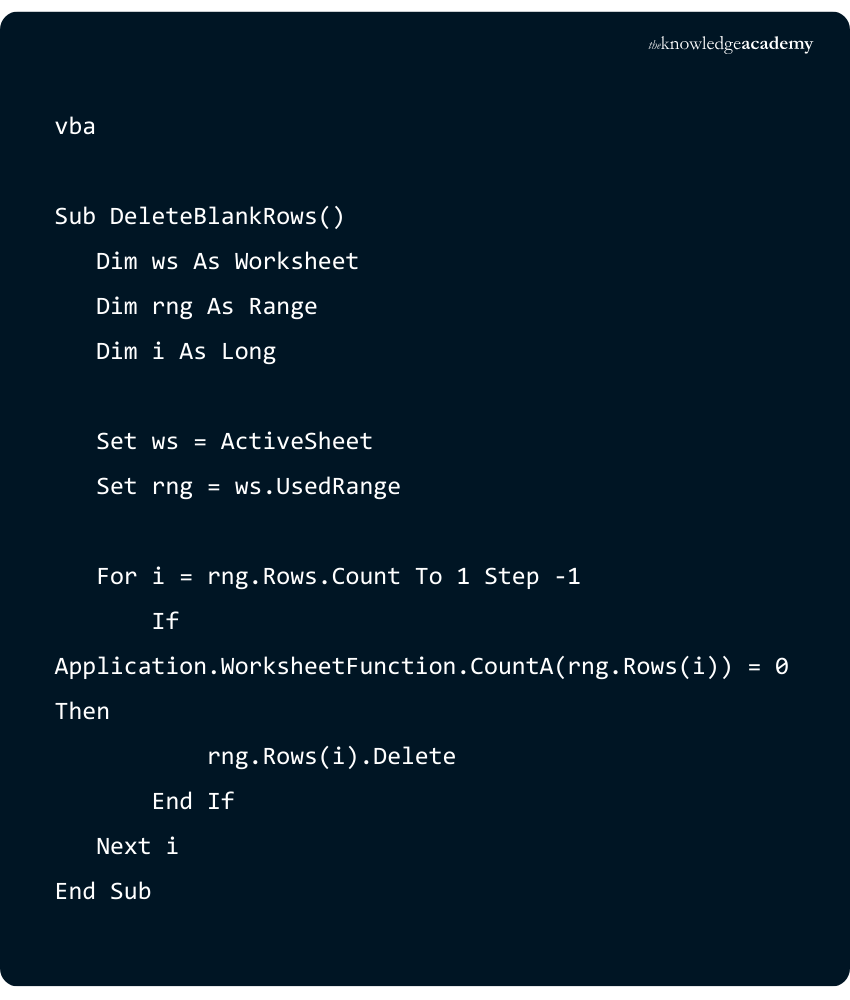
4) Click Run or press F5 to execute the macro.
This script scans through the worksheet, detects empty rows, and deletes them automatically. If you work with large datasets frequently, saving this macro can save you a lot of time.
Enhance your Excel skills to new heights with our expert-led Microsoft Excel Course - register now and start excelling!
How to Remove Empty Rows?
The terms blank rows and empty rows are often used interchangeably, but there’s a slight difference:
1) Blank rows contain no visible data but may still have formatting, spaces, or formulas
2) Empty rows are entirely unused rows with no data or formatting applied
To remove completely empty rows at the bottom of your spreadsheet:
a) Select all the unused rows by clicking the first empty row, then pressing Ctrl + Shift + ↓ (down arrow).
b) Right-click and choose Delete.
c) Save and close your workbook to refresh the data range.
This ensures that your dataset remains compact and doesn’t include unnecessary empty rows that could interfere with formatting or analysis.
How to Remove Blank Cells in Excel with a Formula?
To Remove Blank Cells in Excel with a Formula:
1) Select the range of cells
2) Press F5 > Special… > Blanks > OK
3) Right-click a blank cell, choose Delete
4) Select Shift cells up and click OK
How to Remove Blank Rows in Excel Using Filter?
To remove blank rows using a filter, select your dataset, go to Data > Filter, click the drop-down in any column, uncheck all values except Blanks, then select the visible blank rows, right-click, and choose Delete row. Finally, remove the filter to restore your cleaned dataset.
Conclusion
Dealing with blank rows in Excel doesn’t have to be a headache. Whether you prefer a quick manual fix, using filters, the Find & Select tool, formulas, or even automating the process with VBA, you now have multiple ways to clean up your spreadsheet effortlessly. Knowing How to Remove Blank Rows in Excel helps keep your data organised, making sorting, filtering, and analysis much smoother
Advance your business insights – sign up for the Business Analytics With Excel Course and become an analytics expert!
Frequently Asked Questions
How Do I Remove Blank Cells in Excel?

To remove blank cells, select your dataset, go to Home > Find & Select > Go To Special, choose Blanks, then right-click and select Delete. Choose Shift cells up or Shift cells left to adjust the remaining data. If you want to remove entire blank rows instead, use the Filter or Find & Select tools.
How Do I Delete 5000 Rows in Excel?
To delete 5000 rows quickly, click the first-row number, then hold Shift and click the 5000th row. Right-click and select Delete. You can also use Ctrl + Shift + ↓ to select a range, then press Ctrl + -. For an even faster method, use VBA with a script like Rows ("2:5001"). Delete to automate deletion in large datasets.

The Knowledge Academy


Global Training Provider
The Knowledge Academy is a world-leading provider of professional training courses, offering globally recognised qualifications across a wide range of subjects. With expert trainers, up-to-date course material, and flexible learning options, we aim to empower professionals and organisations to achieve their goals through continuous learning.


 If you wish to make any changes to your course, please


