




We may not have the course you’re looking for. If you enquire or give us a call on 01344203999 and speak to our training experts, we may still be able to help with your training requirements.
How to Fix the ERR_CONNECTION_TIMED_OUT Error
ByVishnu SankarLast updated on: 02 October 2026
Want to learn how to avoid the “ERR_CONNECTION_TIMED_OUT” error message? It occurs when your device can't connect to a server in time, often due to network or server issues. This blog will guide you through ways to fix the ERR_CONNECTION_TIMED_OUT error, from checking your network and DNS settings to reviewing proxy, VPN and firewall configurations.
In This Blog
1. ERR_CONNECTION_TIMED_OUT appears when a browser cannot connect to a website within the expected time, often because of network or server-side issues.2. Checking the Internet connection, restarting the router and testing another network are useful first troubleshooting steps.3. Proxy, VPN, firewall and antivirus settings can sometimes interfere with website connectivity and may need to be reviewed.4. DNS-related actions, such as changing DNS servers or flushing the DNS cache, can help resolve some connection problems.5. For website owners, recent scripts, PHP resource limits, WordPress plugins and themes should also be checked when the issue originates on the server side.
Imagine sitting down to explore a new website only to get hit with the dreaded “ERR_CONNECTION_TIMED_OUT” error message! This unexpected digital roadblock can be frustrating, especially when you're in the middle of urgent online tasks. But don't let it slow you down, as this blog brings you an assorted list of the best solutions on how to fix Connection Timed Out issue. Read on to learn how to troubleshoot this error and restore normal website access.
What is the “ERR_CONNECTION_TIMED_OUT” Error?
ERR_CONNECTION_TIMED_OUT means the browser did not establish a connection with the website within the expected time. The cause may be on the user's device or network, or on the website/server side.
When a website does not respond within the browser’s connection timeout period, the connection attempt may be terminated and an error displayed. Following this, an “ERR_CONNECTION_TIMED_OUT” error will be returned, indicating a communication problem. You might see this in Google Chrome: "This site can’t be reached. Domain.com took too long to respond.”

Common Causes of the “ERR_CONNECTION_TIMED_OUT” Error
As a user, you play a crucial role in troubleshooting the connection timed-out error. Here are some potential causes:
1) DNS or Hostname Resolution Problems: An incorrect hostname or URL can prevent the browser from reaching the intended website, although it may produce a different error rather than ERR_CONNECTION_TIMED_OUT.
2) Slow Internet Connection: This is one possible cause of this error. If the system lacks a fast and reliable Internet connection, the server might have accepted the request but took too long to respond due to slow Internet usage.
3) Server Delay or Error: The problem doesn’t need to be at the user's end only; it is also possible that there is a server delay and that a data timeout occurred before the server could release the data.
4) Firewall Settings: Firewall settings may block browser traffic, specific applications or network connections, which can interfere with access to a website.
Become an expert in monitoring mail servers, FTP, and web servers through our Nagios System and Network Monitoring Course - Sign up now!
How to Fix the “ERR_CONNECTION_TIMED_OUT” Error?
If you see this error on your website, you must know where to begin troubleshooting. But without the necessary context, knowing where to start can be frustrating and overwhelming. Let’s look at some solutions for the “ERR_CONNECTION_TIMED_OUT” error:
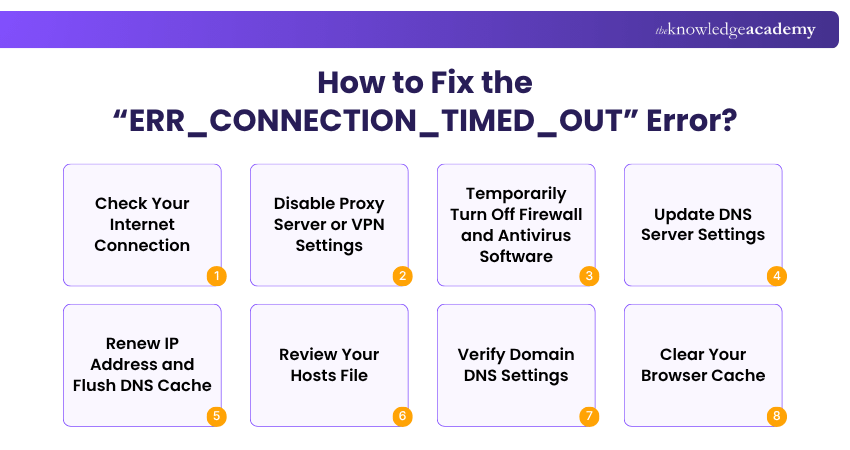
1) Check Your Internet Connection
To resolve the “ERR_CONNECTION_TIMED_OUT” error, a browser usually recommends checking your internet connection first. Poor connectivity may make it difficult for your browser to establish or maintain a connection with the website. Firefox, Google Chrome, and Microsoft Edge advise checking your network connection. While this may seem obvious, they all recommend doing so because it is one of the most common causes of errors.
Here are a few recommendations:
a) Restarting your router at home or work takes only a few minutes and solves far more problems than most people would like to admit. Please disconnect the power supply and wait 30 seconds before plugging it back in to completely power cycle it.
b) It's common to find that your Wi-Fi connection could be better or faster, especially in crowded public hotspots like coffee shops or airports. If this is the case, it could contribute to the ‘err conn timed out’ error.
If the problems persist, try restarting any relevant devices or switching to a different network if you can access them.
2) Disable Proxy Server or VPN Settings
A Proxy Server behaves like a gateway between your computer and the website you’re visiting. Its functions include:
a) Controlling which sites can be accessed.
b) Protecting the user’s IP address.
c) Caching site data to improve page loading speed.
But proxy servers may unintentionally block the website, leading to the “ERR_CONNECTION_TIMED_OUT” error. Try out the following options:
a) Reset your proxy settings to check if these servers are the source of the problem. On Windows 10 or 11, open Settings → Network & internet → Proxy, then review the automatic, script-based or manual proxy settings.
b) Open the Connections tab, then the LAN settings in the Internet Properties window and untick all the proxy settings.
c) On macOS, open System Settings → Network → select the active network service → Details → Proxies, then review the configured proxy settings.
d) Reload the page to verify if the error has been resolved. If it has, and you require using a proxy server for day-to-day tasks, try reconfiguring the settings or switching to a different provider.
e) VPN service users may also encounter the " ERR_CONNECTION_TIMED_OUT " error. If you use a VPN, temporarily disconnect it and reload the website to check whether the VPN connection is contributing to the timeout.
Want to learn how to configure network protocols like a pro? Sign up for our comprehensive VPN Training now.
3) Temporarily Turn Off Firewall and Antivirus Software
Firewall and antivirus software can sometimes block legitimate network connections or websites. Check whether either is preventing access to the affected site and review the relevant settings or rules.
If the website is known to be safe and is being blocked incorrectly, add an appropriate exception or allow rule rather than permanently disabling your security protection.
4) Update DNS Server Settings
Changing your DNS servers is another option. Your Internet Service Provider (ISP) automatically assigns DNS servers by default. However, you could try temporarily switching to a public DNS server, such as Cloudflare or Google.
Some people use Google’s public DNS (8.8.8.8 and 8.8.4.4) because it's often more reliable. Cloudflare also provides free, secure, and superfast DNS (1.0.0.1 and 1.1.1.1).
If you want to use Google, replace the DNS server addresses with Google’s. If you’re using a free DNS server and encountering issues, consider reverting to your ISP’s DNS servers.
Changing DNS servers can be used as a troubleshooting step. If the issue continues, you can revert to your previous DNS configuration. This has proven especially true in connection with a Wi-Fi hotspot in an airport or coffee shop.
5) Renew IP Address and Flush DNS Cache
First, clear the DNS cache your computer has saved to flush DNS. The DNS cache keeps track of the IP addresses of the websites you visit, which saves the computer from having to translate the domain name to the IP address each time you visit the website.
Like browser data, the DNS cache can become outdated, and outdated IP addresses can cause problems when accessing the site. Users of Windows 10 can flush DNS by using the Command Prompt. Try the following steps:
a) Press the Windows logo and R keys together to access the Run command.
b) Type “cmd” in the dialogue box, press OK and enter the following into the Command Prompt window:

In case of success, it'll display a success message.
c) Add the lines shown below to troubleshoot the network and renew the IP address. Each time you add a new command, press Enter:

Restart your computer and go to the browser to check if the commands were successful.
If you are using macOS, open the Terminal application on macOS and type the following command:

6) Review Your Hosts File
Every computer has a local hosts file containing manual DNS entries associated with specific IP addresses. The Hosts file can be manually modified to map hostnames to specific IP addresses, often for testing, development or troubleshooting. There are numerous ways this File could have been changed or edited, which is why it’s always a good idea to double-check that the website you’re trying to access isn’t listed.
If you are using Windows, the steps listed below will come in handy:
a) Launch your text editor as an administrator.
b) Go to the Start menu, look for the text editor, right-click on it, and choose “Run as administrator.”
c) Navigate to File -> Open in the top-left menu and enter the path below into the File name bar.

d) Choose the hosts file.
e) Review the Hosts file for an entry that specifically references the affected domain. If an incorrect custom mapping exists, back up the file before removing or correcting only that entry.
macOS clients can open the Terminal, paste the following line and hit Enter:

Review the file for an incorrect entry associated with the affected domain and modify only that entry after creating a backup.
7) Verify Domain DNS Settings
You should also ensure that your domain’s DNS is correctly pointed to your hosting provider. If you recently migrated, verify that the domain's DNS records point to the correct hosting server and allow time for cached records to expire according to their TTL values.
Flushing the local DNS cache may help if your device is using outdated DNS information. However, if the DNS records were recently changed, allow time for cached records across DNS resolvers to expire.
8) Clear Your Browser Cache
Web browsers store cached images, files and other site data to help previously visited pages load more efficiently. Occasionally, outdated cached data can contribute to website loading problems.
Before clearing the cache, try opening the affected website in Incognito mode or another browser. If it works there, stored browser data may be contributing to the problem.
Using Google Chrome as an example:
a) Open Chrome and select More → Delete browsing data.
b) Choose an appropriate time range and select “Cached images and files”. If necessary, you can also clear relevant cookies or site data, but review the selected categories before deleting them.
c) Select Delete data, then reload the affected website to check whether the error has been resolved.

The subsequent screen will provide you with the same options as previously described.
Learn to configure and manage DNS servers with confidence. Register for our BIND DNS Administration Training now.
Fixing “ERR_CONNECTION_TIMED_OUT” at the Website and Server Level
If the problem occurs on your website, the following section will outline how to fix the “ERR_CONNECTION_TIMED_OUT” error:
1) Disable Recently Added Scripts
If the error appears after you modify website code or add a new script, the recent change may be contributing to the problem. Misconfigured or resource-intensive code can slow the website or cause requests to time out. Back up the site, then temporarily roll back the recent change to check whether access is restored.
2) Review Maximum Execution Time Settings
Maximum execution time is the total duration a PHP script can run on a website. Maximum execution time defines how long a PHP script is allowed to run before PHP terminates it. The default max_execution_time value is commonly 30 seconds, although hosting providers and server configurations may use different limits.
If a script exceeds this limit, it may terminate before completing the request and contribute to server-side errors or slow responses. Web servers may also have separate timeout settings.
3) Increase the PHP Memory Limit
Some PHP processes may exceed the configured memory limit, causing the request or application process to fail. As with the maximum execution time discussed above, the memory limit can be increased. But remember to set the amount within the maximum available memory the hosting provider has allocated to your plan.
In case you don’t know your hosting plan’s maximum available memory, you may read the documentation or contact the company's support team. To expand the limit, open the .htaccess file in File Manager and insert the following line, using the amount of maximum available memory:

The code must be placed at the bottom, and if you use WordPress, it must be above “END WORDPRESS.” Finally, press Save & Close.
If the website needs a higher memory threshold, consider upgrading to a higher plan.
4) Deactivate WordPress Plugins Temporarily
WordPress plugins can sometimes cause conflicts, errors or excessive resource usage, particularly after an installation or update. To determine the plugin that's causing the issue, you can try disabling and reactivating each one individually.
Users who experience the “ERR_CONNECTION_TIMED_OUT” error may be unable to open the WordPress Admin Dashboard panel. So, they will need an FTP client to access their files and once the connection is successfully established, they can follow these steps:
a) Access the site using FTP/SFTP or your hosting provider's File Manager.
b) Open wp-content and rename the plugins folder, for example to plugins.hold. This temporarily disables all plugins.
c) Check whether the website and dashboard load correctly.
d) If the issue is resolved, rename the folder back to plugins and reactivate the plugins one at a time until the problem reappears.
e) Once you identify the problematic plugin, leave it disabled and update, replace or troubleshoot it before reactivating it.
5) Switch to Default WordPress Theme Temporarily
A theme may cause an “ERR_CONNECTION_TIMED_OUT” error if it has compatibility issues with a website. In this case, WordPress recommends reverting to a default theme to confirm if the theme is the issue. If the dashboard is unavailable, use your hosting tools or file access method to troubleshoot the active theme, following WordPress or your host's documentation.
ERR_CONNECTION_TIMED_OUT Troubleshooting Checklist
Use this quick checklist when diagnosing the error:
☐ Check whether other websites load normally☐ Check whether the affected website is down for other users☐ Verify your Internet and Wi-Fi connection☐ Restart the router and affected device☐ Test the website in another browser or network☐ Review VPN and proxy settings☐ Clear the browser cache☐ Flush the DNS cache☐ Check DNS settings and domain configuration☐ Review firewall or antivirus rules without permanently disabling protection☐ Check the hosts file for entries affecting the specific domain☐ For website owners, review recent scripts or configuration changes☐ Check PHP/server logs, resource limits, plugins and themes if relevant

Vishnu Sankar is a Senior Content Writer with 5+ years of experience across content development, software development, web development and system administration. His technical background and professional training support his expertise in IT and Tech, while his extensive research and writing experience covers Project Management and Health and Safety.
View Detail

 If you wish to make any changes to your course, please


