




We may not have the course you’re looking for. If you enquire or give us a call on 01344203999 and speak to our training experts, we may still be able to help with your training requirements.
How to Create VBA Macros in Excel: A Step-by-Step Guide
ByThe Knowledge AcademyLast updated on: 02 October 2026
Learn how to create VBA macros in Excel by recording repetitive tasks or writing VBA code manually. Understand how to run, edit, save and manage macros safely for practical Excel automation.

Key Takeaways
1. VBA macros can streamline multi-step Excel processes, reducing manual effort and saving time.2. Use the Excel desktop application to create, edit and run VBA macros.3. The Visual Basic Editor is where you write, manage and test VBA code.4. Save workbooks containing macros as Excel macro-enabled workbook (.xlsm) files to preserve the VBA code.5. VBA macros can be run from the macro dialogue box, VBA Editor, buttons or keyboard shortcuts.
What if Excel could remember a task exactly as you performed it and repeat it whenever you asked?
That is one of the simplest ways to understand VBA macros. You can record a sequence of actions, turn those actions into VBA code, and run them again without manually repeating every step. As your skills grow, you can also write or edit the code yourself to create more flexible automation.
With these capabilities, everyday Excel processes can become faster, consistent and easier to manage. So, let’s begin by understanding what VBA macros are and how they work in Excel.
What is VBA in Excel?
Visual Basic for Applications (VBA) is a programming language built into Microsoft Excel that allows users to automate tasks and extend Excel’s functionality. It is commonly used to create and run macros, which are sets of instructions that perform repetitive actions automatically.
With VBA, users can automate tasks such as data entry, calculations, formatting and report generation. It can also be used to create custom functions, build interactive forms, process data and control other Microsoft Office applications.

What do You Need Before Creating a VBA Macro?
Before creating a VBA macro in Excel, you need to make sure that the required tools and settings are available. A basic understanding of Excel is also helpful, especially when working with worksheets, formulas and data.
1) Enable the Developer Tab
The Developer tab gives access to tools for creating and managing VBA macros in Excel. The steps to enable it differ slightly between Windows and Mac:
a) Windows: Go to File > Options > Customise Ribbon, select Developer under Main Tabs, and click OK.
b) Mac: Go to Excel > Preferences > Ribbon & Toolbar, select Developer under Main Tabs, and save the changes.
2) Save a Backup of Your Workbook
Create a backup before testing macros, especially if they modify or delete data. This protects your original workbook if the macro produces unexpected results.
3) Use the Excel Desktop Application
Use the desktop version of Excel to create, edit and run VBA macros. Excel for the web can open and edit workbooks containing macros, but it cannot create, run or edit VBA macros.
4) Familiarise Yourself with the Visual Basic Editor
The Visual Basic Editor (VBE) is the environment where you can write, edit and manage VBA code. You can open it from the Developer tab.
Quick Tip: Only enable macros from files and sources you trust. Macros can contain executable VBA code, so avoid changing security settings simply to run an unfamiliar macro.
How to Create a VBA Macro in Excel?
Creating a VBA macro in Excel involves opening the Visual Basic Editor, adding a module and writing the VBA instructions you want Excel to perform. Use the following steps to build a simple Excel macro:
Step 1: Open the Visual Basic Editor
To open the Visual Basic Editor, you need to first open the Excel workbook in which you want to create the macro. Follow these steps:
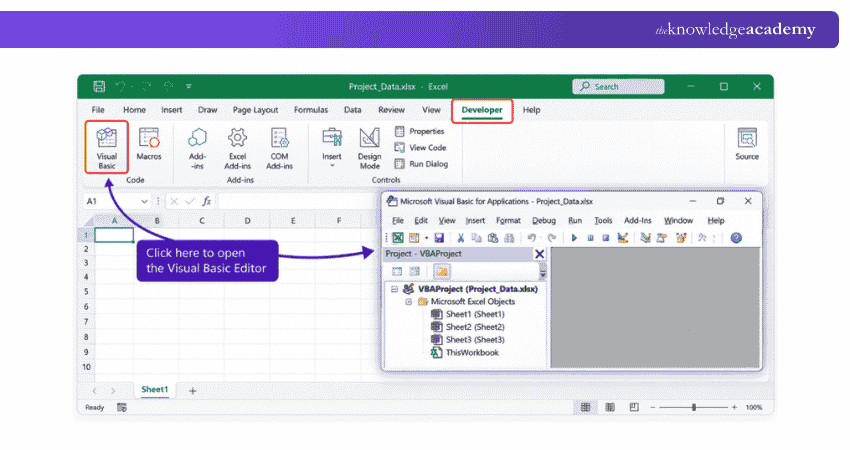
1) Open your Excel workbook
2) Select the Developer tab on the ribbon
3) Click Visual Basic in the Code group
4) The Visual Basic Editor will open in a separate window
You can also press Alt + F11 on Windows to open the VBE directly.
Step 2: Insert a New Module
A module is where you can write and store VBA procedures, including macros.
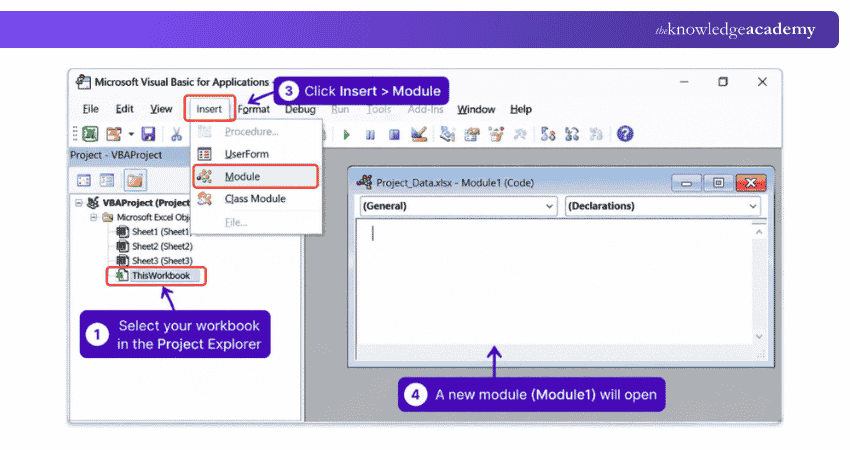
Once the Visual Basic Editor is open, follow these steps:
1) Locate your workbook in the Project Explorer.
2) Select the workbook.
3) Choose Insert > Module from the menu.
Excel will create a new module, usually named Module1, and display a blank code window.
Step 3: Write Your VBA Macro
Enter your VBA code inside the module. Most simple VBA macros begin with a Sub statement and finish with End Sub.
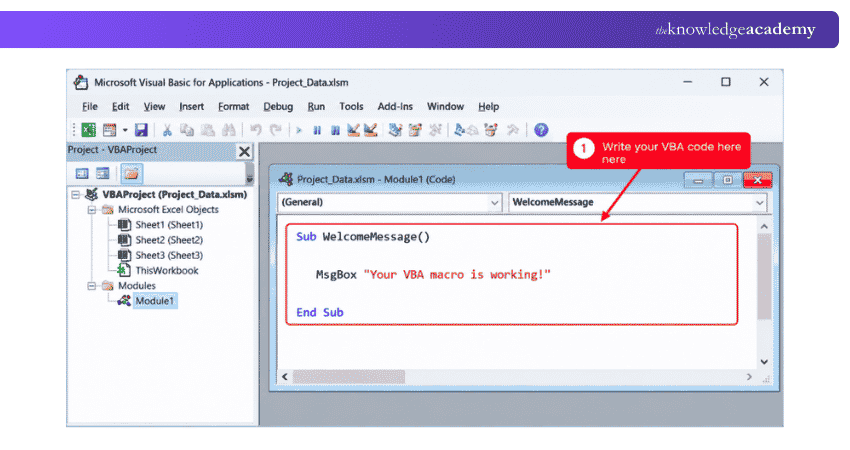
For Example:
Sub WelcomeMessage()
MsgBox "Your VBA macro is working!"
End Sub
In this example, WelcomeMessage is the name of the macro, while MsgBox instructs Excel to display a message box.
When naming macros, use clear names that explain their purpose. Macro names have to begin with a letter and cannot contain spaces.
Step 4: Run and Test the Macro
After writing the code, test it to confirm that it performs the intended action.
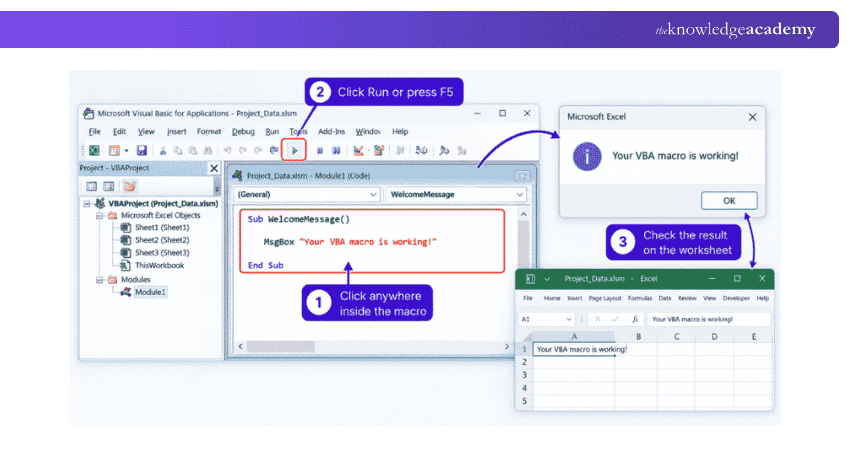
From the Visual Basic Editor, you can:
1) Click anywhere inside the macro.
2) Press F5 or select Run > Run Sub/UserForm.
3) Return to the worksheet and check the results.
For more complicated macros, test them on sample data before using them on an important workbook. This can help you identify incorrect ranges, unwanted changes, or coding errors.
Step 5: Save the Macro-enabled Workbook
A standard .xlsx workbook cannot store VBA macro code. To retain your macro, save the workbook in a macro-enabled format such as .xlsm.
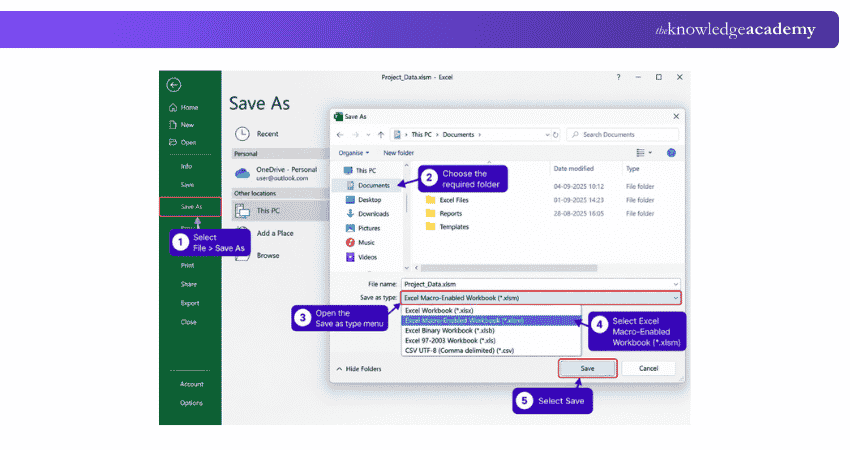
To save your workbook correctly, follow these steps:
1) Select File > Save As.
2) Choose the required folder.
3) Open the Save as type menu.
4) Select Excel Macro-Enabled Workbook (*.xlsm).
5) Select Save.
Your VBA macro will now be saved with the workbook and will remain available when you reopen the file.
Create clear project schedules using Excel with our Excel Training with Gantt Charts – Join now!
Example of a Simple VBA Macro in Excel
Suppose you regularly create reports and want to format the headings in cells A1:D1 automatically. Instead of applying the same formatting manually each time, you can use a simple VBA macro.
For example:

This macro performs three actions on cells A1:D1:
1) Makes the text bold.
2) Changes the font size to 12.
3) Centres the text horizontally.
When the macro runs, Excel applies all three formatting changes immediately. This simple example demonstrates how VBA can combine several repetitive actions into one reusable command.
How to Run a VBA Macro in Excel?
Once you have created and saved a VBA macro, Excel provides several ways to run it. The best method depends on how frequently you use the macro and how accessible you want it to be. Here are four common ways to run a VBA macro in Excel:
Run It from the Macro Dialogue Box
The macro dialogue box is one of the simplest ways to run an existing macro.
Follow these steps:
1) Open the workbook containing the macro.
2) Select the Developer tab.
3) Select Macros.
4) Choose the required macro from the list.
5) Select Run.
You can also press Alt + F8 on Windows to open the macro dialogue box directly.
Run It from the VBA Editor
You can also execute a macro directly while working in the Visual Basic Editor.
Follow these steps to do it:
1) Open the Visual Basic Editor.
2) Locate the module containing your macro.
3) Click anywhere inside the required Sub procedure.
4) Press F5.
Assign It to a Button
If you use a macro regularly, assigning it to a worksheet button can make it easier to access.
A typical process is as follows:
1) Open the Developer tab.
2) Select Insert.
3) Choose a suitable Button from the Form Controls.
4) Draw the button on the worksheet.
5.) Select your macro from the Assign Macro dialogue box.
6) Select OK.
You can then run the macro simply by clicking the button.
Use a Keyboard Shortcut
A keyboard shortcut can provide an even faster way to run a frequently used macro.
To assign one to an existing macro, follow these steps:
1) Select Developer > Macros.
2) Select the macro.
3) Choose Options.
4) Enter a letter in the Shortcut key field.
5) Select OK.
On Windows, lowercase letters typically create shortcuts such as Ctrl + letter, while uppercase letters use Ctrl + Shift + letter.
Tip: Choose your shortcut carefully, as assigning a macro to a commonly used key combination may override an existing Excel shortcut while the workbook is open.
Unlock powerful business insights using Excel with our Business Analytics with Excel Course - Join now!

The Knowledge Academy develops accessible learning content across Project Management, IT, Cybersecurity, Data Science, Business Analysis, HR, Accounting and Finance, Leadership and Health and Safety. Its resources combine subject research with clear explanations to help professionals build practical knowledge across a wide range of disciplines.
View Detail

 If you wish to make any changes to your course, please


