




We may not have the course you’re looking for. If you enquire or give us a call on 01344203999 and speak to our training experts, we may still be able to help with your training requirements.
How to Create Date Hierarchy in Power BI? A Complete Guide
ByThe Knowledge AcademyLast updated on: 13 October 2026
Interested in efficiently organising time-based data in Power BI? If yes, you can master the process for insightful data analysis with our step-by-step blog on creating a date hierarchy.

Read This First
1. Date hierarchies organise time-based data into Year, Quarter, Month and Day levels.2. Power BI can automatically generate date hierarchies for eligible date columns.3. Custom date hierarchies provide greater flexibility for fiscal calendars and advanced reporting.4. Drill-down features allow users to explore data across different time periods.5. Proper date tables, relationships and field sorting help maintain reporting accuracy.
Creating a date hierarchy in Power BI can revolutionise the way different professionals interpret and visualise time-based data. With its intuitive features and robust capabilities, Power BI offers a powerful toolkit for organising and analysing temporal data. You can efficiently navigate through time-based data, from high-level trends to granular details by creating a date hierarchy in Power BI.
In this comprehensive blog, we will explore the step-by-step process of creating a date hierarchy in Power BI. Whether you are new to Power BI or looking to enhance your skills, this blog is designed to be accessible and informative.
By the end, you'll have the knowledge and confidence to create a date hierarchy that suits your data analysis needs. Get ready to uncover hidden trends, visualise temporal patterns, and gain actionable insights with Power BI's date hierarchy feature.
What is Power BI Date Hierarchy?
In the realm of data analytics, Power BI's date hierarchy feature is a valuable tool for analysing time-based data. This functionality enables users to create a structured hierarchy of date-related fields. Those date-related fields include year, quarter, month, and day, facilitating smoother navigation and analysis of temporal data. For example, in a sales dataset, having a date hierarchy allows users to easily drill down from yearly trends to monthly or even daily insights.
This structured approach simplifies the process of understanding trends, patterns, and seasonality within the data. Power BI's date hierarchy feature provides a framework that enhances the visualisation and interpretation of time-based metrics. Furthermore, it offers a more intuitive and efficient approach to data analysis.

Steps to Create a Date Hierarchy in Power BI
Mastering the creation of a date hierarchy in Power BI opens doors to efficient and insightful data analysis. The following steps explain how to create a custom date hierarchy in Power BI Desktop:
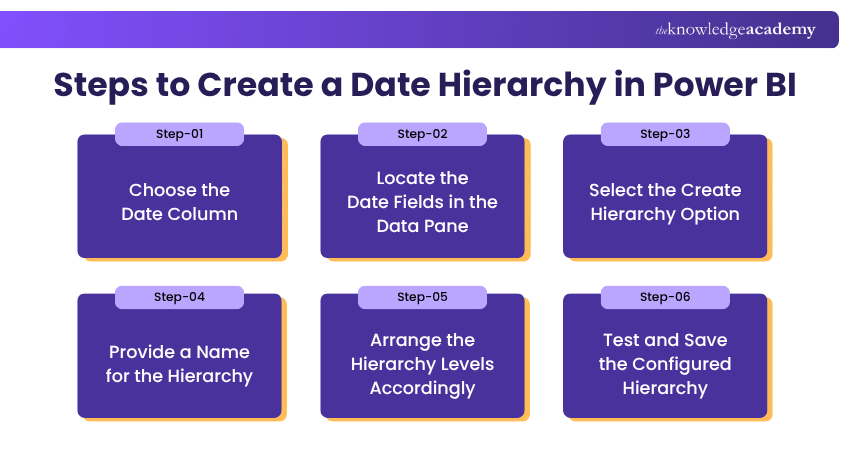
Step 1: Choose the Date Column
The first step in creating a date hierarchy in Power BI is selecting the appropriate date column within your dataset. This column typically contains the raw date data that you wish to structure into a hierarchy.
For example, in a sales dataset, this column might include the transaction date. Ensure the column uses the Date or Date/Time data type. For a custom hierarchy, prepare separate Year, Quarter, Month and Day fields, or use a full Date field for the lowest level, preferably in a dedicated date table. These fields form the hierarchy levels.
Step 2: Locate the Date Fields in the Data Pane
Next, navigate to the Data pane in Power BI Desktop and locate the table containing your date-related fields. Expand the table to view the available columns, such as Year, Quarter, Month and Day. Select the Year field as the starting point, as it represents the highest level of the date hierarchy.
Step 3: Select the Create Hierarchy Option
Right-click the Year field and select "Create hierarchy" from the context menu. Power BI will create a hierarchy containing Year as its initial level. You can then add other date-related fields to build the required structure.
Step 4: Provide a Name for the Hierarchy
Upon creating the hierarchy, you can give it a descriptive name using the rename option or available hierarchy properties. For clarity, this name should reflect the purpose and content of the hierarchy. If your hierarchy includes year, quarter, month and day levels, you might name it "Date Hierarchy" or "Transaction Date Hierarchy".
Step 5: Arrange the Hierarchy Levels Accordingly
With the hierarchy created and named, you can arrange the levels in the desired order. Power BI allows you to add and reorder the prepared Year, Quarter, Month and Day or Date fields within the hierarchy. This step is crucial as it determines the hierarchical structure of your date data.
For example, you might place Year at the top, followed by Quarter, Month and Day beneath it. If you use month names, sort them using a Month Number column to maintain chronological order.
Step 6: Test and Save the Configured Hierarchy
Once you have arranged the levels to your satisfaction, test the hierarchy in a Power BI visual, such as a column chart or line chart. Add the hierarchy to the visual's axis and use the drill-down controls to navigate between Year, Quarter, Month and Day levels. Check that the data is grouped correctly.
Finally, save your Power BI Desktop file to preserve the configured hierarchy for future use in reports and visualisations.
Pro Tip
If Power BI does not generate an automatic hierarchy, check whether Auto date/time is enabled and whether the column meets the feature's requirements. It is not available for every date column, particularly those in unsupported storage modes or relationship configurations.
Take your data analysis skills to the next level with the Microsoft Power BI Data Analyst PL300 Course now!
Advantages of Date Hierarchy in Power BI
Power BI's date hierarchy offers several advantages that enhance the data analysis experience. From simplified analysis to efficient filtering and improved trend analysis, let us dive into its advantages below:
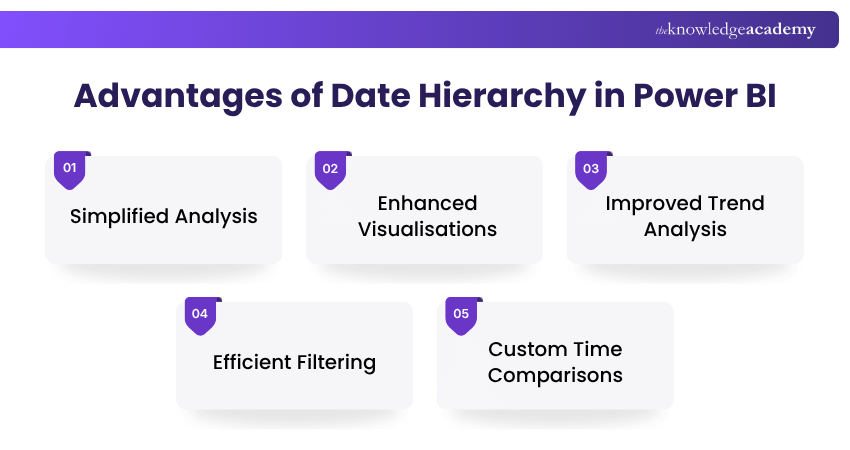
a) Simplified Analysis: Power BI's date hierarchy simplifies data analysis by structuring time-based data into easily navigable levels. Users can effortlessly drill down from yearly trends to daily details, gaining valuable insights into trends and patterns.
b) Enhanced Visualisations: Date hierarchies in Power BI empower users to create visually engaging reports. By organising dates into hierarchies, reports can display data at varying levels of granularity. This enhances the visual appeal and clarity of reports, aiding in better data interpretation.
c) Improved Trend Analysis: With a date hierarchy, trend analysis becomes more intuitive by organising data into different time periods. Users can also identify trends over specific time periods and compare performance across quarters or months. By doing so, they can gain a deeper understanding of seasonal patterns within the data.
d) Efficient Filtering: Date hierarchies help users organise and navigate data by different time periods. When used with Power BI's filtering and slicer features, they can support analysis by year, month or day. This makes it easier to focus on specific time frames and explore data in greater detail.
e) Custom Time Comparisons: Date hierarchies help users navigate and compare data across years, quarters and months. However, calculations such as year-over-year growth or comparisons with the same quarter in a previous year require appropriate measures or time intelligence calculations. These comparisons can help identify growth trends, assess progress, and support informed business decisions.
Disadvantages of Date Hierarchy in Power BI
While Power BI's date hierarchy offers significant advantages, it is crucial to be aware of its potential limitations. Understanding these drawbacks can help users mitigate challenges and make informed decisions. Some of those disadvantages are as follows:
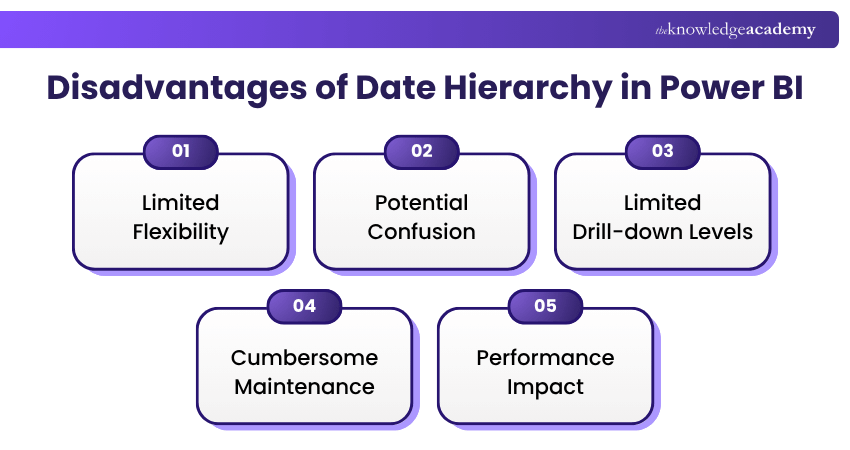
a) Limited Flexibility: Power BI's automatically generated date hierarchy uses predefined Year, Quarter, Month, and Day levels that may not meet the needs of all datasets. For datasets with complex date structures or non-standard calendars, users can find themselves restricted by these predefined levels. Custom date hierarchies built using dedicated date tables offer greater flexibility for fiscal calendars and specialised reporting requirements.
b) Potential Confusion: Incorrect configuration of the date hierarchy can result in data misinterpretation and confusion. For instance, analysing month names without retaining the year context may combine values from the same month across different years. Such misconfigurations can lead to misleading groupings and interpretations, compromising the accuracy of insights derived from the data.
c) Limited Drill-down Levels: Power BI allows users to drill down through the levels defined in a date hierarchy. However, an automatically generated hierarchy is limited to Year, Quarter, Month, and Day. Users who need additional levels, such as Week or Fiscal Period, must create a custom hierarchy with the required date fields.
d) Cumbersome Maintenance: Managing and maintaining a complex date hierarchy in Power BI can be cumbersome. As datasets evolve and new data sources are added, updating and ensuring the accuracy of the hierarchy requires careful attention. Any changes to the hierarchy structure or additions of new date-related fields can disrupt existing reports and visualisations.
e) Performance Impact: Power BI's Auto date/time feature can create hidden date tables for eligible date columns, increasing model size and potentially extending refresh times. This may affect performance in larger or more complex models. Using a well-designed, dedicated date table can help manage these overheads and support efficient reporting.
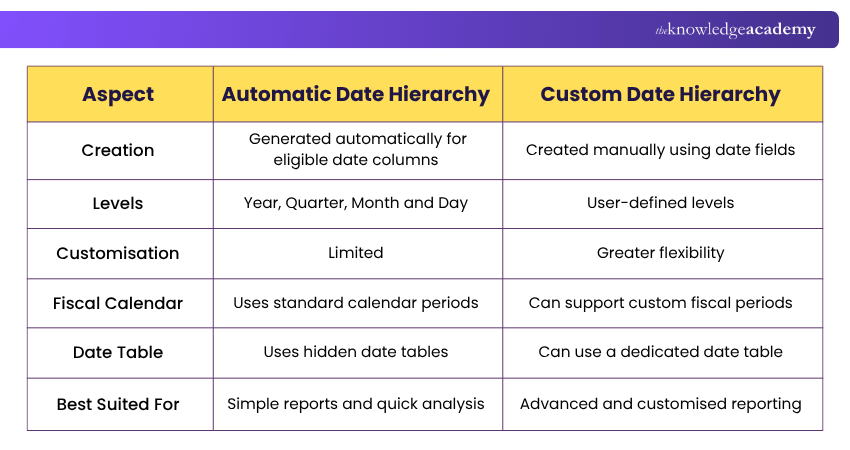
Automatic vs Custom Date Hierarchy:
In Power BI, both Automatic Date Hierarchy and Custom Date Hierarchy help users analyse data by time periods, but they differ significantly in flexibility and control. Here’s a quick look at their differences:
Develop hands-on Power BI skills and become a more confident, data-driven professional with the Microsoft Power BI For End Users 55400AC Course – Sign up now!

The Knowledge Academy develops accessible learning content across Project Management, IT, Cybersecurity, Data Science, Business Analysis, HR, Accounting and Finance, Leadership and Health and Safety. Its resources combine subject research with clear explanations to help professionals build practical knowledge across a wide range of disciplines.
View Detail

 If you wish to make any changes to your course, please


