




We may not have the course you’re looking for. If you enquire or give us a call on +44 1344 203 999 and speak to our training experts, we may still be able to help with your training requirements.
How to Change Directory in CMD: A Step-by-Step Guide
ByThe Knowledge AcademyLast updated on: 10 October 2026
Learn How to Change Directories in CMD using the cd command to navigate folders easily and efficiently in Windows Command Prompt. Commands are simple now with easy, go-to steps for personalised navigation. Its typical directory levels include root level, parent level, subdirectory level, nested subdirectory level, and leaf level.

Before You Start
1. The cd command is used to view or change the current directory in Command Prompt.2. cd .. moves up one directory level, while cd moves to the root of the current drive.3. Use full or relative paths to navigate directly to folders and subfolders.4. Use cd /d when changing both the drive and directory at the same time.5. For paths containing spaces, use double quotes to ensure CMD interprets the complete path correctly.
Ever felt a bit lost in the Command Prompt, staring at that blinking cursor, wondering how to get where you need to go? Don’t worry, you’re not alone. Learning how to change directory in CMD might seem technical at first, but it’s actually a powerful and simple skill that can save you time and frustration when navigating your computer like a pro.
Whether you're organising files, running scripts, or troubleshooting issues, enhancing your skills in how to change directories in CMD puts you in control of your system’s structure. In this blog, we’ll break it down step by step; no tech jargon, just clear, practical help.
Understanding the Directories
Directories are folders used to organise and store files and subdirectories in a hierarchical structure. This helps you maintain your files and folders in categories for easy access. It is the digital version of how you would manage your physical files.

How to Change Directory in CMD (Command Prompt)?
Before getting started, let’s understand what Command Prompt (CMD) is. It is a command-line interface that allows you to interact with the operating system by typing commands. For navigating between any folders or directories, CMD relies on the Change Directory (cd) command.
This command helps you move from one directory to another, enabling you to access, manage, or run files in different parts of your system. Let’s explore how to change the directory in CMD.
1) Open CMD via Windows Search
The first step for you is to open Command Prompt in your system. For that, you can follow one of the below steps:
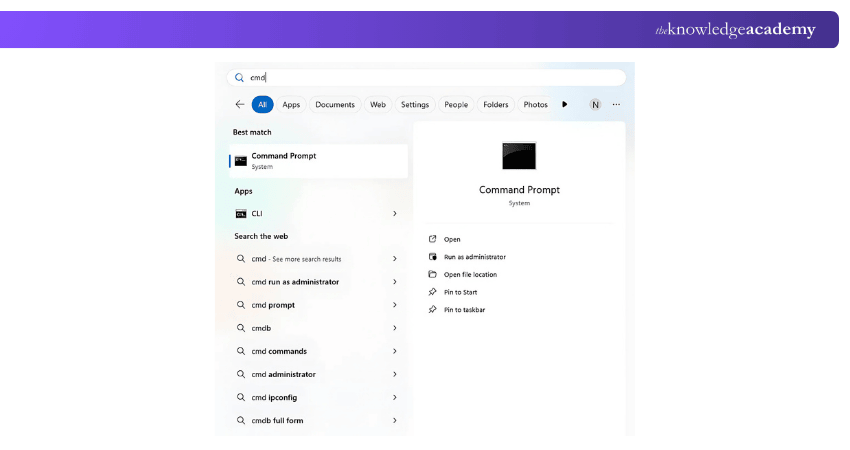
1) Open your search bar and type “CMD”
2) Press your Windows key and search for “CMD”
You will be seeing a screen like this picture.
2) Open Command Prompt
The next step after searching for CMD is to select the options of either “Open” or “Run as Administrator.” You will receive a screen like the one below.
Note: Run as Administrator is only needed when the task requires elevated permissions.
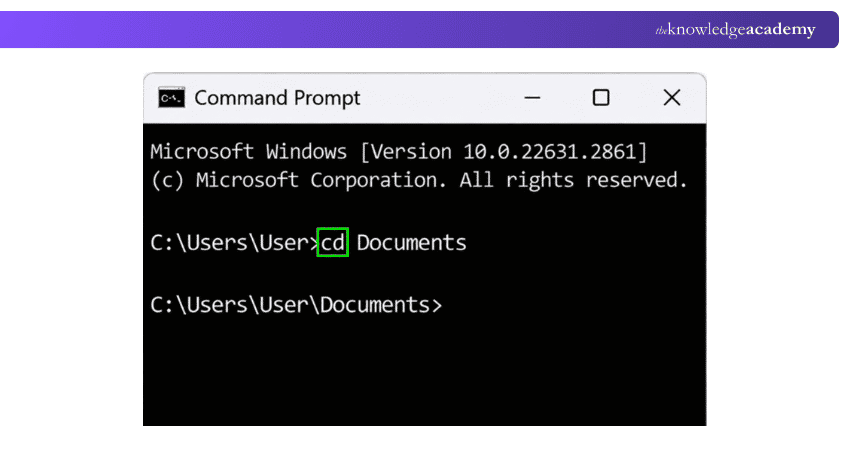
3) Enter ‘cd’ Command
The “cd” command lets you view or change the current directory. Type “cd” on its own to display the current directory, or use “cd” followed by a folder path to move to another directory.
4) Locate Your Directory Path
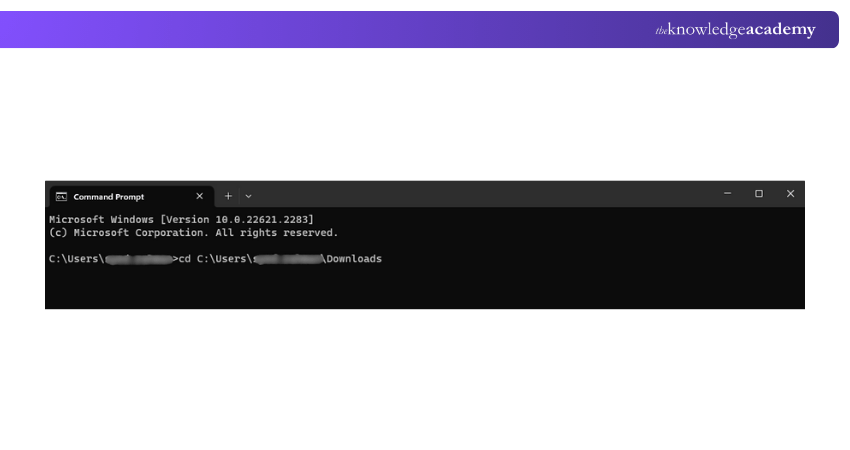
A directory path shows the location of the folder you want to navigate to. It is referred to as a ‘path’, too. Now, you can manually type the folder path, or you can copy and paste it from the folder location in your file explorer. The structure of the path will be in this format:
cd C:UsersYourNameDownloads
You can copy the folder path from File Explorer and paste it after the cd command. If the path contains spaces, place it inside double quotes, for example: cd "C:UsersYourNameMy Documents". It will look like the picture below. After that, you can press Enter to complete the process.
How to Navigate Directories in CMD at Various Levels?
CMD allows you to move around your directory structure in several ways, depending on where you are and where you want to go. Directories are organised in a hierarchical structure, starting from the root level and branching into folders and subfolders. Understanding how to move between these different levels will help you to efficiently navigate to any folders you want.
Quick CMD Navigation Guide
cd .. → Move up one levelcd → Go to the root directorycd FolderName → Enter a subfoldercd /d D:Folder → Change drive and directory
1) Root Level
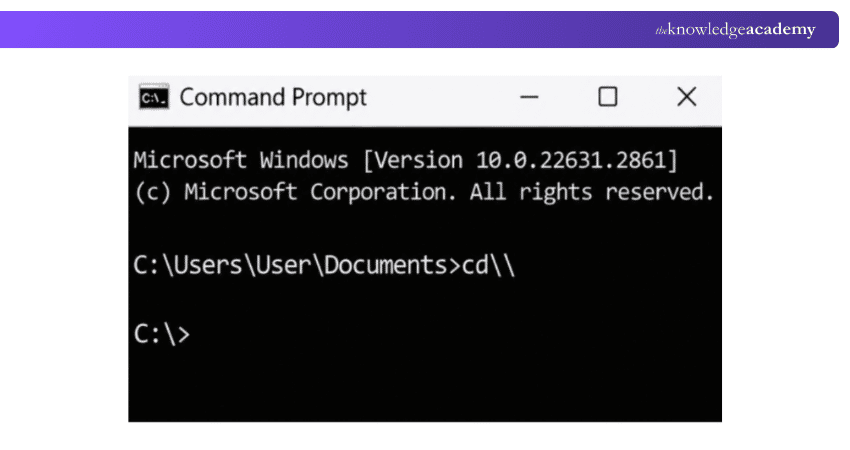
The root level is the initial directory in a drive. It will be like the following format of C: or D:. It's like the trunk of a tree from which all folders branch out. To move to the root directory of the current drive, type cd and press Enter.
2) Parent Level
The parent-level directory helps you move back from a subfolder to the folder directly above it. To move up one level in Command Prompt, type “cd ..” and press Enter. For example, if you are in “C:UsersYourNameVideosSeries”, using “cd ..” will take you back to “C:UsersYourNameVideos”.
3) Subdirectory Level
A subdirectory is a folder inside the current directory. To move into it, type “cd” followed by the subdirectory name. For example, if you are in “C:UsersYourNameVideos”, type “cd Series” to move into the “Series” subfolder.
Understand various types of computer maintenance and troubleshooting steps by joining our Computer Hardware Troubleshooting Course now!
4) Nested Subdirectory Level
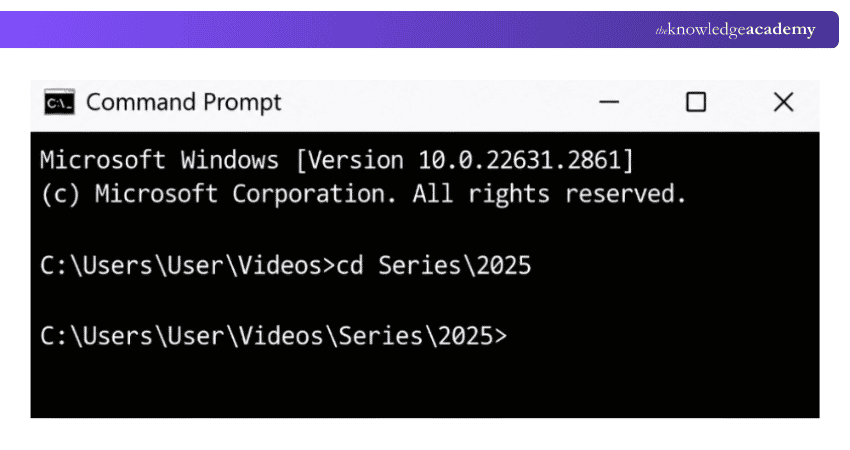
A nested subdirectory is a folder located inside another subfolder. To move directly to it, use the “cd” command followed by the full relative path. For example, type “cd Series2025” to move from the current folder into the “2025” folder inside “Series”.
5) Leaf Level
A leaf directory is a folder that does not contain any further subdirectories. It represents the end of a directory branch, although it may still contain files that you can access or manage using Command Prompt.
How Do I Navigate to a Folder in Command Prompt?
You can navigate to any folder in Command Prompt by using the correct drive letter and directory path. If the folder is on another drive, type the drive letter, such as “D:”, and press Enter. Then use the “cd” command with the folder path. Alternatively, use “cd /d” followed by the full path to change both the drive and directory at once.
Quick Tip
Use the Tab key while typing a folder name in CMD to autocomplete available file and directory names. This can reduce typing errors and make navigation faster.
Tips for Efficient Directory Navigation in CMD
So far, you might have got your answers to the “how can I change directory in CMD” question. However, when you are commanding, it is typical to make some mistakes. Here are some tips to navigate efficiently in CMD.
1) Handling Incorrect Syntax
Even making a simple mistake or missing out on any detail will lead to errors in the results. To avoid this, you can double-check the folder name, spelling, spaces, double quotes, and colons.
2) Resolving Permission Issues
If access is restricted, check your permissions. Use Command Prompt as Administrator only when elevated privileges are required.
3) Addressing Non-existent Directories
Before trying to access any folder, it is better to double-check if it exists on your drive. You can copy and paste the folder name to avoid non-existent confusion.
4) Managing Special Characters or Spaces
If a directory path contains spaces, enclose the full path in double quotes. Special CMD characters such as &, |, <, >, and ^ may require escaping.
5) Fixing Drive Mismatches
Before changing to any folder, check if that belongs to the same drive or a different drive. If the folder is on another drive, switch to that drive first, or use cd /d with the full path.
Elevate your skills to design, analyse, and manage complex systems from start to finish with our Systems Engineering Training – Join now!
Common CMD Mistake
If cd does not take you to a folder on another drive, the path may be correct but the drive has not changed. Use cd /d to switch both at once.
Once you understand the basic cd commands, navigating folders in Command Prompt becomes much easier. With a little practice, you can move between directories, switch drives, and access nested folders quickly without relying entirely on File Explorer.

The Knowledge Academy develops accessible learning content across Project Management, IT, Cybersecurity, Data Science, Business Analysis, HR, Accounting and Finance, Leadership and Health and Safety. Its resources combine subject research with clear explanations to help professionals build practical knowledge across a wide range of disciplines.
View Detail

 If you wish to make any changes to your course, please


