




We may not have the course you’re looking for. If you enquire or give us a call on 01344203999 and speak to our training experts, we may still be able to help with your training requirements.
Comparison of Two Columns in Excel: A Beginner's Guide
ByThe Knowledge AcademyLast updated on: 03 October 2026
Comparison of two columns in Excel helps identify matches, mismatches, duplicates and inconsistencies in spreadsheet data. This guide explains simple methods using formulas, conditional formatting and other Excel features, helping beginners compare data accurately, spot errors and manage spreadsheet information more efficiently.

What You'll Learn
1. The Equal (=) operator provides a quick TRUE or FALSE result when comparing corresponding cells in two columns.2. The IF function can turn comparison results into clearer labels such as "Match" and "Mismatch".3. The EXACT function is useful when text comparisons need to be case-sensitive.4. VLOOKUP can help determine whether a value from one column appears within another list.5. Conditional formatting provides a visual way to highlight matches or duplicates without creating a separate result column.
A basic skill while working in Excel is comparing two columns. Whether you're tracking duplicate data, finding mismatches or verifying data, comparing two columns in Excel can save you time, streamline your workflow and improve data management efficiency. From simple formulas to built-in tools, Excel offers several ways to compare columns, even for beginners.
This blog will examine all the basics that you need to compare two columns whether you're working with text, numbers or dates. Regardless of skill levels, these tips will help you identify patterns and inconsistencies, ensuring accuracy and reliability in datasets. Let's dive in and have a look at different ways of comparing columns in Excel.
Methods to Compare Two Columns in Excel
Excel offers several methods for comparing two columns. Before getting into each one, here's a quick look at which method works best for different requirements. Let's explore these methods in detail:
1) Compare Two Columns Using the IF Function
Using the IF function in Excel allows you to compare two columns by setting conditions to identify matches or differences. This method is useful for returning customised labels, such as Match and Mismatch, when comparing corresponding cells. With a simple formula, you can quickly pinpoint results, making your data analysis more efficient and accurate.
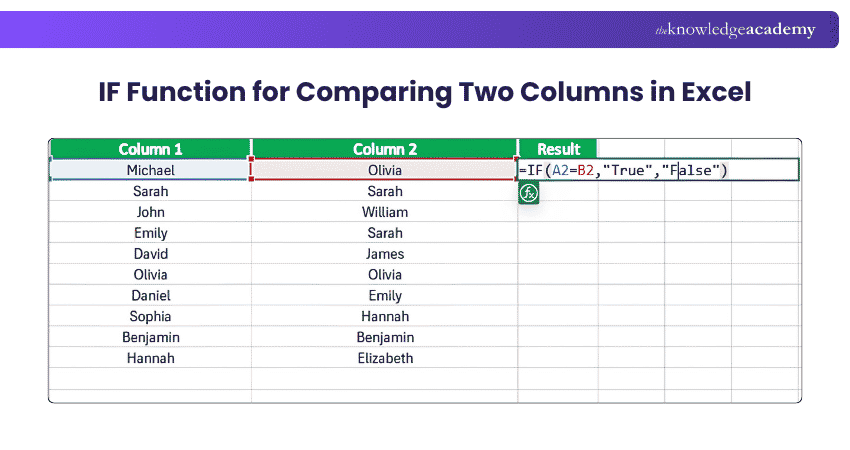
For example:
=IF(A2=B2,"Match","Mismatch")
If A2 and B2 contain the same value, the formula returns Match. If they are different, it returns Mismatch.
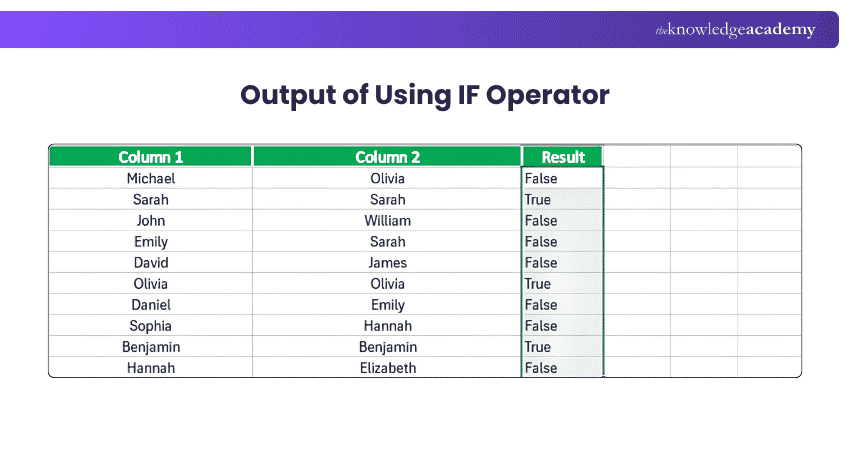
2) Compare Two Columns Using the Equal (=) Operator
The "Equal" operator (=) is a simple and effective way to compare two columns in Excel. By using this operator, you can quickly determine if the values in two cells match. It is a simple method for checking whether corresponding cells contain equal values and returns TRUE or FALSE.
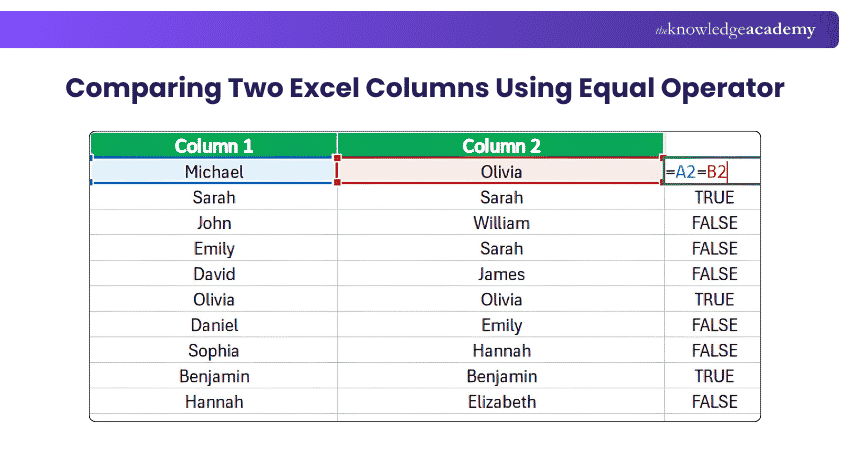
For example, if the values you want to compare are in cells A2 and B2, use:
=A2=B2
If A2 and B2 contain the same value, Excel returns TRUE. Otherwise, it returns FALSE.
You can then drag the formula down the column to compare the remaining rows.
Trainer's Insight
The formula =A2=B2 compares A2 directly with B2. It does not search the whole of Column B to determine whether the value in A2 appears somewhere else.
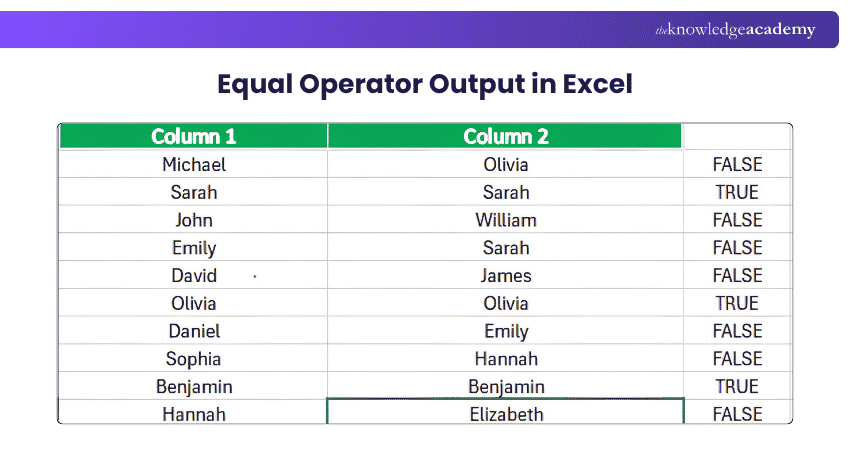
3) Compare Two Columns Using VLOOKUP
The VLOOKUP function can help check whether a value from one column appears in another vertical list. It searches for a value in one column and retrieves corresponding data from another. This method is useful for matching records, verifying data, or retrieving details, making it essential for efficient and accurate data management.
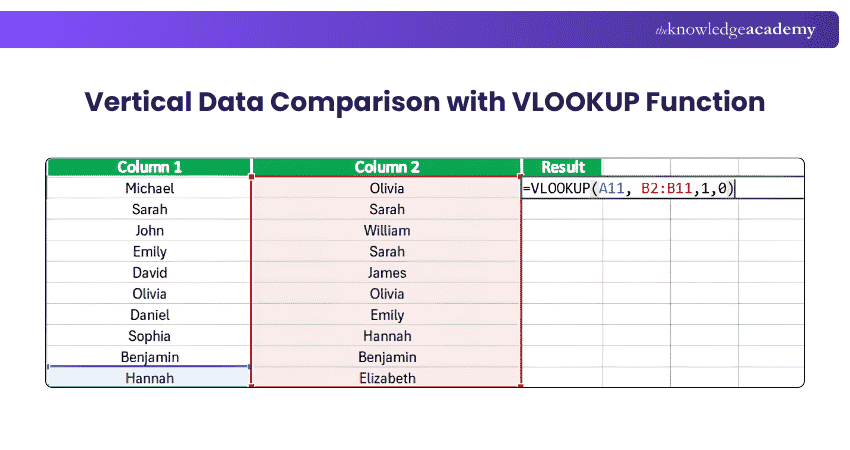
For example, if you want to search for the value in A2 within Column B, you can use VLOOKUP with an exact match.
=VLOOKUP(A2,$B$2:$B$11,1,FALSE)

Here:
A2: The value you want to find
B2:B11: The range you want to search
1: Returns the value from the first column of the selected range
FALSE: Requests an exact match
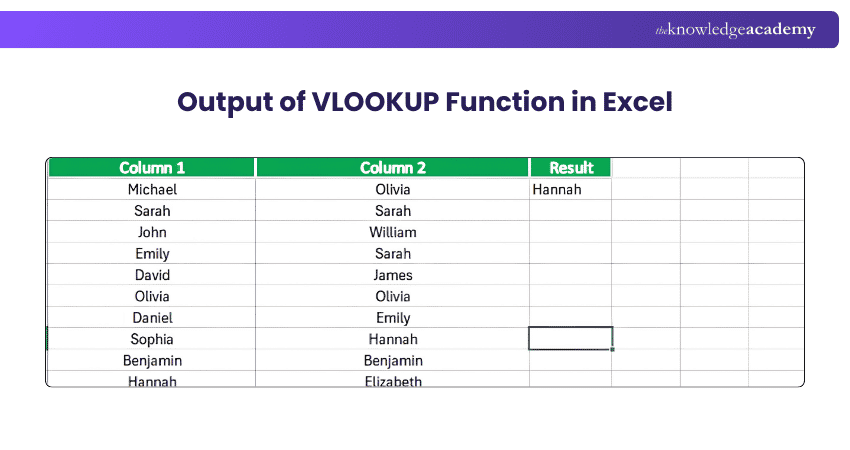
If Excel finds an exact match, it returns the matching value. If no exact match is found, VLOOKUP returns the #N/A error.
4) Compare Two Columns Using the EXACT Function
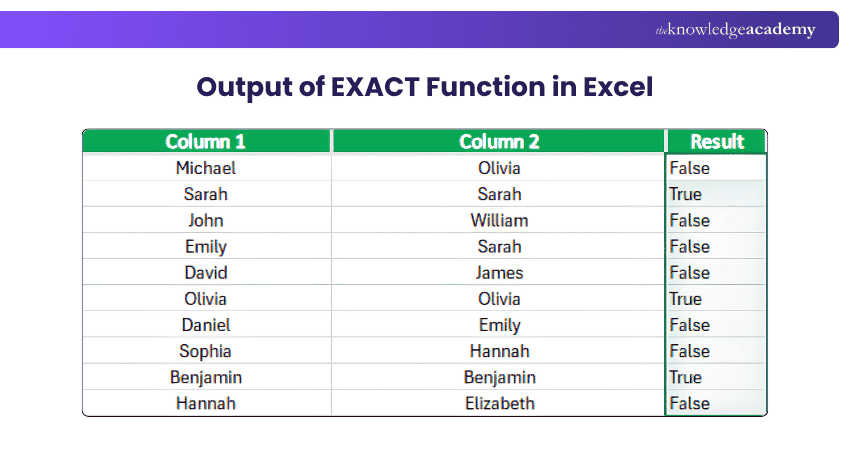
The EXACT function in Excel allows you to compare two columns by checking if their values are identical, including case sensitivity. This method is particularly useful when precise matches are crucial. It returns TRUE or FALSE based on whether two text strings are exactly the same, including letter case.
Trainer's Insight
Use EXACT when letter case matters. For example, Excel and EXCEL are treated as different values by EXACT
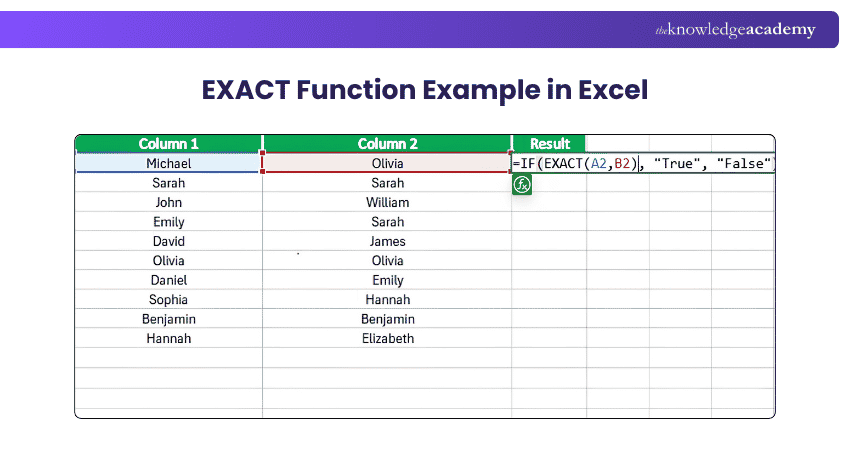
For example:
=EXACT(A2,B2)
If the two text strings are identical, the result is True. If there is a difference, including a difference in letter case, the result is False.
5) Compare Two Columns Using Conditional Formatting
Conditional Formatting provides a visual way to identify values that meet a defined rule, such as duplicates across a selected range. This method requires no complex formulas and is perfect for quick data checks, helping you streamline your analysis and maintain data accuracy with minimal effort.
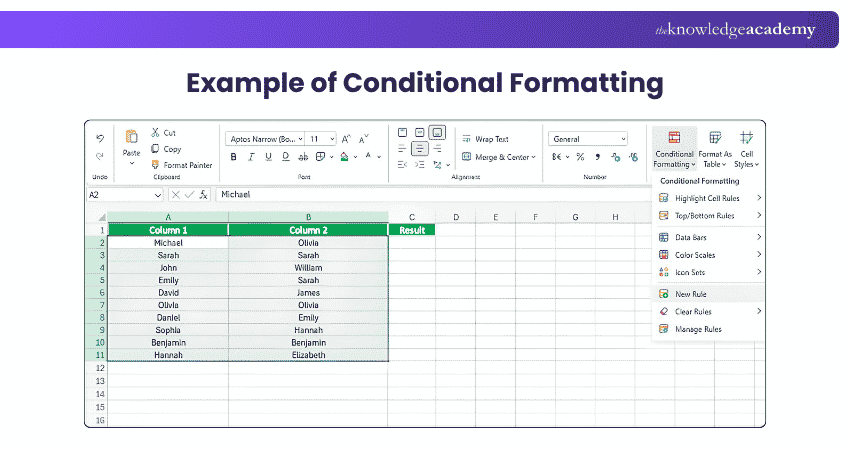
After that, you need to choose the colour to highlight:
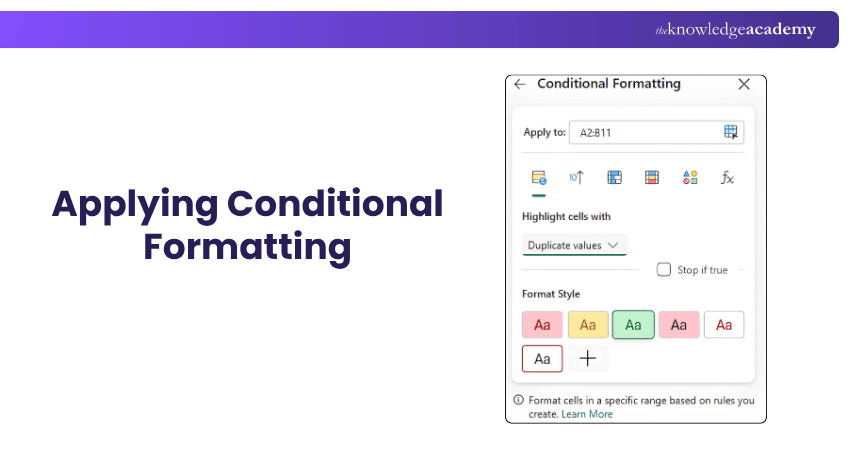
For example, you can employ conditional formatting to highlight duplicate values appearing across two selected columns. This makes matching values easier to identify when working with larger datasets.
To use it:
Select the two columns or cell range in which you want to identify duplicate values.
Go to Home > Conditional Formatting.
Choose the appropriate highlighting rule.
Select the condition you want to identify, such as duplicate values.
Choose the desired formatting and apply the rule.
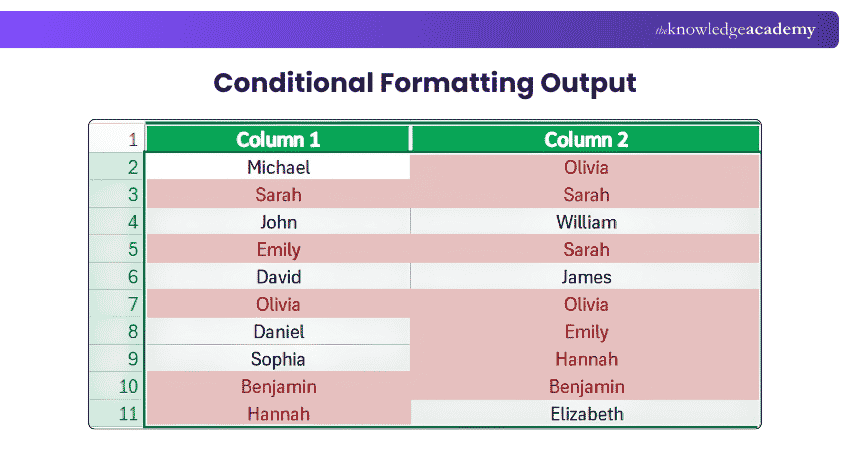
Trainer's Insight
Conditional Formatting is best suited to visual analysis. It highlights cells that meet a rule but does not automatically create a separate Match or Mismatch result for further calculations.
Plan and track projects more effectively with our Excel Training with Gantt Charts Course – Join now!
Common Mistakes When Comparing Two Columns in Excel
Even simple comparisons can produce unexpected results when the underlying data is inconsistent. Here are some common issues to check:
1) Hidden Spaces: Values can appear identical but contain additional spaces, which may affect comparisons.
2) Inconsistent Data: Make sure values use consistent data types and formats, such as numbers stored as numbers rather than text, before comparing them.
3) Case Sensitivity: If uppercase and lowercase characters need to be distinguished, use the EXACT function.
4) Incorrect Cell References: Check that your formula refers to the intended cells before copying it down the column.
5) Incorrect VLOOKUP Matching: Use the appropriate exact-match setting when you need to find identical values rather than approximate matches.
Before Comparing Two Columns□ Decide whether you need a row-by-row or cross-list comparison□ Check whether letter case matters□ Check the data for unnecessary spaces□ Make sure the data is consistently formatted□ Decide whether you need True/False or customised labels□ Use exact matching where required□ Check formula references before filling formulas down□ Use Conditional Formatting for visual comparison□ Use formulas when the results need further analysis
So, comparing two columns in Excel can make it easier to identify duplicates, spot inconsistencies and verify data accuracy. It also reduces the need to manually inspect individual records, particularly when working with larger datasets.
Learn how Microsoft Excel can be an Accountant's best friend in our Excel for Accounting Course – Sign up now!

The Knowledge Academy develops accessible learning content across Project Management, IT, Cybersecurity, Data Science, Business Analysis, HR, Accounting and Finance, Leadership and Health and Safety. Its resources combine subject research with clear explanations to help professionals build practical knowledge across a wide range of disciplines.
View Detail

 If you wish to make any changes to your course, please


