


 Top Rated Course

We may not have the course you’re looking for. If you enquire or give us a call on +61 272026926 and speak to our training experts, we may still be able to help with your training requirements.
What is BIOS? Definition, Types, and Functions Explained
The Knowledge Academy 26 June 2026BIOS (Basic Input/Output System) is firmware on a computer’s motherboard that tests, and configures hardware like CPU, RAM, and storage when the system starts. It also performs essential startup checks and loads the operating system, ensuring the computer is ready for normal operation and user interaction.

Training Outcomes Within Your Budget!
We ensure quality, budget-alignment, and timely delivery by our expert instructors.
Table of Contents
Every easy system startup comes along with a process that, however, is invisible to most users. Understanding What is BIOS, shows us how a computer gets its hardware ready for the operating system to take hold. Let us examine the entire process in the following blog.
Table of Contents
1) What is BIOS?
2) Why is BIOS Important?
3) History of BIOS
4) How Does BIOS Work?
5) Key Function of BIOS
6) Types of Basic Input Output System (BIOS)
7) What are the Uses of BIOS?
8) BIOS vs. UEFI
9) Conclusion
What is BIOS?
The BIOS is Firmware stored in ROM or flash memory on a computer’s motherboard. It initialises hardware components and performs system checks when the computer starts. BIOS acts as an interface between the hardware and the Operating System, ensuring everything functions correctly before loading the OS.
Knowing the importance of BIOS is essential because it handles critical system settings like boot sequences, hardware setups, and security functionalities. Even though BIOS played a key role in old PCs, it has largely been replaced by the more advanced Unified Extensible Firmware Interface (UEFI), which offers enhanced speed, security, and compatibility with modern hardware, including RAM and ROM.

Key Features:
1) Controls key system settings like boot order, hardware setup, and security features.
2) Responsible for starting the computer and preparing to load the operating system.
3) Essential in older PCs for basic hardware-software communication.
4) Today, most modern systems use UEFI, a newer version of BIOS.
5) Offers faster boot times, better security, and improved hardware support
Why is BIOS Required?
The BIOS carries out numerous crucial functions for a computer's operation.
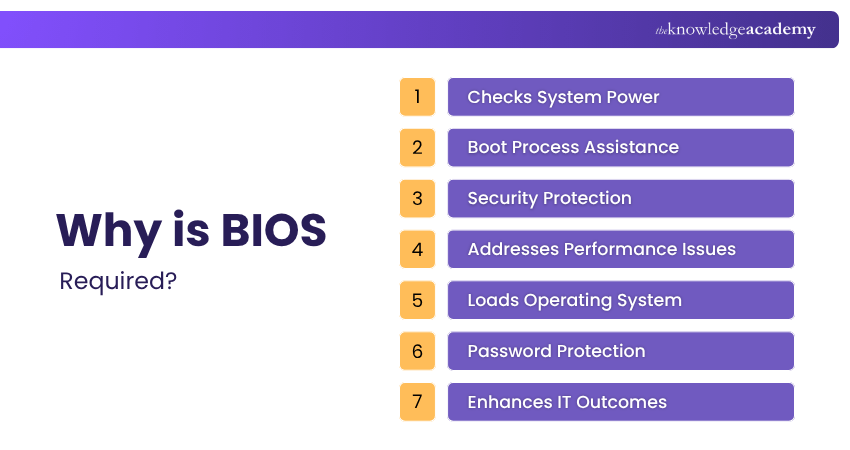
1) Checks System Power: The system's power is checked by the BIOS, which performs a Power on Self-Test (POST) to confirm hardware initialisation upon being switched on. A successful POST will generate a beep sound, while failures will produce distinct beep patterns to indicate errors.
2) Boot Process Assistance: BIOS is essential for finding software and starting the boot process, residing on a ROM or flash memory chip.
3) Security Protection: Enhancing system security is achieved through BIOS updates that patch security vulnerabilities, such as the Lenovo laptops update that addressed exploitable bugs.
4) Addresses Performance Issues: BIOS updates address motherboard-related issues impacting system performance, particularly for long-standing issues not addressed by OS updates.
5) Loads Operating System: BIOS loads the Operating System (OS) by using a bootstrap loader to search for and load a functional OS and installs necessary drivers for controlling hardware.
6) Password Protection: Password protection feature in BIOS enables secure access to the system during boot up, however resetting forgotten passwords can be a challenging task.
7) Enhances IT Outcomes: Adjusting BIOS settings enhances PCIe speed, boosts data integrity, and lowers connectivity issues, enabling advanced IT capabilities such as AI and cloud services.
Develop spreadsheet and data management skills with our Introduction to Mac Numbers Training – Join now!
History of BIOS
The BIOS (Basic Input/Output System) was first introduced by IBM in 1981 to help computers start up and load the operating system. Throughout the 1980s and 1990s, it became standard in personal computers, with companies like AMI and Phoenix creating their own versions.
However, as technology advanced, BIOS began to show limitations such as slow boot times and limited support for large storage drives. To overcome these issues, Intel introduced UEFI in the mid-2000s as a modern alternative. Today, UEFI has largely replaced BIOS in most modern systems due to its speed, security, and enhanced capabilities.
How Does BIOS Work?
Here are the steps on how BIOS works:
1) Power-On Self-Test (POST)
a) BIOS runs POST when the computer powers on.
b) It checks vital components like RAM, CPU, keyboard, and storage.
c) If issues are found, it shows error messages or beep codes.
d) Helps detect hardware failures early before loading the OS.
2) Initialising Hardware
BIOS configures and initialises system components such as:
a) Processor
b) Memory (RAM)
c) Hard drives or SSDs
d) Graphics card
e) Input devices (keyboard, mouse)
3) Finding the Boot Device
a) BIOS checks devices in the order set in the boot sequence.
b) It looks for a bootable OS on HDDs, SSDs, USBs, or network sources.
c) The first valid bootable device is selected to continue the startup process.
d) This step ensures the system knows where to load the OS from.
4) Loading the Bootloader
a) BIOS locates a bootable device (like HDD, SSD, or USB).
b) It passes control to the bootloader (e.g., GRUB, Windows Boot Manager).
c) The bootloader loads the operating system into RAM.
d) This step begins the actual OS startup process.
5) Transition to the Operating System
a) Once the OS loads, it takes full control of the system.
b) BIOS steps back but may still assist through System Management Mode (SMM).
c) SMM handles low-level tasks like power management and hardware control.
d) BIOS remains in the background, supporting specific system functions.
Key Function of BIOS
BIOS executes vital activities that make your computer ready for a startup, and the operating system gets loaded. It guarantees that the hardware is checked, initialised, and configured before the OS takes control. Key functions are mentioned below:

1) Power-On Self-Test (POST)
POST is a BIOS procedure that performs diagnostics on essential hardware such as CPU, memory, and drives to make sure they function properly. The booting process halts, and errors might be indicated if a major part becomes defective.
2) Bootstrap Loader
The bootstrap loader, after POST, finds the operating system’s bootable program on a storage device and gives control to it so that the OS can boot up.
3) BIOS Drivers
BIOS drivers are fundamental, low-level software that enables the system to communicate with hardware parts like the keyboard and storage before the OS loads its own drivers.
4) BIOS (CMOS) Setup
BIOS setup, commonly referred to as CMOS setup, provides you with the option to modify system settings like time, boot order, and hardware choices through a menu that is accessible at startup.
Types of Basic Input Output System (BIOS)
The different types of BIOS play unique roles in handling hardware and ensuring seamless communication between the computer’s components and operating system.

1) Legacy (1st generation) BIOS
In older motherboards, Legacy BIOS firmware is employed to boot up computers, featuring text-based menus and restricted compatibility. It is unable to detect disks over 2.1 terabytes and does not have contemporary flexibility in CPU and components.
2) EFI
Intel created Extensible Firmware Interface (EFI) to fix issues with BIOS, establishing a universal firmware standard that does not require architecture-specific frameworks. The UEFI standards are maintained by the Unified EFI Forum, which consists of Apple, Intel, Microsoft, and IBM, and have evolved from EFI's original design.
3) UEFI
Launched in 2002, Unified Extensible Firmware Interface (UEFI) enables disks larger than 2.2 TB with the GUID Partition Table (GPT) and provides enhanced scalability, security, and performance. Unlike BIOS, UEFI does not need a distinct bootloader and has an improved user interface, which increases performance.
4) Apple Mac PC's BIOS Equivalent
Apple Macs utilise Intel's EFI, which evolved into UEFI, as a substitute for BIOS, enabling compatibility with expansive boot disks and drivers integrated into the firmware. UEFI manages different boot procedures on Macs, such as selecting boot disks by pressing the option key but does not offer hardware configuration options in the traditional BIOS style.
What are the Uses of BIOS?
BIOS plays a crucial role in ensuring a computer starts and functions correctly. It acts as a bridge between the hardware and the operating system, helping initialise components, manage system settings, and support the boot process. Some of the key uses of BIOS include:
1) Hardware Initialisation: BIOS checks and initialises essential hardware components such as the processor, memory, storage devices, and input/output peripherals when the computer is powered on.
2) Performing the POST Process: BIOS runs the Power-On Self-Test (POST) to verify that critical hardware components are functioning correctly before the operating system loads.
3) Loading the Operating System: After completing hardware checks, BIOS identifies a bootable device and loads the operating system into memory, allowing the computer to start normally.
4) Managing System Configuration: BIOS provides access to system settings, enabling users to configure boot order, system time and date, security options, and hardware preferences.
5) Supporting Hardware Communication: BIOS facilitates communication between the operating system and hardware components by providing basic instructions that help devices function correctly during startup.
6) Enhancing System Security: Modern BIOS and UEFI firmware include security features such as passwords, Secure Boot, and access controls that help protect systems from unauthorised changes and malicious software.
Enhance real-time collaboration skills with The Knowledge Academy's Microsoft Fluid Framework Training – Join now!
BIOS vs. UEFI
BIOS is the old-fashioned firmware that initiates the system through a basic interface and provides very limited hardware support. UEFI is the new version of BIOS, which has faster booting times and more features.
UEFI, apart from supporting large storage drives, also ensures security and provides a graphical interface. Hence, it can be considered as the best option for modern computers and operating systems.
Conclusion
Understanding What is BIOS, opens up a view of how the computer gears up before the OS is brought up. It is a significant part of booting from hardware testing to system settings. We hope this blog clarified the essentials and made the concept easy to grasp.
Advance your technical knowledge and practical skills with our Computer Science Course – Join today.
Frequently Asked Questions
How Do I Update My BIOS on My PC?

To update your BIOS, first visit your computer or motherboard manufacturer's website and download the latest BIOS version compatible with your system. Follow the manufacturer's instructions carefully to install the update, ensuring your device remains powered on throughout the process. Updating BIOS can improve hardware compatibility, system stability, and security.
Is It Safe to Open BIOS?
Yes, it is generally safe to open BIOS and view or adjust settings. However, changing BIOS configurations without understanding their purpose may affect system performance or startup behaviour. It is recommended to modify settings only when necessary and to follow the manufacturer's guidance when making changes.
What are the Other Resources and Offers Provided by The Knowledge Academy?
The Knowledge Academy takes global learning to new heights, offering over 3,000+ online courses across 490+ locations in 190+ countries. This expansive reach ensures accessibility and convenience for learners worldwide.
Alongside our diverse Online Course Catalogue, encompassing 17 major categories, we go the extra mile by providing a plethora of free educational Online Resources like Blogs, eBooks, Interview Questions and Videos. Tailoring learning experiences further, professionals can unlock greater value through a wide range of special discounts, seasonal deals, and Exclusive Offers.
What is The Knowledge Pass, and How Does it Work?
The Knowledge Academy’s Knowledge Pass, a prepaid voucher, adds another layer of flexibility, allowing course bookings over a 12-month period. Join us on a journey where education knows no bounds.
What are the Related Courses and Blogs Provided by The Knowledge Academy?
The Knowledge Academy offers various End User Courses, including the Google Sheets Course, Google Slides Training, and Google Forms Training. These courses cater to different skill levels, providing comprehensive insights into File Management.
Our Office Applications Blogs cover a range of topics related to BIOS, offering valuable resources, best practices, and industry insights. Whether you are a beginner or looking to advance your Office Applications skills, The Knowledge Academy's diverse courses and informative blogs have got you covered.

The Knowledge Academy


Global Training Provider
The Knowledge Academy is a world-leading provider of professional training courses, offering globally recognised qualifications across a wide range of subjects. With expert trainers, up-to-date course material, and flexible learning options, we aim to empower professionals and organisations to achieve their goals through continuous learning.

Upcoming Office Applications Resources Batches & Dates
Date
 Computer Science Course
Computer Science Course
Fri 11th Sep 2026
Computer Science Course
Fri 30th Oct 2026

 If you wish to make any changes to your course, please


