


 Top Rated Course

We may not have the course you’re looking for. If you enquire or give us a call on +44 1344 203999 and speak to our training experts, we may still be able to help with your training requirements.
How to Make a Pie Chart in Excel? A Step-By-Step-Guide
The Knowledge Academy 27 September 2025Learn How to Create a Pie Chart in Excel to visualise your data. Follow simple steps to insert, customise, and format a Pie Chart quickly and easily. A Pie Chart helps to showcase proportions, highlight patterns, present comparisons, making your data easier to understand and engage. It also simplifies complex data for quick decisions.

Training Outcomes Within Your Budget!
We ensure quality, budget-alignment, and timely delivery by our expert instructors.
Table of Contents

Ever stared at endless rows of numbers and felt your mind blur? When data looks like nothing more than a wall of figures, it’s easy to feel lost. That’s exactly where learning How to Make a Pie Chart in Excel can step in, transforming confusion into clarity. With just a few clicks, you can turn raw data into colorful visuals that everyone instantly understands.
Much like turning simple ingredients into a delicious dish, this skill makes information easier to digest and helps you share insights that truly influence decisions. So, are you ready to captivate your audience and let your data shine? Let’s dive in and bring those numbers to life!
Table of Contents
1) What is a Pie Chart in Excel?
2) How to Make a Pie Chart in Excel?
3) How to Read a Pie Chart?
4) How to Edit a Pie Chart in Excel?
5) How to Create Different Pie Chart Types in Excel?
6) Format a Pie Chart in Excel
7) How do you Show Percentages on a Pie Chart in Excel?
8) How do you Show Percentages in Pie Plot?
9) Conclusion
What is a Pie Chart in Excel?
A Pie Chart in Excel is a circular graph used to represent data as slices, showing the proportion of each category within a whole. It’s ideal for visualising percentage-based data and making comparisons easy to understand at a glance. Learning How to Make a Pie Chart in Excel gives you practical skills to create clear, engaging visuals. Also, ensure that your data presentations are professional and easy to interpret.
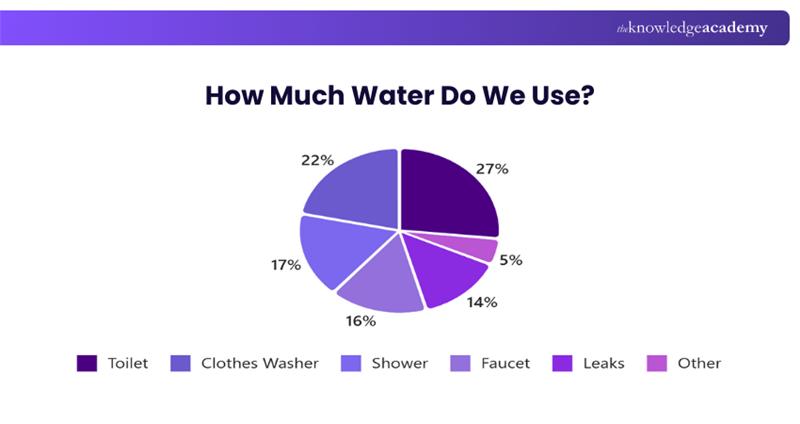
Excel allows users to create Pie Charts quickly by selecting data and choosing the Pie Chart option from the Insert tab. These charts are commonly used in reports and presentations to highlight distribution and trends effectively.

How to Make a Pie Chart in Excel?
Creating a Pie Chart is simple with the use of Excel. Here's a complete breakdown of the steps to follow if you are confused about How to Make a Pie Chart in Excel:
Organising the Data for Your Pie Chart in Excel
To get started, you’ll have to organise the data in one row or column so that you can plot only a single data series in the Pie Chart. Your spreadsheet can also include a separate row or column representing category names.
The category names are included in the first row or column that needs to be selected. These category names are displayed as data labels in the Pie Chart, which you can Create a Chart in Excel by organising your data correctly. You should keep the following in mind when organising your data for an Excel Pie Chart:
1) Remember to plot only a single data series in your chart.
2) The data values should be more than zero.
3) Don't leave any column or row empty.
4) The number of categories should be at most seven or nine. A Pie Chart with multiple pie slices is challenging to analyse and understand.
In our Excel Pie Chart tutorial, we are using the following data to create a pie graph:
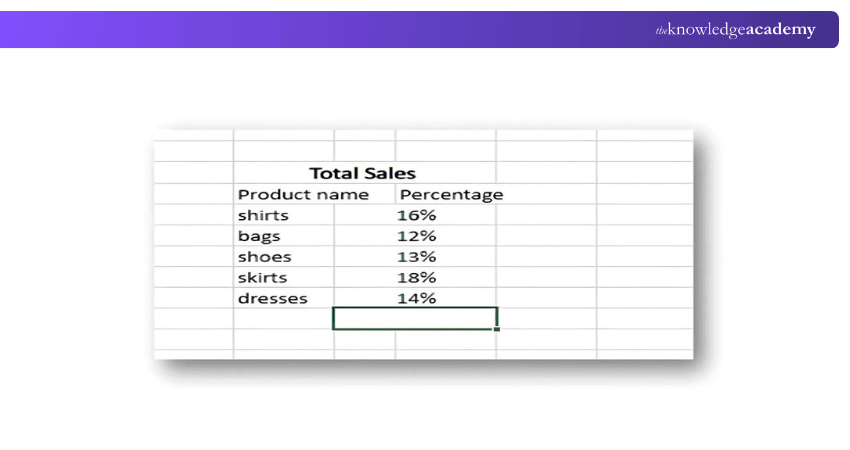
Pie Chart in the Excel Worksheet
Once your source data is organised properly, you’ll have to select it. Next, click on the Insert tab. Now, choose the type of chart you want. In our example, we will create a 2-D Pie Chart:
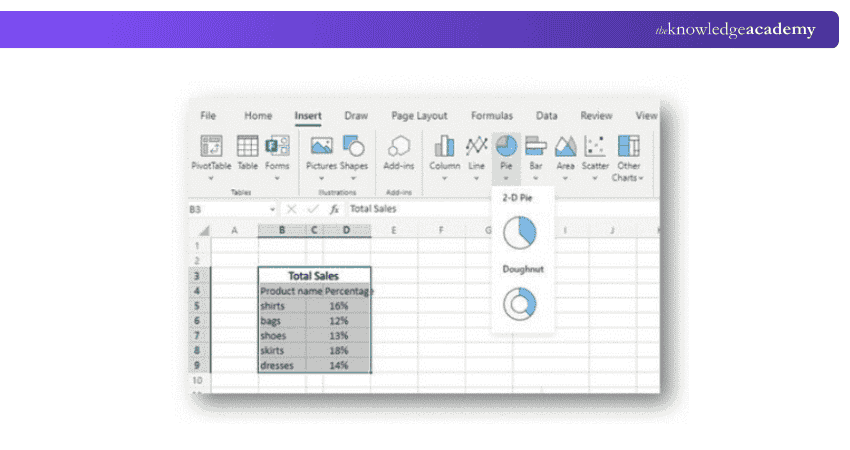
Tip: You can select the headings of the row and column if you want these headings to appear in the Pie Chart’s title.
Build your career as a Data Analyst - sign up for our Data Analysis Training Using MS Excel now!
Choose the Style of the Pie Chart You Want
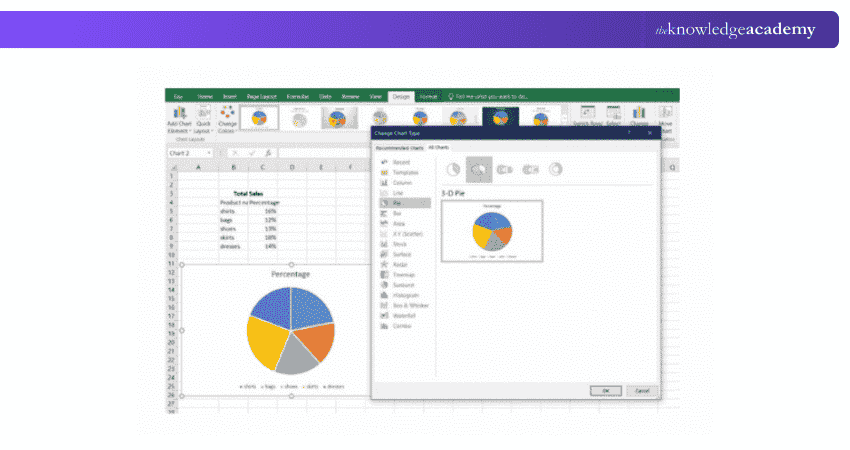
Once the Pie Chart is included in the worksheet, you can visit the Design tab Change Chart Type. You can click on different Pie Chart styles and select the one that best suits your data.
How to Read a Pie Chart?
Pie Charts are easy to interpret, requiring minimal explanation. However, there are a few tips that can enhance their clarity. As mentioned earlier, the total of the data in a Pie Chart will always equal 100 percent. When data labels aren't visible, hovering the cursor over a segment (the technical term for a section or slice) will reveal the associated data.
In addition to being easy to understand, Pie Charts are efficient because they display a large amount of information in a compact space. They also provide an instant visual comparison of each category, highlighting its relationship to both the other segments and the entire dataset.
How to Edit a Pie Chart in Excel?
Pie charts are a great way to present data visually, and Excel provides many tools to refine them. By editing your chart, you can customise its look, improve readability, and make your data stand out clearly:
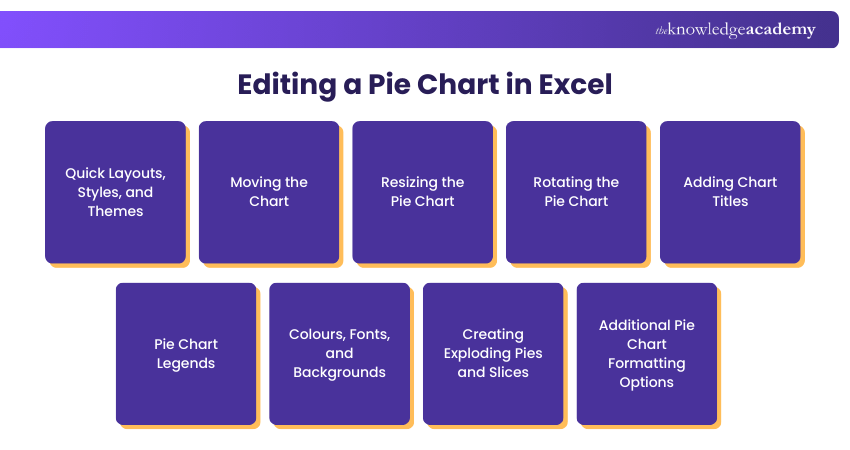
1) Quick Layouts, Styles, and Themes
Excel offers ready-made layouts and chart styles that instantly change the look of your pie chart. You can also apply themes to adjust fonts, colours, and effects consistently across your chart for a polished appearance.
2) Moving the Chart
You can reposition your pie chart anywhere on the worksheet by simply clicking and dragging it. This allows you to align it with your data tables or move it to a more prominent place for presentation purposes.
3) Resizing the Pie Chart
To make your chart larger or smaller, drag the sizing handles at its corners. Resizing ensures the chart fits well with your worksheet layout and highlights the data effectively, whether for reports or presentations.
4) Rotating the Pie Chart
Pie charts can be rotated to adjust how slices are displayed. By altering the angle of the first slice in the chart’s format options, you can bring attention to key data points or arrange slices for better readability.
5) Adding Chart Titles
Titles make your chart more informative by describing the data it represents. You can easily add or edit titles directly in the chart, ensuring your audience immediately understands what the chart is about.
6) Pie Chart Legends
Legends explain what each slice of the pie represents. You can adjust their position, font, and style to improve readability. Clear legends help your viewers connect data categories with their respective chart segments.
7) Colours, Fonts, and Backgrounds
Excel allows full customisation of slice colours, text fonts, and chart backgrounds. Using consistent and contrasting colours improves visual clarity, while well-chosen fonts and backgrounds enhance the overall professional look of your chart.
8) Creating Exploding Pies and Slices
To emphasise certain categories, you can “explode” the whole pie or pull out individual slices. This visual effect highlights specific data points and draws immediate attention to the most important parts of your chart.
9) Additional Pie Chart Formatting Options
Beyond the basics, Excel offers advanced formatting such as 3-D effects, shadow styles, and data labels. These tools allow you to refine the chart further, making it both more visually appealing and easier to interpret.
Take Control of your finanaces with our Excel for Accountting Course, Sign-up now!
How to Create Different Pie Chart Types in Excel?
Pie Charts are a great way to visualise parts of a whole. Excel offers various Pie Chart types to suit different data sets and presentation needs. Here's a quick guide to each type:
(Image Suggestion)
Excel 2-D Pie Charts
This is the simplest Pie Chart type in Excel. It displays values as flat slices of a circle, ideal for single-series data with clear category comparisons and minimal customisation needs.
Excel 3-D Pie Charts
A more visual version of the standard Pie Chart, it adds perspective and depth. Though attractive in presentations, it may slightly distort proportions and is harder to interpret accurately.
Pie of Pie and Bar of Pie Charts
These help display charts with many small values. Excel automatically moves smaller slices to a second chart, improving readability and emphasising minor categories that would otherwise be hard to see.
Choosing Data Categories for the Secondary Chart
Use Format Data Series options like Position, Value, or Custom to choose which slices go into the secondary chart and control how many appear there.
Doughnut Charts
A doughnut chart resembles a Pie Chart but with a center hole. It supports multiple data series, allowing for more complex comparisons while still showing how each segment relates to the whole.
Changing the Hole Size in a Doughnut Chart
Right-click the chart, choose Format Data Series, then adjust the Doughnut Hole Size to make the hole larger or smaller, depending on your visual preference or clarity needs.
Format a Pie Chart in Excel
When you want to create an Excel Pie Chart for presentation purposes or export it to a new application, you should make it more appealing. To use Excel’s formatting features, you can right-click on any slice of the Excel Pie Chart.
Next, you can open the Format Data Series panel by clicking on the Pie Chart. You'll have to choose the Effects tab from the Format Data Series pane. Now, you can apply and check effects such as Soft Edges, Glow, or Shadow. It will help you select the best one out of them.
You can also browse through other options under the Format tab like:
a) Increase or decrease the width and height of the Pie Chart
b) Change the outline colours and shape fill
c) Use various shape effects
d) Use WordArt styles to modify the text elements
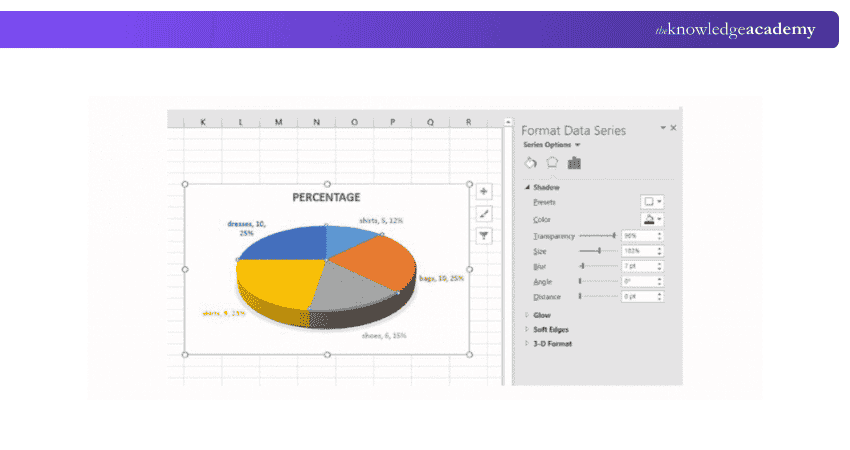
To use the formatting features mentioned above, you’ll have to choose the element in the pie graph that needs formatting. For example, Excel allows you to format features such as chart titles, slices, data labels, or legends. Now, click on the Format tab on this ribbon. This will activate the essential formatting features, often used in combination with Excel Functions for enhanced Data Visualisation. On the other hand, the non-relevant features will be represented in grey.
Do you want to gain expertise in Data Visualisation? Register with our Microsoft Excel Associate MO200 today!
How Do You Show Percentages on a Pie Chart in Excel?
To show percentages, click on the Pie Chart, enable Data Labels, and choose Percentage from the options. This will display each slice’s proportion clearly. You can further format labels using Label Options for better presentation.
How Do You Show Percentages in Pie Plot?
In most charting tools, enable data labels and select the option to show percentages. This helps represent each segment’s share visually. It’s a useful way to make pie plots more informative and easier to interpret.
Conclusion
Through this blog, now you know How to Make a Pie Chart in Excel; Well, creating and editing a Pie Chart is simple and highly effective for presenting data. A Pie Chart is ideal for providing readers with an easy-to-understand visual representation, particularly for illustrating the breakdown of financial figures or showing the value and proportion of different items in a dataset. It offers a clear pictorial representation of categories with minimal explanation needed.
Upgrade your skills with our Microsoft Excel Courses and manage data efficiently, Sign-up Now!
Frequently Asked Questions
How Can Mastering Pie Chart Creation in Excel Enhance my Career?

Mastering Pie Chart creation in Excel can boost your career by improving your ability to visually present and communicate data effectively. This skill is highly valued across many industries for making data-driven decisions more accessible.
Why is Knowing How to Make a Pie Chart in Excel Beneficial for Organisational Success?
Knowing How to Make a Pie Chart in Excel is beneficial for organisational success because it allows teams to quickly understand data distributions and make informed decisions. Effective Data Visualisation supports better strategic planning and resource allocation.
What are the Other Resources and Offers Provided by The Knowledge Academy?
The Knowledge Academy takes global learning to new heights, offering over 3,000 online courses across 490+ locations in 190+ countries. This expansive reach ensures accessibility and convenience for learners worldwide.
Alongside our diverse Online Course Catalogue, encompassing 19 major categories, we go the extra mile by providing a plethora of free educational Online Resources like Blogs, eBooks, Interview Questions and Videos. Tailoring learning experiences further, professionals can unlock greater value through a wide range of special discounts, seasonal deals, and Exclusive Offers.
What is The Knowledge Pass, and how does it work?
The Knowledge Academy’s Knowledge Pass, a prepaid voucher, adds another layer of flexibility, allowing course bookings over a 12-month period. Join us on a journey where education knows no bounds.
What are related courses and blogs provided by The Knowledge Academy?
The Knowledge Academy offers various Microsoft Excel Courses & Certification Course, including Microsoft Excel Course, Excel for Accountants Course, and Business Analytics With Excel Course. These courses cater to different skill levels, providing comprehensive insights into Excel for Finance.
Our Office Applications Blogs cover a range of topics related to Microsoft Excel, offering valuable resources, best practices, and industry insights. Whether you are a beginner or looking to advance your Excel skills, The Knowledge Academy's diverse courses and informative blogs have you covered.

The Knowledge Academy


Global Training Provider
The Knowledge Academy is a world-leading provider of professional training courses, offering globally recognised qualifications across a wide range of subjects. With expert trainers, up-to-date course material, and flexible learning options, we aim to empower professionals and organisations to achieve their goals through continuous learning.

Upcoming Office Applications Resources Batches & Dates
Date
 Microsoft Excel Course
Microsoft Excel Course
Fri 3rd Jul 2026
Microsoft Excel Course
Fri 6th Nov 2026

 If you wish to make any changes to your course, please


