


 Top Rated Course

We may not have the course you’re looking for. If you enquire or give us a call on +44 1344 203999 and speak to our training experts, we may still be able to help with your training requirements.
How to Change Language in Microsoft Word: Step-by-Step Guide
The Knowledge Academy 02 March 2026To change the language in Microsoft Word, go to File > Options > Language, select your desired language, and restart Word for the changes to take effect. This helps ensure menus, proofing tools, and spelling checks match your preferred language. It also improves accuracy when creating or editing multilingual documents.

Training Outcomes Within Your Budget!
We ensure quality, budget-alignment, and timely delivery by our expert instructors.
Table of Contents

Have you ever struggled with composing documents in multiple languages or wished the User Interface were in your native language? By learning How to Change Language in Microsoft Word, you can adapt your experience to better meet your needs. This flexibility not only helps your method of operation but also helps to keep your documents accurate as well as culturally acceptable.
Curious about Microsoft Word features and How to Change Language in Microsoft Word? This blog covers key steps, from changing the display language to setting proofing languages, helping you communicate clearly across different languages and regions.
Table of contents
1) Why Change the Language in Microsoft Word?
2) Changing the Display Language
3) How to Change MS Word Language on a Mac?
4) Proofing Language Settings
5) User Interface Language
6) Multilingual Editing
7) Conclusion
Why Change the Language in Microsoft Word?
Changing the language settings in Microsoft Word offers several practical benefits. It helps you create accurate content in different languages, making Effective Communication, and clearer. This is especially useful when working with multilingual teams, as it supports better understanding and meaningful collaboration.
Using the correct language aligns documents with linguistic standards and reflects cultural awareness. Learning How to Change Language in Microsoft Word also improves workflow and productivity, while features like Adding a Signature in MS Word become easier to manage. Read on to explore the steps and apply these settings effectively.

Changing the Display Language
Changing the display language in Microsoft Word updates the language used for menus, buttons, and commands. If you are learning How to Change Language in Microsoft Word, this makes navigation easier when using a non-default language. Follow the steps below to get started.
For Word 2016 and 2019
a) Open Microsoft Word: Start any Microsoft Word application on your computer.
b) Go to Options: Click File, then select Options from the menu.
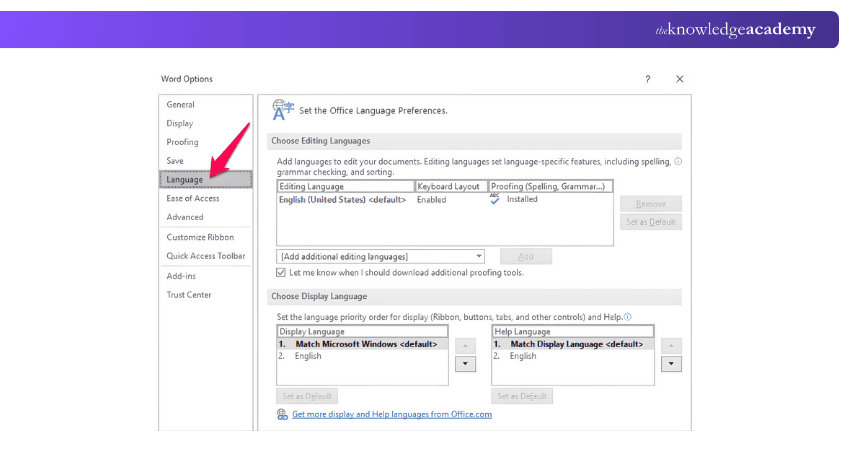
c) Open Language Settings: In the Word Options window, choose the Language tab.
d) Add Your Language: Under Choose Editing Languages, check if your preferred language is listed. If not, click Add additional editing languages and select it.
e) Set Display and Help Language: Under Choose Display and Help Languages, set your chosen language as the default for all Office apps.
f) Save and Restart: Click OK to apply the changes, then restart all Office programs so the new language settings take effect.
For Microsoft 365
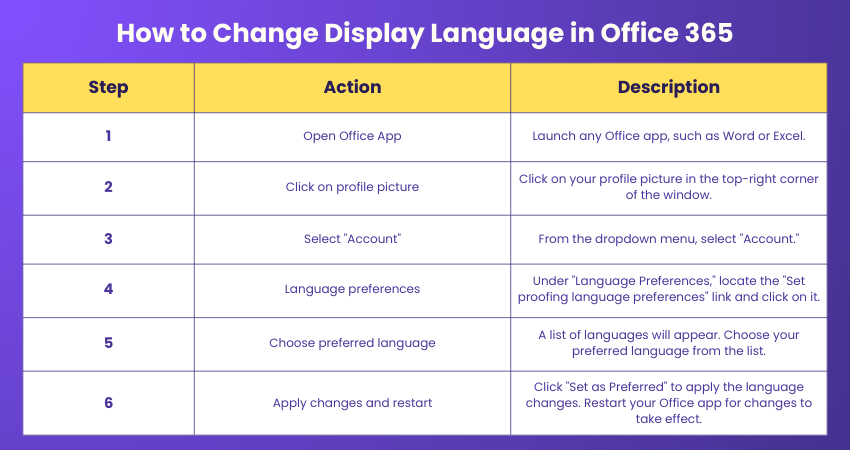
a) Open a Microsoft 365 App: Launch Microsoft Word or sign in to Microsoft 365 in your browser.
b) Open Settings: Click the Settings icon in the top-right corner of the screen.
c) Go to Microsoft 365 Settings: From the menu, select Microsoft 365 settings, then open the Settings tab.
d) Select Language and Time Zone: Click Language and time zone to view language options.
e) Choose your Preferred Language: Select the language you want to use and click Save.
f) Apply the Changes: Sign out and restart your Microsoft 365 apps to ensure the new language settings take effect.
How to Change MS Word Language on a Mac?
The steps are slightly different in the macOS version of Microsoft Word. Below is a clear steps on How to Change Language in Microsoft Word for Mac.
a) Open Microsoft Word: Open the Microsoft Word application on your Mac
b) Go to Preferences: Click "Word" in the top menu bar, and then click "Preferences."
c) Select Language: In the Preferences panel, select "Spelling and Grammar."
d) Set Language: Click on "Dictionaries" and select your preferred language from the list.
e) Apply Changes: Click "OK" to apply the updated language settings.
To change the language for a specific document
a) Go to Tools: Click on the "Tools” in the menu bar
b) Select Language: Click on "Language"
c) Set Languages: Select your desired language
d) Apply Changes: Click “OK" to apply new language settings
Proofing Language Settings
Setting the proof language in Microsoft Word is a vital aspect of ensuring accurate spelling and grammar checks for your documents. It involves specifying the language you want Word to use when reviewing and suggesting corrections. Here's a comprehensive set of key points on how to set proofing languages
Setting Proofing Language for the Entire Document
a) Open Document: Open the document you want to work on in Microsoft Word.
b) Review Tab: Navigate to the "Review" tab located in the top menu.
c) Language Options: Click on the "Language" button, usually situated on the left side of the ribbon.
d) Set Proofing Language: A dropdown menu will appear. Select "Set Proofing Language."
e) Choose Language: In the Proofing language dialogue box, choose your preferred language from the list.
f) Set as Default: To apply this language to the entire document, click the "Default" button.
g) Confirm and Close: Click "OK" to confirm your selection and close the dialogue box.
Setting proofing Language for Specific Text
a) Select Text: Highlight the specific text for which you want to change the proofing language.
b) Right-click or Review Tab: Right-click on the selected text and choose "Language," or navigate to the "Review" tab and click on "Language."
c) Choose Proofing Language: Similar to the previous method, select your desired proofing language from the list.
Join our Microsoft Office 365 Training and enhance your Microsoft Office skills now!
User Interface Language
The User Interface language in Microsoft Word controls the language used for menus, commands, and on-screen options. Changing this setting lets you personalise how Word appears and how you interact with it. Follow the steps below to update the User Interface language.
a) Open Microsoft Word: Start Word on your computer.
b) Open Options: Click the File tab in the top-left corner, then select Options at the bottom of the menu. This opens the Word Options window.
c) Go to Language Settings: From the left-hand menu, choose the Language tab.
d) Choose a Display Language: Under Choose Display and Help Languages, select your preferred language from the available list.
e) Set Office-wide Language (Microsoft 365): If you use Office 365, select Set Office Language Preferences to apply the language across all Office apps.
f) Save and Restart: Click OK to confirm your choice. Restart Word when prompted so the changes take effect.
Multilingual Editing
Multilingual editing in Microsoft Word refers to the process of working with documents that contain content in multiple languages. It involves adjusting the proofing language settings for specific portions of text to ensure accurate spell-checking and grammar correction.
Multilingual editing capability is very useful while handling documents containing quotes or phrases in different languages. It is also useful for sections written in languages different than the document's main Language. This ensures that each area is proofread using the proper language rules, maintaining accuracy and professionalism. Here's how you can effectively perform multilingual editing:
a) Open Document: Begin by opening the document in Microsoft Word whichcontains content in different languages.
b) Select Text: Highlight the specific text that you want to assign a different proofing language to. This could be a sentence, a paragraph, or an entire section.
c) Proofing Language: Right-click on the selected text and choose "Language" from the context menu. Alternatively, you can navigate to the "Review" tab and click on the "Language" button.
d) Choose Language: From the dropdown menu, select the appropriate proofing language for the highlighted text. This ensures that the spell check and grammar correction tools consider the chosen language's rules.
e) Repeat as Needed: If your document contains multiple sections in different languages, repeat the process for each relevant section. Assign the correct proofing language to each portion to ensure accurate corrections.
Enhance your collaboration skills by joining our Microsoft Teams Course today and boost your productivity!
Conclusion
Now that you’re familiar How to Change Language in Microsoft Word, you can elevate your writing and communication skills. By adhering to these guidelines, you can effortlessly switch between languages. Learn to configure Word to suit any language preference and revel in the creation of more efficient, personalised documents.
Unlock your full potential with our Microsoft Word Masterclass and become a word-processing wizard today!
Frequently Asked Questions
How to Change Languages on the Microsoft Word keyboard?

To switch languages on your Microsoft Word keyboard, press “Alt + Shift" or " Windows + Spacebar" to toggle through installed language options.
Why is Word Editing in a Different Language?
Word may be edited in a different language because the proofing language setting was changed. Also, the text might have been copied from another source with a different language setting.
What are the Other Resources and Offers Provided by The Knowledge Academy?
The Knowledge Academy takes global learning to new heights, offering over 3,000+ online courses across 490+ locations in 190+ countries. This expansive reach ensures accessibility and convenience for learners worldwide.
Alongside our diverse Online Course Catalogue, encompassing 17 major categories, we go the extra mile by providing a plethora of free educational Online Resources like Blogs, eBooks, Interview Questions and Videos. Tailoring learning experiences further, professionals can unlock greater value through a wide range of special discounts, seasonal deals, and Exclusive Offers.
What is The Knowledge Pass, and How Does it Work?
The Knowledge Academy’s Knowledge Pass, a prepaid voucher, adds another layer of flexibility, allowing course bookings over a 12-month period. Join us on a journey where education knows no bounds.
What are the Related Courses and Blogs Provided by The Knowledge Academy?
The Knowledge Academy offers various Microsoft Office Training, including the Microsoft Word Course, Microsoft Office 365 Training, and Microsoft Teams Training. These courses cater to different skill levels, providing comprehensive insights into File Management.
Our Office Applications Blogs cover a range of topics related to Microsoft Word, offering valuable resources, best practices, and industry insights. Whether you are a beginner or looking to advance your Office Applications skills, The Knowledge Academy's diverse courses and informative blogs have got you covered.

The Knowledge Academy


Global Training Provider
The Knowledge Academy is a world-leading provider of professional training courses, offering globally recognised qualifications across a wide range of subjects. With expert trainers, up-to-date course material, and flexible learning options, we aim to empower professionals and organisations to achieve their goals through continuous learning.

Upcoming Office Applications Resources Batches & Dates
Date
 Microsoft Word Course
Microsoft Word Course
Fri 31st Jul 2026
Microsoft Word Course
Fri 20th Nov 2026

 If you wish to make any changes to your course, please


