


 Top Rated Course

We may not have the course you’re looking for. If you enquire or give us a call on +1 7204454674 and speak to our training experts, we may still be able to help with your training requirements.
Microsoft Project Plan: Features, Pricing, and How to Use
The Knowledge Academy 14 July 2026A Microsoft Project Plan helps schedule tasks, assign resources, track costs, and visualise progress using Gantt Charts, Kanban boards, and AI tools. These features support effective planning, tracking, and collaboration for teams and enterprises. It also adapts to projects of different sizes, from simple tasks to large portfolios.

Training Outcomes Within Your Budget!
We ensure quality, budget-alignment, and timely delivery by our expert instructors.
Table of Contents

Are you using physical boards and charts to plan your complicated projects? If yes, then it is time to switch to a digital solution. Microsoft Project Plan is an excellent tool for effectively handling projects and ensuring that they are finished on time and within budget.
This is the era of digitalisation; businesses will eventually need to shift to digital platforms to make their work efficient. But why wait for the wave of change to sway your business away? It is time to adapt to Microsoft’s Project Plan. Not sure what it is? Read this blog to learn about different Microsoft Project Plans, features, and benefits.
Table of Contents
1) Microsoft Project Plans: A Detailed Explanation
2) Microsoft Project Online Plan – 1
3) Microsoft Project Online Plan – 3
4) Microsoft Project Online Plan – 5
5) Side-by-side Comparison of Different Microsoft Project Plans
6) How do you Create a Project Plan in Microsoft Project?
7) What Information is Included in a Microsoft Project Plan?
8) Conclusion
Microsoft Project Plans: A detailed explanation
For ages, Project Managers and management professionals worldwide have used charts, PPTs, and physical boards to plan their entire projects. They spend hours designing eye-catching PPTs and detailed charts, only to discover that the project’s original objective has changed altogether.
So, to eliminate their workload and support Project Managers to plan and execute projects effortlessly, Microsoft has developed cloud-based software solutions. The new Microsoft Project Management Software, Microsoft Project Plan, helps professionals efficiently make strategic decisions and gain better control over projects, programs, and portfolios. For those comparing alternatives, a detailed comparison of Primavera P6 vs MS Project can further assist in choosing the right tool for your project management needs.
It is accessible through the Project Online Desktop Client or a web browser, and you can also use the Microsoft Project Viewer for easy access to project plans. Currently, there are three online plans available with the Microsoft 365 package. These plans are as follows:
1) Project Plan 1
2) Project Plan 3
3) Project Plan 5
These MS Project Plans are integrated with SharePoint and utilise its features, including security groups, web parts, etc. Also, the projects created in Microsoft’s Project Planner get saved in Office 365’s SharePoint Content Database. Furthermore, for reporting purposes, it utilises Power BI to analyse its data and offer Microsoft Power App Templates that allow users to quickly generate tailored reports, enhancing both functionality and efficiency.
Microsoft Project Online Plan – 1
The Microsoft Project Plan 1 is a relatively new license introduced to simplify project planning. It perfectly combines with Microsoft 365 to provide an effortless and seamless Project Management and data reporting experience. Microsoft offers this plan for £7.70 per month. Some of the features included with the Project Plan 1 package are as follows:
1) Streamlined Task Scheduling: Project Managers, team members, and other project members can schedule their tasks by quickly reorganising them in a simplified manner.
2) Visualised timelines: Users can easily visualize the task path of their projects, including important projects, ongoing projects, and due projects. With Microsoft Project Interview Questions, they can gain insights into how task paths work, helping them highlight and differentiate tasks and projects more effectively.
3) Timesheets: All the project and non-project time spent on Payroll Software, invoicing, and other tasks can be easily reported using Plan 1.
4) Project Home: This feature of Plan 1 provides a centralised dashboard to help users navigate and access their plans. It offers to create new projects easily and quickly access important, top-of-mind projects or open projects most recently worked on.
5) Pre-built Reports: Plan 1 offers automated reports to track the progress of the projects, resources, programs and portfolios.
6) Easy Communication and Collaboration: Microsoft Plan 1, integrated with MS Teams, offers easy and Effective communication among the team regarding the project plan. It also allows transferring files, sharing ideas and much more across Teams.
Elevate your Project Management skills with our Microsoft Project Training- join us today!
Microsoft Project Online Plan – 3
Previously known as Project Online Professional, the MS Project Plan 3 is a useful and realistic tool for Project Management. Plan 3 is available from anywhere worldwide and offers a desktop copy of the Microsoft Project Standard with each plan per user. It is available to users for £23.10 per month per user. The following are some features of Plan 3 that make it easy to operate:
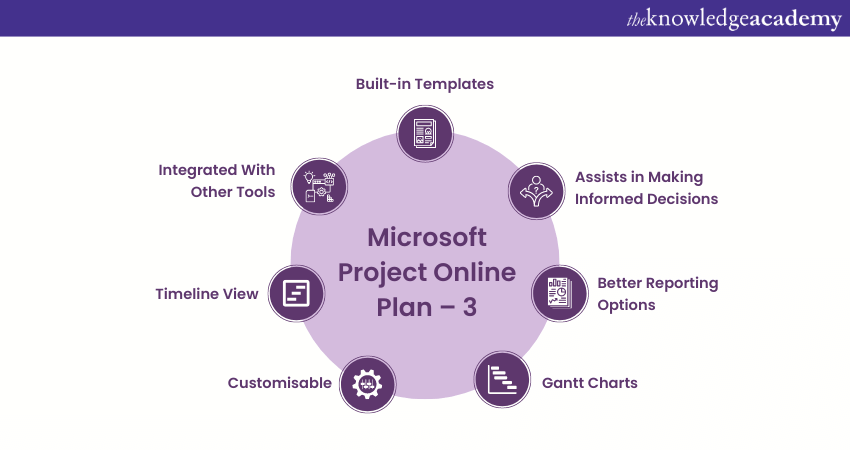
1) Built-in Templates: Plan 3 has built-in templates to plan projects easily. These templates are designed to understand users’ needs and provide options accordingly. Users can pick their favourite template from MS Project Plan or visit office.com.
2) Assists in Making Informed Decisions: The plan allows the users to make baseline comparisons between the actual progress and the original plan. Therefore, they can make appropriate decisions relating to the project.
3) Better Reporting Options: Plan 3 also offers automatically generated reports for the users to track the project’s progress, resources, programs and portfolios. They provide reports such as task status reports, resource allocation reports, and project cost reports.
4) Gantt charts: Gantt Charts help the Project Management teams visualise projects and the tasks included within them. They can also track the progress of the project using these visual representations.
5) Customisable: Plan 3 allows the users to customise their project planners to meet their requirements.
6) Timeline View: This feature of the Project Plan 3 assists the users in understanding the relationship between different tasks by highlighting the direction of the project and its timelines.
7) Integrated with Other Tools: Plan 3 is integrated with other Microsoft tools and services, including Microsoft Teams, SharePoint, and Excel. This integration promotes effortless data exchange and collaboration across different platforms.
Gain expertise with Microsoft Planner Training to improve team collaboration. Join our Microsoft Planner Training now!
Microsoft Project Online Plan – 5
The Project Online Premium version of the Microsoft Project Plan has been renamed to Microsoft Project Plan 5. The best way to access the entire Project Online Platform is by purchasing Plan 5. This plan offers an easy-to-use functionality and better efficiency to Project Managers that further help customise Project Management Operations.
Using Project Plan 5, users can plan, prioritise, and manage the entire project in one go while understanding the difference between Microsoft Planner and MS Project. They can also analyse portfolio investments from any corner of the world. The cost to purchase this Plan is £42.30 per month. Additionally, a desktop copy of Microsoft Project Standard is also available for each plan per user. Some of the features of Project Plan 5 are as follows:
1) Readily Available: The users can access Plan 5 from any part of the world and at any time of the day. They can not only view the project plan but also submit reports and communicate while being in different time zones.
2) Portfolio Selection and Optimisation: By comparing project proposals and strategic business drivers, users can develop various portfolio scenarios to determine the most suitable path for their project.
3) Customisable Views: The project plan created in Plan 5 by the users can be viewed in multiple formats. They can also choose between grid, board, and timeline views according to their preference and comfort.
4) Built-in Roadmaps: The prebuilt roadmaps of Plan 5 let the users visualise projects and examine progress across projects, programmes and portfolios.
5) Advanced Scheduling and Analysis: Project Plan 5 offers advanced scheduling capabilities, including task scheduling, baselines and Critical Path in Microsoft Projects analysis. This helps the professionals access and optimise project schedules and identify possible delays and “what if” scenarios.
6) Promotes Collaboration and Communication: Plan 5 offers collaboration features to facilitate communication among team members. Stakeholders can view plans, update task statuses, and participate in discussions. This promotes transparency and keeps everyone informed about the project’s progress.
7) Resource Management: Resource allocation can be easily facilitated using Project Plan 5. The users can define resources, assign them across tasks and check their availability and workload. This helps with a balanced allocation of resources throughout the project.
Learn essential skills for productivity in workplace environments. Join our Microsoft Office 365 Training now!
Side-by-side Comparison of Different Microsoft Project Plans
These are the step-by-step comparisons of different Microsoft Project Plans:
|
Feature |
Project Plan 1 |
Project Plan 3 |
Project Plan 5 |
| Availability of Project Home Options |
Yes |
Yes |
Yes |
| Grid View |
Yes |
Yes |
Yes |
|
Availability of Board View |
Yes |
Yes |
Yes |
|
Timeline View with Gantt Chart |
Yes |
Yes |
Yes |
|
Collaboration and Communication |
Yes |
Yes |
Yes |
|
Project Planning and Scheduling |
Yes |
Yes |
Yes |
|
Reporting functionality |
Yes |
Yes |
Yes |
|
Timesheet submission capability |
No |
Yes |
Yes |
|
Resource Management capability |
No |
Yes |
Yes |
|
Access to Roadmap |
Read-only access |
Yes |
Yes |
| Desktop Client Availability |
No |
Yes, up to 5 PCs |
Yes, up to 5 PCs |
| Portfolio Selection and Optimisation Capability |
No |
No |
Yes |
| Demand Management Capability |
No |
No |
Yes |
| Integrated Apps |
• Project for the web,
|
• MS Project for the web • Project Online • Project Online desktop client |
• Microsoft Project for the web • Project Online • Project Online desktop client |
How do you Create a Project Plan in Microsoft Project?
Creating a project plan in Microsoft Project follows a clear, step-by-step process that helps you organise tasks, timelines, and resources effectively.
1) Start a New Project
Open Microsoft Project, go to File > New, and choose either a blank project or a suitable template. Save the file straight away to secure your work.
2) Set Project Information
Select the Project tab and click Project Information. Enter the project start date and ensure scheduling is set to begin from this date.
3) Enter Tasks and Build the WBS
Switch to the Gantt Chart view and list all task names. Use indentation to create summary tasks and subtasks, forming a clear Work Breakdown Structure.
4) Define Task Details and Dependencies
Add task durations, link tasks using predecessors to show dependencies, and create milestones by setting task duration to zero.
5) Assign Resources and Review the Plan
Allocate resources to tasks and review progress using the Gantt Chart and Detail Gantt views to identify timelines and critical activities.
What Information is Included in a Microsoft Project Plan?
A Microsoft Project Plan typically includes these key details:
1) Project Goals and Scope: Defines the purpose of the project and what work is included.
2) Tasks and Milestones: Breaks the project into tasks and highlights key milestones.
3) Task Dependencies: Shows the order of work and relationships between tasks.
4) Timeline and Schedule: Displays start dates, end dates, durations, and the overall timeline using Gantt Charts.
5) Resource Allocation: Assigns people, equipment, and materials to tasks.
6) Budget and Costs: Tracks estimated and actual costs for financial control.
7) Progress Tracking: Monitors task completion, schedule performance, and overall project status.
Conclusion
Microsoft Project Plan is one of a kind. Anyone finding it challenging to plan projects can use the readily available, easy-to-use and loaded features of Online Project Plans. Teams cannot only edit them but can also collaboratively build a successful plan for their projects. For those seeking a Microsoft Project alternative, these plans offer a robust solution. Start utilising these plans today to achieve efficient and effective project outcomes.
Learn to plan, schedule, and track projects using Microsoft Project tools and features. Join our Microsoft Project Training now!
Frequently Asked Questions
Why use Microsoft Project Instead of Excel?

Microsoft Project offers advanced Project Management tools, including task scheduling, resource Management, and progress tracking, which are lacking in Excel. It streamlines workflows, enhances collaboration, and ensures projects are completed on time and within budget.
Is Microsoft Project Being Phased out?
No, Microsoft Project is not being phased out. Instead, it keeps changing and receiving new features to support modern Project Management needs and improve user experience.

The Knowledge Academy


Global Training Provider
The Knowledge Academy is a world-leading provider of professional training courses, offering globally recognised qualifications across a wide range of subjects. With expert trainers, up-to-date course material, and flexible learning options, we aim to empower professionals and organisations to achieve their goals through continuous learning.


 If you wish to make any changes to your course, please


