


 Top Rated Course

We may not have the course you’re looking for. If you enquire or give us a call on +1 7204454674 and speak to our training experts, we may still be able to help with your training requirements.
How to Check Battery Health on Your Android Phone via 3 Methods
Richard Harris 11 February 2026Wondering How to Check Battery Health in Android? Monitoring your battery's condition helps extend its lifespan and optimise performance. Battery Health refers to the overall capacity and efficiency of your battery over time. Knowing this helps prevent unexpected shutdowns and optimise charging habits. Let’s explore different ways!

Training Outcomes Within Your Budget!
We ensure quality, budget-alignment, and timely delivery by our expert instructors.
Table of Contents
Have you noticed your phone dying faster than usual? You’re not alone! Android phone batteries naturally degrade over time, leading to shorter screen-on times and sluggish performance. But before panicking and rushing to buy a new phone, it’s crucial to know How to Check Battery Health in Android.
So, How to Check Battery Health in Android? Luckily, Android offers multiple ways to assess your battery’s condition. Be it through built-in settings, secret dial codes, or third-party apps, you can quickly determine whether your battery is in top shape or needs attention. Let’s explore the easiest methods to check your phone’s Battery Health.
Table of Contents
1) What is Android Battery Health?
2) How to Check Android Battery Health from the Settings Menu?
3) How to Check Android battery Health Using a Dial Code?
4) How to Check Android Battery Health with an App?
5) How to Save Battery on Android?
6) Conclusion
What is Android Battery Health?
The term Android Battery Health refers to the overall efficiency and effectiveness of your phone's battery in comparison to when the phone was brand new. Lithium-ion batteries ultimately deteriorate over time due to a myriad of reasons such as prolonged usage, frequent heat exposure, and regular charging cycles, which result in a lowered capacity.
A fully healthy battery can guarantee longer screen-on time, increased performance, and decreased chances of overheating. However, when the Android battery health starts declining, issues such as unusual shutdowns, sluggish performance, or faster battery drainage become more common. Additionally, you might notice distractions like pop-up ads, so knowing how to Stop Pop-Up Ads on Android Phone could enhance your user experience further during this time.
The underlying reasons behind this are linked to the fact that the battery now holds significantly less charge than it originally could. Understanding the state of your battery allows you to take proactive steps, such as setting up battery-saving features, refining charging habits, or replacing the battery if needed. Similarly, knowing how to access essential device settings, like Viewing WiFi Password on Android, can enhance your overall user experience.

How to Check Android Battery Health from the Settings Menu?
The easiest way to check your battery's condition is through your phone's settings. While not all Android models offer detailed Battery Health statistics, brands like “Samsung” and “OnePlus” do.
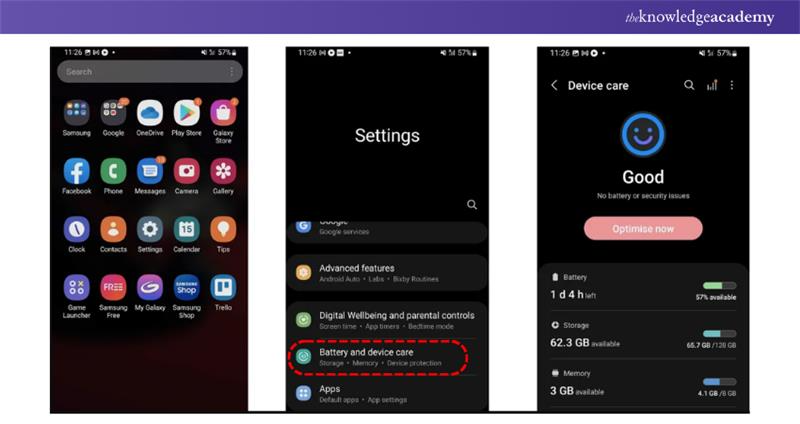
Steps:
a) Open Settings on your Android phone.
b) Scroll down and tap Battery or Battery & Device Care (this may vary by brand).
c) Look for options such as Battery Usage or Battery Health (if available).
d) Some phones display Battery Health as a percentage, while others provide general usage data.
Master the art of user-centric design – join our UI UX Design Course now!
How to Check Android Battery Health Using a Dial Code?
Android devices feature a hidden diagnostic menu that offers details about Battery Health, network status, and other technical information. You can access this menu by entering a specific dial code.

Steps:
a) Open the Phone Dialler on your Android device.
b) Dial (*#*#4636#*#*) the hidden testing menu should open automatically.
c) Tap on Battery Information (if available).
d) Check for details such as Battery Health, Battery Status, and Temperature.
Develop top-notch apps and websites – register for our UI UX Design Course now!
How to Check Android battery Health with an App?
If the built-in methods don’t provide Battery Health details, third-party apps are a great alternative. These apps offer advanced analytics on battery condition, charging cycles, and estimated lifespan.
Best Apps to Check Battery Health on Android:
a) AccuBattery: Measures battery wear, charging patterns, and estimated health.
b) Ampere: Displays real-time charging and battery drain statistics.
c) CPU-Z: Provides comprehensive system and Battery Health information.
Steps to Use AccuBattery:
a) Download AccuBattery from the Google Play Store.
b) Open the app and grant the necessary permissions.
c) Allow the app to run for a few charge cycles to gather data.
d) Navigate to the Battery Health tab to check estimated battery wear and capacity.
This method offers detailed insights, helping you determine if your battery is performing optimally.
Design stunning websites with our Website Design Course- Register today!
How to Save Battery on Android?
As your Android phone’s Battery Health declines, it’s essential to adopt smart habits to extend its lifespan. To extend your Android phone’s battery life and maintain its health, follow these essential tips:
a) Enable Battery Saver Mode: Reduces background activity and optimises power consumption.
b) Lower Screen Brightness: High brightness levels drain the battery faster.
c) Use Dark Mode: Saves power on OLED and AMOLED screens.
d) Turn Off Background Apps: Prevents unnecessary battery drain.
e) Avoid Overcharging: Keeping your phone at 100% for too long can degrade battery life.
f) Keep Software Updated: Updates often include battery performance improvements.
g) Limit High-Power Apps: Apps like games and streaming services consume more battery.
h) Turn Off Bluetooth, Wi-Fi, and GPS: When not in use turn off all of them which will reduce unnecessary power usage.
Conclusion
Keeping an eye on your phone’s Battery Health can save you from unexpected shutdowns and sluggish performance. With these three easy methods, you now know How to Check Battery Health in Android and act before issues arise. A well-maintained battery means a smoother experience and longer device life; so, don’t wait until it is too late!
Unlock your potential in mobile app with our Mobile App Development Course - Join now!
Frequently Asked Questions
When Should I Consider Replacing My Android Phone Battery?

Consider replacing your Android phone battery if it drains quickly, overheats, or shuts down unexpectedly. If the Battery Health drops below 80% or charging takes excessively long, it's time for a replacement. Swollen or damaged batteries should be replaced immediately for safety reasons.
What is the Best way to Charge My Android Phone?
Charge your phone in short cycles (20%-80%) rather than overnight. Use the original charger, avoid frequent fast charging, and keep your phone cool while charging. Unplug once the battery is full to prevent overcharging and enable battery saver mode to extend its lifespan.
What are the Other Resources and Offers Provided by The Knowledge Academy?
The Knowledge Academy takes global learning to new heights, offering over 3,000+ online courses across 490+ locations in 190+ countries. This expansive reach ensures accessibility and convenience for learners worldwide.
Alongside our diverse Online Course Catalogue, encompassing 19 major categories, we go the extra mile by providing a plethora of free educational Online Resources like Blogs, eBooks, Interview Questions and Videos. Tailoring learning experiences further, professionals can unlock greater value through a wide range of special discounts, seasonal deals, and Exclusive Offers.
What is The Knowledge Pass, and How Does it Work?
The Knowledge Academy’s Knowledge Pass, a prepaid voucher, adds another layer of flexibility, allowing course bookings over a 12-month period. Join us on a journey where education knows no bounds.
What are the Related Courses and Blogs Provided by The Knowledge Academy?
The Knowledge Academy offers various App & Web Development Training, including the Mobile App Development Course, Web Development Training and the Front End Developemnt Course. These courses cater to different skill levels, providing comprehensive insights into Top 15 Android Developer Skills.
Our Programming & DevOps Blogs cover a range of topics related to App and Mobile Development, offering valuable resources, best practices, and industry insights. Whether you are a beginner or looking to advance your Developemnt Skills, The Knowledge Academy's diverse courses and informative blogs have got you covered.

Richard Harris


Senior Full Stack Developer and Technology Educator
Richard Harris is a highly experienced full-stack developer with deep expertise in both frontend and backend technologies. Over his 12-year career, he has built scalable web applications for startups, enterprises and government organisations. Richard’s writing combines technical depth with clear explanations, ideal for developers looking to grow in modern frameworks and tools.

Upcoming Programming & DevOps Resources Batches & Dates
Date
 Android App Development Course
Android App Development Course
Thu 3rd Sep 2026
Android App Development Course
Thu 5th Nov 2026

 If you wish to make any changes to your course, please


