


 Top Rated Course

We may not have the course you’re looking for. If you enquire or give us a call on +64 98874342 and speak to our training experts, we may still be able to help with your training requirements.
How to Use Microsoft Teams? A Detailed Guide
The Knowledge Academy 15 July 2026To use Microsoft Teams, sign in to chat, meet, share files, schedule meetings, and collaborate in channels with @mentions on web or mobile. Stay connected with your team anytime, anywhere. Easily organise projects, track tasks, and boost overall productivity and collaboration together in one powerful, intuitive platform.

Training Outcomes Within Your Budget!
We ensure quality, budget-alignment, and timely delivery by our expert instructors.
Table of Contents

Microsoft Teams is a robust tool developed for the purpose of uniting your crew. Learn How to Use Microsoft Teams to improve collaboration, streamline communication, and stay connected. In this blog, we will examine important aspects and provide tricks for making your start productive
Table of Contents
1) What is Microsoft Teams?
2) Features of Microsoft Teams
3) Getting Started with Microsoft Teams
4) Navigating the Microsoft Teams Interface
5) Creating and Managing Teams
6) Channels and Conversations
7) Collaboration with Files and Documents
8) Scheduling and Conducting Meetings
9) Tips and Tricks for Effective Communication
10) Best Practices for Using Microsoft Teams
11) Conclusion
What is Microsoft Teams?
Microsoft Teams is a platform that operates in the cloud and it is mainly used for messaging, video conferencing, calling, and sharing files. It is available for desktop, web, and mobile. Teams is closely integrated with Microsoft's tools such as Outlook and SharePoint in order to ensure that teams stay connected and productive.

Features of Microsoft Teams
Microsoft Teams provides an assortment of features for online communication, partnership, and virtual conferences, thus ensuring that the teams will not only stay in touch but also be able to effectively carry out their activities.
a) Chat and Communication:
Provides private and group chats, even voice and video calls. Thus, it's possible for teams to stay connected, no matter the location.
b) Teams and Channels:
You can arrange chat threads, files, and projects into different teams and channels, which can help you organise and locate the ones which are needed more quickly.
c) Meeting and Conferencing:
This platform can accommodate large groups of people and has advanced features like screen sharing, meeting recording, and live captions.
d) File Storage and Sharing:
Which manages to integrate the services of SharePoint and OneDrive that handle secure storage as well as file sharing within channels and groups.
e) Collaboration Tools:
Smoothly cooperating with MS Office suite apps like Word, Excel, PowerPoint, and OneNote, spontaneously co-creating and editing your docs as they can be continued in their platform.
f) Task Management:
Uses tools such as Microsoft Planner for the task and Project Management, letting teams know what they need to do, who to assign the tasks to, and how to track the progress of the tasks.
g) Customisation and Extensions:
Offers a way of integrating third-party applications and services. It also provides custom ones for Microsoft Teams developers to widen functionality.
h) Security and Compliance:
This type of software will offer the topmost security measures which will include end-to-end encryption, multiple factor authentication and advanced compliance abilities that help the software to keep up with the regulatory requirements.
Getting started with Microsoft Teams
This section of the blog will guide you on how to get started with the platform.
Downloading and Installing Teams
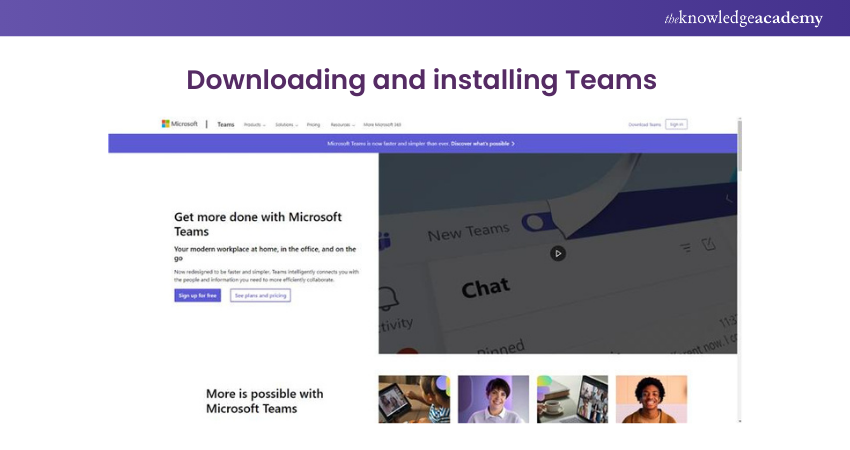
To begin using Microsoft Teams, follow these simple steps:
1) Visit the official of Microsoft Teams.
2) Then, you need to download the suitable version for your device (Windows, macOS, iOS, or Android).
3) Install Microsoft Teams by double-clicking on the downloaded file and following the on-screen instructions.
Creating a Teams account
Once installed, you'll need to create a Microsoft Teams account:
1) Launch the Microsoft Teams application.
2) Click on "Sign up for free" or "Create account."
3) Type in your email address and fill in a strong password.
4) Fill in your personal information and complete any required security verification.
5) Accept the specified terms of service and privacy policy.
6) Then click on "Create account" or "Sign up" to finish.
Now you're ready to log in and explore the features of Microsoft Teams. You should keep your login credentials secure and consider enabling two-factor authentication for added protection.
Unleash the maximum potential of Microsoft Teams with our comprehensive Microsoft Teams Training- Register now!
Navigating the Microsoft Teams Interface
To begin, you should install and then log in to Microsoft Teams. Once you are in, it is imperative for you to get accustomed to the layout. Getting rid of the clutter facilitates rapid navigation from one typical part or feature of the Microsoft Teams interface to another.
1) Sidebar: The sidebar, which is found on the left side of the screen, gives direct access to the different parts of Microsoft Teams' interface. Under tabs, you will see Teams, Chat, Calendar, calls, and files. Clicking each tab will bring its related section before you.
2) Activity feed: The activity feed is in the top left corner of the interface. It displays notifications, mentions, and updates from the teams and channels that you are a member of. You can also access your recent conversations and files from here.
3) Command bar: The command bar is situated at the top of the screen. It allows you to search for specific teams, channels, messages, or files. You can also make use of the command bar to initiate calls, start a new chat, or join a meeting.
4) Teams and channels: In the main area of the interface, you'll find your teams and channels. Teams represent groups of people with common objectives or projects, while channels are specific areas within a team for focused discussions. Clicking on a team or channel will display its conversations, files, and other related information.
5) Conversation pane: The conversation pane is where you can view and participate in discussions within a team or channel. It displays messages, replies, and any shared files or documents. You can easily compose new messages, reply to existing ones, and react to messages using emojis.
6) Content and tabs: Within each channel, you can add various tabs to access and collaborate on different types of content. For example, you can add tabs for Files, OneNote notebooks, SharePoint sites, and more. Each tab provides a dedicated space for working with specific content.
7) Chat and calls:To launch these features hit the Chat or Calls icon on the left panel. The chat section provides you the opportunity to send one-to-one or group messages to your co-workers. "The calls" section is designed to allow you to make calls with audio and video, set up meetings, and view the list of your call history.
Master Microsoft Teams interview questions! Prepare with expert tips and elevate your career. Explore Microsoft Teams interview questions now!
Creating and Managing Teams
Teamwork and team management are some of the basic team elements that you can use to bring together people with shared interests (goals or projects). When considering tools for collaboration, it's important to also understand aspects like Zoom vs Microsoft Teams Security to ensure your team's communication remains secure. In this part, we'll take a look at the procedure of designating a team and examine how its roles and membership can be organised.
Creating a New Team
Creating and managing teams in Microsoft Teams is crucial for effective collaboration. Follow these steps:
1) In order to create a team, click on the "Teams" tab in the sidebar.
2) Click on the "+ Join or create a team" option and choose "Create a team."
3) Select "Private" or "Public" and provide a name and description.
4) Optionally, add members by email or from your organisation's directory.
5) Set privacy and permissions, and click "Create."
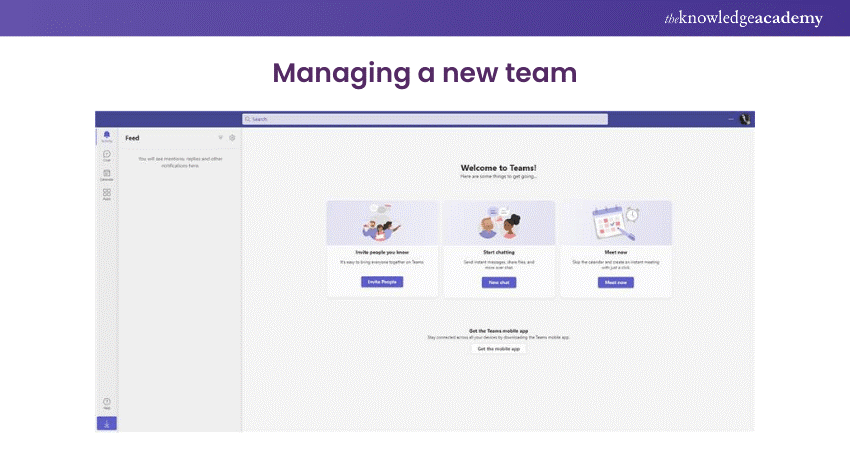
Managing a New Team
To manage teams:
1) Click the three dots (...) next to the team's name and choose "Manage team."
2) Adjust settings, permissions, and privacy.
3) Create channels to organise discussions and content.
4) Add tabs for external tools or integrate apps for added functionality.
5) Manage team membership, roles, and permissions.
6) Configure notification settings for relevant updates.
7) Effective team management ensures a productive collaborative environment. Regularly review and update settings as needed. Now you can create and manage teams in Microsoft Teams, fostering seamless communication and collaboration.
Channels and Conversations
In Microsoft Teams, channels are special places in a team for talking and working together. They make it easier to arrange the chats, documents, and improvements according to different subjects or tasks.
All members can see the discussions in channels, which encourages openness and cooperation. Such a setup creates an organized communication flow and makes sure that all are synchronised.
Unlock your full potential with our Microsoft Word Course! Excel advanced features, streamline your workflow, and create professional documents. Join today!
Collaboration With Files and Documents
Collaboration with files and documents, which holds a vital place in teamwork, is performed by Microsoft Teams. The platform offering the ability to help the teams work in an organised manner and coordinate efforts through many useful tools is well known for this. Now let us examine how you can work collectively on files or documents within Microsoft Teams.
Uploading and Sharing Files
If you want to know how you can upload and share files easily with your team members, then follow these simple steps:
1) Uploading files: In the sidebar, tap the "Files" section, which is in the upper part of the page. Click on the "Upload" button and then select the files you intend to upload from your storage. Additionally, it's possible to just drag and drop files into Teams for improved ease of use.
2) Sharing files: When you have finished the uploading, you will be able to share it. There, you can simply click the file to open it and then click share. Another aspect is that you can decide to send the report to the selected team members or the team. Moreover, you can also limit access to the file and set permission for eligible readers to view or edit the file.
Collaborating on Documents
Microsoft Teams provides several powerful collaboration features for working on documents together. Here are some essential functions:
1) Real-time editing: When you open a document on Teams, multiple teammates can edit it side by side in real-time. The others can immediately check those changes that one person has made, so good teamwork and trouble with version control are avoided.
2) Version History: A team can monitor changes of documents. You can always turn back and restore the old version if needed. The feature also ensures that you can do your work without any trouble, because you can easily access the version history. You can do this by just clicking on the "..." button and then choose "Version History".
3) Commenting and @Mentions: Working on documents jointly is about exchanging thoughts and suggestions. Teams have annotation options, like comments for specific sections of a document, so it becomes easy to provide feedback or ask questions. Another simple strategy involves using the "@" symbol followed by another team member's name in a comment, which immediately sends a notification to them and directs them to check your comments.
4) Co-authoring: Collaborative technology makes multiple group participants to alter the document at the same time. This function, in turn, allows for better collaboration and time saving both sending and receiving files. All team members will be able to work simultaneously, with everyone making changes and contributions in real-time.
Elevate your productivity with expert Microsoft Teams tips! Streamline communication and collaboration effortlessly. Explore Microsoft Teams tips today!
Integration with Microsoft 365 apps
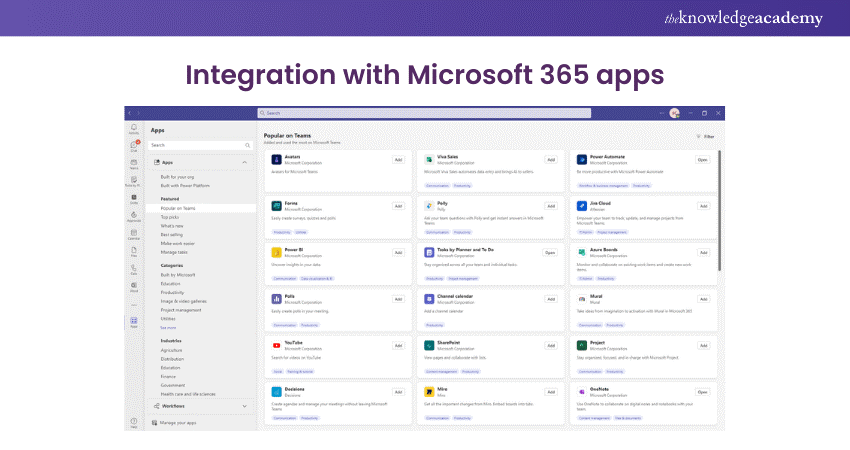
Microsoft Teams easily integrates with various Microsoft 365 apps, enhancing collaboration capabilities. Here are a few notable integrations:
1) Microsoft OneDrive: Teams integrate with OneDrive, allowing you to access and share files stored in your OneDrive directly within Teams. This integration ensures a seamless experience when working with files.
2) Microsoft SharePoint: SharePoint integration provides easy access to SharePoint document libraries within Teams. You can share, collaborate, and manage documents stored in SharePoint directly in Teams, ensuring efficient document management and collaboration.
3) Microsoft Office apps: Teams provide in-app access to popular Microsoft Office apps like Word, Excel, and PowerPoint. You can create and edit documents within Teams, leveraging the powerful functionality of these apps without leaving the Teams environment. This seamless integration streamlines document collaboration and enhances productivity.
By utilising the collaboration features offered by Microsoft Teams, you can effectively work together on files and documents, ensuring streamlined teamwork and enhanced productivity.
Scheduling and Conducting Meetings
a) Schedule a meeting in Microsoft Teams
You can schedule a meeting directly from Microsoft Teams using the Calendar, a chat, or a channel.
1) Select Calendar from the left side of Teams.
2) Choose New meeting or select a time slot in the calendar.
3) Enter the meeting title, date, and time.
4) Add required and optional attendees.
5) Turn on Teams meeting if it is not enabled by default.
6) Select Save to send invitations.
b) Schedule a meeting from chat
1) Go to Chat and select an existing conversation.
2) Select More options.
3) Choose Schedule a meeting.
4) Add meeting details such as title, date, and time.
5) Select Send to notify participants.
c) Schedule a channel meeting
1) Go to Teams and select the required channel
2) Select the arrow next to Meet now
3) Choose Schedule a meeting
4) Enter meeting details and select the channel
5) Select Send
6) All channel members can view and join the meeting
d) Invite people to a meeting
1) Open the meeting from the Teams calendar
2) Add names or email addresses under Attendees
3) Select Send update to notify invitees
e) Use Scheduling Assistant
The Scheduling Assistant helps you find a suitable time by showing attendee availability.
Busy times appear as shaded blocks, making it easier to select a time that works for everyone.
f) Share a meeting link
1) Open the meeting details in the calendar.
2) Select Copy join link.
3) Share the link through chat, email, or message
g) Add a dial in option
If enabled by your organization, meeting invitations can include a phone number and conference ID so participants can join by phone.
h) Reschedule a meeting
You can reschedule a meeting by opening it from the calendar, updating the date or time, and sending the update to attendees.
Tips and tricks for effective communication
Effective communication is important for successful collaboration in Microsoft Teams. To enhance your communication skills and make the most of the platform, consider these helpful tips and tricks:
Clear and Concise Messaging
a) Be clear: When sending messages, ensure your communication is clear and easily understandable. Use concise language and avoid ambiguity to convey your message effectively.
b) Get to the point: Be mindful of others' time and keep your messages concise. Get straight to the point, highlighting the key information or action required.
Utilise @Mentions and Reply Threads
a) @Mentions: To get someone's attention or involve them in a conversation, use the @ symbol followed by their name. This ensures they receive a notification and directs their attention to your message.
b) Reply threads: When responding to a specific message, use the reply thread feature. This keeps conversations organised and makes it easier for others to follow along.
Emojis and GIFs
a) Emojis: Use emojis to add a touch of emotion or express appreciation. They can help convey tone and make your messages more engaging and friendly.
b) GIFs: Spice up conversations with GIFs to add some humour or visual appeal. GIFs can help create a light-hearted atmosphere and make communication more enjoyable.
Audio and Video Calls
a) Choose the right medium: For more complex discussions or when tone and visual cues are important, consider using audio or video calls instead of written messages. This allows for more effective communication and better understanding.
b) Use background blur: When participating in video calls, utilise the background blur feature to minimise distractions and maintain focus on the discussion.
Status and Availability
a) Set your status: Use the status feature to indicate your availability and current activities. This helps others know when you're free to chat or collaborate.
b) Update your presence: Keep your presence status up to date, indicating whether you're available, busy, away, or offline. This provides your team members with visibility regarding your availability.
Channels and Tags
a) Organise conversations with channels: Use channels to categorise discussions based on topics or projects. This keeps conversations organised and makes it easier to find relevant information.
b) Utilise tags: Use tags to highlight specific team members or roles in conversations. This ensures that relevant individuals are notified and can easily find messages pertaining to them/
Transform your skills with Microsoft Visio Training! Learn to create detailed diagrams, flowcharts, and more to visualize complex information. Join now!
Best Practices for Using Microsoft Teams
A well-structured Teams workspace with consistent naming improves project visibility and team collaboration across multiple projects. The system provides personalized alerts together with continuous chat features which guarantee that users will always receive critical information.
Conclusion
With proper practices, Microsoft Teams enables teams to achieve better-organised and more effective collaborative work. We hope this blog provided useful insights on How to Use Microsoft Teams and will help you improve work efficiency and maintain communication.
Take your Microsoft Office skills to the next level – Sign up for our Power Apps and Power Automate Training!
Frequently Asked Questions
Do I need Office 365 to use Teams?

No, the Office 365 subscription is not necessary for giving the Microsoft Teams a go. Microsoft gives a free, lite version of Teams with limited options. If you seek integration with Office apps and a better feature set, then you’ll need to upgrade to a Microsoft 365 subscription.
Difference between Zoom and Teams
Zoom primarily focuses on video conferencing with robust meeting features, while Microsoft Teams is more comprehensive, integrating chat, video calls, file storage, and collaboration tools within the Microsoft 365 suite. When considering these tools, it's important to evaluate Zoom vs Microsoft Teams Security to ensure your team’s data and communications are well protected.

The Knowledge Academy


Global Training Provider
The Knowledge Academy is a world-leading provider of professional training courses, offering globally recognised qualifications across a wide range of subjects. With expert trainers, up-to-date course material, and flexible learning options, we aim to empower professionals and organisations to achieve their goals through continuous learning.


 If you wish to make any changes to your course, please


