


 Top Rated Course

We may not have the course you’re looking for. If you enquire or give us a call on +971 8000311193 and speak to our training experts, we may still be able to help with your training requirements.
Comparison of Two Columns in Excel: A Beginner's Guide
The Knowledge Academy 23 December 2025The "Comparison of Two Columns in Excel" focuses on various methods to analyse and contrast data across two columns within a spreadsheet. Comparison of two columns helps you eliminate the possibility of duplication of data. These are the four methods to achieve it: Equal Function, VLOOKUP, Exact and Conditional Formatting.

Training Outcomes Within Your Budget!
We ensure quality, budget-alignment, and timely delivery by our expert instructors.
Table of Contents
A basic skill while working in Excel is comparing two columns. Whether you're tracking duplicate sets of data, finding mismatches or verifying data, comparing columns across two columns in Excel can save you time, streamline your workflow and improve data management efficiency. From simple formulas to advanced tools, Excel makes it easy for you even if you start out as a rookie to the world of spreadsheets.
This blog will examine all the basics that you need to compare two columns whether you're working with text, numbers or dates. Since our approach is very beginner-friendly, we are sure you'll be able to handle your first time with excel with ease. Regardless of skill levels, including Advanced Excel Skills, these tips will help you identify patterns and inconsistencies, ensuring accuracy and reliability in datasets. Let's dive in and have a look at different ways of comparing columns in Excel.
Table of Contents
1) What Does It Mean to Compare Columns in Excel?
2) Comparison Of Two Columns in Excel
3) By Using the IF Condition to Compare Two Columns in Excel
4) By Using the “Equal” Function to Compare Two Columns in Excel
5) By Using “VLOOKUP” to Compare Two Columns in Excel
6) By Using the “EXACT” Function to Compare Two Columns in Excel
7) By Using Conditional Formatting to Compare Two Columns in Excel
8) The Benefits of Comparing Two Columns in Excel
9) Conclusion
What is Comparison of Two Columns in Excel?
Column comparison in Excel means evaluating two sets of data side by side to identify similarities, inconsistencies and errors. This process is essential for people who deal with large volume of data sets as spotting duplicates, verifying information or analysing trends without automation can get taxing. By comparing two columns in excel you're ensuring the data is accurate, consistent and ready for final processing or reporting.
Comparison of Two Columns in Excel
Comparing two columns in Excel involves using tools like formulas, conditional formatting, or built-in features to evaluate data side by side. This helps you identify matches, mismatches, or duplicates effectively. With step-by-step methods, even beginners can analyse their data accurately and improve their workflow in just a few clicks.
Compare Using the IF Operator to Compare Two Columns in Excel

Using the IF function in Excel allows you to compare two columns by setting conditions to identify matches or differences. This method is ideal for highlighting discrepancies, confirming consistency, or categorising data. With a simple formula, you can quickly pinpoint results, making your data analysis more efficient and accurate.

Want to brush up on Excel Basics? Join our Microsoft Excel Course Today!
“Equal” Operator for Comparing Two Columns in Excel

The “Equal” operator (=) is a simple and effective way to compare two columns in Excel. By using this operator, you can quickly determine if the values in two cells match. It’s an ideal method for basic comparisons, saving time and ensuring accuracy when checking for duplicates or inconsistencies.

“VLOOKUP” Function for Vertical Data Comparison

The VLOOKUP function in Excel is a potent tool for comparing vertical data across columns. It searches for a value in one column and retrieves corresponding data from another. This method is perfect for matching records, verifying data, or retrieving details, making it essential for efficient and accurate data management.
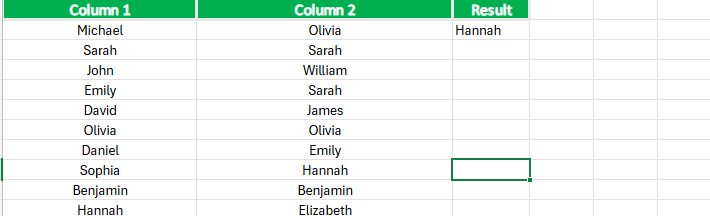
By Using the “EXACT” Function to Compare Two Columns in Excel

The EXACT function in Excel allows you to compare two columns by checking if their values are identical, including case sensitivity. This method is particularly useful when precise matches are crucial. It highlights differences in text or numbers, ensuring accuracy in your data analysis and helping you maintain consistency.

Join the Business Analytics with Excel Course and improve your analytical skills today!
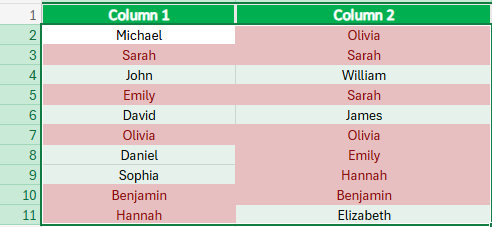
Conditional Formatting is the Simplest Way to Compare Two Columns in Excel


Conditional Formatting is one of the easiest ways to compare two columns in Excel. It visually highlights matches or differences by applying colour-coded rules, making discrepancies instantly noticeable. This method requires no complex formulas and is perfect for quick data checks, helping you streamline your analysis and maintain data accuracy with minimal effort.
The Benefits of Comparing Two Columns in Excel
Comparing two columns in Excel offers numerous benefits, including identifying duplicates, spotting inconsistencies, and verifying data accuracy. It simplifies data organisation, enhances decision-making, and saves time by automating checks. Whether for personal or professional tasks, this practice ensures your data is reliable, streamlined, and ready for further analysis or reporting.
Manage finances easily with this Excel for Accounting Course. Register now!
Conclusion
Mastering the techniques to compare two columns in Excel is an indispensable skill for efficient data management, often featured in Excel Interview Questions and Answers. From simple operators to advanced functions like VLOOKUP, these methods cater to various needs and skill levels. By implementing these tools, you’ll save time, enhance accuracy, and ensure your data remains consistent and ready for analysis or reporting.
Frequently Asked Questions
How to Compare Two Columns in Excel for Differences?

To compare two columns for differences in Excel, use the formula =A1<>B1 in a new column. This returns TRUE for differences and FALSE for matches. Alternatively, use Conditional Formatting to highlight discrepancies, ensuring easy visual identification. Both methods are beginner-friendly and efficient for identifying mismatched data.
How to Compare Two Sets of Data in Excel?
To compare two sets of data in Excel, use formulas like =COUNTIF(range, criteria) to find matches or mismatches. Alternatively, apply Conditional Formatting to highlight duplicates or unique entries. You can also use Excel tools like PivotTables or the VLOOKUP function for more advanced comparisons.
What is the Formula for Match in Excel?
The formula for finding a match in Excel is =MATCH(lookup_value, lookup_array, match_type). MATCH Function in Excel returns the position of the lookup value in the specified range. Use 0 for an exact match, 1 for the closest smaller value, and -1 for the closest larger value.
What are the Other Resources and Offers Provided by The Knowledge Academy?
The Knowledge Academy takes global learning to new heights, offering over 3,000 online courses across 490+ locations in 190+ countries. This expansive reach ensures accessibility and convenience for learners worldwide.
Alongside our diverse Online Course Catalogue, encompassing 19 major categories, we go the extra mile by providing a plethora of free educational Online Resources like Blogs, eBooks, Interview Questions and Videos. Tailoring learning experiences further, professionals can unlock greater value through a wide range of special discounts, seasonal deals, and Exclusive Offers.
What is The Knowledge Pass, and How Does it Work?
The Knowledge Academy’s Knowledge Pass, a prepaid voucher, adds another layer of flexibility, allowing course bookings over a 12-month period. Join us on a journey where education knows no bounds.
What are the Related Courses and Blogs Provided by The Knowledge Academy?
The Knowledge Academy offers various Microsoft Excel Courses, including the Excel for Accounting Course, Business Analytics with Excel Course and the Microsoft Excel VBA and Macro Training. These courses cater to different skill levels, providing comprehensive insights into the world of End User Applications.
Our Office Applications Blogs cover a range of topics related to Microsoft 365 and other office applications, offering valuable resources, best practices, and industry insights. Whether you are a beginner or looking to advance your End User Application skills., The Knowledge Academy's diverse courses and informative blogs have got you covered.

The Knowledge Academy


Global Training Provider
The Knowledge Academy is a world-leading provider of professional training courses, offering globally recognised qualifications across a wide range of subjects. With expert trainers, up-to-date course material, and flexible learning options, we aim to empower professionals and organisations to achieve their goals through continuous learning.

Upcoming Office Applications Resources Batches & Dates
Date
 Microsoft Excel VBA and Macro Training
Microsoft Excel VBA and Macro Training
Mon 13th Jul 2026
Microsoft Excel VBA and Macro Training
Mon 19th Oct 2026

 If you wish to make any changes to your course, please


