


 Top Rated Course

We may not have the course you’re looking for. If you enquire or give us a call on +65 6929 8747 and speak to our training experts, we may still be able to help with your training requirements.
What is Screencasting: Definition, Features, and Tools
John Davies 21 April 2026Screencasting is the process of recording a computer screen, often with audio narration, to create tutorials, presentations, or demonstrations. It is widely used for education, training, and content creation. Learn about its benefits, essential tools, and best practices to enhance your recordings effectively.

Training Outcomes Within Your Budget!
We ensure quality, budget-alignment, and timely delivery by our expert instructors.
Table of Contents
Let’s assume that you are trying to explain how to navigate a tricky website or show someone how to complete a task on a software tool. Words aren’t enough, and screenshots just don’t capture the full picture. This is where Screencasting comes to the rescue. But What is Screencasting? In simple words, it’s the art of recording your screen to show others exactly what you’re doing and making clear and hands-on communication.
In this blog, we’ll uncover What is Screencasting, its essential features, best ways to use it, and the tools you need to get started. Ready to make your explanations more engaging and effective? Let’s read ahead!
Table of Contents
1) Understanding Screencasting
2) What is a Screencast Recording Used for?
3) 5 Ways Screencasting Enhances Productivity
4) How to Create a Screencast?
5) Essential Features of Screencasting Tools
6) Top 3 Tools for Screencasting
7) Uses and Advantages of Screencasting
8) How to Choose the Right Screencasting Software?
9) Conclusion
Understanding Screencasting
Screencasting is an important technique that need to record your computer screen to create a video capturing all the activities taking place on it. This method is mainly used to create tutorials, presentations, demonstrations, and other instructional content. It allows you to visualise and convey the information, making it is easy for viewers to understand processes in an easy way.
It's a best solution for Tutors, professional individuals, and content creators who need to share their expertise in a clear and engaging manner. By understanding these things, you can effectively utilise Screencasting to create informative and engaging content.
What is a Screencast Recording Used for?
Screencast Recordings are a great way to capture everything happening on your screen and share it with others. Here’s how they are commonly used:
a) Training and Tutorials: They’re ideal for creating easy-to-follow guides that show people how to use software or complete specific tasks.
b) Product Demos: Screencasts are perfect for showing off a product’s features and letting potential customers see how it works in real-time.
c) Presentations: Record your presentation and share it with remote teams or clients, so no one misses out on important details.
d) Bug Reporting: Instead of writing long descriptions, you can simply record the issue you’re facing and share it with the tech team for clearer understanding.
e) Feedback and Reviews: Screencasts let you provide visual feedback on websites, software, or products, making your review more personal and detailed.
5 Ways Screencasting Enhances Productivity
Screencasting can mainly be used to increase productivity in various ways:
Improve Employee Onboarding
Improving employee onboarding can have a remarkable effect on productivity and job satisfaction. Here are some important strategies:
a) Create Complete Training Tutorials
b) Use Screencasting for Better Learning
c) Use in the Onboarding process
d) Provide Mentorship and Support
e) Collect Feedback
By executing these plans, you can make a more efficient and supportive onboarding that helps new employees be successful from day one.
Create Simple Tutorials
Creating simple tutorials can be an effective way to share knowledge and guide users through various processes. Here are some steps to help you create clear and concise tutorials:
a) Recognise the Purpose
b) Plan Your Content
c) Use Clear Language
d) Give Examples
e) Edit and Refine
Enhance Learning in Classrooms
Increasing learning in classrooms can make a more interesting and productive educational experience for students. Here are some plans
a) Incorporate Technology
b) Active Learning Techniques
c) Flipped Classroom Model
d) Collaborative Learning
Explore immersive experiences that will transform your skills – register for our Virtual Reality (VR) Training.
Develop Software or Product Demos
Creating good Software or product demos can be helpful in maintaining your product features and functionalities. Some of the steps for impactful demos are:
a) Identify the Key Features
b) Plan your Demo
c) Make a Script
d) Edit and Clear
e) Test your Demo
Deliver Clear and Effective Feedback
Delivering clear and productive feedback is crucial for improving growth. Here are some plans for providing productive feedback
a) Be Specific
b) Give Positive Feedback
c) Offer Solutions and Suggestions
d) Be Timely
e) Encourage With Words
Stay ahead with cutting-edge skills in Artificial Intelligence (AI), Internet of Things (IoT), and more – join our Advanced Technologies Course.
How to Create a Screencast?
Creating a screencast is a straightforward process that involves recording your computer screen along with audio narration. Here are the steps to create an effective screencast:
Step: 1. Make a Plan and a Script
You need to make a detailed plan or script before starting Screencast. From the beginning of the video, you need to get an idea about what your viewers need exactly, how you going to do this.
Step: 2. Choose the Right Tool
Select a Screencasting tool that suits your needs. Popular options include Camtasia, OBS Studio, Screencastify, and ScreenRec. so, choose one that aligns with your requirements.
Step: 3. Setup Microphone
Ensure your recording environment is quiet and free from distractions. Close unnecessary applications on your computer to avoid interruptions.
Step: 4. Setup your Settings
Configure the Screencasting tool settings to match your preferences.
Step: 5. Record your Screencast
Start the recording and follow your script or outline. Speak clearly and at a steady pace.
Step: 6. Edit Your Recording
After recording, use the editing features of your Screencasting tool to cut and lift your video.
Step: 7. Save and Export
Once you are happy with your screencast, save and export the video in your desired format.
Step: 8. Share your Screencast
Upload your screencast to a platform where your audience can access it. This could be a video-sharing site like YouTube, or a learning management system.
Essential Features of Screencasting Tools
When selecting a Screencasting tool, it's important to consider several essential features to ensure you get the best results for your needs. Here are a few features of Screencasting tools:
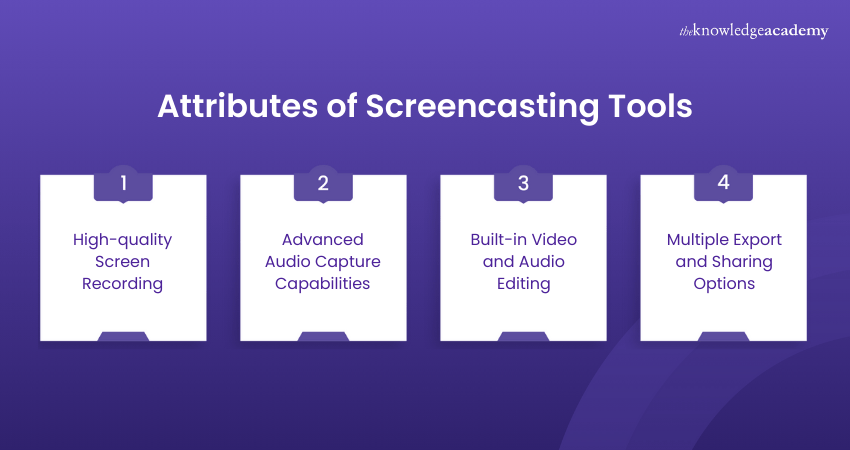
High-quality Screen Recording
High-quality screen recording is essential for creating clear and detailed videos. Tools like Camtasia and Open Broadcaster Software (OBS) Studio offer customisable recording areas, allowing you to capture full screens, specific windows, or any part of your screen.
Advanced Audio Capture Capabilities
Advanced audio capture capabilities are crucial for producing high-quality screencasts. Tools like Adobe Audition and Winx video AI provide features such as multi-track recording, AI-powered noise reduction, and voice enhancement.
Built-in Video & Audio Editing
Built-in video and audio editing tools allow you to trim, cut, and enhance your recordings directly within the Screencasting software. Programs like Adobe Premiere Pro and DaVinci Resolve offer comprehensive editing features, including colour correction, motion tracking, and audio mixing.
Multiple Export and Sharing Options
Having multiple export and sharing options is essential for distributing your screencasts effectively. Tools like Canva and Click Up provide versatile export options, allowing you to save your videos in various formats such as MP4, Portable Document Format (PDF), and Portable Network Graphics (PNG).
Learn the satellite technology with our Satellite Communication Course – Register today!
Top 3 Tools for Screencasting
Now that you know What is Screencasting, and you know how to do it, you can utilise certain tools like:
Wondershare Filmora
Wondershare Filmora is primarily a video editing tool that doubles as a Screencasting app, it's very easy-to-use, and it's a useful screen recorder for Windows and Mac, allowing users to make seamless and high-quality screencasts. It has some features like:
a) User-friendly
b) Customisable
c) No Screencasting Time Limit
d) Separate Audio and Video Tracks
e) Remove Background Noise with AI
f) Easy to Add Dynamic Texts
VLC Media Player
VideoLAN Client (VLC) is another option for a Screencasting tool, which is primarily being a media player, can also record your screen. One of the best merits is its open-source coding, also VLC has a free screen recorder with no watermark. Available in Windows, Mac and Linux.
a) Screencasting Without Watermark
b) Available in Multiple Platforms
c) Can Convert one Format to Other
Screencastify
Screencastify is a famous screen recorder for Chrome extensions and a fantastic option for beginners looking for an app to record their screen. It permits users to record their screens directly from the browser.
a) Best choice for Beginners
b) Allow Users to Record Screen Directly from the Browser
Uses and Advantages of Screencasting
The table below shows the uses and advantages of Screencasting:

How to Choose the Right Screencasting Software?
You can choose the right Screencasting tool based on some features. Here are the key points:
1) Easiness of Usage: Check the ease of use and user-friendly
2) Quality of Recording: Need to check the quality of the video, while recording
3) Audio Capability: Need to ensure the tool supports all audio formats
4) Editing Features: Check the editing features are new
5) Customisation: Check the customisation features, like dashboards, etc.
6) Export Options: Check the export and saving options are available
7) Pricing: Need to consider the price of the tool is reasonable
Conclusion
In essence, What is Screencasting, and how can it transform your way of communicating? It’s more than just recording your screen; it’s about making your message clear and engaging. Be it for demonstrating software, creating tutorials, or offering support, it brings a personal touch to digital communication. So, start Screencasting and make your content come to life!
Learn how to implement serverless technology with our Serverless Computing with Amazon Web Services Course – Join today!
Frequently Asked Questions
Is Screencast the Same as Screenshot?

Screenshot is an image that captures the current page or display, but Screencasting is streaming the content from one device to another.
Is Screencast Safe?
You need to check the credibility of networks, as using public and unsecured networks may pose some security risks.
What are the Other Resources and Offers Provided by The Knowledge Academy?
The Knowledge Academy takes global learning to new heights, offering over 3,000+ online courses across 490+ locations in 190+ countries. This expansive reach ensures accessibility and convenience for learners worldwide.
Alongside our diverse Online Course Catalogue, encompassing 17 major categories, we go the extra mile by providing a plethora of free educational Online Resources like Blogs, eBooks, Interview Questions and Videos. Tailoring learning experiences further, professionals can unlock greater value through a wide range of special discounts, seasonal deals, and Exclusive Offers.
What is The Knowledge Pass, and How Does it Work?
The Knowledge Academy’s Knowledge Pass, a prepaid voucher, adds another layer of flexibility, allowing course bookings over a 12-month period. Join us on a journey where education knows no bounds.
What are the Related Courses and Blogs Provided by The Knowledge Academy?
The Knowledge Academy offers various Advanced Technologies Courses, including the Introduction to Virtualisation Technologies Course, Satellite Communication Course and Serverless Computing with Amazon Web Services Course. These courses cater to different skill levels, providing comprehensive insights into Digital Technology.
Our Advanced Technology Blogs cover a range of topics related to Screencasting, offering valuable resources, best practices, and industry insights. Whether you are a beginner or looking to advance your Screencasting knowledge, The Knowledge Academy's diverse courses and informative blogs have got you covered.

John Davies


Cyber Security Governance & Assurance Specialist
John Davies is a cybersecurity expert specialising in governance, risk management, and compliance. With over 15 years in the field, he has led enterprise-wide security programmes across finance, healthcare and public sector organisations. His content provides practical guidance on building secure environments, managing risk and aligning with regulatory frameworks.

Upcoming IT Security & Data Protection Resources Batches & Dates
Date
 Introduction to Virtualisation Technologies
Introduction to Virtualisation Technologies
Fri 21st Aug 2026
Introduction to Virtualisation Technologies
Fri 4th Dec 2026

 If you wish to make any changes to your course, please


