


 Top Rated Course

We may not have the course you’re looking for. If you enquire or give us a call on +44 1344 203 999 and speak to our training experts, we may still be able to help with your training requirements.
How to Screen Record on iPhone: Explained in Simple Steps
Richard Harris 03 February 2026Screen recording involves capturing video output from a computer or mobile device screen, allowing users to record gameplay, save an online video session, and more. Learning How to Screen Record on iPhone involves a few simple steps, starting with adding the screen recorder feature to the phone's control centre

Training Outcomes Within Your Budget!
We ensure quality, budget-alignment, and timely delivery by our expert instructors.
Table of Contents
Imagine you and your boyfriend just had a heated argument over text, and you need to share every detail with your best friend to get her advice and, of course, for a bit of gossip. Instead of taking countless screenshots, you wish you could just record the entire conversation and send it over in one go. That's where knowing How to Screen Record on iPhone comes in handy!
In this blog, we're going to unlock the secrets of screen recording on your iPhone. We'll walk you through the process with simple, step-by-step instructions that even the least tech-savvy person can follow.
Table of Contents
1) What is Screen Recording?
2) Method 1: Screen Record on an iPhone with Audio Options
a) Add Screen Recorder to Control Centre
b) Open the Control Centre
c) Start Screen Recording
d) Adjust Audio Settings (Optional)
e) Stop the Recording
f) View Your Saved Recording
3) Method 2: Use QuickTime Player on Mac
4) Using Third-Party Screen Recording Apps
5) Why is My Screen Recording not Working?
6) Can I Edit My Screen Recording on iPhone?
7) Conclusion
What is Screen Recording?
Screen recording is the process of capturing everything that happens on your device’s screen and saving it as a video file. This can include actions like moving the cursor, opening applications, typing, and more. It’s a useful tool for recording gameplay, creating tutorials, capturing webinars, and more.

You can perform screen recording with the following steps:
1) Add screen recording to control centre
2) Start recording
3) Record with audio (optional)
4) Stop recording
5) Access your recording
These steps are explored in detail below
Method 1: Screen Record on an iPhone with Audio Options
Screen recording directly on your iPhone is not only simple but also highly versatile. Here’s how to get started.
1) Add Screen Recorder to Control Centre
Before you can start recording, you need to ensure the screen recording feature is accessible. Follow these steps:
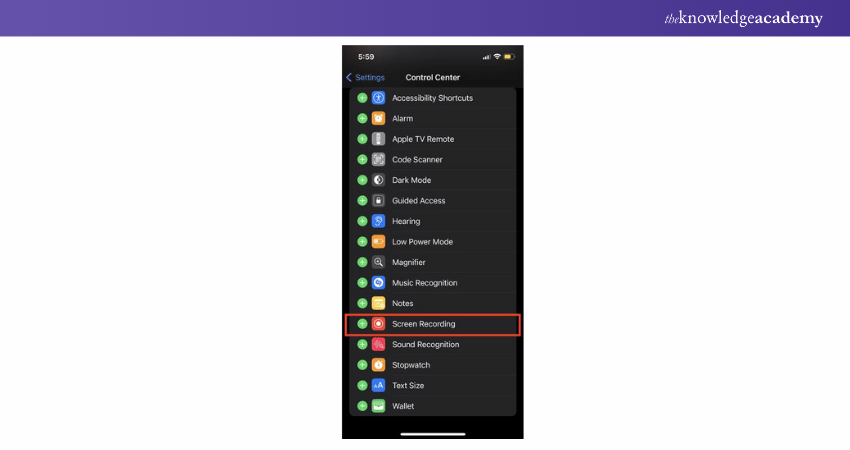
a) Open the Settings app on your iPhone.
b) Tap Control Centre and then select Customise Controls (or Control Centre Settings on newer iOS versions).
c) Look for Screen Recording under the “More Controls” section.
d) Tap the “+” green colour icon next to it to add it to your Control Centre.
2) Open the Control Centre
Accessing the Control Centre depends on your iPhone model:
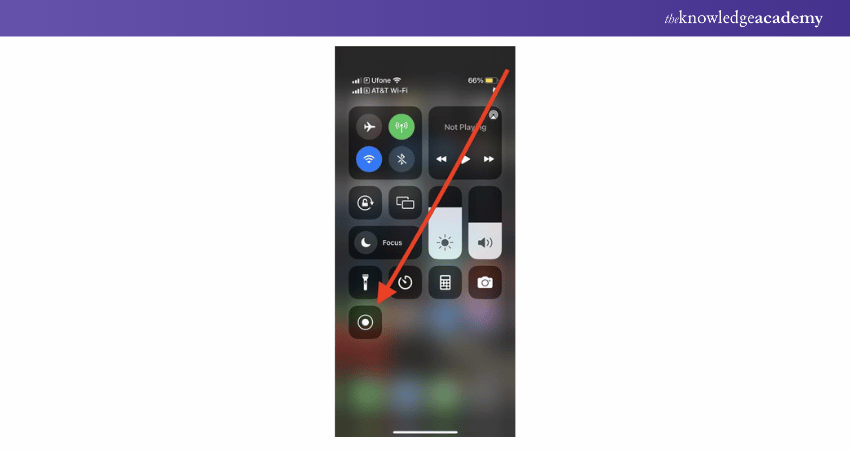
a) If you have an iPhone with Face ID, swipe down from the top-right side corner of the screen.
b) For iPhones with a Home Button, swipe up from the bottom of the screen.
Look for the circular recording icon. It’s like a little camera button just waiting to be pressed.
3) Start Screen Recording
Here’s what you need to do to start recording:
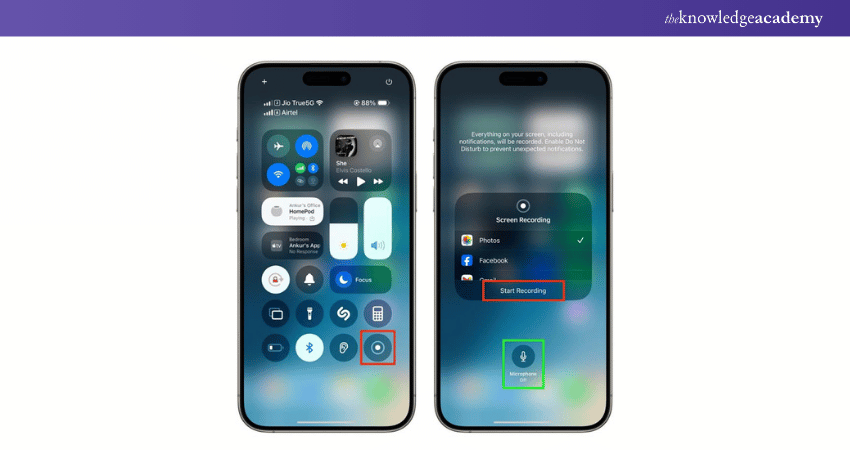
1) Open the app or screen you want to record.
2) Access the Control Centre.
3) Tap the Screen Recording icon (a red circle within a circle).
4) You’ll see a three-second countdown, giving you just enough time to switch to your app or screen.
4) Adjust Audio Settings (Optional)
If you want to narrate your recording or include sound from your iPhone, you can follow these steps:

a) Long-press the Screen Recording icon in the Control Centre.
b) A menu will pop up with a microphone option at the bottom.
c) Tap “Microphone On” if you want to add your voice or leave it off for silent recordings.
5) Stop the Recording
When you're done, stopping the recording is as easy as starting it. You have two options:

a) Tap the red status bar (at the top or side of your screen) and then tap Stop.
b) Or return to the Control Centre and tap the Screen Recording icon again.
Effortless Call Recording! Check Out This Guide on How to Record a Phone Call on iPhone.
6) View Your Saved Recording
To view your saved recording:
a) Open the Photos app.
b) Find your recording in the “Recents” album or under Videos.
From here, you can share, edit, or upload your recording anywhere you like.
Upgrade Your Entertainment – Master How to Mirror Your iPhone to TV in Minutes!
Method 2: Use QuickTime Player on Mac
If you want to record the screen of your iPhone on a bigger screen, QuickTime Player on Mac is a fantastic option. Additionally, knowing how to screenshot on Mac can be useful for capturing important moments while recording. Here’s how:
1) Connect Your iPhone to Your Mac
Use a cable or a wire to connect your iPhone to your Mac.
2) Open QuickTime Player
Launch QuickTime from your Applications folder.
3) Select New Movie Recording
In QuickTime, go to File > New Movie Recording.
4) Choose Your iPhone
Next to the record button, tap on the drop-down arrow and select your iPhone under “Camera.”
5) Start Recording
Tap on the button to start recording your iPhone’s screen.
6) Stop Recording
When you’re done, click the Stop button and save the recording to your Mac.
This method is ideal for presentations or when you want to showcase your iPhone screen on a larger device.
Discover the future of mobile apps – join our Mobile App Development Training Using Flutter Course today!
Using Third-Party Screen Recording Apps
If you need advanced features like annotations, editing tools, or high-resolution output, third-party screen recording apps are worth exploring. However, if a specific app is unavailable in your region, you may need to consider Changing iOS App Store Country. Some popular options include:
1) TechSmith Capture
A user-friendly app with excellent Video Editing Tools for trimming and adding annotations.
2) DU Recorder
Offers live streaming and robust customisation options for your recordings.
3) Record It
Great for adding voice commentary and editing your screen recordings.
To use these apps:
a) Download the app you have chosen from the App Store. Remember to Change iOS App Store Country if the app is not available in your region.
b) Grant permissions for screen recording and microphone access.
c) Follow the app’s instructions to record your screen.
Third-party apps are especially useful for gamers, educators, or anyone needing a professional touch.
Unlock your potential in App Development with our iOS App Development Course - start creating impactful apps today!
Why is My Screen Recording not Working?
Ensure screen recording is enabled in Control Centre and check if restrictions are set under 'Screen Time'.
Can I Edit My Screen Recording on iPhone?
Yes, you can. Open the recording in the Photos app, tap 'Edit', and trim or adjust as needed.
Conclusion
Knowing about How to Screen Record on iPhone is a skill that can make your life a lot easier. This is similar to the functionality offered by Screen Record on Android devices. With the easy steps we've covered in this blog, you're all set to record and share your screen whenever you need to. So next time you want to save something special or important, just hit that record button, and you're good to go.
Transform your digital skills – join our comprehensive App & Web Development Training today!
Frequently Asked Questions
How do you Record Your Screen?

Open the Control Centre, tap the Screen Recording icon (circle within a circle), and wait for the 3-second countdown. To include audio, long-press the icon and enable the microphone. Stop recording by clicking the red status bar or the icon again.
How to Screenshot a Screen?
On iPhones with Face ID, press the Side Button + Volume Up. For Home Button models, press the Home Button + Side (or Top) Button. The screenshot will flash briefly and save automatically to your Photos app under Screenshots.
What are the Other Resources and Offers Provided by The Knowledge Academy?
The Knowledge Academy takes global learning to new heights, offering over 3,000+ online courses across 490+ locations in 190+ countries. This expansive reach ensures accessibility and convenience for learners worldwide.
Alongside our diverse Online Course Catalogue, encompassing 19 major categories, we go the extra mile by providing a plethora of free educational Online Resources like Blogs, eBooks, Interview Questions and Videos. Tailoring learning experiences further, professionals can unlock greater value through a wide range of special discounts, seasonal deals, and Exclusive Offers.
What is The Knowledge Pass, and How Does it Work?
The Knowledge Academy’s Knowledge Pass, a prepaid voucher, adds another layer of flexibility, allowing course bookings over a 12-month period. Join us on a journey where education knows no bounds.
What are the Related Courses and Blogs Provided by The Knowledge Academy?
The Knowledge Academy offers various App & Web Development Courses including iOS Development, HTML Courses, and Website Design. These courses cater to different skill levels, providing comprehensive insights into iOS.
Our Programming and DevOps Blogs cover a range of topics related to Application and Web Development, offering valuable resources, best practices, and industry insights. Whether you are a beginner or looking to advance your Programming skills, The Knowledge Academy's diverse courses and informative blogs have you covered.

Richard Harris


Senior Full Stack Developer and Technology Educator
Richard Harris is a highly experienced full-stack developer with deep expertise in both frontend and backend technologies. Over his 12-year career, he has built scalable web applications for startups, enterprises and government organisations. Richard’s writing combines technical depth with clear explanations, ideal for developers looking to grow in modern frameworks and tools.

Upcoming Programming & DevOps Resources Batches & Dates
Date
 iOS App Development Course
iOS App Development Course
Thu 10th Sep 2026
iOS App Development Course
Thu 10th Dec 2026

 If you wish to make any changes to your course, please


