


 Top Rated Course

We may not have the course you’re looking for. If you enquire or give us a call on +39 800580270 and speak to our training experts, we may still be able to help with your training requirements.
How to Use Microsoft Copilot 365: A Complete Guide
Richard Harris 15 July 2026To Use Microsoft Copilot 365 effectively, you can integrate it with your Microsoft 365 apps for enhanced productivity. Copilot leverages AI to assist with tasks like document creation, data analysis, and communication. Discover how it can optimise your workflow and improve efficiency in everyday tasks.

Training Outcomes Within Your Budget!
We ensure quality, budget-alignment, and timely delivery by our expert instructors.
Table of Contents
Picture having a personal assistant right inside your favourite Microsoft apps, helping you write, organise, crunch numbers, and even manage meetings; meet Microsoft 365 Copilot! This smart Artificial Intelligence (AI) assistant integrates with Word, Excel, Outlook, and Teams to supercharge your productivity and save you valuable time. In this blog, we’ll show you How to Use Microsoft Copilot 365 and unlock its full potential. Ready to work smarter Let’s explore!
Table of Contents
1) What is Microsoft Copilot?
2) How to Use Microsoft Copilot?
3) How to Use Microsoft Copilot in Windows 11?
4) How to Use Microsoft Copilot in the Edge Browser?
5) How to Use Microsoft Copilot with Microsoft 365 (Your Office Apps)?
6) How to Use Microsoft Copilot in Teams?
7) How to Use Microsoft Copilot on Your Mobile Phone?
8) How to Use Microsoft Copilot Through Bing.com?
9) Microsoft Copilot Vs Microsoft 365 Copilot
10) Conclusion
What is Microsoft Copilot?
Microsoft Copilot is an AI-powered assistant designed to help users work more efficiently with Microsoft applications. It leverages advanced Machine Learning to provide intelligent suggestions, automate routine tasks, and enhance overall productivity.
Copilot can assist with different tasks, from drafting emails to generating reports. It is integrated into many popular Microsoft Office applications like Word, Excel, and PowerPoint.

How to Use Microsoft Copilot?
Using Microsoft Copilot is straightforward, but it helps to have a clear guide to get started. Here’s a detailed, step-by-step process:
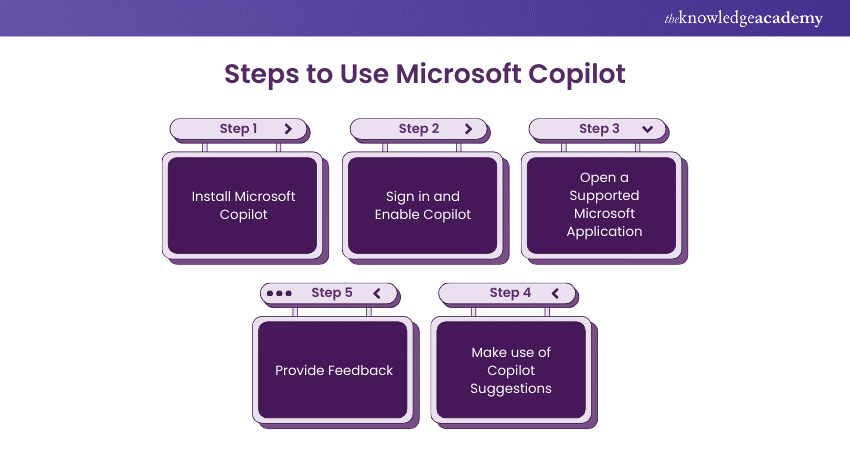
Step 1: Install Microsoft Copilot
To use Microsoft Copilot, you first need to ensure that it is installed on your system. Typically, Copilot comes pre-installed with the latest versions of Microsoft Office 365. However, if you don’t have it, you can download it from the Microsoft website or update your Office 365 to the latest version.
Step 2: Sign in and Enable Copilot
After installation, open any Microsoft Office application, such as Word, Excel, or PowerPoint. You need to sign in with your Microsoft account. Ensure that your account has the necessary permissions and a valid subscription to Office 365.
Once signed in, navigate to the settings or options menu and enable Microsoft Copilot. This may vary slightly depending on the application you are using.
Step 3: Open a Supported Microsoft Application
Microsoft Copilot works with various Office applications. Open one of the supported applications such as Word, Excel, or PowerPoint. Once the application is open, you notice a Copilot icon or a toolbar indicating that Copilot is ready to assist you.
Step 4: Make use of Copilot Suggestions
As you start working on your document, spreadsheet, or presentation, Microsoft Copilot starts to offer suggestions. These could include grammar corrections, formatting tips, Data Analysis insights, or even content generation.
Pay attention to the Copilot prompts and accept or dismiss suggestions as needed. You can also customise the types of suggestions you receive by adjusting the Copilot settings in the application.
Step 5: Provide Feedback
GitHub Copilot vs Microsoft Copilot both improve over time with user feedback. Whenever you receive a suggestion, you have the option to provide feedback on its usefulness. This feedback helps refine Copilot’s algorithms, allowing both tools to make better suggestions in the future. Be sure to take a moment to rate the suggestions, as it benefits all users and enhances the overall experience.
Understand the features of using Microsoft Copilot with our Microsoft 365 Copilot Introduction Trainingnow!
How to Use Microsoft Copilot in Windows 11?
A general concept of Microsoft’s Copilot is a generative AI incorporated into Windows 11 that performs tasks and gives suggestions. Here's how to use it:
Enable Microsoft Copilot:
a) Make sure Windows 11 is fully updated before proceeding.
b) In Windows, go to the Settings, and then scroll to Windows Update to look for updates to include Copilot.
Access Microsoft Copilot:
a) Open the Copilot by pressing the icon from your taskbar that looks like a chat bubble,
b) Or even you can open it through the windows shortcut key which is Win + C.
Use Copilot Features:
a) Give questions or commands written in informal or spoken language (e.g., “Activate night mode”, “Give me the overview of this page”).
b) You can also use face Copilot for interacting with settings, search, or any productivity tasks directly on your Windows.
Customise Settings:
a) Settings can be changed and adjusted concerning Copilot under Settings > Privacy & security > Windows Copilot.
How to Use Microsoft Copilot in the Edge Browser?
Microsoft Copilot is integrated into Microsoft Edge to enhance your browsing experience.
a) Enable Microsoft Copilot in Edge:
a) Open Edge and make sure it is updated to the latest version (Settings > About Microsoft Edge).
b) Access Copilot in Edge:
a) Click on the Copilot icon at the top-right corner.
b) If the icon is not visible, go to Settings > Sidebar > Manage Sidebar and enable it.
c) Features in Edge:
a) Use Copilot to summarise web pages, write drafts, or analyse content.
b) Ask for tailored recommendations, such as “Find the best deals on [product]” or “Explain this article in simple terms.”
Master the intricacies of Microsoft's comprehensive productivity suite with our Microsoft 365 Copilot Training - Sign up now!
How to Use Microsoft Copilot with Microsoft 365 (Your Office Apps)?
Copilot is a feature in Microsoft 365 applications such as word, excel, and power-point to help in generating and analysing content.
Access Copilot in Office Apps:
a) Before getting started, make sure you have Microsoft 365 subscription, and you are currently logged in.
b) Tap on an app such as Word, Excel or PowerPoint. Search for it at the bottom of the page there is a Copilot pane or maybe an Ask Copilot button.
Using Copilot in Word:
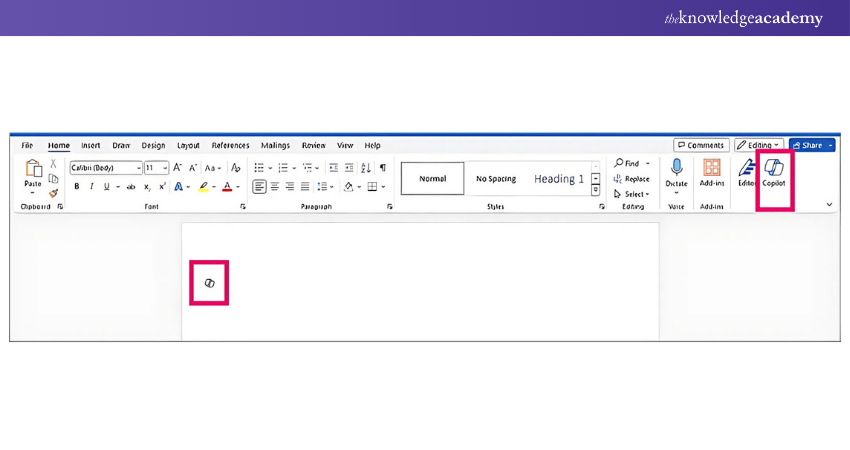
a) Ask for the content outlines, abstract or paraphrasing help.
b) Example: “To borrow Taylor’s words, Write a business proposal template”.
Using Copilot in Excel:
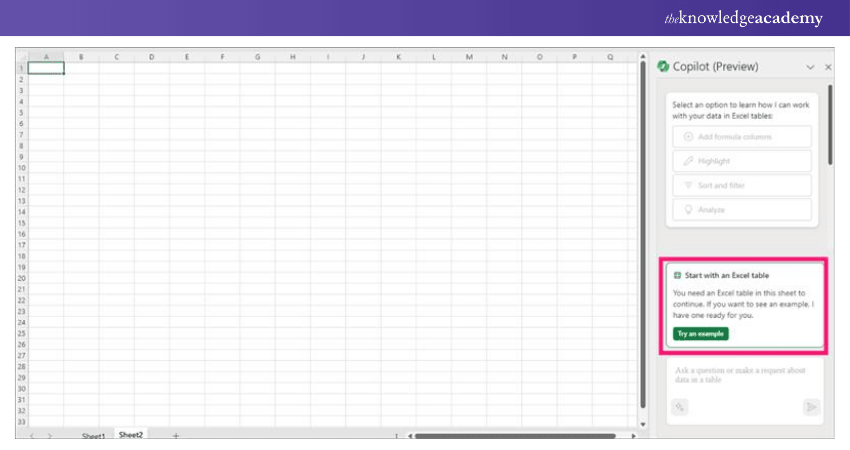
a) Use commands such as Calculate, create a graph on, or ‘Find out’, for a request such as ‘Illustrate quarterly sales
Using Copilot in PowerPoint:
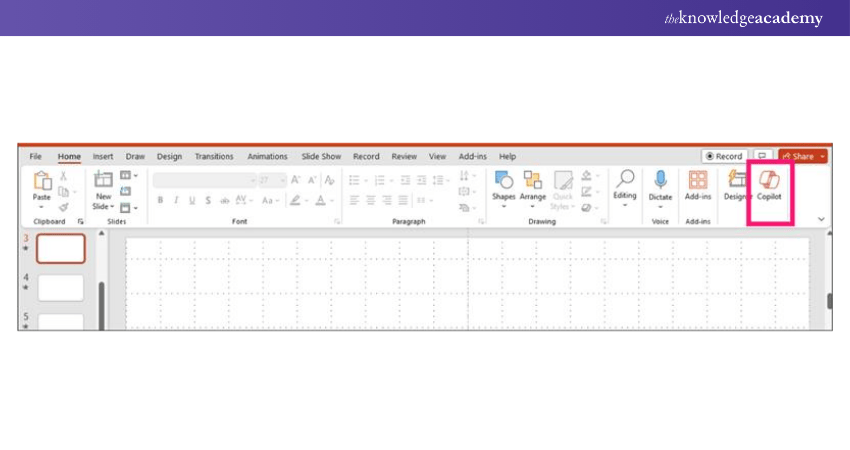
a) Request ideas for Slides, such as, “Slide makeover or, as you would like it, create a five-slide presentation on [subject].”
Using Copilot with Microsoft Outlook
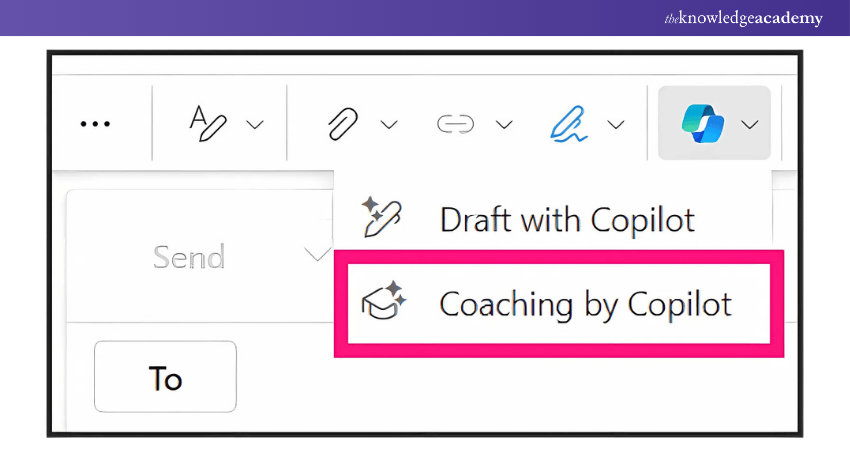
In Outlook, Copilot can help you write emails, like the one you’ve been planning to send your boss for a promotion. It also gives tips on clarity, tone, grammar, and style. Just begin typing, and the AI coach will guide you with helpful feedback.
Using Microsoft Copilot in Teams
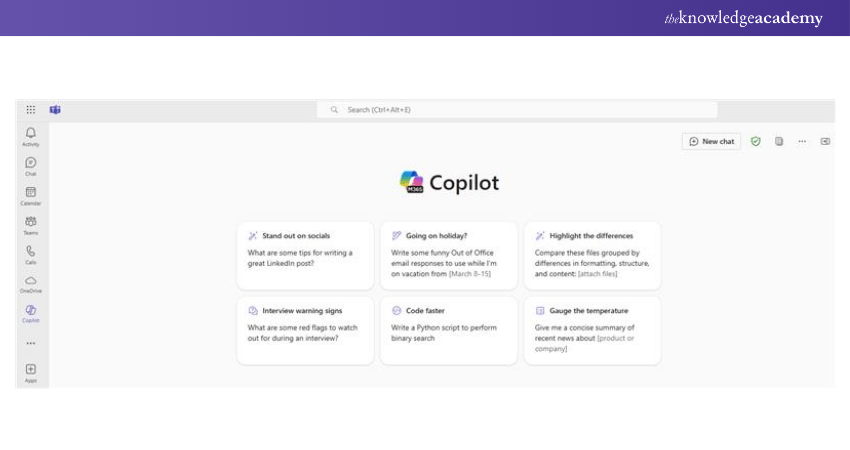
Find the 'Open Copilot' button in the left corner of your chat screen. You can use it in one-on-one, group, or meeting chats. Type a prompt like 'Summarise key discussion points' in the message box and click Send. Copilot will reply based on your input.
Keen to crack a career in Microsoft 365 Copilot 365, refer to our blog on Microsoft 365 Copilot Interview Questions
How to Use Microsoft 365 Copilot on Your Mobile Phone?
Microsoft Copilot is available on mobile devices via Microsoft 365 apps, Bing, and Edge.
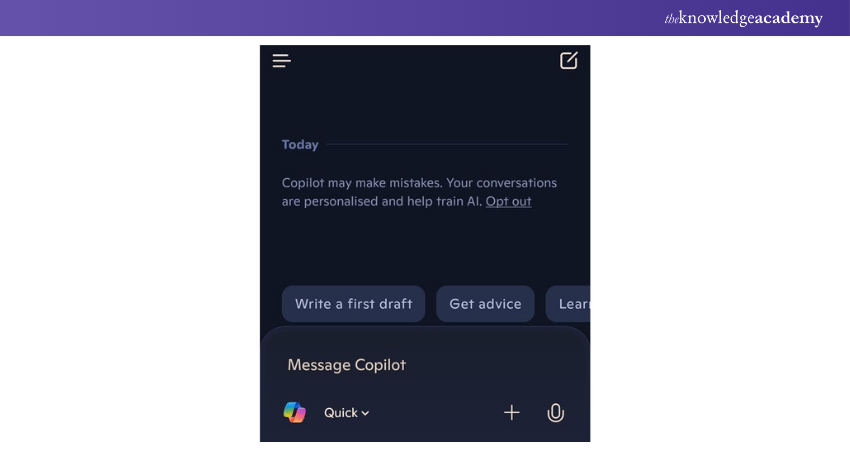
1) Access Microsoft Copilot:
a) Download the latest versions of the Microsoft Office, Edge, or Bing apps from your app store
2) Features:
a) Use the Bing app to interact with Copilot for queries, content creation, or recommendations.
b) In Microsoft 365 mobile apps, access Copilot for tasks like document editing or email drafting.
3) Voice Commands:
a) Enable voice input to interact with Copilot hands-free
How to Use Microsoft Copilot Through Bing.com?
Microsoft Copilot is used in Bing Chat, that can be accessed on Bing.com or the Bing app.
Access Bing Copilot:
a) Go to Bing.com and login in with Microsoft account
b) This is located on the search bar; one has to click on the Chat option
Features:
a) Like with most chatbot platforms, Bing Chat uses natural language, and users can choose to ask questions or make requests directly, for instance, ‘Create a list of travel destinations’ and ‘Assist with dinner party planning’.
b) For abilities such as writing, coding or merely brainstorming, you can use creative modes.
Integration with Other Apps:
a) Moreover, apply Copilot in Bing to work with Microsoft 365 applications for integrated efficiency.
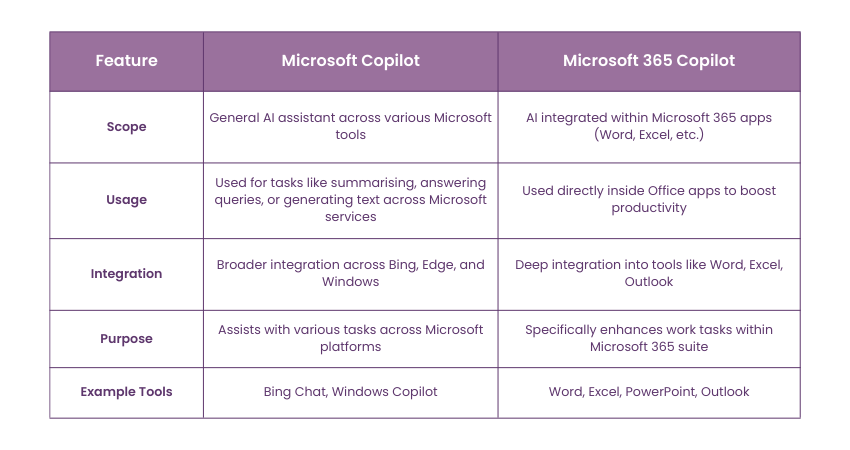
Microsoft Copilot vs Microsoft 365 Copilot
Here are the key distinctions between Microsoft Copilot and Microsoft 365 Copilot:
Learn how to analyse data with our Microsoft 365 Copilot for Excel Training – Join today!
Conclusion
To wrap up, if you are looking to make your workday smoother and a lot less stressful, Using Microsoft Copilot 365 is a game-changer. It’s like having a smart assistant that helps you write, plan, and stay organised, without breaking a sweat. With Microsoft Security Copilot, you can streamline your tasks even further, making it easier to stay on top of your work. Give it a go and see the difference for yourself.
Learn to manage Microsoft Teams with our Microsoft 365 Copilot for Teams Training – Join today!
Frequently Asked Questions
Is Copilot Better Than ChatGPT?

Copilot and ChatGPT function in two different capacities. While ChatGPT is all about conversational AI and everything that can start with ‘what’ or ‘how’, Copilot is Microsoft’s tool that is embedded in their apps and works as a contextual helper in various tasks from writing documents to analysing data and so on.
Can I Access 365 Copilot?
Yes, with Microsoft 365 Copilot you can connect to the Copilot functionality if you have an active subscription to Microsoft 365. It is obtainable in Word, Excel and PowerPoint to name but a few. This being the case, make sure you have the updated version besides ensuring that having an eligible plan to boost the use of this app.

Richard Harris


Senior Full Stack Developer and Technology Educator
Richard Harris is a highly experienced full-stack developer with deep expertise in both frontend and backend technologies. Over his 12-year career, he has built scalable web applications for startups, enterprises and government organisations. Richard’s writing combines technical depth with clear explanations, ideal for developers looking to grow in modern frameworks and tools.


 If you wish to make any changes to your course, please


