


 Top Rated Course

We may not have the course you’re looking for. If you enquire or give us a call on +45 89870423 and speak to our training experts, we may still be able to help with your training requirements.
How to Combine and Merge Two Cells in Excel: Easy Methods Explained
The Knowledge Academy 22 April 2026To combine two cells in Excel, use the ampersand or CONCAT function. These keep data intact, unlike Merge Cells, which only changes formatting. Combining values is useful for names, labels, or product codes. It helps create cleaner, more organised data for reports, and improves overall spreadsheet readability.
Home
 Resources
Office Applications
How to Combine and Merge Two Cells in Excel: Easy Methods Explained
Resources
Office Applications
How to Combine and Merge Two Cells in Excel: Easy Methods Explained
Resources
Office Applications
How to Combine and Merge Two Cells in Excel: Easy Methods Explained

Training Outcomes Within Your Budget!
We ensure quality, budget-alignment, and timely delivery by our expert instructors.
Table of Contents

Have you ever found yourself struggling with scattered data and wondering How to Combine Two Cells in Excel? Whether it’s merging names, creating labels, or tidying up your reports, Excel offers quick methods to bring information together.
In this blog, we’ll walk you through simple and effective ways on How to Combine Two Cells in Excel, as well as when to merge cells for formatting. By the end, you’ll know how to make your spreadsheets both organised and visually appealing. Let’s get started!
Table of Contents
1) 2 Methods to Combine Cells in Excel
a) How to Combine Cells in Excel Using the Ampersand (&) Symbol?
b) How to Combine Cells in Excel Using the CONCAT Function?
2) How to Merge Cells in Microsoft Excel?
a) Merge Cells in Microsoft Excel
3) Shortcut for Merging Cells in Excel
4) Conclusion
2 Methods to Combine Cells in Excel
Combine Cells in Excel is a handy feature that helps you bring data together into one cell for easier viewing and organisation. Whether you’re preparing reports, creating labels, or formatting tables, Excel makes it simple. Now, we’ll see how to combine and merge cells using different methods.
1) How to Combine Cells in Excel Using the Ampersand (&) Symbol?
The ampersand symbol & is one of the easiest and most commonly used ways to join text or numbers from multiple cells. It’s quick, flexible, and doesn’t require Advanced Excel Skills.
1) Select the cell where you want the combined value to appear
2) Type a formula using & to join the contents of two or more cells
3) For example:
If cell A1 contains Joe and cell B1 contains Root, enter:
=A1 & " " & B1

4) Press Enter, and Excel will display: Joe Root
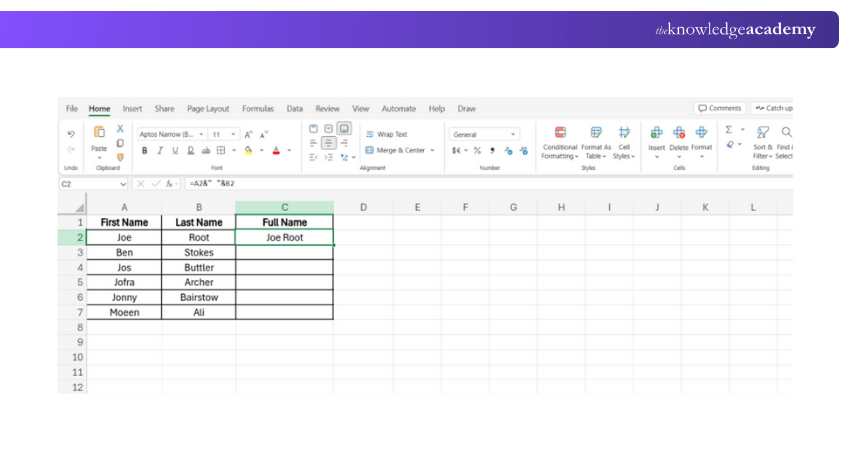
5) Now, repeat the formula for other rows to instantly combine names like Ben Stokes, Jos Buttler, and more.

2) How to Combine Cells in Excel Using the CONCAT Function?
The CONCAT function is another powerful method for combining cell values. It is more modern than the ampersand method and is specifically designed for concatenation tasks.
1) Select the cell where the combined result should appear
2) Use the formula:
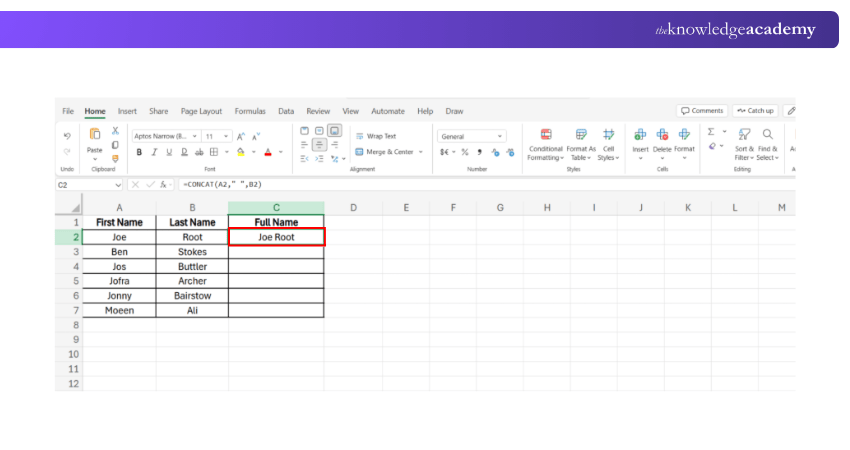
=CONCAT(A1, " ", B1)
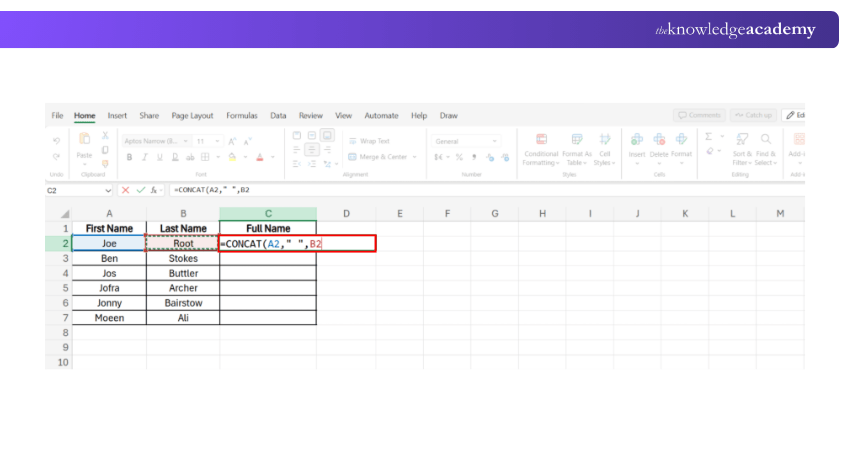
3) Press Enter. The values in A1 and B1 will be combined with a space in between
How to Merge Cells in Microsoft Excel?
So far, we’ve looked at ways to combine the contents of cells into one. But sometimes you might want to merge cells, which means joining multiple cells into one larger cell, often for formatting or presentation purposes. Understanding How to Merge Cells in Excel helps you create cleaner headers, organised reports, and professional-looking spreadsheets.
Merge Cells in Microsoft Excel
1) Select the cells you want to merge
2) Go to the Home tab on the Excel ribbon
3) Click the Merge & Centre dropdown

4) Choose one of the options:
a) Merge & Centre: Combines cells and Centres the text
b) Merge Across: Merges cells in each row individually
c) Merge Cells: Merges without Centring text
d) Unmerge Cells: Reverts merged cells to their original state
Organise, analyse, and visualise as an Excel Expert! Register for our Excel Training with Gantt Charts now!
Shortcut for Merging Cells in Excel
If you frequently merge cells for formatting, knowing a shortcut can save time.
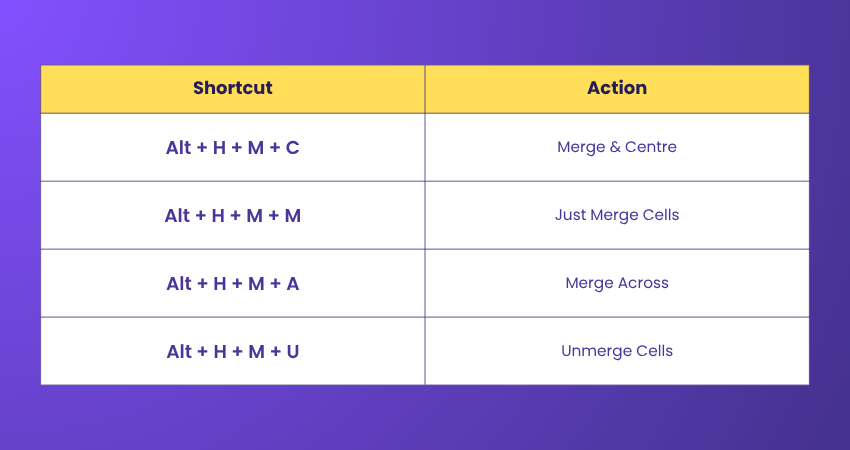
Windows Shortcut
Press Alt + H + M + C to quickly merge and Centre selected cells.
Mac Shortcut
Excel for Mac doesn’t have a direct shortcut. However, you can customise your keyboard shortcuts or use the toolbar option under Format > Merge Cells.
Using shortcuts helps speed up repetitive formatting tasks when working on large reports or dashboards.
Learn essential Excel functions to manage accounting data more efficiently – register in our Excel for Accounting Course today!
Conclusion
Mastering How to Combine Two Cells in Excel is a practical skill that makes data handling smoother. It allows you to organise details, create clear labels, and design professional reports. Start practising these methods today, and you’ll quickly see how much easier working with spreadsheets can become.
From basics to brilliance-upgrade your Excel skills with Business Analytics with Excel Course today!
Frequently Asked Questions
How do I Merge Two Cells in Excel and Keep Both Values?

You can’t keep both values using Merge Cells, as Excel only keeps the top-left entry. Instead, use formulas like =A1 & " " & B1 or CONCAT to combine values safely.
How do I Combine Two Excel Data Into One?
To combine two Excel data into one cell, use the Ampersand (&), CONCAT, or TEXTJOIN functions. These formulas let you merge text, numbers, or ranges together without losing information, unlike the Merge Cells option which removes extra values.
What are the Other Resources and Offers Provided by The Knowledge Academy?
The Knowledge Academy takes global learning to new heights, offering over 3,000+ online courses across 490+ locations in 190+ countries. This expansive reach ensures accessibility and convenience for learners worldwide.
Alongside our diverse Online Course Catalogue, encompassing 17 major categories, we go the extra mile by providing a plethora of free educational Online Resources like Blogs, eBooks, Interview Questions and Videos. Tailoring learning experiences further, professionals can unlock greater value through a wide range of special discounts, seasonal deals, and Exclusive Offers.
What is The Knowledge Pass, and How Does it Work?
The Knowledge Academy’s Knowledge Pass, a prepaid voucher, adds another layer of flexibility, allowing course bookings over a 12-month period. Join us on a journey where education knows no bounds.
What are the Related Courses and Blogs Provided by The Knowledge Academy?
The Knowledge Academy offers various Microsoft Excel Courses including Microsoft Excel Training, Excel for Accounting Course, and Business Analytics with Excel Course. These courses cater to different skill levels, providing comprehensive insights into Remove Blank Rows in Excel.
Our Office Applications Blogs cover a range of topics related to Excel Shortcuts, offering valuable resources, best practices, and industry insights. Whether you are a beginner or looking to advance your expert Excel skills, The Knowledge Academy's diverse courses and informative blogs have got you covered.

The Knowledge Academy


Global Training Provider
The Knowledge Academy is a world-leading provider of professional training courses, offering globally recognised qualifications across a wide range of subjects. With expert trainers, up-to-date course material, and flexible learning options, we aim to empower professionals and organisations to achieve their goals through continuous learning.

Upcoming Office Applications Resources Batches & Dates
Date
 Microsoft Excel Course
Microsoft Excel Course
Mon 6th Jul 2026
Microsoft Excel Course
Mon 3rd Aug 2026
Microsoft Excel Course
Tue 1st Sep 2026
Microsoft Excel Course
Mon 5th Oct 2026
Microsoft Excel Course
Mon 2nd Nov 2026
Microsoft Excel Course
Mon 7th Dec 2026

 If you wish to make any changes to your course, please


