


 Top Rated Course

We may not have the course you’re looking for. If you enquire or give us a call on +65 6929 8747 and speak to our training experts, we may still be able to help with your training requirements.
How to Clear Search History in Gmail: A Quick and Easy Guide
Charlotte Wilson 05 February 2026Interested to know more about the best way How to Delete Gmail Search History? Removing your Gmail search history is a straightforward process. It enhances privacy and keeps your inbox tidy. This blog provides clear instructions to efficiently delete your search history, ensuring a seamless and secure Gmail experience.

Training Outcomes Within Your Budget!
We ensure quality, budget-alignment, and timely delivery by our expert instructors.
Table of Contents

Have you ever typed something into Gmail's search bar and wished it didn’t linger there forever? While your Gmail search history might seem harmless, it can clutter your email experience and even pose privacy risks. Fortunately, understanding How to Delete Gmail Search History is the first step toward maintaining a cleaner and more secure email account.
If you’re wondering How to Delete Gmail Search History across different devices, this blog is here to help. We will walk you through simple, device-specific steps to remove unwanted search items effortlessly - whether on desktop, Android, or iPhone. By proactively managing your search history, you can transform your Gmail account into a more efficient and organised tool, ensuring a smooth and worry-free email experience.
Table of Contents
1) Steps to Delete Gmail Search History one item at a time
2) How to Delete Gmail Search History on a Desktop?
3) How to Delete Gmail Search History on an Android?
4) How to Delete Gmail Search History on iPhone?
5) Tips to Organise Your Gmail Inbox
6) Conclusion
Steps to Delete Gmail Search History One Item at a Time
Here are the steps to delete Gmail search history one item at a time:

Log in to Your Gmail Account
Here are the steps to Log in to Your Gmail Account:
a) Open your preferred web browser or the Gmail app on your device
b) Enter your login credentials (email address and password)
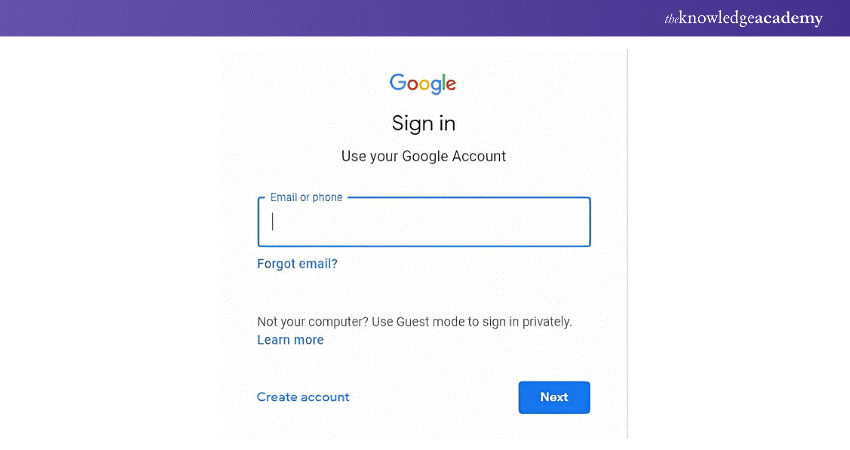
c) If you manage multiple accounts, make sure you select the one where you want to clear the search history
Access the Search Bar
The following are the points to access the search bar:
a) Once logged in, look for the search bar at the top of the Gmail interface
b) Click or tap on the search bar, and a drop-down menu displaying your recent search queries will appear
Remove Individual Search Items by Clicking ‘X’
The following are the steps to remove individual search items by clicking ‘X’:
a) Locate the specific search term you wish to delete in the drop-down list
b) Beside each search query, you'll see a small ‘X’ icon
c) Click on the ‘X’ to delete that individual search term
d) Repeat for other unwanted items as needed
Enhance your outreach and drive results by developing strong Email Marketing Skills today!
How to Delete Gmail Search History on a Desktop?
Here are the steps on how to delete Gmail search history on a desktop:
a) Open Gmail on a desktop browser and log in
b) Click the Settings icon (gear-shaped) at the top right corner of the screen

c) Open All Settings from the drop-down menu

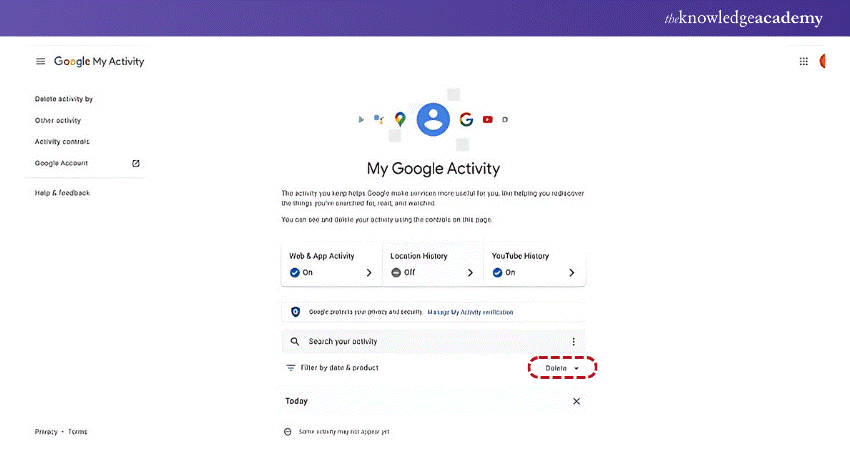
d) Navigate to the Data & Privacy tab or search for “My Activity” in your Google account

e) Scroll down to the History Settings section and find Search History
f) Click Manage History to view all saved Gmail search activity
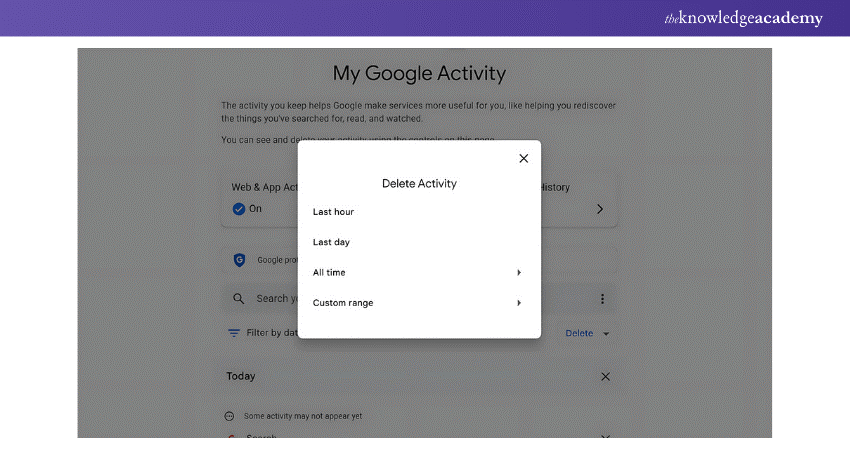
g) Select Delete and choose whether to remove history from a specific date range or all-time
How to Delete Gmail Search History on an Android?
Here are the steps to how to delete Gmail search history on an android:
a) Click and open the Gmail app on your Android device
b) Tap on the Menu (three horizontal lines) in the top left corner
c) Scroll down and select Settings

d) Choose the account for which you want to clear the search history
e) Navigate to Privacy and Data Settings
f) Click on Manage Your Google Account and go to the Data & Privacy tab
g) Scroll to Activity Controls and select Manage History under the Gmail section
h) Tap Delete Activity and confirm your choice by selecting the desired date range or clearing everything
Transform your writing skills with our Creative Writing Course - Sign up today!
How to Delete Gmail Search History on iPhone?
Here are the steps to delete Gmail search history on iPhone:
a) Open the Gmail app on your iPhone
b) Click on the Menu (three horizontal lines) in the top left corner
c) Open Settings and choose the account you want to manage
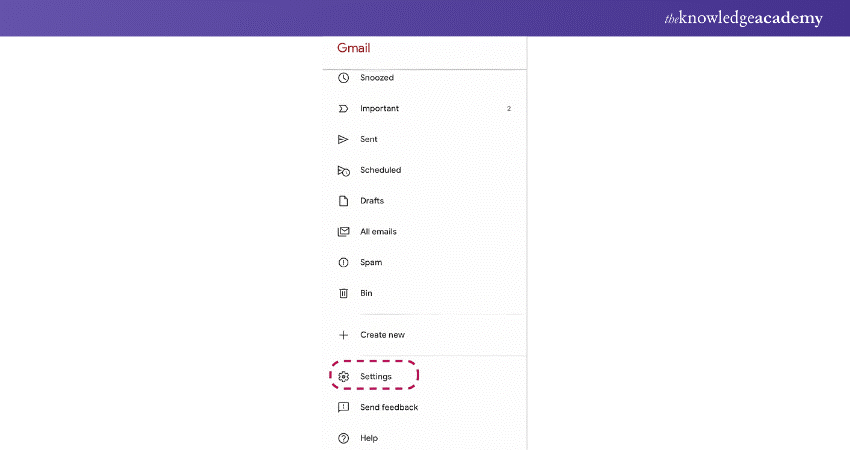
d) Tap Manage Your Google Account and go to the Data & Privacy tab
e) Scroll down to Activity Controls and select Manage History
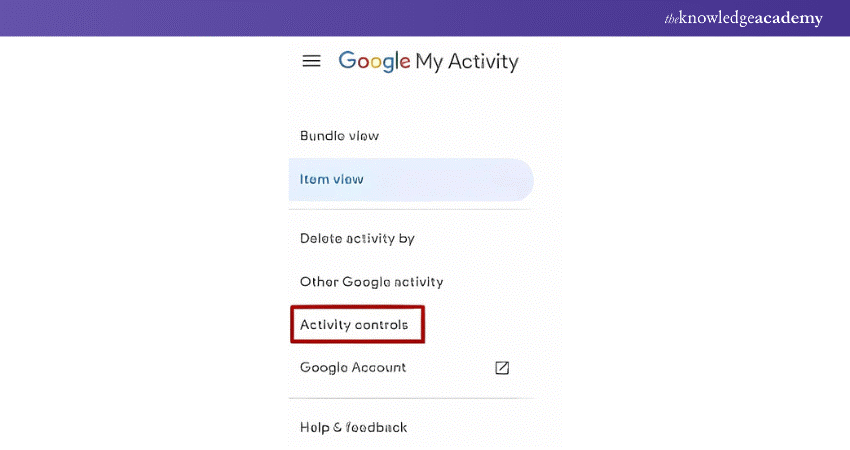
f) Tap on Delete Activity and choose the range of data you want to delete, such as today, a custom date range, or all-time
g) Confirm your selection and the search history will be cleared
Tips to Organise Your Gmail Inbox
Here are the tips to organise your Gmail inbox in a proper way:
a) Use Labels: For organising emails, it is better to create personal tags, for example, by the working Email field: work, personal, urgent, helping streamline and prioritise email communication.
b) Set Filters: Incorporate some order into your inbox, choosing which emails receive special folders they are allowed to go to instead of just appearing in your main inbox.
c) Archive Old Emails: Learn how you can file and delete emails from your inbox without permanently removing them by archiving, while also understanding the difference between CC and BCC for better email management.
d) Unsubscribe from Spam: Decrease the amount of complete clutter in your Gmail inbox by heading back to promotional emails and hitting the unsubscribe link at the top.
e) Use Priority Inbox: Configure the Priority Inbox of Gmail to receive the most important emails from the less important ones.
Conclusion
Learning How to Delete Gmail Search History is a simple yet impactful way to enhance your email experience. By following the steps in this blog - whether on desktop, Android, or iPhone - you can ensure a clutter-free and organised Gmail account. Managing your search history not only protects your privacy but also streamlines your daily interactions.
Empower your inbox and elevate your career with our E-mail Etiquette Training - register today!
Frequently Asked Questions
How do I Remove Search Suggestions From Gmail?

To remove search suggestions in Gmail, go to Settings > See all settings > General. Scroll to Search Suggestions and uncheck the box. Save changes. Alternatively, clear the browser cache or disable autocomplete.
How do I Delete my Gmail Activity History?
To delete your Gmail activity, go to Data & Privacy, followed by My Activity. Select the More option next to the Gmail search bar, then choose activity, Delete, and either pick a date or select All Time to erase your account history. Confirm to finish.
What are the Other Resources and Offers Provided by The Knowledge Academy?
The Knowledge Academy takes global learning to new heights, offering over 3,000+ online courses across 490+ locations in 190+ countries. This expansive reach ensures accessibility and convenience for learners worldwide.
Alongside our diverse Online Course Catalogue, encompassing 19 major categories, we go the extra mile by providing a plethora of free educational Online Resources like Blogs, eBooks, Interview Questions and Videos. Tailoring learning experiences further, professionals can unlock greater value through a wide range of special discounts, seasonal deals, and Exclusive Offers.
What is The Knowledge Pass, and How Does it Work?
The Knowledge Academy’s Knowledge Pass, a prepaid voucher, adds another layer of flexibility, allowing course bookings over a 12-month period. Join us on a journey where education knows no bounds.
What are the Related Courses and Blogs Provided by The Knowledge Academy?
The Knowledge Academy offers various Personal Development Courses, including E-mail Etiquette Training, Creative Writing Course and Building Business Relationships. These courses cater to different skill levels, providing comprehensive insights into Send Out a Newsletter on Gmail.
Our Business Skills Blogs cover a range of topics related to E-mail Etiquette, offering valuable resources, best practices, and industry insights. Whether you are a beginner or looking to advance your Business skills, The Knowledge Academy's diverse courses and informative blogs have got you covered.

Charlotte Wilson


Soft Skills and Business Training Manager
Charlotte Wilson is an expert in soft skills development, with over 14 years of experience helping individuals and teams improve communication, productivity and emotional intelligence in the workplace. Her training content is focused on enhancing interpersonal effectiveness and fostering positive, collaborative environments across all levels of an organisation.
View Detail
Upcoming Business Skills Resources Batches & Dates
Date
 E-mail Etiquette Training
E-mail Etiquette Training
Fri 19th Jun 2026
E-mail Etiquette Training
Fri 4th Sep 2026
E-mail Etiquette Training
Fri 16th Oct 2026

 If you wish to make any changes to your course, please


