


 Top Rated Course

We may not have the course you’re looking for. If you enquire or give us a call on +800 312616 and speak to our training experts, we may still be able to help with your training requirements.
How to Delete Chat on Instagram: Keep Your Inbox Organised
The Knowledge Academy 05 February 2026Are you wondering How to Delete Chat on Instagram? Deleting unnecessary chats is a great way to stay organised and prevent your inbox from getting cluttered. This blog provides simple steps to easily delete single and group chats on any device. Keep reading to learn how to maintain a clean Instagram inbox!

Training Outcomes Within Your Budget!
We ensure quality, budget-alignment, and timely delivery by our expert instructors.
Table of Contents

Are you frustrated with the countless Instagram chats that continuously flood your email list? Managing conversations can sometimes seem like a large challenge, but do not worry! If you are seriously using Instagram chat, then knowing How to Delete Chat on Instagram will definitely enhance your messaging capabilities.
With knowledge of How to Delete Chat on Instagram and Hide Chats on Instagram, you can achieve greater privacy, especially when trying to delete unnecessary messages or use Instagram Vanish Mode. Start managing your digital presence now with these simple tips that won’t stress you out!
Table of Contents
1) Deleting a Single Instagram Chat
2) Deleting Multiple Instagram Chats
3) Instagram Vanish Mode Messages
4) Removing IG Messages via a Computer
5) How to Block an Instagram User?
6) How to Unsend a Message?
7) Conclusion
Deleting a Single Instagram Chat
Removing a conversation from your Instagram inbox is straightforward and helps keep your messages organised. Here's how to do it:
a) Open Instagram: Launch the Instagram app and tap the Direct Messages (DMs) icon in the top-right corner to access your inbox.
b) Find the Chat: Scroll through your conversations to locate the one you want to delete.
c) Delete the Chat: Swipe left on the chat you want to delete or press and hold the chat to delete the message or chat.
d) Confirm Deletion: Tap Delete and confirm to permanently remove the chat from your inbox.
Deleting Multiple Instagram Chats
At the moment, it is inconvenient to remove multiple chats at the same time with Instagram as it has no option for that. However, you can:
a) Manual Deletion: Follow the steps above for each chat you wish to delete. While this is time-consuming, it’s the most secure and reliable method.
b) Third-Party Apps: Some apps claim to offer bulk deletion features for Instagram chats. If you decide to use them, exercise caution and verify their authenticity to avoid compromising your account security.
Instagram Vanish Mode Messages
Vanish Mode is ideal for temporary or private conversations. It’s particularly useful for sharing sensitive or temporary information without leaving a permanent record. Here following are the steps of Instagram Vanish Mode Messages:
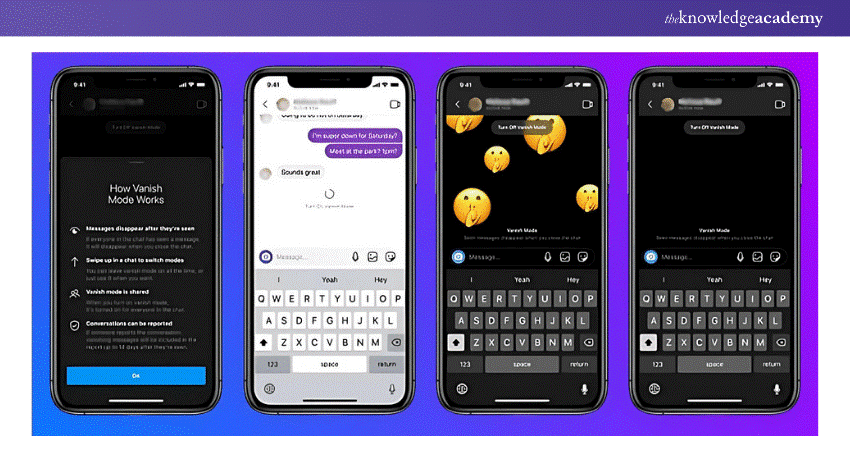
a) Open a Chat: Select the conversation where you wish to activate Vanish Mode.
b) Swipe Up: From the bottom of your screen, swipe upwards. This motion will enable Vanish Mode, and your screen will indicate the mode is active.
c) Start Messaging: Send messages as usual. Any messages shared while in Vanish Mode will automatically disappear once the chat is closed by either participant.
Turn likes into leads with our Social Media Marketing Course - Sign up today!
Removing IG Messages via a Computer
Instagram also allows you to directly access the messages on your computer, but the feature is limited compared to the smartphone app. This can be quite useful if one prefers to work with a computer screen or if they cannot access the mobile device they intend to use. Here are the following steps to follow:
a) Log In: Open your favoured web browser, navigate to Instagram's official website, and log into your account.
b) Access DMs: Click the Direct Messages (DMs) icon, typically located in the top-right corner of the Instagram interface. This will open your list of chats.
c) Select a Chat: Click on the conversation you want to delete.
d) Delete the Chat: Within the chat window, locate the three-dot menu or options button. Tap it and choose the Delete option from the dropdown menu. Confirm the action when prompted.
How to Block an Instagram User?
Blocking an Instagram user is a straightforward way to maintain privacy and control interactions. Once blocked, the person can no longer see your profile, view your stories, interact with your posts, or message you.
Here are the steps for blocking a user on Instagram:
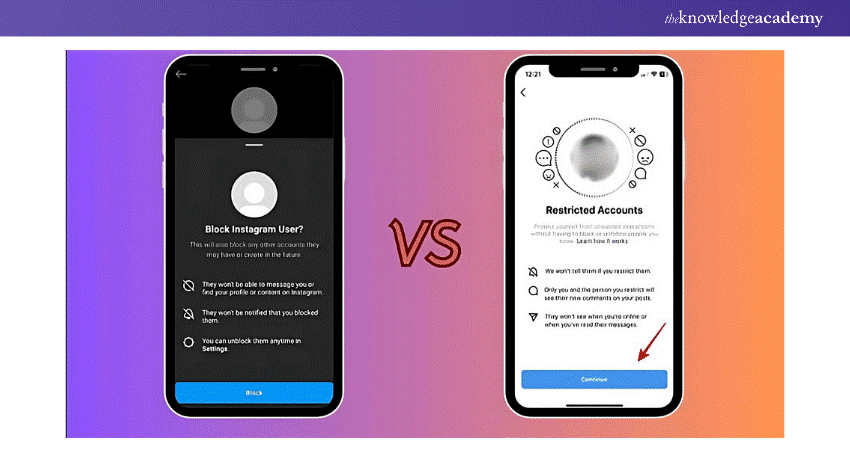
a) Access the User’s Profile: Open Instagram and navigate to the profile of the person you want to block. You can find their profile through search or by tapping on their username in your DMs.
b) Open the Options Menu: Tap the three-dot menu located in the top-right corner of their profile page.
c) Select "Block": Choose the Block option from the dropdown menu that appears.
d) Confirm the Action: Instagram will prompt you to confirm. Tap Block again to finalise your decision.
Harness the power of YouTube with our YouTube Marketing Course - Join today!
How to Unsend a Message?
Unsending a message on Instagram lets you delete a sent message from both your inbox and the recipient's inbox. This feature is especially helpful for correcting errors, removing sensitive content, or dealing with accidental sends. It's a fast way to keep control over your communication. Following are the steps to unsend a message on Instagram:

a) Open the Chat: Navigate to the conversation containing the message you want to unsend.
b) Locate the Message: Scroll to find the specific message you wish to remove.
c) Unsend the Message: Click and hold the message, and then tap the Unsend option. The message will immediately disappear from the chat for both participants.
What Happens When You Unsend a Message?
When you unsend a message on Instagram, it is deleted from both your inbox and the recipient's inbox. However, it's crucial to understand the specifics of what occurs when you use this feature. Here are the steps on how to unsend a message on Instagram:
a) Message Removal: The message is erased from both your inbox and the recipient’s inbox, leaving no trace of the conversation.
b) Read Visibility: If the recipient has already read the message before you unsend it, the action doesn’t undo their knowledge of its content.
c) No Notification: Instagram doesn’t notify the recipient when a message is unsent, but they may notice its absence if they revisit the conversation.
Conclusion
Learning How to Delete Chat on Instagram is essential for managing your conversations effectively. By using features like Vanish Mode, blocking users, or unsending messages, you can maintain a clutter-free inbox, ensuring better privacy and a more organised Instagram experience.
Enhance your marketing skills and earn more money with our Instagram Marketing Course - Register now!
Frequently Asked Questions
How Can I Clear my Chat History on Instagram?

To erase the conversation on Instagram, open DMs, select the conversation to delete, and simply press the conversation on Android to open options. To delete the chat, tap the delete button on the next screen. As you can see, it just deletes it from the Inbox of the working account, not from the recipient’s box.
How do you Delete Seen on Instagram Chat?
To delete a “seen” status in Instagram chats, one has to swipe that particular chat to the right and take a call for deletion of the message. For this, the message and indication it was viewed are taken out of the two inboxes. Going with Vanish Mode means that messages and seen receipts are gone once the chat ends.
What are the Other Resources and Offers Provided by The Knowledge Academy?
The Knowledge Academy takes global learning to new heights, offering over 3,000+ online courses across 490+ locations in 190+ countries. This expansive reach ensures accessibility and convenience for learners worldwide.
Alongside our diverse Online Course Catalogue, encompassing 19 major categories, we go the extra mile by providing a plethora of free educational Online Resources like Blogs, eBooks, Interview Questions and Videos. Tailoring learning experiences further, professionals can unlock greater value through a wide range of special discounts, seasonal deals, and Exclusive Offers.
What is The Knowledge Pass, and How Does it Work?
The Knowledge Academy’s Knowledge Pass, a prepaid voucher, adds another layer of flexibility, allowing course bookings over a 12-month period. Join us on a journey where education knows no bounds.
What are the Related Courses and Blogs Provided by The Knowledge Academy?
The Knowledge Academy offers various Digital Marketing Courses, including the Digital Marketing Course, Instagram Marketing Course and the Social Media Marketing Course. These courses cater to different skill levels, providing comprehensive insights into Connect Instagram to Facebook.
Our Digital Marketing Blogs cover a range of topics related to Instagram and Social Media, offering valuable resources, best practices, and industry insights. Whether you are a beginner or looking to advance your Social Media Management skills, The Knowledge Academy's diverse courses and informative blogs have got you covered.

The Knowledge Academy


Global Training Provider
The Knowledge Academy is a world-leading provider of professional training courses, offering globally recognised qualifications across a wide range of subjects. With expert trainers, up-to-date course material, and flexible learning options, we aim to empower professionals and organisations to achieve their goals through continuous learning.

Upcoming Digital Marketing Resources Batches & Dates
Date
 Instagram Marketing Course
Instagram Marketing Course
Thu 17th Sep 2026
Instagram Marketing Course
Thu 3rd Dec 2026

 If you wish to make any changes to your course, please


