


 Top Rated Course

We may not have the course you’re looking for. If you enquire or give us a call on +44 1344 203999 and speak to our training experts, we may still be able to help with your training requirements.
How to Change Siri's Voice: A Complete Guide
Lily Turner 12 February 2026How to Change Siri’s Voice? This is one of the most common questions asked since the launch of Siri. Continue reading this blog to learn about customising your voice in both male and female accents and have access to a rich voice experience. Learn Siri’s voice change process for iPhone in a systematic order to understand better.

Training Outcomes Within Your Budget!
We ensure quality, budget-alignment, and timely delivery by our expert instructors.
Table of Contents

Are you still using Siri’s mechanical voice? If so, you might be missing out on something better. Recently, Apple introduced a human-sounding digital assistant for users. Now, with Siri Shortcuts, you can modify Siri’s voice and accent on iPhone and iPad. With various voice options, you can easily make adjustments. Here, you will learn How to Change Siri Voice for Apple TV, iPhone, Mac, and HomePod speakers.
The process of How to Change Siri Voice lets you experience Apple Intelligence's capabilities. You will also learn how it positively impacts your daily life and saves you time.
Table of Contents
1) What is Siri?
2) How to Change Siri’s Voice on Your iPhone?
3) How to Change Siri’s Voice on Your Mac?
4) On Your Apple Watch?
5) On Your Apple TV 4K and Apple TV HD
6) How to Change Siri’s Voice on HomePod Speakers?
7) Conclusion
What is Siri?
Siri is a Virtual Assistant provided by Apple for its users. It works for iOS Apple products like Apple Watch, Apple TV, Mac, iPhone, and Speaker. It uses voice recognition and is fuelled by Artificial Intelligence (AI) technology.
Siri answers users' queries through the device’s speaker. The service also allows users to read messages and emails. Overall, a variety of tasks can be performed using Siri Assistant.

How to Change Siri's Voice on Your iPhone?
Siri Voice can be changed by following the steps below
1) Open Settings on your iPhone.
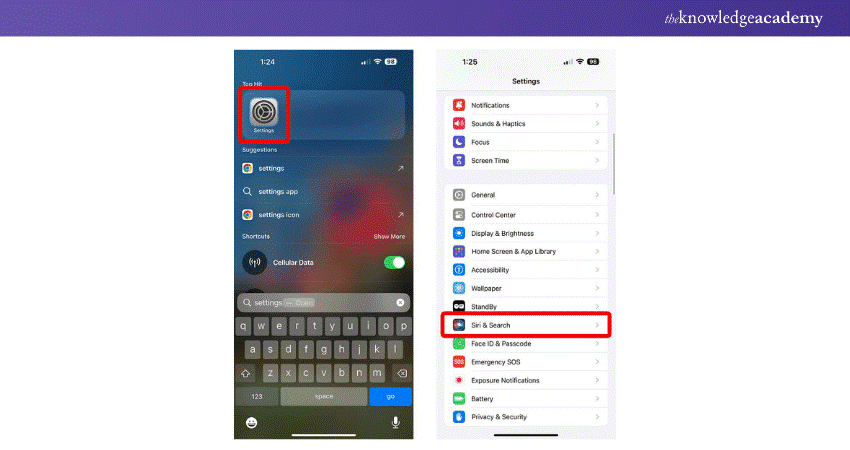
2) Now click “Siri & Search”
3) Hit the language button to change to Siri
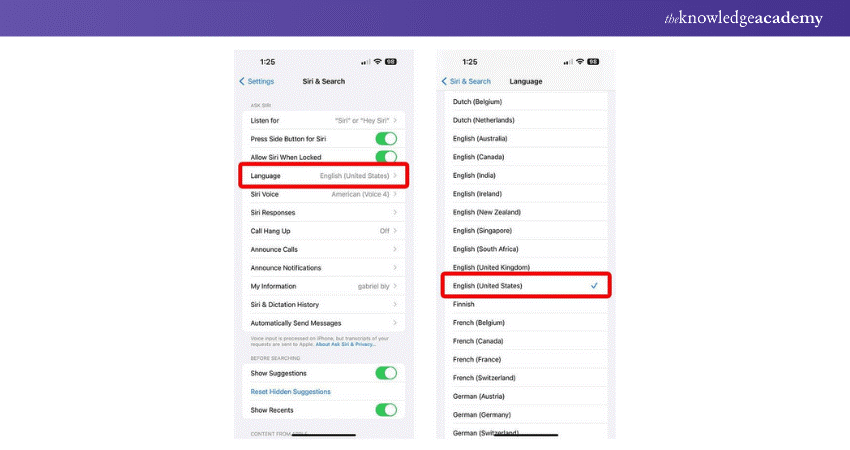
4) Here, select Siri voice for male and female voice request
5) To hear Siri's response, hit Settings again and search for Siri
Unlock Siri's potential in your apps with our Integrate Siri using SiriKit Course - Register now!
How to Change Siri's Voice on Your Mac?
Users who own macOS Sierra or new versions must follow these steps to alter Siri’s voice-
1) Open Apple menu
2) Go to System Preference and select Siri

3) Under the language section, change Siri language for responses
4) Under voice variety, alter Siri variety as per the use
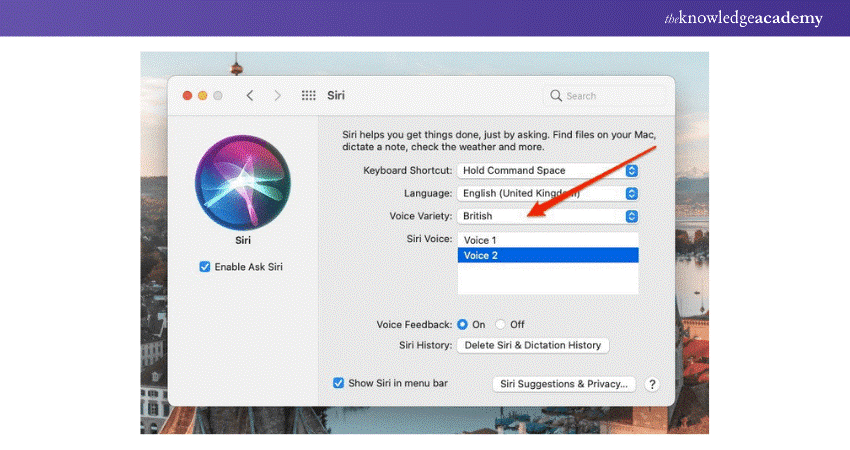
5) Under Siri's voice, change Siri's speaking style
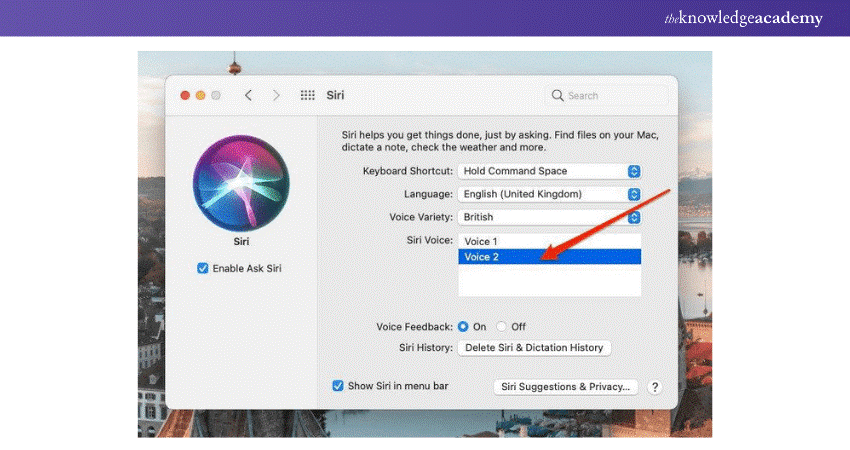
6) Voice feedback can be used to toggle on and hear the responses.
On Your Apple Watch
How do I change the voice on Siri on WatchOS? Modifying language on the Apple Watch is the same as on the iPhone.
1) Go to Settings and select Siri.
2) The options to change responses will be displayed on the screen.
On Your Apple TV 4K and Apple TV HD
For Apple TV 4K HD, Siri uses similar languages that are easy to set up. First, go to Settings and click General.
The language option will be in Siri. One thing to remember is that Siri only processes user requests and shows them on the screen. This is how you Change Siri's Voice or language.
How to Change Siri's Voice on HomePod Speakers?
Now you can adjust Siri’s voice on HomePod speakers using these steps-
1) Connect the app with your HomePod 2.
2) Visit to Siri’s voice option 3.
3) Select the voice (male or female)
4) Test it out
Conclusion
Now you know How to Change Siri Voice or Accent on iPhone, Mac, Speaker and Apple Watch. With this voice-controlled AI assistant, you can get answers to questions, manage schedules and control devices. After updating iOS on iPad, you can enjoy the latest Siri features and even change Siri’s voice and accent on your iPad and iPhone.
Transform your apps with AI using our Cortana Intelligence Training now- Sign up now!
Frequently Asked Questions
Can I Change Siri's Voice to a Male Voice?

Yes. Open Settings Siri > Search > Siri Voice > Choose Gender > Pick a voice > Confirm it.
Can Siri Speak in Different Accents?
Yes. Open Settings > Siri & Search > Siri Voice > Choose Accent> Pick an Accent > Confirm it.
Does Changing Siri's Voice Affect its Functionality?
No. The functionalities remain the same, and it doesn’t impact how Siri responds to your questions. Siri’s voice change is just a way to interact with Siri effectively.
What are the Other Resources and Offers Provided by The Knowledge Academy?
The Knowledge Academy takes global learning to new heights, offering over 3,000+ online courses across 490+ locations in 190+ countries. This expansive reach ensures accessibility and convenience for learners worldwide.
Alongside our diverse Online Course Catalogue, encompassing 19 major categories, we go the extra mile by providing a plethora of free educational Online Resources like Blogs, eBooks, Interview Questions and Videos. Tailoring learning experiences further, professionals can unlock greater value through a wide range of special discounts, seasonal deals, and Exclusive Offers.
What is The Knowledge Pass, and How Does it Work?
The Knowledge Academy’s Knowledge Pass, a prepaid voucher, adds another layer of flexibility, allowing course bookings over a 12-month period. Join us on a journey where education knows no bounds.
What are the Related Courses and Blogs Provided by The Knowledge Academy?
The Knowledge Academy offers various AI Voice Assistant Training, including Integrate Siri Using SiriKit Training. These courses cater to different skill levels, providing comprehensive insights into Circle to Search.
Our Data Analytics & AI Blogs cover a range of topics related to Data Analytics, offering valuable resources, best practices, and industry insights. Whether you are a beginner or looking to advance your Data Analytics & AI skills, The Knowledge Academy's diverse courses and informative blogs have you covered.

Lily Turner


Senior AI/ML Engineer and Data Science Author
Lily Turner is a data science professional with over 10 years of experience in artificial intelligence, machine learning, and big data analytics. Her work bridges academic research and industry innovation, with a focus on solving real-world problems using data-driven approaches. Lily’s content empowers aspiring data scientists to build practical, scalable models using the latest tools and techniques.
View Detail
Upcoming Data, Analytics & AI Resources Batches & Dates
Date
 Integrate Siri using SiriKit
Integrate Siri using SiriKit
Fri 21st Aug 2026
Integrate Siri using SiriKit
Fri 11th Dec 2026

 If you wish to make any changes to your course, please


