


 Top Rated Course

We may not have the course you’re looking for. If you enquire or give us a call on +08000201623 and speak to our training experts, we may still be able to help with your training requirements.
The 24 Best Microsoft Outlook Add-ins You Need to Know
Richard Harris 03 March 2026Microsoft Outlook Add-ins are tools that help users automate emails, task management, and integrations. and improve productivity directly inside Outlook. They streamline daily workflows and reduce manual effort significantly. This allows users to stay organised, save valuable time, and work more efficiently without leaving their inbox.

Training Outcomes Within Your Budget!
We ensure quality, budget-alignment, and timely delivery by our expert instructors.
Table of Contents

Microsoft Outlook is not only a viable email platform, but it can also be an effective productivity center. Outlook add-ins help many professionals to manage communication, tasks, and day-to-day work in a better way.
This blog discusses the 24 top Outlook add-ins that can make your working life in Outlook different. From organisation to automation, the list below marks tools that help to save time and simplify daily tasks.
Table of Contents
1) What are Microsoft Outlook Add-ins?
2) Top 9 Microsoft Outlook Add-ins for Productivity
3) Top 5 Microsoft Outlook Add-ins for Communication
4) Top 3 Microsoft Outlook Add-ins for Organisation
5) Top 3 Microsoft Outlook Add-ins for Integration
6) Top 2 Outlook Add-ins for Collaboration
7) Top 2 Outlook Add-ins for Fun
8) Where can I find my add-ins in Outlook?
9) What is the Difference Between Outlook Plugin and Add-in?
10) Conclusion
What are Microsoft Outlook Add-ins?
Microsoft Outlook add-ins are small software extensions that operate within the Outlook interface to offer additional benefits during email viewing or composing. In doing so, they let these tools communicate with messages or calendar items and boost the functionality of Outlook without exiting the application.

Top 9 Microsoft Outlook Add-ins for Productivity
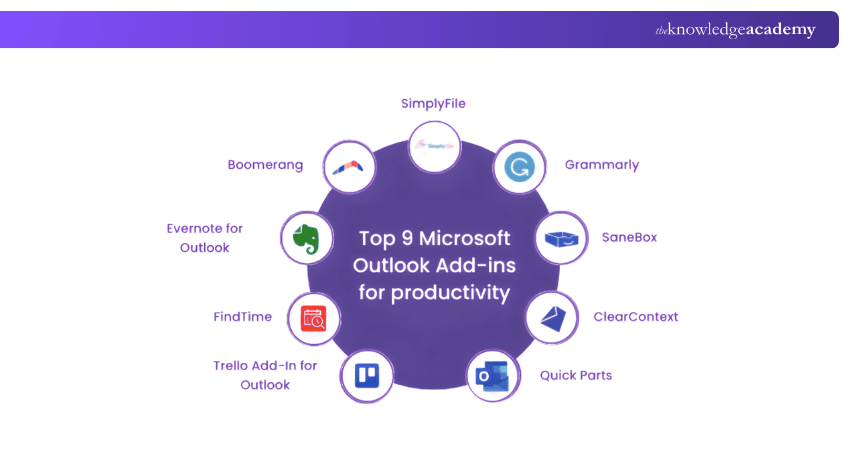
Here are the top 9 Microsoft Outlook Add-ins that can take your productivity to the next level:
a) Boomerang: This add-in is an email scheduler and a reminder tool. With Boomerang, you can write emails and schedule them to be sent at a later date or time. It can also remind you if you don't receive a reply to an email. Boomerang is a powerful choice to Schedule an Email in Outlook.
b) Evernote for Outlook: You can use this to keep track of notes, ideas, and reminders. This integration allows you to save emails directly to your Evernote notebooks. This ensures critical email information is stored, categorised, and accessed effortlessly.
c) FindTime: Scheduling meetings can often turn into a lengthy back-and-forth process. FindTime simplifies this by showing the best days and times for all participants of the meeting. Once everyone selects their preferred time, the tool schedules the meeting automatically.
d) Trello Add-In for Outlook: Trello's visual board structure helps manage tasks and projects effectively. With this add-in, you can transform emails into actionable Trello cards. This directly attaches them to boards and lists, ensuring email tasks don't get forgotten.
e) Grammarly: Communication is essential in a professional setting, and Grammarly ensures that your emails are clear, error-free, and impactful. This tool checks your emails for spelling, grammar, and style issues, offering real-time improvement suggestions.
f) SaneBox: As the name suggests, this add-in brings sanity back to your inbox by analysing your email behaviours and automatically filtering out unimportant emails to a separate folder. It ensures that only the emails you need to see are in your main inbox.
g) ClearContext: Information overload is a common challenge, and ClearContext addresses this by organising emails based on priority, project, or task. It can automatically file emails, turn them into tasks or appointments, and offer insights into email patterns.
h) Quick Parts: A native feature in Outlook, Quick Parts allows you to create and save chunks of text or media, like common phrases or logos, that they can quickly insert into emails. It’s a huge time-saver for responses or statements that are frequently used.
i) SimplyFile: Spending time organising emails can be tedious. SimplyFile predicts which folder an email belongs to and allows users to file it away with a single click. Over time, its predictions become more accurate, making email organisation a breeze.
Top 5 Microsoft Outlook Add-ins for Communication
Here’s a look at the top five Add-ins designed to supercharge your Outlook communications:
a) Zoom add-in for Microsoft Outlook: As remote work and video conferencing become the new normal, the integration of Zoom into Outlook proves to be invaluable. This plugin lets you schedule, start, or join Zoom meetings directly from the Outlook interface. A Zoom link can be automatically added to any meeting invitation, making joining virtual meetings seamless for participants.
b) My Templates: Repetition is common in email communication, especially in customer service or sales. The My Templates add-in offers a solution by providing customisable email templates.
You can create, edit, and utilise pre-set email templates for common queries, responses, or announcements. Consistency in communication, reduced response time, and increased efficiency, especially when handling frequent or repetitive email topics.
c) Microsoft Translator: In an increasingly globalised workplace, cross-lingual communication barriers must be minimised. Microsoft Translator serves as a bridge across these divides. You can also translate entire emails or specific parts of an email into over 60 languages.
d) Giphy: Giphy allows you to express themselves or emphasise points using GIFs. You can search for and insert GIFs directly into their emails, adding a touch of humour, emotion, or emphasis where words might fall short. It’s especially useful in more informal or creative industry settings.
e) TeamViewer: TeamViewer’s plugin for Outlook facilitates screen sharing and remote access directly from an email conversation. With this add-in, you can initiate a TeamViewer meeting link via email. This allows recipients to view their screen or even control it remotely. It's instrumental when troubleshooting, demonstrating a process, or collaborative editing.
Unlock the full potential of Microsoft Office with our Microsoft Office Training – Sign up today!
Top 3 Microsoft Outlook Add-ins for Organisation
With specific Add-ins, Outlook’s organisational capabilities can be significantly boosted. Below, we discuss the top three Add-ins that can supercharge your Outlook organisational skills:
a) Todoist for Outlook: Todoist, a popular Task Management App, seamlessly integrates with Outlook to provide a structured task list within your email interface. You can convert emails into actionable tasks, set reminders and due dates, and categorise tasks using projects and labels. These tasks can be synchronised across all devices.
b) Xobni (Inbox spelt backwards): Xobni augments Outlook's contact management features by providing richer profiles for email contacts. It creates detailed profiles for each contact, showcasing their social media updates, past email exchanges, and shared attachments. It also offers powerful search capabilities, making finding past communications swift.
c) Email Tags for Outlook: While folders can be useful for email organisation, they can sometimes be limiting. Email Tags offers a more flexible approach to tagging. You can assign multiple tags to an email, allowing it to be categorised under various topics. For instance, an email could be tagged both 'Invoices' and 'March 2023'. Later, you can search using these tags.
Explore Microsoft Visio Training to build diagramming skills, improve process clarity, and create professional visual workflows.
Top 3 Microsoft Outlook Add-ins for Integration
The top three Add-ins specifically tailored for enhanced integration within Microsoft Outlook are:
a) Dropbox for Outlook: Dropbox, a renowned cloud storage solution, integrates seamlessly with Outlook to facilitate file sharing and storage activities. Instead of attaching files directly from local storage, you can include Dropbox links. You can also save attachments received in emails directly to Dropbox.
This minimises email size, ensuring deliverability. It also provides a unified storage solution, reducing the risk of misplacing critical files and facilitating easier file access and collaboration.
b) Dynamics 365 for Outlook: Microsoft Dynamics 365 is an extensive suite of business applications, including CRM and ERP tools. Its integration with Outlook brings robust business functionalities directly into the email workspace. You can track emails, set up appointments, or add contacts directly into Dynamics 365 from Outlook.
Real-time insights about contacts or leads can also be accessed without toggling between applications. This ensures that business processes, customer interactions, and email communications are tightly interwoven, fostering real-time data access and enhanced decision-making.
c) Slack for Outlook: Slack is a leading team collaboration platform. Its integration with Outlook ensures that email communications can be instantly shared within team channels. Emails can be forwarded to Slack channels or direct messages, and Slack notifications can be received directly within Outlook.
Calendar syncing also allows you to set their Slack status based on their Outlook calendar events. This brings about an interconnectedness between team communications and email correspondence. Hence, it allows for faster dissemination of critical information. It also ensures that the entire team stays in the loop.
Explore Microsoft Access Training to build database skills, manage data efficiently, and support informed decision-making.
Top 2 Outlook Add-ins for Collaboration
Here’s a look at the top two Add-ins designed to supercharge your Outlook collaboration:
a) MeisterTask
This free add-in, with paid plans available, allows you to convert emails into tasks and flexible project boards. While Outlook lets you convert emails into tasks, MeisterTask enhances this by offering a full Task Management System with advanced team features.
It provides a more visual experience, allowing you to create customizable project boards. The add-in automatically converts emails into tasks and places them in your chosen project and section.
MeisterTask provides a free "Basic" plan that includes unlimited tasks, projects, and collaborators, along with up to two integrations. The "Pro" plan costs £5.92 per user/month with no restrictions.
b) DocSend
DocSend allows you to manage your shared documents with real-time feedback. Email attachments often have limitations, especially when it comes to security and file size. DocSend addresses these Microsoft Outlook Issues by offering secure and efficient solutions.
You can share files up to 250MB via a simple, secure web link. Even after sending, you maintain full control, receiving instant "read" notifications and detailed page-by-page analytics, showing who viewed your document and which sections attracted attention. DocSend is compatible with both Outlook Web and desktop versions.
Top 2 Outlook Add-ins for Fun
The top two Add-ins outlook Add-ins tailored for fun integration within Microsoft Outlook are:
a) Emojis
Emojis have become an essential part of our communication, extending beyond traditional alphabets. While Outlook Mail on the web already includes an emoji button, this add-in enhances your options by offering the world’s largest emoji set (EmojiOne) with nearly 3,000 emojis. You can also choose different skin tones to personalize your emails. The add-in opens in a task pane on the right.
The Emojis add-in is compatible with Exchange, Microsoft 365, and Outlook.com accounts but doesn’t work with IMAP or POP accounts. It is available for both Outlook Web and desktop versions.
b) Zomato
Do you want to quickly find a restaurant to meet and eat at? Is there a restaurant finder at odds with your inbox? Maybe not, considering how many deals are closed over a nice meal. The Zomato add-in helps you insert restaurant information into emails meeting invites when scheduling work appointments or when making weekend plans with your friends.
This a powerful tool that gives you the full experience of using Zomato for finding your favourite food from that perfect restaurant. This add-in works with Outlook.com only.
Where can I Find my Add-ins in Outlook?
If you want to locate your add-ins in Outlook, start the application and check the ribbon on the upper part of the screen. On the Home tab (or Message tab while composing or reading an email), click the Get Add-ins or Add-ins button to display the add-ins panel.
The add-ins panel provides you with the ability to look over the tools that are available, install new ones, and also check the installed add-ins. This is where you not only manage but also access all the Outlook extensions that improve your email as well as productivity features.
What is the Difference Between Outlook Plugin and Add-in?
An Outlook plugin and an add-in are different in terms of construction and usage. The plugin is a file package that you install and that you can use in the desktop version of Outlook. The add-in is developed through the Microsoft API and works with the desktop or web version of Outlook, thus it allows more flexibility and is easier to implement across all devices.
Conclusion
With the help of the right tools, you can change your experience in dealing with emails, tasks, and collaboration daily. Outlook add-ins facilitate a simple way of working, use less labour, and make your Outlook user-friendly. By going through this blog, you can find out the tools that will help optimise your productivity objectives and working style.
Explore Microsoft Office Training to build essential workplace skills, improve productivity, and work more confidently with office tools.
Frequently Asked Questions
What is the Difference Between Outlook Plugin and Add-in?

Outlook Plugins and Add-ins are both used to extend Outlook's functionality, but plugins are typically installed locally on your device, while Add-ins are cloud-based and can be accessed across devices. Add-ins are more versatile and easier to install through the Office Store.
What are Microsoft Add-ons?
Microsoft Add-ons are additional tools or features that integrate with Microsoft Applications like Outlook, Word, or Excel. They enhance functionality by providing new capabilities, such as Task Management or improved collaboration tools. They are typically available through the Microsoft Store.
What are the Other Resources and Offers Provided by The Knowledge Academy?
The Knowledge Academy takes global learning to new heights, offering over 3,000+ online courses across 490+ locations in 190+ countries. This expansive reach ensures accessibility and convenience for learners worldwide.
Alongside our diverse Online Course Catalogue, encompassing 19 major categories, we go the extra mile by providing a plethora of free educational Online Resources like Blogs, eBooks, Interview Questions and Videos. Tailoring learning experiences further, professionals can unlock greater value through a wide range of special discounts, seasonal deals, and Exclusive Offers.
What is the Knowledge Pass, and how does it work?
The Knowledge Academy’s Knowledge Pass, a prepaid voucher, adds another layer of flexibility, allowing course bookings over a 12-month period. Join us on a journey where education knows no bounds.
What are the Related Courses and Blogs Provided by The Knowledge Academy?
The Knowledge Academy offers various Microsoft Office Courses, including the Microsoft PowerPoint Training, Microsoft Planner Training, and Microsoft Word Course. These courses cater to different skill levels, providing comprehensive insights into End User.
Our Office Applications Blogs cover a range of topics related to Microsoft Outlook, offering valuable resources, best practices, and industry insights. Whether you are a beginner or looking to advance your Office Applications skills, The Knowledge Academy's diverse courses and informative blogs have got you covered.

Richard Harris


Senior Full Stack Developer and Technology Educator
Richard Harris is a highly experienced full-stack developer with deep expertise in both frontend and backend technologies. Over his 12-year career, he has built scalable web applications for startups, enterprises and government organisations. Richard’s writing combines technical depth with clear explanations, ideal for developers looking to grow in modern frameworks and tools.

Upcoming Microsoft Technical Resources Batches & Dates
Date
 Microsoft Teams Training
Microsoft Teams Training
Fri 24th Jul 2026
Microsoft Teams Training
Fri 9th Oct 2026

 If you wish to make any changes to your course, please


