


 Top Rated Course

We may not have the course you’re looking for. If you enquire or give us a call on +33 805638382 and speak to our training experts, we may still be able to help with your training requirements.
How to Unsend an Email in Outlook and Gmail & More
The Knowledge Academy 04 February 2026Are you thinking about How to Unsend an Email in Outlook? Use the Recall Message feature or enable delayed sending to avoid mistakes. This only works if the recipient hasn’t opened the Email. Alternatively, enable delayed sending to allow cancellation before sending a message. Always double-check before hitting send!

Training Outcomes Within Your Budget!
We ensure quality, budget-alignment, and timely delivery by our expert instructors.
Table of Contents

Have you ever sent an Email and instantly regretted it? Maybe you noticed a glaring typo, attached the wrong file, or—worse—sent it to the wrong person. The moment of panic that follows is all too familiar. But is there a way to take back an Email once it has been sent? If you're wondering How to Unsend an Email in Outlook, the good news is that Outlook offers a recall feature that might help you retract a sent Email; under the right conditions.
In this blog, we’ll explain How to Unsend an Email in Outlook and explore recall options across other Email services. We’ll also share tips to help you avoid Email mishaps altogether. So, is it really possible to take back that message before it’s too late? Let’s find out!
Table of Contents
1) How to Unsend an Email in Outlook?
2) How to Unsend an Email in Gmail?
3) How to Recall Emails on Different Email Services?
4) Key Considerations to Keep in Mind
5) How do you Know if Someone Read Your Email in Outlook?
6) Can You Unsend an Email in Outlook After It Has Been Read?
7) Conclusion
How to Unsend an Email in Outlook?
Microsoft Outlook provides a "Recall" feature, allowing users to retrieve sent Emails under specific conditions. The availability and functionality of this feature vary across different devices and versions. However, the recall attempt will fail if the recipient has already opened the Email. Similarly, knowing How to Delete Gmail Search History ensures better control over your email privacy by managing past search records effectively.
On a PC
To recall an Email in Outlook on a PC:
1) Open Outlook and navigate to the Sent Items folder.

2) Double-click the Email you want to recall to open it in a separate window.
3) Click on the Message tab, then select Actions from the menu.
4) Choose Recall Message from the drop-down list.
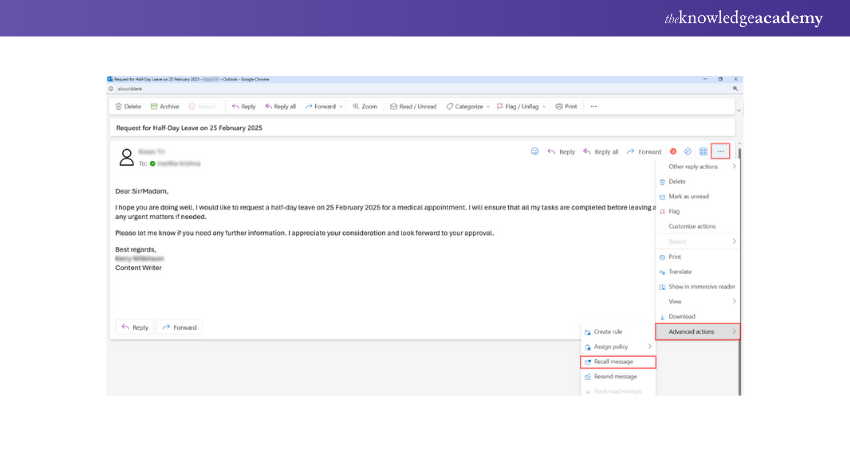
5) In the pop-up window, select Delete unread copies of this message to remove it from the recipient’s inbox.
6) If you want to send a corrected version, choose Delete unread copies and replace with a new message instead.
7) Click OK to confirm your action.

Important Considerations:
a) The recall feature is only effective if the recipient has not opened the Email.
b) It works best when both sender and recipient are using Microsoft Exchange accounts within the same organisation.
c) Emails sent to external recipients or non-Outlook clients may not be recalled successfully.
On Mac
For Outlook on Mac:
1) Open Sent Items: Navigate to the "Sent Items" folder.
2) Open the Email: Double-click the Email to open it.
3) Access Recall Option: Click on "Message" in the menu bar, select "Actions," then choose "Recall This Message."
4) Choose Recall Method: Select the desired recall option.
5) Confirm: Click "OK" to proceed.
Note: The recall feature on Mac has similar limitations as on PC, primarily depending on the recipient's Email client and whether the Email has been read.
On iOS and Android
The Outlook Mobile App does not currently support the recall feature. However, users can enable a delay in sending Emails, allowing a brief window to cancel the send action:
1) Open Outlook App: Launch the Outlook app on your device
2) Access Settings: Tap on your profile icon and select "Settings"
3) Navigate to Mail Options: Choose "Mail" and then "Undo Send"
4) Set Delay Time: Select the desired delay duration (e.g., 5, 10 seconds)
After enabling this feature, you'll have a short period to undo the sending of an Email immediately after tapping "Send."
Boost your efficiency with Microsoft Office Training - learn essential skills for professional success!
How to Unsend an Email in Gmail?
Gmail offers an "Undo Send" feature, allowing users to retract an Email within a configurable time frame.
On Desktop
To enable and use "Undo Send" on Gmail's desktop version:
1) Access Settings: Click on the gear icon in the top-right corner and select "See all settings."
2) Enable Undo Send: In the "General" tab, find "Undo Send" and set the "Send cancellation period" to your preferred duration (5, 10, 20, or 30 seconds).
3) Save Changes: Scroll down and click "Save Changes."
After sending an Email, a notification with an "Undo" option will appear in the bottom-left corner. Click "Undo" within the set time to retract the Email.
On Mobile (iOS and Android)
The Gmail app provides a similar "Undo Send" functionality both in iOS and Android
1) Send Email: Compose and send your Email as usual.
2) Undo Notification: Immediately after sending, a snackbar notification appears at the bottom with an "Undo" option.

3) Tap Undo: Click "Undo" to retract the Email, which will then reopen in the compose window for edits or deletion.
Note: The cancellation period on mobile is fixed and cannot be adjusted
Enhance your Email skills with E-mail Etiquette Training- master etiquette, professionalism, and effective communication!
How to Recall Emails on Different Email Services?
While Outlook and Gmail offer built-in options to unsend Emails, other Email services have their own methods for recalling messages. Below are the available recall or undo send features in Apple Mail, Yahoo! Mail, and Zoho Mail:
Recall Emails in Apple Mail
With macOS Ventura and iOS 16, Apple introduced the "Undo Send" feature in Mail:
On Mac
1) Send Email: After sending, look for the "Undo Send" option at the bottom of the sidebar.
2) Click Undo Send: You have 10 seconds to click this and recall the Email.
To Adjust the Undo, Send the Delay:
a) Go to "Mail" > "Settings" > "Composing"
b) Select the desired "Undo send delay" (10, 20, or 30 seconds) or turn it off
On iOS
1) Send Email: After sending, an "Undo Send" option appears at the bottom
2) Tap Undo Send: Tap within 10 seconds to recall the Email
To set the Delay:
a) Go to "Settings" > "Mail" > "Undo Send Delay"
b) Choose the preferred duration
Recall Emails in Yahoo! Mail
As of now, Yahoo! Mail does not offer an "Undo Send" feature. Once an Email is sent, it cannot be recalled. Users are advised to review Emails carefully before sending them.
Recall Emails in Zoho Mail
Zoho Mail provides multiple options to prevent or retract sent Emails:
Undo Send
1) Enable Undo Send: Go to "Settings" > "Compose Options"
2) Set Duration: Under "Undo Send," choose a duration between 5 to 30 seconds
After sending, an "Undo" option appears for the set time, allowing retraction
Outbox Delay
1) Enable Outbox Delay: In "Compose Options," toggle "Outbox Delay" to "ON"
2) Set Delay: Choose a delay between 1 second to 120 minutes
Emails remain in the Outbox during this period, allowing edits or cancellations
Recall Email
1) Access Sent Folder: Navigate to the "Sent" folder
2) Open Mail Delivery Status: Click the Mail Delivery Status (MDS) icon on the Email
3) Recall Email: In the pop-up, click "Recall this Email"
Conditions:
a) Recall must be within 30 minutes of sending
b) Only works for recipients within the same organisation
c) Not applicable for Emails fetched via POP/IMAP
Master Microsoft Teams and improve collaboration - register in Microsoft Teams Training today to enhance productivity!
Key Considerations to Keep in Mind
Before relying on Email recall or unsend features, it's important to understand their limitations, effectiveness, and conditions under which they work. Here are key factors to keep in mind to ensure successful Email management and error prevention.
1) Feature Availability:
Some Email services, like Yahoo! Mail, do not offer an unsend or recall feature, while others have specific limitations. Understanding these constraints can help set realistic expectations.
2) Delayed Sending Options:
If recalling Emails is a concern, consider enabling delayed sending. Many Email services, including Outlook, Gmail, and Zoho Mail, allow users to set a delay before Emails are actually sent, reducing the risk of accidental messages. Additionally, knowing How to Delete Gmail Search History helps maintain privacy and keep your inbox organised.
3) Email Encryption and Sensitivity:
When dealing with confidential or sensitive information, it's advisable to use Email Encryption and ensure messages are sent only to intended recipients, as recalling an Email does not guarantee its removal from the recipient’s inbox.
4) Notifications to Recipients:
In Outlook, attempting to recall an Email may notify the recipient, making them aware of the retraction attempt. This could prompt them to read the Email before the recall takes effect.
5) Read Receipts and Tracking:
Some Email services provide read receipts, which can help determine whether an Email has been opened before attempting a recall. However, recall functions will not work if the Email has already been read.
6) Alternative Actions:
If an Email cannot be recalled, consider following up with the recipient to clarify or correct any mistakes. Sending an apology or an updated Email with the correct information can help mitigate any potential issues.
How do you Know if Someone Read Your Email in Outlook?
Enable Read Receipts by selecting Options > Request a Read Receipt before sending. If enabled, you’ll receive a notification when the recipient opens the Email. However, they can decline the receipt request, so it’s not always guaranteed.
Can You Unsend an Email in Outlook After it has Been Read?
No, once an email has been read, you cannot unsend or recall it in Outlook. The Recall Message feature only works if the recipient hasn’t opened the email and both users are on Microsoft Exchange within the same organisation. Similarly, if you're managing emails in Gmail, you might want to Clear Search History in Gmail to keep your account organised and improve your user experience.
Conclusion
Knowing How to Unsend an Email in Outlook can save you from mistakes and miscommunication. While the Recall Message feature works under specific conditions, enabling delayed sending adds extra protection. Always review Emails before sending them to avoid errors and ensure smooth, professional Email Communication.
Master Outlook with Microsoft Outlook Training - boost efficiency and stay organised. Start learning today!
Frequently Asked Questions
How do I Recall an Email in Outlook?

To recall an Email in Outlook, go to Sent Items, open the Email, click Message > Actions > Recall This Message, and choose to delete or replace it. This works only if the recipient hasn’t opened it.
How Long do you Have to Recall an Email in Outlook?
There’s no fixed time limit, but you can only recall an Email if it remains unread in the recipient’s inbox. The success depends on their Email settings and whether they use Microsoft Exchange within the same organisation.
What are the Other Resources and Offers Provided by The Knowledge Academy?
The Knowledge Academy takes global learning to new heights, offering over 3,000+ online courses across 490+ locations in 190+ countries. This expansive reach ensures accessibility and convenience for learners worldwide.
Alongside our diverse Online Course Catalogue, encompassing 19 major categories, we go the extra mile by providing a plethora of free educational Online Resources like Blogs, eBooks, Interview Questions and Videos. Tailoring learning experiences further, professionals can unlock greater value through a wide range of special discounts, seasonal deals, and Exclusive Offers.
What is The Knowledge Pass, and How Does it Work?
The Knowledge Academy’s Knowledge Pass, a prepaid voucher, adds another layer of flexibility, allowing course bookings over a 12-month period. Join us on a journey where education knows no bounds.
What are the Related Courses and Blogs Provided by The Knowledge Academy?
The Knowledge Academy offers various Microsoft Office Training, including Microsoft Outlook Training, Microsoft Teams Training, Microsoft Publisher Training and many more. These courses cater to different skill levels, providing comprehensive insights into How to Schedule an Email in Outlook.
Our Office Applications Blogs cover a range of topics related to Microsoft Outlook, offering valuable resources, best practices, and industry insights. Whether you are a beginner or looking to advance your Office Applications skills, The Knowledge Academy's diverse courses and informative blogs have got you covered.

The Knowledge Academy


Global Training Provider
The Knowledge Academy is a world-leading provider of professional training courses, offering globally recognised qualifications across a wide range of subjects. With expert trainers, up-to-date course material, and flexible learning options, we aim to empower professionals and organisations to achieve their goals through continuous learning.

Upcoming Microsoft Technical Resources Batches & Dates
Date
 Microsoft Outlook Training
Microsoft Outlook Training
Fri 3rd Jul 2026
Microsoft Outlook Training
Fri 4th Sep 2026
Microsoft Outlook Training
Fri 4th Dec 2026

 If you wish to make any changes to your course, please


