


 Top Rated Course

We may not have the course you’re looking for. If you enquire or give us a call on +44 1344 203 999 and speak to our training experts, we may still be able to help with your training requirements.
Basic Git Commands Every Beginner Should Know
Richard Harris 29 April 2026Unlock the fundamental tools of code collaboration with this blog that shall serve as your essential guide to basic Git commands. Tailored for developers at every skill level, this resource decodes Git operations, from commits to branches, ensuring you have the foundational knowledge to manage your projects effectively and streamline your development workflow.

Training Outcomes Within Your Budget!
We ensure quality, budget-alignment, and timely delivery by our expert instructors.
Table of Contents

If you're an aspiring developer dreaming of launching your own software or app, think of Git commands as your launchpad. Git reigns as a top-tier DevOps tool, adept at administering projects of any size with finesse.
Git excels in facilitating collaboration across diverse teams sectioned throughout various segments of a project, streamlining workflows with ease. As part of managing your branches effectively, it's also important to understand how to delete a branch in git when a branch is no longer needed. In this blog, we'll dive into the fundamental and crucial Git commands that are indispensable for your journey.
Table of Contents
1) What is Git?
2) Repositories used while working on Git
3) Top GIT Commands to remember
4) Conclusion
What is Git?
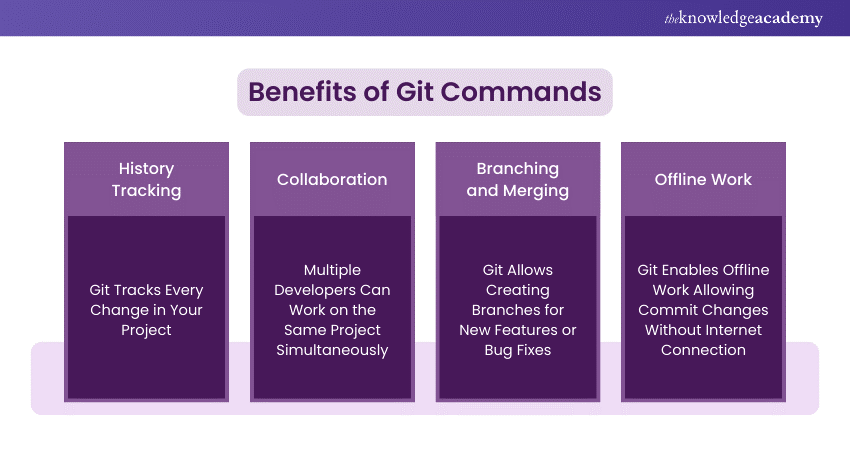
Git is a widely used modern Version Control System (VCS) that tracks changes in computer files. ‘Version control system’ refers to a system that records all the changes done to a file or set of data, so that a specific version can be considered whenever needed.
This feature makes the process of collaboration over a big project significantly feasible with all team members. Git enables team members to track each other's progress over time, especially when understanding Git fetch vs pull is crucial for efficient synchronization.
In software development, GIT comes handy in Source Code Management. It benefits not only programmers but also non-technical users by efficiently tracking their project files throughout the Git Life Cycle.

Repositories used while working on Git
While working with Git, two repositories are actively used:
Local repository
The local repository present on our computer consists of all the files and folders. This Repository is used to make changes locally, review history as well as commit when offline.
Remote repository
This refers to the server repository that may be present anywhere. This is used by all the team members to share the changes that have been made.
In addition to both repositories having their own set of commands, there are separate Git Commands that work on various types of repositories.
Expand your efficiency as a developer through Git Commands!
Top GIT Commands to remember
Here are the important Git commands associated with local repositories:
1) git init
The command git init is used to create an empty Git repository. Upon using the git init command, a .git folder is created in the directory with subdirectories. Once the repository is initialised, the process of creating other files starts.
2) git add
The git add command is used after checking the status of the files so that those files can be added to the staging area. to the staging area. Before writing the commit command, git add is used to add new or modified files
3) git commit
The git commit command ensures that the file changes are saved to the local repository.
The command git commit – enables you to help them understand what has happened.
4) git status
The git status command displays the repository's current state.
|
git status |
5) git config
The git config command configures the user.name and user.email. This specifies which email id and username will be used from a local repository.
|
git config –global user.name “any user name” |
6) git branch
The git branch command is used to determine which branch the local repository is on and enables addition or deletion of a branch.
|
git branch new-branch |
The above command creates a new branch.
If you want to delete a local branch, pass the following command:
|
git branch -d new-branch |
The following will help you see the newly created branch by listing all of them
|
$ git branch --list --all * master new-branch remotes/origin/HEAD -> origin/master remotes/origin/master |
7) git checkout
The git checkout or git switch command is used to switch branches. This can be used whenever the work needs to be started on a different branch.
The command works on files, commits, and branches.
|
$ git switch new-branch Switched to branch ‘new-branch’ $ git checkout master Switched to branch ‘master’ |
The above commands enabled the change from master to the new-branch and then back to master again.
8) git merge
The git merge command integrates the branches together. It combines the changes of one branch with another branch. You can also rename a branch in Git before merging. It is essentially used to merge changes in the staging branch with the stable branch.
Any incoming changes to the same branch must be merged before the code is published. If you don’t do this, the publishing process could fail. This command is passed as follows:
|
git merge |
9) git remote
The git remote command creates, views and deletes connections to other repositories. The connections here are not direct links into other repositories, but bookmarks that serve as a reference.
The command is passed as follows:
|
git remote add origin |
10) git clone
The git clone command creates a local working copy of an existing remote repository. Basically, it clones the repository into a new directory. The command takes the following form:
|
git clone |
Upon execution, the newly created directory contains all the project’s files, branches, and history. Additionally, the cloned repository is configured and connected with the external source
11) git pull
The Git Pull Command is used to take changes from the remote repository and merge them with the local repository. Additionally, the command "git pull origin master" copies all files from the remote repository’s master branch to the local repository.
|
git pull |
12) git push
The command git push transfers the commits or pushes the content from the local repository to the remote repository.
This is used after a local repository has been modified, and the modifications need to be shared with the remote team members.
|
git push origin master |
13) git stash
The git stash command takes the modified tracked files and saves them on a collection of incomplete changes which you can reapply at any time. This allows you to switch contexts and start work on something else.
|
git stash push |
Basically, this command enables developers to switch branches so that they can work on something else without committing to incomplete work.
14) git log
The git log command prints the list of commits of the current branch. It displays the order of the commit history for a repository.
This command helps in understanding the state of the current branch by showing the commits that lead to this state.
|
git log |
15) git rebase
The Git Rebase command is a more advanced technique for modifying commits. It reapplies commits from history on top of another base. This allows you to change them on the go.
|
touch myfile-3.txt git add * git commit –m “My second commit” |
The above command creates another commit in the repository resulting in two single commits – My first commit and My second commit.
The following command will rebase both commits:
|
git rebase –i HEAD-2 |
16) git reset
The git reset option is useful if you want to drop the current state and revert to a previous snapshot.
|
git reset 82d8635 |
It undoes all the commits after the specified commit and preserves changes locally and moves them to the Staging Area.
17) git diff
This command lets you compare changes between the working directory and the most recent commit. For instance, this git diff usage identifies the differences in a specific file
|
git diff file1.txt |
Use the following command to compare changes between two commits:
|
git diff file1.txt |
18) git revert
This command is used to undo changes to a repository’s commit history. It simply creates a new commit that’s the opposite of an existing commit. It's typed as follows:
|
git revert |
The following command undoes the changes established by the specified commit. But it does not create a new commit.
|
git revert –no-commit |
Then the following command reapplies commits on the current branch to the tip of the specified branch.
|
git rebase |
Conclusion
Mastering Git Commands is a crucial step in becoming a proficient developer. With these fundamental tools, you'll be well-equipped to manage and collaborate on projects efficiently. Along the way, you’ll encounter situations that require Resolving Git Merge Conflict, which is a vital skill for developers working on collaborative projects. Additionally, understanding Git Rebase and Merge will help you manage your commit history effectively. As you get comfortable with Git, it's also useful to understand how other version control systems like Perforce compare to Git.
Finding it challenging to manage and track changes in your code? Git Commands are here to assist you!
Frequently Asked Questions
What is Git init?

The git init is a command used to create a new Git repository. Once you run this command, Git sets up necessary files and structures in the current directory. The git init command essentially lays the groundwork for version control in a project. This allows you can share the project with others and enable collaborative development.
What are the 5 steps of git?
The five steps to using Git are as follows:
a) Create a GitHub account
b) Create a new repository
c) Create a file
d) Make a Commit
e) Connecting GitHub repo with your computer
What is git used for?
Git is used by developers to manage and track changes in their code. This helps their teams to collaborate on projects without overwriting each other’s work. Git is a significant distributed version control system (VCS) used to handle everything from small projects to large projects with efficiency and speed.
What are the Other Resources and Offers provided by The Knowledge Academy?
The Knowledge Academy takes global learning to new heights, offering over 3,000+ online courses across 490+ locations in 190+ countries. This expansive reach ensures accessibility and convenience for learners worldwide.
Alongside our diverse Online Course Catalogue, encompassing 19 major categories, we go the extra mile by providing a plethora of free educational Online Resources like Blogs, eBooks, Interview Questions and Videos. Tailoring learning experiences further, professionals can unlock greater value through a wide range of special discounts, seasonal deals, and Exclusive Offers.
What is The Knowledge Pass, and How Does it Work?
The Knowledge Academy’s Knowledge Pass, a prepaid voucher, adds another layer of flexibility, allowing course bookings over a 12-month period. Join us on a journey where education knows no bounds.
What are the Related Courses and Blogs Provided by The Knowledge Academy?
The Knowledge Academy offers Git & GitHub Course catering to different skill levels, providing comprehensive insights into Programming & DevOps Courses.
Our App & Web Development Blogs cover a range of topics related to Web and Application development offering valuable resources, best practices, and industry insights. Whether you are a beginner or looking to advance your Git command skills, The Knowledge Academy's diverse courses and informative blogs have got you covered.

Richard Harris


Senior Full Stack Developer and Technology Educator
Richard Harris is a highly experienced full-stack developer with deep expertise in both frontend and backend technologies. Over his 12-year career, he has built scalable web applications for startups, enterprises and government organisations. Richard’s writing combines technical depth with clear explanations, ideal for developers looking to grow in modern frameworks and tools.

Upcoming Programming & DevOps Resources Batches & Dates
Date
 Git & GitHub Fundamentals
Git & GitHub Fundamentals
Fri 11th Sep 2026
Git & GitHub Fundamentals
Fri 11th Dec 2026

 If you wish to make any changes to your course, please


