


 Top Rated Course

We may not have the course you’re looking for. If you enquire or give us a call on + 1-866 272 8822 and speak to our training experts, we may still be able to help with your training requirements.
How to Create D3 Bar Chart in Graph?
The Knowledge Academy 25 February 2026D3 Bar Charts are dynamic and interactive visualisations created using the D3.js library. They leverage Web Technologies to render data-driven graphics. This blog will explore their performance and flexibility. Dive in to explore how these charts can efficiently handle large datasets, making them ideal for complex data representation.

Training Outcomes Within Your Budget!
We ensure quality, budget-alignment, and timely delivery by our expert instructors.
Table of Contents
Have you ever wondered how to make your data stand out? Or how to create interactive and dynamic visualisations that captivate your audience? By leveraging the capabilities of D3 Bar Charts, you can efficiently handle large datasets. Creating such charts can transform your data into a visually engaging story.
In this blog, we’ll guide you through the process of crafting a D3 Bar Chart, a powerful tool for Data Visualisation. It will provide you with the essential steps and tips to create your own charts. Let’s dive in and explore the world of data visualisation with D3.js!
Table of Contents
1) What is D3?
2) Prerequisites to Creating D3 Bar Chart
3) Steps to Create D3 Bar Chart in Graph
4) The Benefits of SVG
5) How to Draw Bar Graphs With SVG?
6) Supported D3.js Input Formats
7) Tips on Making JavaScript Bar Charts
8) Conclusion
What is D3?
As a JavaScript library, Data-Driven Documents (D3.js) lets developers to build dynamic and interactive data visualisationss in web browsers. It uses HTML, CSS, and SVG to seamlessly generate data-driven visuals. Key features include its speed and performance, as well as its efficient handling of large datasets for responsive Web Applications. D3.js supports smooth user interactions and animations, making data engaging and compelling.
Its versatility makes it valuable for Web Developers and Data Scientists, allowing them to present complex information clearly and attractively. Whether visualising financial data, geographical information, or other datasets, D3.js is a reliable tool for creating stunning web visualisations.

Prerequisites to Creating D3 Bar Chart
Before you can dive into creating D3 Bar Charts, there are several prerequisites that you should consider. These prerequisites include a fundamental understanding of web development technologies and familiarity with D3.js. Here's what you need:
a) Basic web development skills: To work with D3.js and create a D3 Bar Chart, you should have a good grasp of core web development technologies such as HTML, CSS, and JavaScript. Proficiency in these technologies is essential as D3.js builds upon them to create data-driven visualisations.
b) Text editor or Integrated Development Environment (IDE): You'll need a code editor or IDE to write, edit, and manage your HTML, CSS, and JavaScript code. Popular choices include Visual Studio Code, Sublime Text, or any other code editor you prefer.
c) D3.js library: You should download and include the D3.js library in your project. You can download and host it locally or use a Content Delivery Network (CDN) link to access it. Make sure to include the library in your HTML file.
d) Data source: You'll need the data you want to represent in your bar chart. This data could be in various formats, such as JSON, CSV, or a simple JavaScript array.
e) Basic understanding of D3.js: While you don't need to be a D3.js expert, basic knowledge of D3.js concepts, such as selections, scales, and data binding, is essential. You can find numerous online tutorials and documentation to help you get started.
f) Development environment: Set up your development environment with a local server or a code editor with a live server extension. This lets you see your D3 Bar Chart in action as you code.
Steps to Create D3 Bar Chart in Graph
Here are the steps to creating a D3 Bar Chart:
1) Getting the Dataset
Getting the dataset is a crucial first step when creating a D3 Bar Chart, and it's essential to understand how to structure your data. Let's illustrate this with an example.
Imagine you want to create a D3 Bar Chart to visualise the monthly sales data of a retail store. Your dataset would typically be stored in a Comma-Separated Values or CSV file. In this file, you'd have two columns: one for the months (e.g., January, February, March) and another for the corresponding sales figures.
For instance, your dataset might look like this:
Month, Sales
January, 5500
February, 6200
March, 7200
April, 6100
May, 6800
In this example, "Month" and "Sales" are the column headers, and each row represents a different month's sales data. Once you have your dataset ready, you can use D3.js to read and process this data to create an interactive bar chart, providing a visual representation of the store's monthly sales performance.
Join our Data Visualisation Training with D3 and gain the skills to bring your data to life – join us now!
2) D3 and SVG
Scalable Vector Graphics, or SVG, is a versatile and powerful XML-based format used for creating intricate visualisations. To include SVGs in your web content, there are two primary approaches:
Initialising an SVG Container: You can directly establish an SVG container by specifying its width and height within your HTML code. For instance:
Using a Div Container: Alternatively, you can first create a
container in your HTML. Here's an example:
Then, with JavaScript, you can select this designated container and dynamically inject the SVG element. This approach grants you greater flexibility, as you can adjust the SVG's properties and dimensions as needed. For example:
|
var svg = d3 .select("#svgContainer") .append("svg") .attr("width", 600) .attr("height", 400); |
With this, you're ready to populate the SVG container with your data-driven visualisations using D3.js.
Enhance your coding abilities and build powerful Web Applications with our ECMAScript Training – register now!
3) Setting up the project
Here are the steps to setting up the project:
a) HTML Structure: In your HTML file (e.g., index.html), you define the structure of your web page. Start with the basic HTML template. You'll need an HTML container where the bar chart will be displayed. For the sales example, you might set the width and height of an SVG element within your HTML.
b) JavaScript File: Create a JavaScript file (e.g., script.js) to interact with the D3 library. This is where you'll load the data, define scales, axes, and create the actual bar chart. In your script.js, you'll select the SVG container, load the data from your CSV file, set up scales for your x and y axes, and add the chart elements.
For example, to set up your SVG container:
|
var svg = d3.select("svg"); var margin = { top: 50, right: 50, bottom: 50, left: 50 }; var width = svg.attr("width") - margin.left - margin.right; var height = svg.attr("height") - margin.top - margin.bottom; |
c) Loading Data: Using D3.js, you'll load the dataset (in this case, the monthly sales data) from your CSV file into your JavaScript code. This dataset will serve as the basis for your chart.
|
d3.csv("monthly_sales.csv").then(function(data) { // Data processing and chart creation go here }); |
Data processing and visualisation: Inside the data loading function, you'll process the data and use it to create the bar chart. You set up scales for your x and y axes, create the bars, and add any labels or other elements you want to display on the chart.
// Data processing (scales, axes) and chart creation
CSS (Optional): If you want to style your chart or web page further, you can create a CSS file (e.g., style.css) to define the styling rules. While CSS isn't mandatory for creating D3 visualisations, it can enhance the overall look and feel of your project.
4) D3.js Selections
D3.js selections are a fundamental concept for creating and manipulating elements on a web page. Continuing with the example of a monthly retail sales bar chart, let's delve into D3.js selections in the script.js file:
a) Selecting the SVG Container
var svg = d3.select("svg");
Here, you use d3.select() to select the SVG element in the HTML. This sets the stage for subsequent operations within the SVG container.
b) Creating a Group Element (g):
|
var margin = { top: 50, right: 50, bottom: 50, left: 50 }; var width = svg.attr("width") - margin.left - margin.right; var height = svg.attr("height") - margin.top - margin.bottom; var g = svg.append("g") .attr("transform", "translate(" + margin.left + "," + margin.top + ")"); |
Here, svg.append("g") appends a group element (
5) Setting up Margins
When setting up margins for a D3.js visualisation, it's essential to create appropriate spacing around the chart area to accommodate axes, labels, and prevent elements from being cut off. Let's expand on this within the context of the retail sales bar chart example:
a) Defining Margins:
|
var margin = { top: 50, right: 50, bottom: 50, left: 50 }; var width = svg.attr("width") - margin.left - margin.right; var height = svg.attr("height") - margin.top - margin.bottom; |
Here, a margin object is created, specifying top, right, bottom, and left margins. These margins determine the space around the actual chart area within the SVG container. The width and height variables are calculated by subtracting the total margins from the SVG width and height, respectively.
b) Applying Margins to the Chart:
|
var g = svg.append("g") .attr("transform", "translate(" + margin.left + "," + margin.top + ")"); |
The
6) Setting up Scales
Setting up scales in a D3.js visualisation is crucial for mapping data values to visual dimensions within the chart. In the context of the retail sales bar chart example, we'll elaborate on how to establish scales for both the x-axis (representing product categories) and y-axis (representing sales amounts).
a) Setting up X-Scale:
|
var xScale = d3.scaleBand() .range([0, width]) .padding(0.5); // Loading data and setting domain for xScale d3.csv("sales_data.csv").then(function(data) { xScale.domain(data.map(function(d) { return d.productCategory; })); }); |
Here, a scaleBand is employed for categorical data on the x-axis. The range specifies the pixel span of the axis, and padding determines the spacing between bars. The domain is set based on unique product categories in the dataset.
b) Setting up Y-Scale:
|
var yScale = d3.scaleLinear() .range([height, 0]); // Loading data and setting domain for yScale d3.csv("sales_data.csv").then(function(data) { yScale.domain([0, d3.max(data, function(d) { return +d.salesAmount; })]); }); |
For the y-axis representing sales amounts (quantitative data), a scaleLinear is used. The range defines the pixel span from top to bottom, and the domain is determined by the minimum (0) and maximum sales amounts in the dataset.
7) Adding and formatting Axes
Continuing with our retail sales bar chart example, adding and formatting axes involves rendering the x and y axes to provide context and scale to the chart. Additionally, this step includes customisation of the axis appearance for better readability.
a) Adding X-Axis:
|
// Adding and formatting x-axis g.append("g") .attr("transform", "translate(0," + height + ")") .call(d3.axisBottom(xScale)) .append("text") .attr("y", height - 140) .attr("x", width - 400) .attr("text-anchor", "end") .attr("stroke", "black") .attr("font-size", "15px") .text("Product Categories"); |
This code adds the x-axis to the chart. The transform attribute determines its position at the bottom of the chart. The call(d3.axisBottom(xScale)) renders the axis, and the subsequent append("text") adds a label to the x-axis for better clarity.
b) Adding Y-Axis:
|
// Adding and formatting y-axis g.append("g") .call(d3.axisLeft(yScale)) .append("text") .attr("transform", "rotate(-90)") .attr("x", -80) .attr("y", 25) .attr("dy", "-5.1em") .attr("text-anchor", "end") .attr("stroke", "black") .attr("font-size", "15px") .text("Sales Amount (in USD)") |
For the y-axis, the code appends the axis to the chart, and an additional label is added with rotation for better alignment. This label provides context, indicating that the y-axis represents sales amounts.
8) Adding Bars
The next step involves adding bars to visually represent the sales data for different product categories. This step utilises the D3.js selection and data-binding methods to create rectangles (bars) on the chart.
|
// Adding bars to the chart g.selectAll(".bar") .data(data) .enter() .append("rect") .attr("class", "bar") .attr("x", function (d) { return xScale(d.category); }) .attr("y", function (d) { return yScale(d.sales); }) .attr("width", xScale.bandwidth()) .attr("height", function (d) { return height - yScale(d.sales); }); |
a) Creating Rectangles for Bars:
|
g.selectAll(".bar") .data(data) .enter().append("rect") .attr("class", "bar") .attr("x", function(d) { return xScale(d.month); }) .attr("y", function(d) { return yScale(d.sales); }) .attr("width", xScale.bandwidth()) .attr("height", function(d) { return height - yScale(d.sales); }); |
In this snippet, g.selectAll(".bar") selects all elements with the class "bar" that exist (or will exist) inside the
b) Appending Text Labels:
|
g.append("text") .attr("transform", "translate(" + (width / 2) + "," + (height + margin.top) + ")") .style("text-anchor", "middle") .text("Months"); |
This example appends a text element to the
Join our Java Swing Development Training and learn to design and implement sophisticated graphical user interfaces.
Benefits of SVG
Scalable Vector Graphics (SVG) is an XML-based markup language used to create vector graphics. It allows for drawing lines and shapes and modifying existing images. Here are some of its key advantages:
a) Browser Compatibility: Supported by all major browsers
b) DOM Interface: Integrates seamlessly with the DOM, requiring no third-party libraries.
c) Scalability: Maintains high resolution at any size
d) Efficient Size: Smaller file sizes compared to other image formats
How to Draw Bar Graphs With SVG?
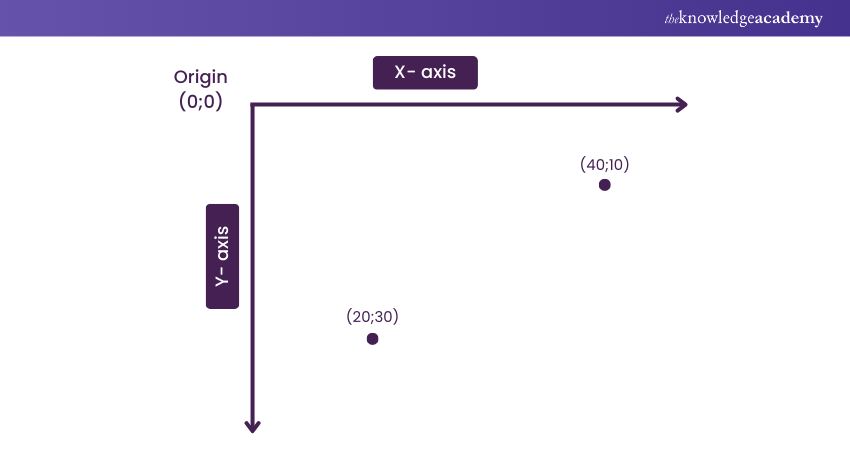
SVG uses a coordinate system that begins at the top-left corner (0,0). The positive x-axis extends to the right, while the positive Y-axis extends downward. Therefore, when calculating the Y-coordinate of an element, it’s essential to consider the height of the SVG. You can take reference from the below image:
Supported D3.js Input Formats
D3.js is highly versatile and supports a variety of input formats, making it easier to work with different types of data. Here are some common formats you can use with D3.js:
a) Comma-Separated Values (CSV): Ideal for tabular data, CSV files are easy to read and write, making them a popular choice for data visualisation.
b) JavaScript Object Notation (JSON): JSON is a lightweight data-interchange format that’s easy for humans to read and write and easy for machines to parse and generate. It’s particularly useful for hierarchical data.
c) Tab-Separated Values (TSV): Similar to CSV, TSV files use tabs to separate values, which can be useful for data that includes commas within the values.
d) eXtensible Markup Language (XML): XML is a flexible way to create information formats and electronically share structured data via the internet.
Tips on Making JavaScript Bar Charts
Creating effective bar charts in JavaScript involves several best practices to ensure clarity and readability. By following these guidelines, you can make your data visualisations more intuitive and engaging for your audience.
1) Avoid 3D effects
2) Order data points intuitively, either alphabetically or sorted
3) Maintain space between the bands
4) Start the y-axis at 0, not the lowest value
5) Use consistent colors
6) Add axis labels, a title, and a source line
Conclusion
Hopefully, through this blog, you were able to understand How to Create a D3 Bar Chart in Graph. D3 Bar Charts have become essential Data Visualisation tools in Business Intelligence and Data Analysis, and comprehending them will greatly boost your professional growth.
Equip yourself with the latest Java techniques with our Java Engineer Training – secure your spot.
Frequently Asked Questions
What are Some Common Issues and Troubleshooting Tips for D3 Bar Charts?

Common issues include incorrect data binding, scaling problems, and rendering errors. Troubleshooting tips: Verify data format, check scales and axes, and ensure SVG elements are correctly appended.
What are Some Best Practices for Creating Effective D3 Bar Charts?
Best practices include using clear labels, maintaining consistent colours, avoiding 3D effects, starting the y-axis at zero, and ensuring intuitive data point ordering.
What are the Other Resources and Offers Provided by The Knowledge Academy?
The Knowledge Academy takes global learning to new heights, offering over 3,000+ online courses across 490+ locations in 190+ countries. This expansive reach ensures accessibility and convenience for learners worldwide.
Alongside our diverse Online Course Catalogue, encompassing 17 major categories, we go the extra mile by providing a plethora of free educational Online Resources like Blogs, eBooks, Interview Questions and Videos. Tailoring learning experiences further, professionals can unlock greater value through a wide range of special discounts, seasonal deals, and Exclusive Offers.
What is The Knowledge Pass, and How Does it Work?
The Knowledge Academy’s Knowledge Pass, a prepaid voucher, adds another layer of flexibility, allowing course bookings over a 12-month period. Join us on a journey where education knows no bounds.
What are the Related Courses and Blogs Provided by The Knowledge Academy?
The Knowledge Academy offers various Java Courses, including the JavaScript for Beginners Course, Java Programming Course, and Hibernate Training. These courses cater to different skill levels, providing comprehensive insights into Career in Java.
Our Programming & DevOps Blogs cover a range of topics related to D3 Bar Charts, offering valuable resources, best practices, and industry insights. Whether you are a beginner or looking to advance your Programming and DevOps skills, The Knowledge Academy's diverse courses and informative blogs have got you covered.

The Knowledge Academy


Global Training Provider
The Knowledge Academy is a world-leading provider of professional training courses, offering globally recognised qualifications across a wide range of subjects. With expert trainers, up-to-date course material, and flexible learning options, we aim to empower professionals and organisations to achieve their goals through continuous learning.

Upcoming Programming & DevOps Resources Batches & Dates
Date
 JavaScript for Beginners
JavaScript for Beginners
Fri 14th Aug 2026
JavaScript for Beginners
Fri 23rd Oct 2026

 If you wish to make any changes to your course, please


