


 Top Rated Course

We may not have the course you’re looking for. If you enquire or give us a call on 44 1344 203 999 and speak to our training experts, we may still be able to help with your training requirements.
How to Create an Invoice in Excel: A Full Overview with Examples
The Knowledge Academy 16 October 2025To create an invoice in Excel, start with a blank sheet and enter your business and client details. Add an itemised list of products or services, including quantities, rates, and totals. Use formulas to calculate subtotals, taxes, and the final amount. Custom formatting can help make your invoice look professional and clear.

Training Outcomes Within Your Budget!
We ensure quality, budget-alignment, and timely delivery by our expert instructors.
Table of Contents
Are you wondering How to Create an Invoice in Excel? If you want a simple and effective way to create and manage invoices, consider using the Invoice Format in Excel. Excel is a robust and versatile tool that can help you customise your invoices according to your needs and preferences.
In this blog, we will give you an overview of How to Create an Invoice in Excel and show you some examples of templates that you can use or modify for your business. Whether you are a freelancer, a small business owner, or a large corporation, you can use Invoice Format in Excel to streamline your invoicing process.
Table of Contents
1) How to Create Your Invoice Template in Excel?
2) How to Make an Invoice from an Excel Template (Windows)
3) How to Make an Invoice from an Excel Template (Mac)
4) Automate Invoicing with Invoice Management Systems
5) Is it better to create an invoice in Word or Excel?
6) Do I legally have to pay an invoice?
7) Conclusion
How to Create Your Invoice Template in Excel?
Creating an invoice template in Excel is a simple way to manage billing and payment records professionally. By designing your own, you can customise it to suit your business needs while saving time for future use. Follow these steps to get started:

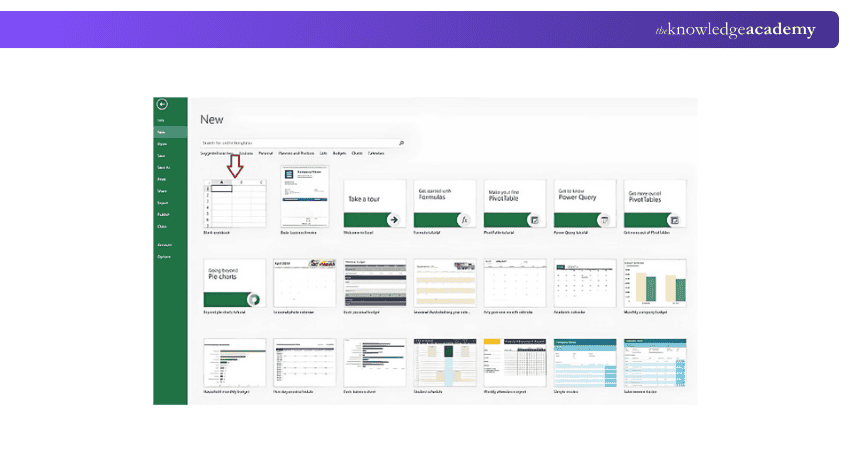
Step 1: Open a new Blank Workbook
Press ‘File’, followed by ‘New Workbook’, to start an empty Excel workbook. If Excel automatically takes you to a blank spreadsheet, you can skip this step.
Step 2: Remove Gridlines
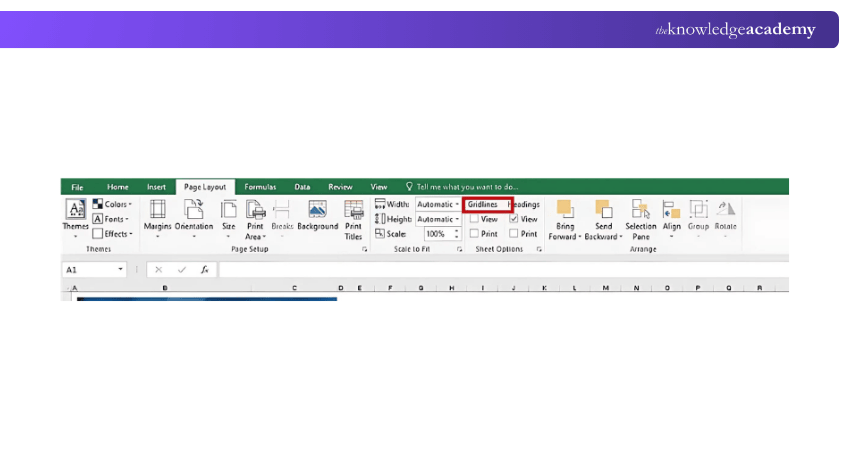
Remove the gridlines to get a clean sheet to work with. You can also remove the gridlines once you are done with the invoice. To do this, go to the layout menu and on the view section, uncheck the gridlines box. Here’s a sample Invoice Format in Excel:
Step 3: Create an Invoice Header
Elements of an invoice header
1) Your company's logo
2) Your company's contact information
3) Different order number
4) Date of the invoice

Step 4: Add Invoice Payment due Date With an Invoice Number
Make three lines on the right side of the header to provide the billing date, payment due date, and specific invoice number. In Accounting for Small Business Using Excel, you can also design a unique salary slip format, keeping all available formats and components in mind, ensuring accuracy and organization in your financial documents.
Step 5: Enter the Client’s Contact Details
The client's name, city, street address, and phone number are included in the contact information. Include the words "invoice to" or simply "to" before filling out the rest of this form. Follow the reference given below for a sample Invoice Format in Excel:

Step 6: Make a List of all the Services and Products you Offer in Invoice Format in Excel
A categorised list of services and products includes:
1) Name and details of the product or service
2) Cost per unit
3) Amount purchased
4) Taxes and savings
5) Total for each product line
6) Sum due
Step 7: Add the Subtotal
The features of the Excel application itself can help you with mathematical activities, which is a benefit of using it to create invoices. The Excel program's SUM function can add each payment due during the billing period.
Step 8: Include Payment Terms and Other Information
Payment terms, fee policy, and further details must be included at the bottom of the Invoice Format in Excel.
How to Make an Invoice from an Excel Template (Windows)
Using Excel’s built-in invoice templates is a convenient way for businesses to create professional invoices quickly. Follow the steps below to make your own invoice from a template on a Windows computer.
1) Open Microsoft Excel
Begin by launching Microsoft Excel on your Windows PC. Make sure you are connected to the internet so you can browse available online templates.
2) Search for an Invoice Template
In the Excel home screen, use the search bar at the top and type “invoice.” Excel will show a variety of invoice templates you can choose from.
3) Choose Your Template
Browse through the list of available invoice templates, including options for sales, services, and shipping. Pick the one that best suits your business style and branding.
4) Open the Invoice Template
Click on your preferred template to preview it. Once satisfied, select “Create” to open the invoice template in a new Excel window.
5) Customise the Invoice
Edit the template with your business details and invoice specifics. You may include:
a) Your logo and company information
b) Client contact details
c) Invoice number and date
d) Due date and payment terms
e) An itemised list of goods or services, quantities, rates, and subtotals
f) Tax details and the final total
g) Notes on accepted payment methods or late fees
6) Save the Invoice
Once all required information is added, save the file in .xlsx format for future edits. Then, save a copy as a PDF to send to your client, ensuring the file remains uneditable.
7) Send the Invoice
Share the completed invoice by email or post. Include a brief message that highlights key details such as the invoice number, due date, and total amount due.
How to Make an Invoice from an Excel Template (Mac)
Creating an invoice using an Excel template on a Mac is quick and efficient. Follow these simple steps to build and send a professional invoice.
1) Open Microsoft Excel
Launch Microsoft Excel on your Mac. From the top menu, click File, then select New from Template. This will open a window showing available Excel templates.
2) Search for an Invoice Template
To find invoice-specific templates, go to the search bar in the upper-right corner, type “invoice,” and press Enter. Excel will filter and display invoice-related templates.
3) Choose Your Invoice Template
Browse through the available options, which include business invoices and templates with automatic tax calculations. Select one that fits your business needs and branding style.
4) Download the Template
Click on your chosen template to view a preview. When ready, click Create to open it as a new editable spreadsheet.
5) Customise Your Invoice
Edit the invoice to suit your project or service. Include key details such as:
a) Your logo and business contact information
b) Client name and contact details
c) Invoice number and date
d) Description of services, quantity or hours, and rate
e) Subtotals and taxes (if applicable)
f) Payment terms and methods
g) Due date and total amount payable
6) Save the Invoice
Once complete, save your invoice in both .xlsx format for editing and PDF format for sending. The PDF ensures that the invoice cannot be altered after it’s delivered.
7) Send the Invoice
Share the invoice with your client via email or post. Include a short note highlighting key details like the payment due date and total amount owed.
Master Excel for accounting and streamline your financial management— Join our Excel for Accounting Course today!
Automate Invoicing with Invoice Management Systems
Automating your invoicing process with an Invoice Management System (IMS) can simplify billing and ensure accuracy. Follow these steps to get started:
1) Choose the Right IMS: Research an IMS that fits your business needs, such as integration with your accounting software, payment gateways, and invoice templates.
2) Set up Your Account: Create an account with the chosen IMS and input your business details, including your logo, contact information, and payment methods.
3) Create Invoice Templates: Customise invoice templates with your business branding. Include essential information like item descriptions, quantities, rates, and taxes.
4) Enable Recurring Invoices: Set up recurring invoices with predetermined intervals for repeat clients. This feature saves time and ensures consistent billing.
5) Set up Automatic Reminders: Configure automated payment reminders to notify clients before or after the due date.
6) Monitor Payments: Use the IMS dashboard to track sent invoices, monitor payments, and access financial reports for better cash flow management.
Is it better to create an invoice in Word or Excel?
Excel is generally better for creating invoices because it allows automatic calculations using formulas. This reduces errors and saves time when managing totals, taxes, and subtotals. Word is suitable for simpler, text-heavy invoices, but Excel offers more efficiency for ongoing business invoicing needs.
Do I legally have to pay an invoice?
Yes, if a valid invoice reflects agreed-upon goods or services, you are legally obligated to pay it. Non-payment may lead to late fees, damaged credit, or legal action. It’s important to review invoice terms and raise disputes promptly if there are issues or discrepancies.
Conclusion
Creating an Invoice in Excel is a simple yet effective way to manage your business billing. With customisable templates and easy-to-use features, Excel offers the flexibility to design professional invoices tailored to your needs. Now that you know How to Create an Invoice in Excel, you can streamline your invoicing process, ensuring accuracy and efficiency. Use Excel today to save time and manage your financials with minimal effort.
Get recruited by top companies worldwide by honing Excel skills. Get an opportunity to learn at your own pace. Join our course Microsoft Excel Associate MO200.
Frequently Asked Questions
How Excel can be Used in Careers?

Excel is widely used across various careers for tasks like data analysis, budgeting, project management, and reporting. Its functions help professionals organise, visualise, and interpret data, making it essential in finance, marketing, and administrative roles.
How to Earn a Microsoft Excel Certification?
To earn a Microsoft Excel certification, select your certification level, prepare using study resources, and register for the exam through Microsoft's official partners. Passing the exam demonstrates proficiency in Excel, enhancing career prospects and credibility.
What are the Other Resources and Offers Provided by The Knowledge Academy?
The Knowledge Academy takes global learning to new heights, offering over 3,000 online courses across 490+ locations in 190+ countries. This expansive reach ensures accessibility and convenience for learners worldwide.
Alongside our diverse Online Course Catalogue, encompassing 19 major categories, we go the extra mile by providing a plethora of free educational Online Resources like Blogs, eBooks, Interview Questions and Videos. Tailoring learning experiences further, professionals can unlock greater value through a wide range of special discounts, seasonal deals, and Exclusive Offers.
What is The Knowledge Pass, and how does it work?
The Knowledge Academy’s Knowledge Pass, a prepaid voucher, adds another layer of flexibility, allowing course bookings over a 12-month period. Join us on a journey where education knows no bounds.
What are the Related Courses and Blogs Provided by The Knowledge Academy?
The Knowledge Academy offers various Microsoft Excel Courses, including Microsoft Excel Masterclass, Business Analytics with Excel and Excel Training with Gantt Charts. These courses cater to different skill levels, providing comprehensive insights into How to Create a Project Plan in Excel.
Our Office Applications Blogs cover a range of topics related to Microsoft Excel, offering valuable resources, best practices, and industry insights. Whether you are a beginner or looking to advance your Excel Skills, The Knowledge Academy's diverse courses and informative blogs have you covered.

The Knowledge Academy


Global Training Provider
The Knowledge Academy is a world-leading provider of professional training courses, offering globally recognised qualifications across a wide range of subjects. With expert trainers, up-to-date course material, and flexible learning options, we aim to empower professionals and organisations to achieve their goals through continuous learning.

Upcoming Office Applications Resources Batches & Dates
Date
 Microsoft Excel Course
Microsoft Excel Course
Fri 3rd Jul 2026
Microsoft Excel Course
Fri 6th Nov 2026

 If you wish to make any changes to your course, please


