


 Top Rated Course

We may not have the course you’re looking for. If you enquire or give us a call on 44 1344 203 999 and speak to our training experts, we may still be able to help with your training requirements.
How to Insert a Line in Word: Step-by-Step Guide
The Knowledge Academy 24 April 2026To insert a line in Word, place the cursor where you want the line, then go to the Home tab, click the Borders dropdown, and select Horizontal Line. Word offers a variety of line types, including horizontal, vertical, and diagonal, providing flexibility for different design needs. They help readers navigate information more easily.

Training Outcomes Within Your Budget!
We ensure quality, budget-alignment, and timely delivery by our expert instructors.
Table of Contents

A simple line can do more than decorate a document. It can organise ideas, drive attention and elevate your presentation instantly. From clean dividers to precise visual separators, Microsoft Word offers multiple quick ways to insert lines. Whether you’re organising content, creating sections, or just adding a stylish touch, learning How to Insert a Line in Word is easier than you think.
In short, knowing the right method saves time and effort. This blog walks you through quick and easy ways on How to Insert a Line in Word, helping you create polished documents with confidence every time. So read on and create memorable Word documents!
Table of Contents
1) How to Insert Horizontal Lines in Word?
2) How to Insert Vertical Lines in Word?
3) Advantages of Inserting Lines in Word
4) Essential Tips for Using Word
5) Conclusion
How to Insert Horizontal Lines in Word?
Horizontal lines in Word create visual breaks that set the sections apart. It also focuses on keeping a simple structure that makes your document look much better. Let’s learn how to insert a horizontal line in Word step by step:
Method 1: Using Shape Tab
A simple method to add a line in Word is by using the Shape tool.
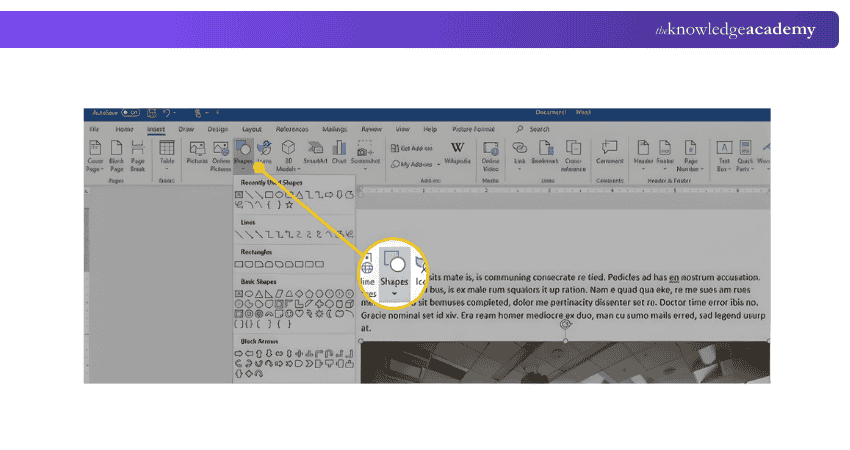
a) Access the file in Microsoft Word.
b) Go to the Ribbon and locate the "Insert" tab.
c) Press on "Shapes" and choose the straight line from the available choices
d) Move your cursor over the document and hold down the mouse button as you slide it to the location where you would like to place the line.
e) Let go of the mouse to confirm the line's placement.
This technique allows for customisation, such as changing the colour, thickness, or style of the line to match your document's design.

Method 2: Typing a few character (---, ===, ___, ***, ###, ~~~) from Keyboard
A quicker way to add horizontal lines in Word is by utilising the keyboard. Word has a pre-installed function that enables users to generate lines by entering certain characters and then hitting the "Enter" key. Below are the pairs of characters:
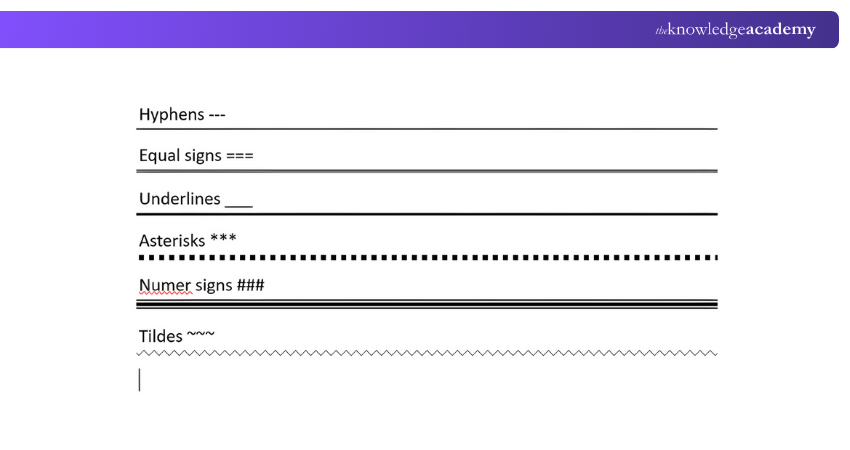
a) Insert a basic horizontal line by typing three hyphens (---) and then hitting "Enter"
b) To create a double horizontal line, input three equals signs (===) and then press the "Enter" key
c) Use three underscores (___) and hit "Enter" to make a bolder line
d) Enter three asterisks (***) and hit "Return" to produce a dashed line
e) Enter three-pound symbols (###) and hit "Enter" for a line consisting of dense dots
f) To create a zigzag line, simply type three tildes (~~~) followed by pressing the "Enter" key
These automated lines can be easily inserted and provide visual differentiation between sections in your document with a range of styles.
Boost your efficiency in documentation and presentation with our comprehensive Microsoft Office 365 Training – Register now!
Method 3: Pressing Shift + Dash ("-") Key
An additional method for adding a horizontal line is to hold down the "Shift" key while pressing the dash ("-") key. Please follow these instructions:
a) Press the dash key (“-”) repeatedly while holding the "Shift" key to create an unbroken straight line
b) When the line reaches the appropriate length, let go of the keys
This technique comes in handy when you need to create a custom-length line manually without relying on shapes or automatic characters.
Method 4: Applying Borders from the Ribbon
The Border feature can also be utilised to add horizontal lines. Here is the method:
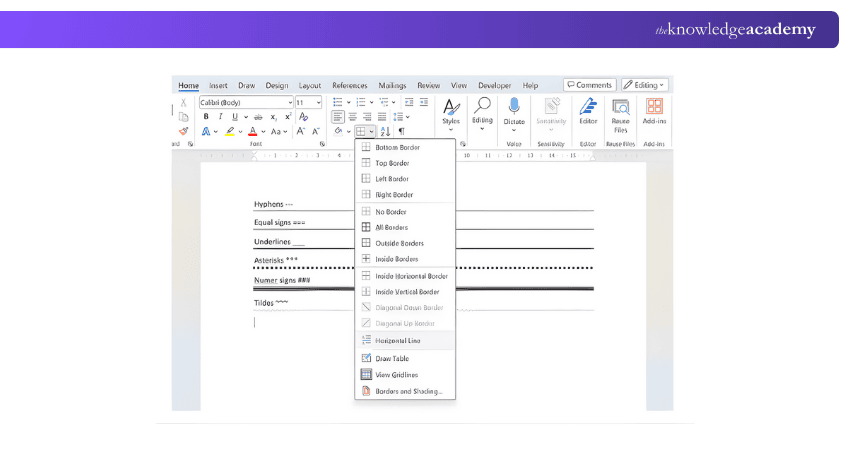
a) Please identify the text that you would like to focus on
b) Go to the “Home” section
c) Select the "Borders" icon located in the "Paragraph" group
d) Choose "Bottom Border" to add a horizontal line beneath the text that has been chosen
This technique automatically inserts a line, making it a great choice for dividing headings and paragraphs.
Turn every document into an informative masterpiece with our Microsoft Word MO100 Training - Sign up now!
How to Insert Vertical Lines in Word?
Learning How to Insert a Line in Word involves going beyond horizontal lines. Horizontal lines are common, but sometimes you might want to insert vertical lines in Word for layouts like borders and columns. Let’s learn how to insert vertical lines:
Method 1: Through Page Layout
Utilising the "Page Layout" function enables you to add vertical lines to separate your page into sections. Follow these steps:
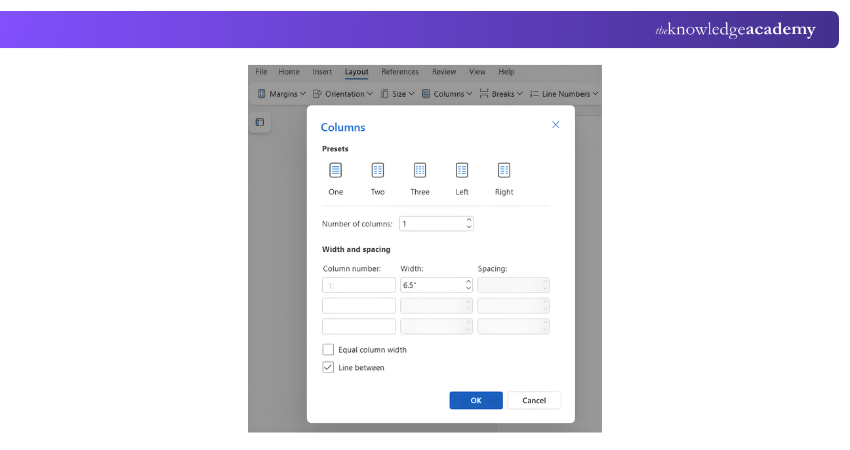
a) Navigate to the "Page Layout" section located on the Ribbon
b) Choose "Columns" in the "Page Setup" category
c) Select "Additional Columns"
d) Tick the box for "Line Between" to add a vertical line between columns
This feature is especially beneficial for designing multi-column formats, like newsletters or brochures.
Method 2: Utilising the Shape Tab
Another simple technique involves utilising the Shape tool, which is akin to horizontal lines. Follow these steps:
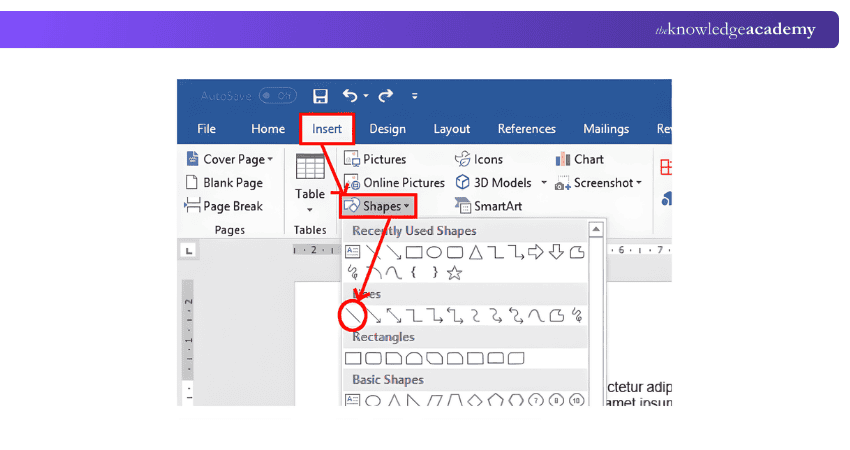
a) Navigate to the "Insert" tab and select the option for "Shapes"
b) Choose the option for a straight-line
c) To add the line, vertically drag the cursor and click
This method offers the ability to place the vertical line at any location within your document.
Method 3: Adding Borders to the Bottom
Adjusting the borders allows you to include vertical lines as well. Follow these steps:
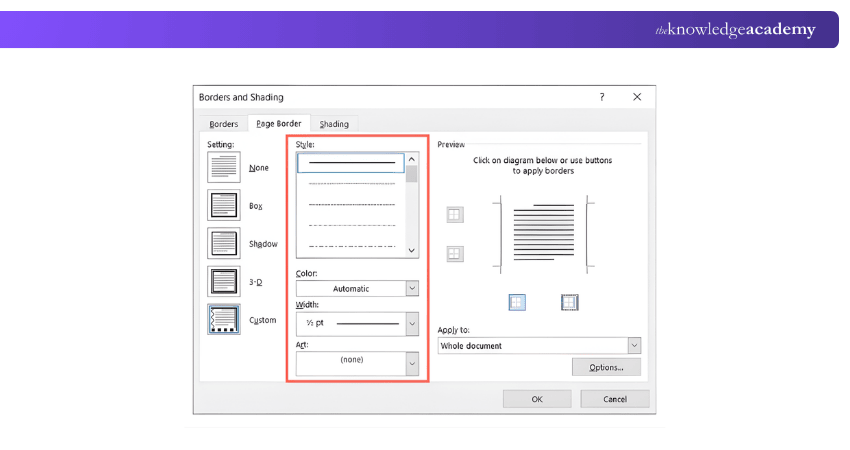
a) Emphasise the text by indicating the position of the vertical line
b) Visit the "Home" section and select the "Borders" symbol
c) Select either the "Left Border" or "Right Border" option based on where you want the line to appear
This technique is fast and enables accurate positioning of vertical lines.
Elevate your Accounting skills through Microsoft Excel with our Excel For Accounting Course – Sign up now!
Advantages of Inserting Lines in Word
Learning How to Insert a Line in Word can provide numerous advantages. Here’s a few of its benefits:
a) Organise Content: Lines serve as separators, assisting in dividing sections or paragraphs and enhancing the document's navigational ease.
b) Improve Readability: Enhance readability by including lines between sections or columns; this is particularly useful in lengthy documents for better clarity and flow.
c) Professional Appearance: Creating a polished and professional appearance in your documents can be achieved by using lines, whether you are working on reports, brochures, or resumes.
d) Customisable Options: Word enables you to modify the style, colour, and thickness of lines to fit the overall look of your document.
Essential Tips for Using Word
Here are some powerful tips on how to insert a Line in Word that can help you work smarter and faster:
a) Customise the Quick Access Toolbar: Add your most-used commands (like Save, Undo or custom tools) to the Quick Access Toolbar to streamline your workflow and save time.
b) Use Styles for Consistent Formatting: Apply predefined Styles to quickly format text (font, size, colour) and keep a professional, uniform look across your document.
c) Insert Text Boxes for Flexibility: Use text boxes for captions, quotes, or callouts to position content precisely and enhance layout design.
d) Create Custom Bullets and Numbering: Make your lists stand out by defining your own bullet symbols and numbering styles.
e) Use Handy Keyboard Shortcuts: Familiarise yourself with keyboard shortcuts in Word to increase efficiency in completing tasks such as inserting lines, copying and formatting text.
f) Return to Last Edit Location: Jump back to where you last made edits using Ctrl + Shift + F5, saving time in long documents.
g) Resize and Rearrange Content: Quickly increase or decrease font size (Ctrl + ] / Ctrl + [), convert text to tables and use the Navigation Pane to reorganise sections.
h) Insert Symbols and Special Characters: Add symbols like copyright or trademark marks using the Insert > Symbol feature for enhanced document detail.
i) Protect and Check Accessibility: Secure your work with a password under "Protect Document" and use the Accessibility Checker to make files usable by everyone.
Conclusion
Mastering simple tools can transform the way your documents look and feel. Learning how to insert a Line in Word is a small skill with a big visual impact that helps structure your content and improve its clarity. With these quick methods, you can format documents effortlessly and create more professional layouts in just a few clicks.
Explore the full scope of Microsoft Office and upgrade your productivity. Sign up for our Microsoft Office Training now!
Frequently Asked Questions
How to Start a New Line on Laptop?

To start a new line on a Windows or Mac laptop, simply use the Shape tab or the Borders word feature. You can also press “Enter” to move text to the next line instantly while typing.
What is the full Form of MS Word?
The full form of MS Word is Microsoft Word. It is a word-processing software created by Microsoft for creating, editing and formatting documents efficiently.
What are MS Word Types?
Some MS Word types include Word Documents (.docx) and Word Documents (.doc). It also supports HTML and PDF formats for sharing files.
What are the Other Resources and Offers Provided by The Knowledge Academy?
The Knowledge Academy takes global learning to new heights, offering over 3,000+ online courses across 490+ locations in 190+ countries. This expansive reach ensures accessibility and convenience for learners worldwide.
Alongside our diverse Online Course Catalogue, encompassing 19 major categories, we go the extra mile by providing a plethora of free educational Online Resources like Blogs, eBooks, Interview Questions and Videos. Tailoring learning experiences further, professionals can unlock greater value through a wide range of special discounts, seasonal deals, and Exclusive Offers.
What is The Knowledge Pass, and How Does it Work?
The Knowledge Academy’s Knowledge Pass, a prepaid voucher, adds another layer of flexibility, allowing course bookings over a 12-month period. Join us on a journey where education knows no bounds.
What are the Related Courses and Blogs Provided by The Knowledge Academy?
The Knowledge Academy offers various Microsoft Office Training, including the Microsoft Word Course, Microsoft Office 365 Training, and Microsoft PowerPoint Training. These courses cater to different skill levels, providing comprehensive insights into Saving a Microsoft Word Document.
Our Office Applications Blogs cover a range of topics related to Microsoft Word offering valuable resources, best practices, and industry insights. Whether you are a beginner or looking to advance your MS Word skills, The Knowledge Academy's diverse courses and informative blogs have got you covered.

The Knowledge Academy


Global Training Provider
The Knowledge Academy is a world-leading provider of professional training courses, offering globally recognised qualifications across a wide range of subjects. With expert trainers, up-to-date course material, and flexible learning options, we aim to empower professionals and organisations to achieve their goals through continuous learning.

Upcoming Microsoft Technical Resources Batches & Dates
Date
 Microsoft Word Course
Microsoft Word Course
Fri 31st Jul 2026
Microsoft Word Course
Fri 20th Nov 2026

 If you wish to make any changes to your course, please


