




We may not have the course you’re looking for. If you enquire or give us a call on +65 6929 8747 and speak to our training experts, we may still be able to help with your training requirements.
60+ Tableau Interview Questions to Ace Your Interview
By Vishnu SankarLast updated on: 17 September 2026
60+ Tableau Interview Questions: What is Tableau, What is Tableau Desktop, What are the advantages of using Tableau and advantages of using Tableau. Prepare with real-world concepts, clear explanations, and practical insights. Perfect for beginners and professionals aiming to excel in Tableau roles.

Data has become the new currency of business, empowering smarter decisions backed by deeper insights. Tableau stands out as a powerful tool that transforms raw data into interactive visual stories. With data-driven processes on the rise, the demand for skilled Tableau professionals is growing rapidly.
This blog covers key Tableau interview questions and answers to help you prepare with confidence. By reviewing these thoughtfully curated questions, you can boost your chances of cracking even the toughest interviews. Get ready to excel your Tableau interview in one go!
Basic Tableau Interview Questions and Answers
These basic Tableau Interview Questions will gauge one’s basic theoretical knowledge of the data analysis tool.
What is Tableau?

Tableau is a user-friendly and versatile tool for data analysis and business intelligence. The platform's top qualities include interactive interfaces, speedy response times, and real-time data analysis. It also offers a wide range of eye-catching graphics or visualisation to help represent data pictorially with the help of charts and graphs. Basically, the platform provides all the required capabilities for successful data analysis, such as data extraction, processing, representing or visualising, and sharing the final reports/dashboards/worksheets.

What is Tableau Desktop?
Tableau Desktop can be described as a product developed by Tableau that can be used to create, edit and store data visualisations on a local system. Once the visualisations are complete, they can be published online to a server or made public, even if the process is not yet finished. The Tableau Desktop users can also edit any file made on a different system in the same or a lower version of the data analysis tool.
What are the advantages of using Tableau?
Tableau is a tool for business intelligence that aims to assist users in creating visual and graphical representations. A huge advantage of Tableau is that users can use the platform to their benefit without any technical help or prior knowledge of programming. Some of the other advantages of Tableau are that it offers quick graphical representations like interactive dashboards, is easy to use, publish and share, and is rapidly growing in both market shares and popularity.
Learn step-by-step how to create a stunning donut chart in Tableau with this detailed guide!
What are the main features of Tableau?
The reason behind Tableau gaining the immense popularity that it has gained is its attractive set of features and functionalities. Some of its key features are:
1) Creating interactive dashboards
2) Data highlights and filters
3) Drag-and-drop functionality
4) Dashboard embedding
5) Mobile-ready dashboards
6) Data notifications
7) Dashboard commenting
8) Creating “no-code” data queries
9) Importing data of all sizes
10) Creating guided stories
11) Metadata management
12) Automatic updates
13) Security permissions at any level
14) Tableau Reader (for data viewing)
15) Range of native data connectors
Master the Different Types of Joins in Tableau and learn how to blend your data like a pro!
What is a Tableau server? Discuss its components.
Tableau Server can be defined as a communication tool that can be used to share visualisations and data connection information with the end users or clients. Tableau Server is an important component when it comes to managing and executing crucial processes. Tableau Server consists of components such as Gateway, Application Server, Repository, VizQL Server, Data Engine, Backgrounder, Data Server, and Search and License.
Could you explain the Tableau design flow?
The design of logic flow in Tableau can be defined in a number of steps as follows:
1) Connecting to the data source via the connectors that are available in Tableau.
2) Creating data views, I.e., creating visualisations like charts, graphs etc.
3) Improving the data views with the help of advanced Tableau methods.
4) Creating a variety of worksheets so that one can have different data views from either the same or different data sets.
5) Once we are done with worksheets, we can create dashboards that organise different and relevant data views in a single view.
6) By using these dashboards or workbooks, one can create stories to express the language of the data better.
What are data extract files in Tableau?
The data extract files are the files that contain a local copy of the entire dataset, or in other words, we take a subset of data from the source. The Tableau Data Extract files have a “.tde” extension and do not contain a file path or information regarding the data source, dashboards etc. The Tableau Data Extract files are useful because they are highly compressed and optimised to enhance Tableau’s performance – especially when using slow data connections.
Can you list out the Tableau file extensions?
Tableau hosts several file extensions, such as Workbook (.twb), Data extract (.tde), Datasource (.tds), Packaged Datasource (.tdsx), Bookmark (.tbm), Map Source (.tms), Packaged Workbook (.twbx) and Preferences (.tps).
Can you define a Heat Map?
A Heat Map can be defined as a graphical or visual representation that uses the colour-coding technique to represent different values of data. As the data in the concerned data sets increase in value, the colours used on the Heat Map will get darker.
Can you define a TreeMap?
A TreeMap can be defined as a visual representation that visualises and organises data hierarchically and represents them as a set of nested rectangles. The size and colours of the rectangles are respective to the values of the data points that they represent. Parent rectangles will be tiled with their child elements.
What is the difference between a Heat Map and a TreeMap?
While a Heat Map represents data by using the colour-coding technique, a TreeMap represents data hierarchically and represents them as a set of nested rectangles. A Heat Map is used for comparing categories of data with colours and size, and it can also be used for illustrating the hierarchical data. On the contrary, a TreeMap uses rectangles to represent data. The colours and sizes of the rectangles are respective to the values of the data points.
What are the properties of Tableau combined sets?
The properties of Tableau combined sets are:
a) Name: It is used to specify the unique name of a Tableau set.
b) Sets: Users can select the existing set from the menu. The first set in the menu represents a left set, while the second set in the menu represents the right set.
c) All members in both sets: This option exists to combine a set with all the members from both the left and right sets.
d) Shared members in both sets: This option consists of matching members from both the left and right sets. This means that every record should match the condition present in these sets.
e) Left set except shared members: This Tableau set consists of all the members from the left set except the matching members from the right set.
f) Right set except shared members: This Tableau set consists of all the members from the right set by matching members from the left set.
What is the basic difference between published and embedded data sources in Tableau?
The basic difference between a published data source and an embedded data source is while the published data source contains connection information independent of any workbook, embedded data sources contain connection information associated with a workbook.
Discover the key differences between Google Data Studio and Tableau to choose the best tool for your needs!
In Tableau, what is a parameter?
A Parameter in Tableau replaces a constant value featured in calculations, filters and reference lines. A Parameter can either be a string, a date, or a number. A user can have direct control over the Parameters and can change the filters, calculations and reference lines according to their needs.
In Tableau, what is a Context Filter?
In Tableau, a Context Filter can help improve the dashboard’s view whenever more than one filter is put in use. A filter in Tableau works on every row in the dataset, irrespective of what other filters are in place. By making optimal use of a context filter, we can help cut down the size of the data set. The rest of the filters will be run on the smaller data set, hence reducing the total time that it takes.
In Tableau, what is the Quick Filter?
In Tableau, adjusting the filter is simple. You have the option to change its function, such as using it as a single-value drop-down or a multiple-value list. After we are done adding a filter to our sheet, we can right-click on the sheet and see all the Quick Filter options. If you change any of these Quick Filter options, the way that the Filter is represented on the sheet will also change accordingly.
What does “Page Shelf” mean in Tableau?
A Page Shelf in Tableau makes it simpler to understand and use multiple charts. If there are multiple plots on a single worksheet and you want to see them one at a time, you need to drag and drop the Dimension that creates more than one chart onto the page shelf. A button on the right side then lets us look at the data sets one chart at a time.
What is a Tableau Data Engine?
The in-memory Data Engine that Tableau puts to use is called Hyper. Hyper makes it easier to import data and analyse it quickly. The Data Engine helps the user create an Extract file of a data set, which is a smaller version of the data set that contains all the data. This character of the Data Engine makes it easier and quicker to run different queries on the data set.
What does a “Tableau Developer” mean?
A Tableau Developer can be defined as a Tableau professional who can take raw data sets and use them to make data visualisations and get valuable insights into the data. A Tableau Developer should be able to create advanced dashboards that are simple for other people to use and interpret and help them understand the data easily.
What is “analysis” in Tableau?
Tableau offers built-in tools to help one analyse the data on a chart. Tableau has several tools, such as adding an average line to a chart – the platform does the math itself once we drop the tool on the chart. Other than that, there are also tools meant for exploring and inspecting data, such as clustering, making percentages, making bands of a specific size and much more. You can find these tools on the “Analyse” tab of every sheet that is used to create a chart. It must be noted that these features only show up whenever they can be used on the worksheet.
What does “bin” mean in Tableau?
In Tableau, bins can be defined as containers of the same size that are used to store data values that fit the size of the bin. In simpler terms, bins divide the data into groups of the same size, which can then be used to look at the data in a systematic manner. All of Tableau’s discrete fields can be thought of as “bins” instead.
Explore Tableau and unlock the power of business intelligence reporting with our expert-led Crystal Reports Training - Join today!
Tableau Real-Time Interview Questions and Answers
These real-time Tableau Interview Questions gauge the candidate’s quick thinking ability when placed in real-life situations.
How would you create a .tde file on Tableau?
In order to create a Tableau Data Extract (“.tde”) file on Tableau, we have to:
1) Firstly go to the Data tab that is present on the top left of the Tableau toolbar.
2) Select the data source.
3) Click on the “Extract Data” option.
4) You can either choose specific fields from the data source or use the "Extract" option to create a data extract file (.tde) of the entire data set from the source.
How would you handle null and other special values?
If the field consists of null values or if there are zeros or negative values on a logarithmic axis, Tableau is unable to stop them. Tableau shows an indicator in the lower right corner, and you can then click on the indicator and make your choice from the following options:
a) Filter Data: The Filter Data option excludes the null values from the visualisation with the use of a filter. In that case, the null values are also excluded from any calculations that are used in the view.
b) Show Data at Default Position: This option shows the data at a default position on the axis.
What is the difference between a Live Connection and an Extract?
Tableau Data Extracts can be defined as snapshots of data that are optimised for aggregation and loaded into the system memory to be quickly recalled for visualisation. For example, hospitals that track and monitor patient data need to make real-time decisions. On the other hand, Live connections offer the convenience of real-time updates with any changes that are made in the data source reflected on Tableau. Hospitals may require data extracts to monitor the weekly or monthly trends of their patients. It must be noted that when you create an Extract of the data, Tableau does not need any access to the database to build the visualisation – hence, the processing is faster. If you have a Tableau server, you can set the Extract option to a refresh schedule for it to be updated.
What is the difference between .twbx and .twb extensions in Tableau?
The .twbx consists of all the necessary information needed to build the visualisation along with the data source. This is known as a packaged workbook, and it helps compress the package of files altogether. On the other hand, the .twb contains instructions on how to interact with the data source. When the .twb extension is building a visualisation, Tableau will check the data source and then create the visualisation with an Extract. However, it cannot be shared alone as it only consists of instructions, and the data source must be attached separately.
What is the difference between Power BI and Tableau?
There are several differences between the two business intelligence tools. Tableau does a better job of managing large data sets than Power BI. While Tableau’s customer service is better for both its free and paid users, Power BI’s customer service is only meant for its paid users. Tableau’s server-side storage and multiple data-source connections are two of its most appealing features. On the other hand, Power BI can only connect to a limited set of data sources and places more emphasis on reporting and analytical modelling than storing data. When compared to Tableau, Power BI has a better graphical user interface and is more convenient to use.
How do you hide the dashboard in Tableau?
Tableau does not have a way to hide a dashboard, but if one publishes the dashboard to a website, one can set a command to make the dashboard visible only when a particular button is clicked. One can also hide sheets instead of dashboards before the dashboard gets published. It is because of this that when people first look at your visualisation, they can only see the dashboard and not the sheets individually.
How do you use groups in calculated fields in Tableau?
You can create a group by right-clicking on a Data Pane field and choosing “Create” > “group”. You can then select the fields you want to group and choose “create”, “set”, and “create a calculated field.” Then you can use this group as a set in the calculated field.
When publishing workbooks on Tableau online, an error about needing an Extract appears.
This usually happens when a user is attempting to publish a workbook connected to an internal server or a file stored on a local drive, e.g. a SQL server within the company’s network.
How would you remove “All” options from a Tableau auto-filter?
The auto-filter feature in Tableau offers a user the option of removing “All” options by clicking on the down arrow in the auto-filter heading. One can then scroll down to “Customise” in the dropdown box and then uncheck the ‘Show “All” Value’ option. It can only be activated by checking the field again.
How could you make Tableau perform better?
The auto-filter feature in Tableau offers a user the option of removing “All” options by clicking on the down arrow in the auto-filter heading. One can then scroll down to “Customise” in the dropdown box and then uncheck the ‘Show “All” Value’ option. It can only be activated by checking the field again.
Tableau Technical Interview Questions and Answers
These Tableau Interview Questions test the technical knowledge of experienced professionals.
How would you link R and Tableau?
To link R and Tableau on your computer, you have to first download and install R on your computer. Then, you must use the command install.packages(“Rserve”) to install a package known as Rserve. Once the Rserve package is installed, you can do this step whenever you want to use R with Tableau. The following steps, on the other hand, must be followed every time you want to link R to Tableau. Now, you can use the command library (Rserve) to help bring the library to the current working environment and then type Rserve() in the command window to help connect R with Tableau. To manage the R connection, you will have to go to Tableau’s help menu and choose “Manage R Connection.” Enter “Localhost” as the server name and “6311” as the port, and then click the “Test Connection” button to ensure correct working. Click “OK” to close the window.
Why would you need data aggregation or disaggregation to make charts on Tableau?
To link R and Tableau on your computer, you have to first download and install R on your computer. Then, you must use the command install.packages(“Rserve”) to install a package known as Rserve. Once the Rserve package is installed, you can do this step whenever you want to use R with Tableau. The following steps, on the other hand, must be followed every time you want to link R to Tableau. Now, you can use the command library (Rserve) to help bring the library to the current working environment and then type Rserve() in the command window to help connect R with Tableau. To manage the R connection, you will have to go to Tableau’s help menu and choose “Manage R Connection.” Enter “Localhost” as the server name and “6311” as the port, and then click the “Test Connection” button to ensure correct working. Click “OK” to close the window.
How would you connect Tableau to your website?
A developer requires complete knowledge of Tableau’s JavaScript API to be able to connect Tableau to a website. It allows one to examine and manipulate a Tableau spreadsheet or dashboard without having to leave the convenience of one’s browser. Tableau provides a complete list of all the functions that are used in the JavaScript API, and some of the essential functions are also shown how to be used in the free tutorial section. All dashboards and worksheets are automatically linked to the JavaScript API whenever they are published on Tableau Public, Tableau Online or Tableau Server. A developer only needs to call the API in HTML code in order to start interacting with it.
How would you add a logo to a Tableau dashboard?
A developer requires complete knowledge of Tableau’s JavaScript API to be able to connect Tableau to a website. It allows one to examine and manipulate a Tableau spreadsheet or dashboard without having to leave the convenience of one’s browser. Tableau provides a complete list of all the functions that are used in the JavaScript API, and some of the essential functions are also shown how to be used in the free tutorial section. All dashboards and worksheets are automatically linked to the JavaScript API whenever they are published on Tableau Public, Tableau Online or Tableau Server. A developer only needs to call the API in HTML code in order to start interacting with it.
How would you use Tableau to make latitude and longitude?
Tableau makes it very simple for a user to get latitude and longitude. One can drag and drop any geographical region, such as a country, state, or city, into the view, and Tableau will automatically plot the field on the map. Then, a user can choose all the data points, right-click and select the “View Data” option. On the “View Data” tab, the user can see the automatically generated latitude and longitude next to the region’s name. One can also export this data from Tableau for it to be used in another programme or data source.
How would you use Tableau to make latitude and longitude?
If your server license expires, your username will have the role “unlicensed”, - which basically means you cannot access but others can. The site administrator can change the ownership to another individual so that the Extracts do not fail.
In Tableau, what does it mean to assume referential integrity?
If you have two data sources with matching references in a column, you can utilise the "assume referential integrity" feature. Then, you can make use of the “assume referential integrity” feature to define the relationship between the two data sources and “join them”. In order to implement referential integrity, you must drop the second table on the side of the first table. When asked to match the column to perform the join, you can choose the reference column for Tableau to perform the join based on the reference and the type of join.
How would you view underlying SQL Queries in Tableau?
Viewing the underlying SQL Queries in Tableau provides two options:
1) Create a Performance Recording to record your performance information about the main events that you interact with a workbook. Users can access the performance metrics in a Tableau-created workbook.
2) Reviewing the Tableau Desktop Logs located at C:Users/My Documents/My Tableau Repository. For a Live Connection to a Data source, one can check log.txt and tabprotosrv.txt files. For an extract, you can check the tdeserver.txt file.
How would you do Performance Testing in Tableau?
Performance testing is an important part of implementing Tableau. This can be achieved by loading Testing Tableau Server with TabJoIt, which is a “Point and Run” load generator made to perform QA. While TabJoIt is not supported by Tableau, it must be installed using a range of open-source products.
How would you create stories in Tableau?
There are several ways to create a story in Tableau. Every story point can be based on a separate view or dashboard, or the whole story can be based on the same visualisation. You can use stories to either make a business case or simply narrate a sequence of events. Here is how you can create a story in Tableau:
1) Click on the “New Story” tab.
2) In the lower-left corner of your screen, choose a size for your story. You can choose from one of the predefined sizes or set a custom size for yourself in pixels.
3) Your story gets its title from its sheet name by default. In order to edit it, you must double-click the title. You can also edit your title’s font, colour and alignment. Click Apply to view the changes you have made.
4) To start building your story, you need to drag a sheet from the Story tab and drop it into the centre.
5) Then, click “Add a caption” to summarise the story point.
6) Drag a text object over to the story worksheet to highlight a key takeaway for your viewers.
7) If you want to highlight the main idea of this story point further, you can edit a filter or sort on a field – then save your changes by selecting “Update” above the navigator box.
Level up your data-driven decision-making abilities with our Flowchart and Process Mapping Training- Sign up now!
Additional Tableau Interview Questions
Apart from the above scenario-based questions here are some of the additional Tableau Interview Questions and answers you need to know before attending the interview:
What are the different data connection options available in Tableau?
Tableau provides a wide range of data connection options, such as Excel files, text documents, and databases like SQL Server, Oracle, and MySQL, in addition to web data connectors.
How can you create a calculated field in Tableau?
Follow these steps to create a calculated field in Tableau:
1) In Tableau’s data pane, click the drop-down next to your data source and select “Create Calculated Field…”.
2) Enter your expression using standard functions or custom logic (e.g. aggregations, date functions, math-ops).
3) Click OK — the new field appears in the data pane and can be used like any other dimension or measure.
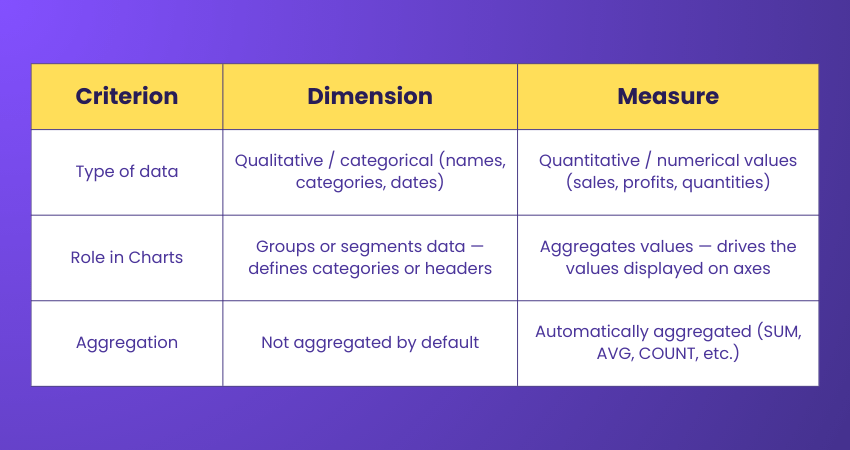
What is the difference between a dimension and a measure in Tableau?
The main difference between a dimension and a measure in Tableau are shown in the following table:
What are the different types of charts available in Tableau?
Tableau supports a variety of visual formats including bar charts, line graphs, scatter plots, pie charts, maps, and area charts to suit different data and storytelling needs.
How can you share your Tableau workbooks with others?
You can save your workbook and share the file directly or publish it to Tableau Server / Tableau Cloud for others to access and collaborate on, enabling shared dashboards and reports.
What are the data types supported in Tableau?
Tableau recognises common data types like integers, floats, strings (text), dates, and booleans. These types determine whether fields behave as dimensions or measures.
What is meant by discrete and continuous in Tableau?
Tableau displays data based on whether a field is discrete (blue) or continuous (green).
1) Discrete (blue pill): Values are distinct and separate, used for categories or grouped data (e.g. region names, product types).
2) Continuous (green pill): Data forms an unbroken range, used for numeric or time-series data, creating axes in charts (e.g. sales over time).
What are the different types of Tableau filters?
The Different Types of Tableau Filters are:
1) Dimension filters: applied on categorical/discrete fields to include/exclude specific values (e.g. show only certain categories).
2) Measure filters: applied on continuous/numeric fields to filter by value range or conditions (e.g. sales > 10000).
3) Quick (Show) Filters, Conditional Filters, and Table-calculation Filters: offer interactive filtering in dashboards and support advanced criteria based on calculations or selection.
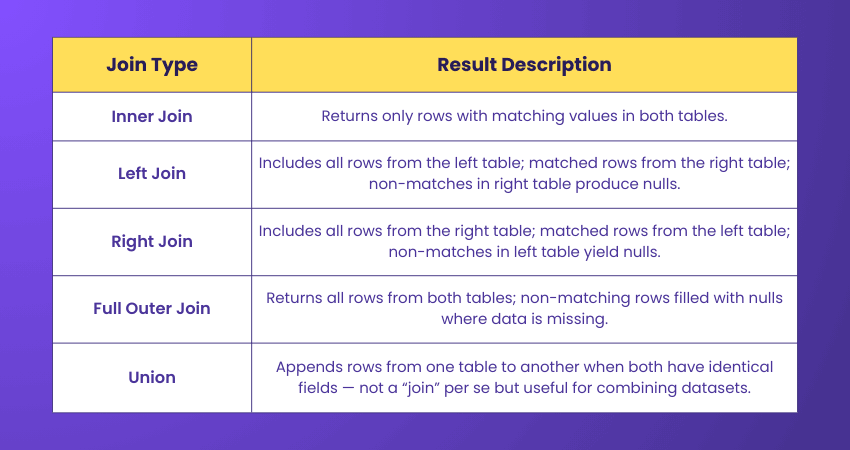
What are the different joins in Tableau?
Joining is a technique used to merge related datasets using a shared key. The table below outlines the various types of joins.
What is the difference between sets and groups in Tableau?
The difference between the sets and groups in tableau are:
1) Groups combine similar dimension members into a single higher-level category (e.g., grouping multiple regions)
2) Sets are custom subsets of data created based on conditions or selections
3) Sets are dynamic and can respond to data changes, while groups are static
What is the blended axis in Tableau?
A blended axis allows you to display multiple measures on the same continuous axis, letting you compare them using a single scale. It works when both measures share the same data type and aggregation.
What is the use of a dual-axis? How do you create one?
A dual-axis lets you plot two different measures in a single chart but on separate axes, making trends easier to compare.
To create it: drag one measure to Rows/Columns, then drag the second measure onto the same axis until you see “Dual-Axis.”
What is the rank function in Tableau?
The rank function assigns a position (1st, 2nd, 3rd…) to each value based on its size. You can compute it using table calculations like RANK, RANK_DENSE, RANK_MODIFIED, or RANK_UNIQUE.
What is the Level of Detail (LOD) expression?
LOD expressions allow you to perform calculations at different levels of granularity than the visualisation itself. They use syntax like FIXED, INCLUDE, and EXCLUDE to control how data is aggregated.
How can you schedule a workbook in Tableau after publishing it?
After publishing Tableau Server or Tableau Cloud, you can schedule a workbook to refresh by selecting Extract Refresh Schedules and assigning a frequency, time, and server resource for automatic updates.
What are the different types of Tableau products?
The different types of Tableau products are:
1) Tableau Desktop: for creating reports and dashboards
2) Tableau Server and Tableau Cloud: for sharing and collaboration
3) Tableau Public: free public-sharing platform
4) Tableau Prep: for data cleaning and preparation
5) Tableau Mobile: for on-the-go dashboard access
How can you embed a webpage in a Tableau dashboard?
Use the Web Page object in the dashboard pane, drag it onto the dashboard, and enter a URL. You can also link it dynamically using worksheet actions.
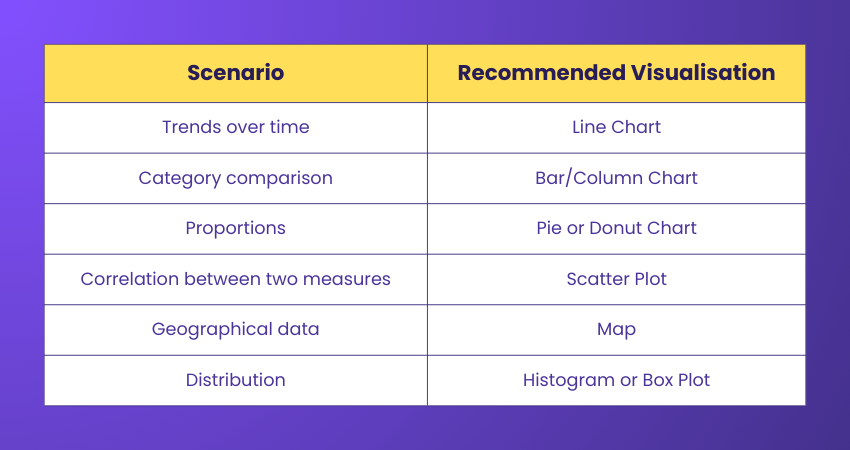
Which visualisation should be used in different scenarios?
Use this quick reference to select the most suitable visualisation for each type of data scenario.
What is KPI in Tableau?
A KPI (Key Performance Indicator) is a visual that shows whether a metric is meeting a target. It often uses colours, arrows, or symbols to indicate performance status (e.g., above, below, or on target).
How do you make a doughnut chart in Tableau?
To make a perfect doughnut chart in Tableau follow these steps:
1) Create a pie chart using a measure and dimension
2) Duplicate the pie chart onto another axis and convert to dual-axis
3) Reduce the inner pie size to create a hole, giving the doughnut effect
How do you create hierarchies in Tableau?
Simply drag one dimension onto another in the data pane. Tableau automatically creates a hierarchy, allowing drill-down (e.g., Country → State → City).
What can’t be done with Tableau?
Tableau is mainly concerned with data visualisation and has only a few data pre-processing options. On different resolution displays, the dashboards may look different and inconsistent. Moreover, Tableau’s pricing is quite steep, and there are no custom plans made for particular business needs.

Vishnu Sankar is a Senior Content Writer with 5+ years of experience across content development, software development, web development and system administration. His technical background and professional training support his expertise in IT and Tech, while his extensive research and writing experience covers Project Management and Health and Safety.
View Detail

 If you wish to make any changes to your course, please


