


 Top Rated Course

We may not have the course you’re looking for. If you enquire or give us a call on +44 1344 203 999 and speak to our training experts, we may still be able to help with your training requirements.
How to Use Excel: Step-by-step Guide for Beginners
Richard Harris 20 July 2026Start with a new Excel workbook, input data, and learn key functions like formulas and formatting to organize and analyze information efficiently. You can use formulas and format cells for clarity and save your file. Excel helps organise, analyse and visualise data easily for managing lists, budgets or simple calculations.

Training Outcomes Within Your Budget!
We ensure quality, budget-alignment, and timely delivery by our expert instructors.
Table of Contents

That blank Excel spreadsheet isn’t just a bunch of empty boxes, but a playground for productivity! It might look like a jungle of grids and formulas, but don’t worry, we’ve got the the map to help you navigate it. You don’t need to be a math genius. You just need a few clicks, a little practice, and proper guidance. Ready to become an Excel boss? Let’s get started!
This step-by-step walkthrough teaches How to Use Excel and breaks everything down into bite-sized pieces so you can build your spreadsheet skills with zero stress. Think of Excel as your new digital sidekick, ready to help you organise, calculate, and conquer anything from grocery lists to project budgets. It's time to turn those empty cells into your smartest tool yet!
Table of Contents
1) What is Microsoft Excel?
2) How to Use Excel?
3) Basic Excel Formulas
4) How to Create an Excel Spreadsheet?
5) How to Format Data in Excel?
6) How to Create a Table in Excel?
7) How to Sort and Filter in Excel
8) How to Use Formulas in Excel?
9) How to Make a Pivot Chart in Excel?
10) How to Create a Chart from a Pivot Table?
11) How to Save an Excel File?
12) How to Print Your Work?
13) Conclusion
What is Microsoft Excel?
Microsoft Excel is a widely popular spreadsheet application developed by Microsoft. It's widely used for data organisation, analysis and visualisation. It enables you to input data into a grid of rows and columns, perform calculations using built-in formulas and functions, and create charts and graphs to visually represent the data.
Excel is commonly used in fields such as Finance, Accounting, Engineering, and Education for tasks including budgeting, forecasting, data tracking, and reporting. Excel also provides advanced features, such as PivotTables for summarising large datasets, conditional formatting to highlight trends or anomalies and automation through macros and Visual Basic for Applications (VBA).

Key Takeaways:
1) Excel is a popular spreadsheet tool widely for organising and analysing data.
2) Supports formulas for quick calculations and automation.
3) Visualises data with charts, graphs, and pivot tables.
4) Used in many fields like Finance, Education, and Project Management.
5) Customisable features like macros enhance productivity.
6) Part of Microsoft Office, integrates well with other apps.
How to Use Excel?
Here are some points you must follow to use excel successfully:
1) Open Excel and choose a blank workbook.
2) Understand the layout, use the Ribbon, cells, and formula bar.
3) Enter data into cells and format using the Home tab.
4) Use formulas like = SUM (A1:A5) for quick calculations.
5) Sort and filter data under the Data tab.
6) Insert charts to visualise trends using the Insert tab.
7) Create PivotTables for data summaries.
8) Save and share your file in various formats.
9) Explore advanced tools like conditional formatting and macros.
Basic Excel Formulas
The basic Excel formulas act as building blocks for performing various calculations and operations within Spreadsheets. Let's take a look at some of those formulas:
SUM
The SUM formula adds up the values in a range of cells. For example, =SUM(A1:A10) would add up the values in cells A1 through A10.
COUNT
The COUNT function tallies the number of cells within a specified range with numerical values. For example, =COUNT(A1:A10) calculates the number of cells within the range of A1 to A10 that hold numerical values.
DATEDIF
This function computes the disparity between two dates, measuring it in terms of days, months, or years. For example, =DATEDIF(A1, A2, "d") would calculate the number of days between the dates in cells A1 and A2.
Enhance your accounting skills with our Excel for Accounting Course - register today!
VLOOKUP & HLOOKUP
The VLOOKUP and HLOOKUP formulas are used to look up and retrieve data from a table. VLOOKUP scans the initial column of a table to locate a specified value and retrieves a corresponding value from a different column. HLOOKUP works similarly but searches for a value in the first row of a table.
IF
The IF formula evaluates a logical condition and provides a specific output if the condition is met and an alternative output if it is not. For instance, if the value in cell A1 surpasses 10, the formula =IF(A1>10, "Yes", "No") will yield "Yes"; otherwise, it will produce "No".
How to Create an Excel Spreadsheet?
Creating an Excel spreadsheet is the first step towards organising and managing your data effectively. Here's how to get started:
a) Open Excel and click on "Blank Workbook" to initiate a new spreadsheet.
b) Personalise the layout, design, and formatting based on your preferences and needs.
How to Add Data to Your Spreadsheet?
Adding data to an Excel spreadsheet is one of the first and most essential tasks you'll perform. Here's how you can easily get started:
1) Begin by clicking on any cell where you want to input information.
2) Once selected, you can simply start typing.
3) You don't need to right-click, just click once and type your data.
4) Excel allows you to enter different types of information.
5) Examples are text, numbers, dates, and formulas.
6) Then you have to type your desired input directly into the selected cell.
7) After entering the data into the cell, you can use the Tab key to move on to the next cell.
8) Follow to the right or use the arrow keys to navigate up, down, left, or right.
Learn Gantt Charts in Excel with ease. Sign up for our Excel Training With Gantt Charts and turn timelines into lasting triumphs - Sign up now!
How to Format Data in Excel?
Once you have imported data from another source or entered it manually, you will likely need to adjust, format, and sometimes use Splitting Cells in Excel to present it more clearly in your spreadsheet for improved readability. Let’s dive into the whole process:
How to Navigate the Excel Ribbon?
The Excel ribbon is the principal place to find all the program's tools and features. It is divided into tabs: Home, Insert, Page Layout, Formulas, Data, Review, and View. Each tab focuses on a specific aspect of Excel, making it easier to find the tools you need, such as the options to Convert PDF to Excel.
The Excel ribbon is like a menu divided into sections called tabs, including the MS Excel View Tab. Each tab is organized based on what it does. Above the ribbon, there's the Quick Access Toolbar, which lets you quickly use commands you use a lot. You can even change it to fit your needs. Understanding how to Make a Pie Chart in Excel while navigating the tabs, groups, and Quick Access Toolbar can help you get things done faster and more efficiently.
How to Format Text and Data in Excel?
Formatting text and data in Excel is crucial for creating professional, easy-to-read spreadsheets. Here's a concise guide:
Text Formatting:
a) Font Style and Size: Select text, go to the Home tab, choose font style and size, and apply bold, italics, or underline.
b) Text Alignment: Adjust text alignment and colour in the Font group.
Formatting Data:
a) Number Formats: Format data such as currency, percentages, dates, etc., in the Number group.
b) Conditional Formatting: Highlight data trends using colour scales, data bars, or custom rules in the Styles group.
c) Cell Borders and Shading: Add borders and shading using the Borders and Fill Color options.
Dive into a transformative journey towards mastering Excel - join our Business Analytics With Excel Course now!
How to Merge Cells in Excel?
This feature is useful for formatting headers or organizing your spreadsheet layout. To Combine Two Cells in Excel, start by selecting the cells you want to merge. You can do this by clicking and dragging your mouse or using Shift along with the arrow keys to highlight the desired range. Navigate to the Home tab on the ribbon, then locate the Merge & Center button within the Alignment group. Click it to see the following options:
1) Merge & Center: It combines the selected cells into one and centres the text.
2) Merge Across: It merges cells in each selected row individually without centering.
3) Merge Cells: It joins the cells into one without changing text alignment.
4) Unmerge Cells: It splits previously merged cells back into individual ones.

Consider the following:
a) Merging cells can cause data sorting and filtering issues.
b) If you select multiple cells, only the content of the upper-leftmost cell will be kept.
How to Add Leading Zeros in Excel?
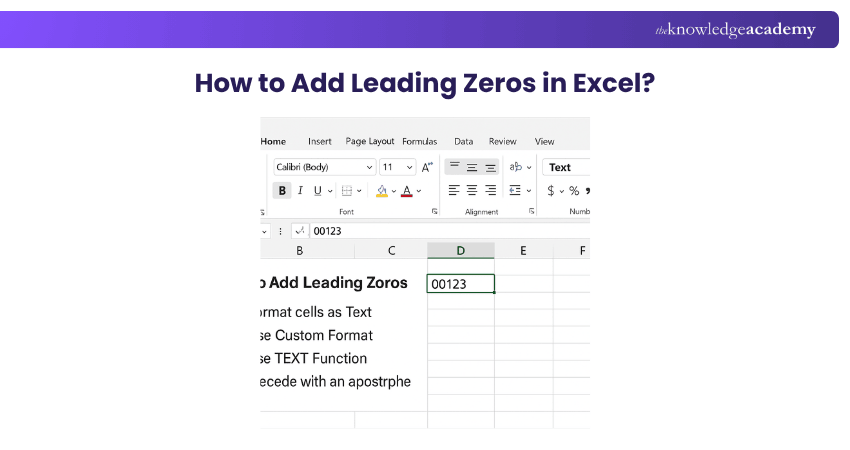
To add leading zeros in Excel:
a) Text Format: Format cells as "Text" so Excel keeps zeros like 00123).
b) Custom Format: Use a format like 00000 to force fixed-length numbers.
c) TEXT Function: Use =TEXT(A1,"00000") to add zeros via formula.
d) Apostrophe: Type '00123 to store the number as text with zeros.
Custom Number Formatting:
1) Select the cells.
2) Right-click and choose Format Cells.
3) In the Number tab, select Custom and enter the format code, e.g., 00000.
Using the TEXT Function:
1) Use the formula =TEXT(A1, "00000") to add leading zeros to a number in cell A1.
Using an Apostrophe:
1) To treat a number with leading zeros as text, type an apostrophe before the number, e.g., '00123. ' Excel will recognise it as text.
Turn numbers into knowledge with our comprehensive Microsoft Excel Training for every skill level - Sign up now!
How to Create a Table in Excel?

To create a table in Excel, follow these steps:
1) Select Your Data: Choose the cells you want to include in your table.
2) Insert the Table: After selecting your data, click the Insert tab on the ribbon, then click the Table button in the Tables group. Ensure the "My table has headers" checkbox is checked, and remember to also insert a checkbox in Excel if needed for further customization.
3) Customise Your Table: Once the table is created, you can customize it using the Table Tools under the Design tab:
a) Change the Table Style
b) Add or Remove Columns/Rows
c) Add Total Row
How to Sort and Filter in Excel
Whether you're arranging a list alphabetically or narrowing it down to specific values, these functions save time and enhance clarity.
How to Sort Data in Excel?
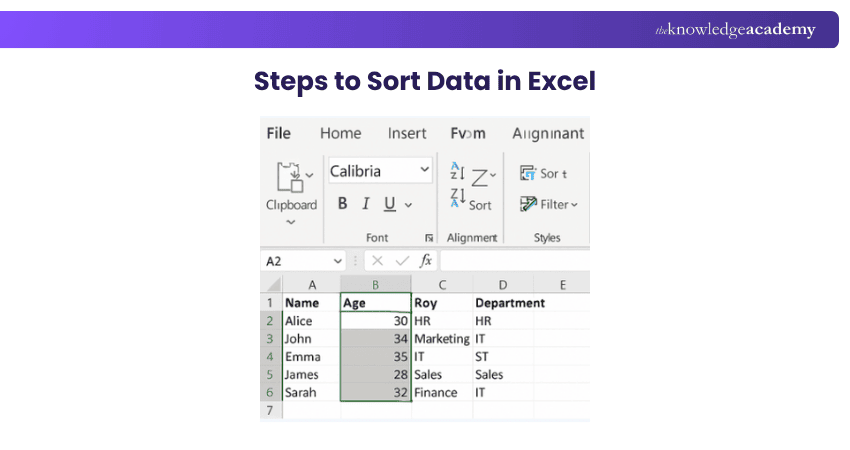
Sorting helps with organising names, dates, prices, scores, and any other values that need to be arranged logically. It allows you to reorder your data based on values in one or more columns.
Steps:
1) Select a cell within the column you want to sort.
2) Go to the Home tab or the Data tab on the Ribbon.
3) Click on Sort A to Z (ascending) or Sort Z to A (descending).
4) For more control, click Sort (under the Data tab).
How to Filter Data in Excel
Filtering is great for finding specific items, analysing subsets, or comparing values without deleting or changing the original data.

1) Click on any cell within your data range.
2) Go to the Data tab and click Filter (funnel icon).
3) Small dropdown arrows will appear among the header cells.
4) Click on the arrow for the column you seek to filter.
5) Choose specific values or use filters like "Text Filters.
Streamline your workflow and excel in smart automation with our Microsoft Excel VBA and Micro Training - book your spot now!
How to Use Formulas in Excel?
Formulas are the backbone of Excel, they allow you to perform calculations, analyse data, and automate tasks. A formula in Excel always begins with an equal's sign (=) followed by cell references, numbers, and operators.
Basic Steps to Use a Formula:
1) Click on the cell where you want the result to appear.
2) Type = followed by your formula (e.g., =A1+B1 to add two cells).
3) Press Enter, and Excel will calculate the result.
You can use Formulas for:
1) Basic Math such as =A1+B1, =C2*C3
2) Cell references for linking data across sheets
3) Logical operations such as =IF(A1>10, "Yes", "No")

How to Use Functions in Excel
Functions are predefined formulas in Excel designed to simplify complex calculations. They help you save time and reduce errors by handling common operations automatically.Here are the Steps:
1) Click on the cell where you want the result.
2) Type = followed by the function name and arguments in parentheses.
3) Example: =SUM (A1:A5) adds all numbers from A1 to A5.
4) Press Enter to see the result.
How to Make a Pivot Chart in Excel?
These are the steps you need to follow to make a Pivot Chart in Excel:
Step 1) Insert a Pivot Chart
1) Select Your Data: Highlight the range of data you want to use for your pivot chart.
2) Insert the Pivot Chart:
a) Go to Insert tab on the ribbon.
b) Click on PivotChart in the Charts group.
c) In the dialogue box, choose where you want the PivotChart to be placed (new or existing worksheet), then click OK.
Step 2) Configure Pivot Chart
Set Up the Pivot Chart:
a) After inserting the PivotChart, the PivotChart Fields pane will appear.
b) Drag and drop fields into the Filters, Columns, Rows, and Values areas to arrange your data.
Step 3) Customise the Chart:
a) Use the Chart Tools on the ribbon to adjust the chart’s design, layout, and format.
b) You can add labels, change the chart type, and modify colours to suit your preferences.
How to Create a Chart from a Pivot Table?
Follow these steps:
1) Select the Pivot Table:
Click anywhere within your pivot table to ensure it's selected.
2) Insert the Chart:
a) Go to the Insert tab on the ribbon.
b) In the Charts group, choose the chart type that best represents your data (e.g., Column Chart, Line Chart, Pie Chart).
c) Click on your preferred chart type, and Excel will generate a chart based on your pivot table data.
3) Customise the Chart:
Customise your chart using the Chart Tools. You can add titles, labels and change the chart type, and adjust the style to better suit your data presentation needs.
How to Save an Excel File?
When you're using Excel Online, your work is saved automatically. But if you want to save a new copy of your file, here’s how:
1) Click on "File" in the top menu.
2) Choose "Save As" and then "Save a Copy" (on Excel Online). In the desktop version, just click "Save As".
3) Give your file a name and choose where to save it.
4) In Excel Online, you can only save to OneDrive as a .xlsx file.
5) In the desktop version, you can save to your computer or OneDrive in formats like .xls, .xlsx, or .csv.
6) Click "Create a Copy" (online) or "Save" (desktop app) to finish.
Tip: For a quick guide on file types and saving options, check out our Excel Cheat Sheet!
How to Save an Excel File as a PDF?
The steps to save a file as a PDF are slightly different in Excel Online and the desktop app:
1) Using Excel Online:
a) Click on "File".
b) Select "Export" and then "Download as PDF".
c) Your file will download as a PDF to your computer.
2) Using the Excel Desktop App:
a) Click "File", then choose "Save As".
b) Give your file a name.
c) Click the dropdown next to "File Format" and pick "PDF".
d) You can choose to save the whole workbook, just one sheet, or a selection.
e) Click "Save", and you’re done.
How to Print Your Work?
Printing your work in Excel is crucial in sharing or presenting your data. Here's a step-by-step guide on how to print your work in Excel:
a) Go to the "File" tab in Excel.
b) Click on "Print".
c) Make adjustments to the print settings, like the number of copies, page orientation, and print quality.
d) Review the preview and make any necessary adjustments.
e) Click "Print" to send your spreadsheet to the printer.
Conclusion
Excel is a widely used tool that has excellent features for managing and analysing data. By mastering How to Use Excel, you can uncover its full potential and effectively streamline your workflow. Additionally, learning how to include Excel skills on your resume can highlight your expertise and make you stand out in the job market. Whether you're a novice or an experienced user, the steps outlined in this extensive blog can help you harness the power of Excel to accomplish your tasks with ease and efficiency.
Understand the use of payment functions in Microsoft Excel with our Excel for Accounting Course- Sign up now!
Frequently Asked Questions
What Careers Would use Excel?

Excel is frequently utilised in professions within Finance, Accounting, Data Analysis, Project Management, Marketing, Sales, Human Resources, and Administration. Experts in these industries depend on it for budgeting, Financial Modelling, Data Visualisation, reporting, Inventory Management, and scheduling.
What are the Tips for Improving Productivity With Excel?
To improve productivity with Excel, try out he following:
1) Use shortcuts for quick navigation.
2) Create templates for repetitive tasks.
3) Leverage formulas and functions for automation.
4) Utilise PivotTables for Data Analysis.
5) Organise data with tables.
6) Conditional formatting respectively.

Richard Harris


Senior Full Stack Developer and Technology Educator
Richard Harris is a highly experienced full-stack developer with deep expertise in both frontend and backend technologies. Over his 12-year career, he has built scalable web applications for startups, enterprises and government organisations. Richard’s writing combines technical depth with clear explanations, ideal for developers looking to grow in modern frameworks and tools.


 If you wish to make any changes to your course, please


