


 Top Rated Course

We may not have the course you’re looking for. If you enquire or give us a call on +40 316317743 and speak to our training experts, we may still be able to help with your training requirements.
PowerPoint Tips | Improve Presentations
The Knowledge Academy 25 April 2026To Create PowerPoint presentations, focus on a simple, consistent design with high contrast, use large fonts, and tell a story rather than listing facts. Use visuals and icons to illustrate key points and enhance understanding. Limit text to essentials and guide your audience through a clear, engaging, and memorable narrative for maximum impact.

Training Outcomes Within Your Budget!
We ensure quality, budget-alignment, and timely delivery by our expert instructors.
Table of Contents

Creating an engaging presentation can be challenging, but the right PowerPoint Tips can turn ordinary slides into visually appealing stories. In this blog, we’ll explore tips for design, fonts, colours, and content structure for maximum impact, as well as the dos and don'ts of using PowerPoint.
Table of Contents
1) Best PowerPoint Tips and Tricks
a) Choose the Right Design Theme
b) Consistency is key
c) Utilise High-quality Templates
d) Customise to Suit Your Needs
2) What is the 5 5 5 Rule in PowerPoint?
3) Do and Don'ts in a PowerPoint Presentation?
4) Conclusion
Best PowerPoint Tips and Tricks
Creating a captivating and impactful PowerPoint Presentation involves utilising various tips and techniques. To clear in this role for your interview, exploring PowerPoint Interview Questions can be beneficial. Let's explore these best PowerPoint Tips and Tricks in detail to elevate the quality of your PowerPoint Presentation.
1) Choose the Right Design Theme
Selecting the appropriate design theme for your PowerPoint Presentation is crucial in creating a visually appealing and professional look. To ensure you make the right choice, consider the following pointers:

Choosing the right design theme for your PowerPoint presentation is crucial. If you want to create a slide deck that looks professional, you must keep your audience engaged. Let's dive into how you can choose a design theme. You can also customise your design theme. We will explore this in more detail.
a) Think About Your Audience: Consider who will be watching your presentation if it's for a corporate crowd sleek. Minimalistic design usually works best. For educational purposes, a more colourful and captivating theme might be more appropriate.
b) Match Your Message: Make sure your theme reflects the nature of the presentation. If you're discussing environmental issues, go for green and earthy color palette. This reinforces your message. If it's a tech-related topic, modern and tech-inspired themes are great fit.

2) Consistency is key
a) Stick to a Uniform Layout: To avoid a visually jarring experience, ensure all your slides follow the same layout for text and images. Other elements should be consistent as well. Choose your fonts wisely. Stick to one or two fonts. Using too many different fonts can look unprofessional. It distracts. Your audience.
b) Keep Your Colours in the Line: Use a constant colour scheme that aligns with your brand or topic. This includes background colours and font colours. Accent colours should be consistent, too.
3) Utilise High-quality Templates
a) Invest in Professional Templates: It's worth investing in high-quality templates from reputable sources. These templates often come with various slide layouts. Customise them to fit needs.
b) Explore Free Resources: There are plenty of free resources available online. Microsoft Office's template gallery is an excellent example. Canva and other template websites also offer professionally designed options.
4) Customise to Suit Your Needs
a) Tweak the Colours: Even if you're using a pre-made template, don't hesitate. Customise it to meet your specific requirements. Customise the colour palette to match your brand. Or fit the theme of your presentation.
b) Modify Layouts: Adapt the layouts to accommodate the content of your slides. If a particular slide needs more space, adjust the template. Provide more room for images or text as needed.
c) Incorporate Your Branding: Make the presentation uniquely yours. Add your company logo and other elements. Tweak the footer or header of each slide. Include your brand's colours and logos throughout.
5) Additional Tips
These extra PowerPoint Tips will improve both your presentation design and your presentation delivery skills. The audience will benefit from your presentation when you use these techniques to create professional clear and engaging slides.
Take your Microsoft Office skills to the next level – Sign up for our Power Apps and Power Automate Training!
1) Use Consistent and Professional Fonts
Stick to standard fonts like Arial or Times New Roman and limit variety to two or three types. Consistent font use across headings, subheadings, and body text ensures readability and a professional look.
2) Create a Visual Hierarchy with Headings and Subheadings
Use larger fonts for main headings and smaller ones for subheadings to guide your audience. Clear hierarchy and contrast help viewers easily follow your key points.
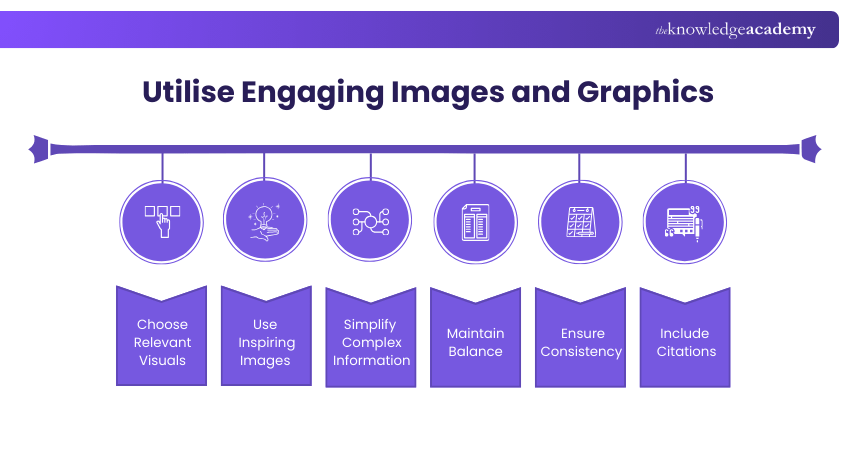
3) Utilise Engaging Images and Graphics
Incorporate relevant visuals like infographics, charts, diagrams, or photos to make content memorable. High-quality, clear visuals enhance understanding and capture attention.
4) Keep Slides Simple and Minimalistic
Focus on one idea per slide and leave plenty of white space to reduce clutter. Limit bullet points, use concise text, and maintain a cohesive color scheme for clarity.
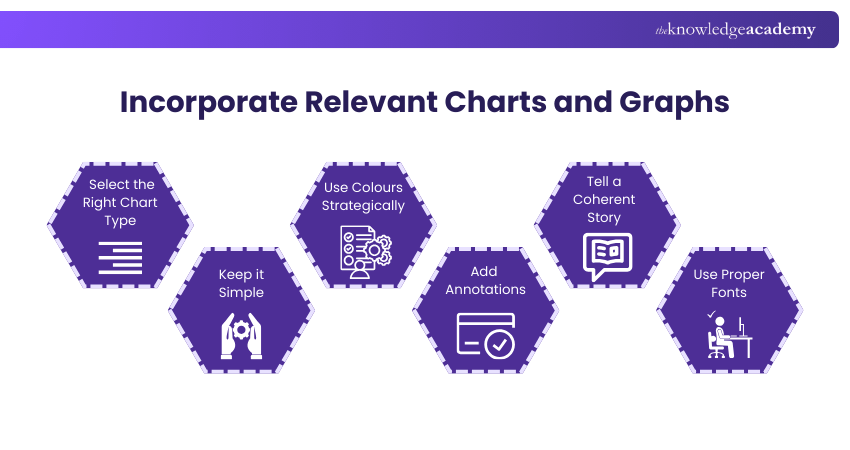
5) Incorporate Relevant Charts and Graphs
Choose charts that match your data and simplify complex information. Use clear labels, consistent colors, and focus on key trends to tell a compelling data story.
6) Add Transitions and Animations
Apply subtle transitions and animations to enhance flow without distraction. Adjust timing and sequence carefully to complement your narrative and maintain professionalism.
7) Practice and Rehearse Your Presentation
Rehearse to ensure timing, smooth delivery, and familiarity with your content. Recording and seeking feedback helps refine pacing, tone, and body language.
8) Utilise the Duplicate Slides Feature
Duplicate slides to save time and maintain consistent layouts, fonts, and colors. Slight adjustments on duplicates help highlight points while keeping the design cohesive.
Want to enhance your productivity and proficiency in using Microsoft software? Register for our Microsoft SharePoint Course. Join now!
9) Engage Your Audience with Interactive Elements
Include polls, quizzes, hyperlinks, multimedia, live demos, or Q&A sessions to encourage participation. Interactive elements make presentations more engaging and memorable.
What is the 5 5 5 Rule in PowerPoint?
The 5‑5‑5 Rule means no more than five words per line, five lines per slide, and five text-heavy slides in a row. This approach maintains presentation slides in a clear and brief format while it helps the audience maintain their attention on you.
Do and Dont’s in a PowerPoint Presentation?
Organise your thoughts, use minimal text, consistent formatting, and relevant graphs or images to support your message. Avoid working on visuals before finalising text, using too many graphics or flashy transitions, and reading slides word for word instead of engaging your audience.
Conclusion
Effective presentations need three essential elements, which are clear communication, proper design and audience engagement methods. The PowerPoint Tips provide you with methods to create slides which will attract viewers while making your message easy to understand and creating an unforgettable experience for your audience.
Unlock your full potential with our comprehensive Microsoft Office Training and elevate your workplace productivity!
Frequently Asked Questions
What is the Basic use of PowerPoint?

PowerPoint is basically used for creating visual presentations, allowing users to compile text and images to communicate ideas and information effectively in a slideshow format.
What Makes a PowerPoint Look Professional?
Feature like clear and concise content, visually appealing design elements, consistent formatting and appropriate use of images and graphics make PowerPoint look professional. Also, these elements collectively contribute to a polished and impactful presentation.
What are the Other Resources and Offers Provided by The Knowledge Academy?
The Knowledge Academy takes global learning to new heights, offering over 3,000+ online courses across 490+ locations in 190+ countries. This expansive reach ensures accessibility and convenience for learners worldwide.
Alongside our diverse Online Course Catalogue, encompassing 17 major categories, we go the extra mile by providing a plethora of free educational Online Resources like Blogs, eBooks, Interview Questions and Videos. Tailoring learning experiences further, professionals can unlock greater value through a wide range of special discounts, seasonal deals, and Exclusive Offers.
What is The Knowledge Pass, and How Does it Work?
The Knowledge Academy’s Knowledge Pass, a prepaid voucher, adds another layer of flexibility, allowing course bookings over a 12-month period. Join us on a journey where education knows no bounds.
What are the Related Courses and Blogs Provided by The Knowledge Academy?
The Knowledge Academy offers various Microsoft Office Courses, including the Microsoft Office 365 Training, Microsoft SharePoint Training, and Microsoft Access Training. These courses cater to different skill levels, providing comprehensive insights into Creating a PowerPoint Presentation.
Our Office Applications Blogs cover a range of topics related to PowerPoint Presentation Tips, offering valuable resources, best practices, and industry insights. Whether you are a beginner or looking to advance your Office Applications skills, The Knowledge Academy's diverse courses and informative blogs have got you covered.

The Knowledge Academy


Global Training Provider
The Knowledge Academy is a world-leading provider of professional training courses, offering globally recognised qualifications across a wide range of subjects. With expert trainers, up-to-date course material, and flexible learning options, we aim to empower professionals and organisations to achieve their goals through continuous learning.

Upcoming Office Applications Resources Batches & Dates
Date
 Microsoft PowerPoint Training
Microsoft PowerPoint Training
Fri 28th Aug 2026
Microsoft PowerPoint Training
Fri 27th Nov 2026

 If you wish to make any changes to your course, please


