


 Top Rated Course

We may not have the course you’re looking for. If you enquire or give us a call on +40 316317743 and speak to our training experts, we may still be able to help with your training requirements.
How to Transfer Data from Android to Android via 3 Simple Methods
Richard Harris 03 February 2026Wondering How to Transfer Data From Android to Android? Be it photos, apps, or contacts, transferring data is simpler than ever. This blog covers easy methods like using Google Backup, Bluetooth, and third-party apps to ensure a seamless transition to your new device. Read ahead for further insights and enjoy seamless data transition!
Home
 Resources
Programming & DevOps
How to Transfer Data from Android to Android via 3 Simple Methods
Resources
Programming & DevOps
How to Transfer Data from Android to Android via 3 Simple Methods
Resources
Programming & DevOps
How to Transfer Data from Android to Android via 3 Simple Methods

Training Outcomes Within Your Budget!
We ensure quality, budget-alignment, and timely delivery by our expert instructors.
Table of Contents

It is always a funny feeling when the android device you’ve been using decides to go for a new look—there are new and more fashionable appearances, higher and faster operating systems, and numerous new and improved characteristics awaiting you. But what do you do with photos, contacts, applications, and memories left on the old phone? This is when understanding How to Transfer Data from Android to Android becomes essential.
This blog provides any user with the need to know How to Transfer data from Android to Android device whether as a result of an upgrade or a complete shift with ease. Let’s read ahead to explore three simple steps on how you can avoid leaving an item behind.
Table of Contents
1) Things to Consider Before You Start Transferring Data
2) Method 1: Transfer Data With Google Drive Back-up
3) Method 2: Transfer Data Using a Cable
4) Method 3: Transfer Data Using Dedicated Transfer Apps
5) Conclusion
Things to Consider Before You Start Transferring Data
Before transferring data between Android devices, it's necessary to take some preparatory initiatives to ensure a smooth and successful process. Consider the following:
a) Charge Your Devices: Make sure both Android devices are fully charged and connected to a power source to prevent interruptions during the transfer.
b) Check Internet Connection: Ensure that you have a stable and fast internet connection, especially if you're using Google Backup for data transfer.
c) Verify Storage Space: Confirm that the new Android device has sufficient internal storage to accommodate all the files, apps, and data you intend to transfer.
d) Create Backups: For security purposes, back up your old device's data using Google Backup or other backup applications before turning on NFC on Android.
e) Prepare Google Account Credentials: Have your Google account credentials ready to facilitate a seamless transfer process.

Method 1: Transfer Data with Google Drive Back-up
Here is the first method to Transfer Data with Google Drive Back-up:

1) How to Transfer Files Using Google?
Here are the following are the steps to follow to transfer files using Google:
a) In case you own an older iPhone, navigate to Settings - Google - Backup on your device.
b) Click on “Backup Now” to move data to Google Drive
c) For your new Android, during the set up, you can use the same Google account that you used in creating application.
d) Select ‘Restore from Google Backup’ and, your files will begin to synchronise
Master Google Drive like a pro – get your Google Drive Cheat Sheet today!
2) A Note About Moving Your SIM Card
This is especially helpful if you’re changing devices and want to transfer things beforehand in an easy process. This might help you get crucial messages during the new device initialisation stage and make sure your contacts related to the SIM are synced on the new device.
Master the art of user-centric design – join our UI UX Design Course now!
Method 2: Transfer Data Using a Cable
Copying Data with Cable allows you to transfer data directly and quickly between your old and new Android phones using a cable. Once connected, select "Transfer files" on both devices when the pop-up window appears. The on-screen tool will then guide you through transferring your files, including pictures, movies, contacts, and even applications.
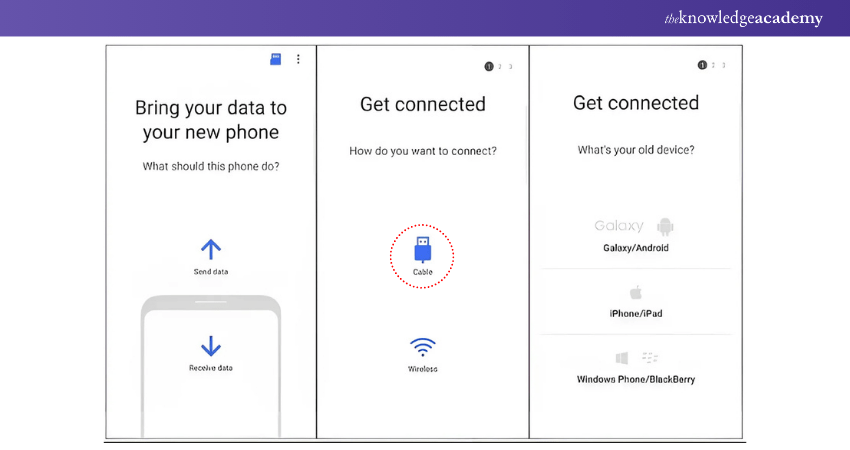
Plug the Two Devices with a USB Cable:
a) Plug your old and new Android devices on with a compatible cable
b) On the two devices, they will be asked to select the “Transfer files” option
Follow On-screen Instructions:
a) Let the devices exchange your data such as content, pictures, videos, contact list, and applications.
b) This is fast and suitable for sharing of large files, unlike relying on the internet speed.

What to do if Your Old Phone is Broken?
If your previous device has a cracked screen or a non-functional cable, you can still use cloud backups (like Google Drive) or a Personal Computer (PC) to retrieve your data. For instance, you can Transfer Photos from Android to iPhone by getting your information from the cloud or by copying data that was backed up earlier from your PC to your new phone. This ensures that even if your device is broken, your important information remains accessible.
Develop top-notch apps and websites – register for our App & Web Development Training now!
Method 3: Transfer Data Using Dedicated Transfer Apps
Smart Switch available for Samsung devices or CloneIt can be efficient to make data transfers between two Android devices. These apps are intended to work with different sorts of files – pictures and videos, contacts and messages, applications, and even settings of the device.
Choose a Transfer App:
a) Some of these include Smart Switch for Samsung and CloneIt
b) The old and the new Android devices should have this app downloaded from the Google Play Store.
Connect the Devices:
a) For any application, it is advisable to use the wireless network or a cable
b) Data connection instructions are provided when connecting two devices within the application.
Select and Transfer Data:
a) After that, you need to decide which kind of data should be transferred (for example, photos, contacts, applications, messages, etc.).
b) Rudimentarily begin the transfer and allow the system to run and complete the process automatically.
Design stunning websites with our Website Design Course - Register today!
Conclusion
To wrap things up, Transferring Contacts from Android to Iphone or moving data between Android devices doesn’t have to be complicated. With these three simple procedures, you can quickly transfer your important files without any hassle. Now that you understand how to transfer data from Android to Android, the process should feel much easier. If you're looking to implement such functionality in your apps, exploring android project ideas involving data transfer could be a great way to practice.
Unlock your potential in mobile app with our Mobile App Development Course - Join now!
Frequently Asked Questions
What is the Fastest Way to Transfer Files from Android to Android?

The quickest one is tethering through Universal Serial Bus (USB) cable where one has no need to rely with the social networking sites. Other additional features are fast wireless or cable transfer, whereby, through a smart switch, one can transfer large files easily.
Can I Use a Smart Switch with a Broken Screen?
Yes, if the Phone is working, connect with Smart Switch using a USB cable and control it from a PC or New Phone. Also, for unresponsive screens cloud backups should suffice when trying to recover your data.
What are the Other Resources and Offers Provided by The Knowledge Academy?
The Knowledge Academy takes global learning to new heights, offering over 3,000+ online courses across 490+ locations in 190+ countries. This expansive reach ensures accessibility and convenience for learners worldwide.
Alongside our diverse Online Course Catalogue, encompassing 19 major categories, we go the extra mile by providing a plethora of free educational Online Resources like Blogs, eBooks, Interview Questions and Videos. Tailoring learning experiences further, professionals can unlock greater value through a wide range of special discounts, seasonal deals, and Exclusive Offers.
What is The Knowledge Pass, and How Does it Work?
The Knowledge Academy’s Knowledge Pass, a prepaid voucher, adds another layer of flexibility, allowing course bookings over a 12-month period. Join us on a journey where education knows no bounds.
What are the Related Courses and Blogs Provided by The Knowledge Academy?
The Knowledge Academy offers various Mobile App Development Course, including the HTML and CSS Course, Web Development Training and the Front End Developemnt Course. These courses cater to different skill levels, providing comprehensive insights into Top 15 Android Developer Skills.
Our Programming & DevOps Blogs cover a range of topics related to App and Mobile Development, offering valuable resources, best practices, and industry insights. Whether you are a beginner or looking to advance your Developemnt Skills, The Knowledge Academy's diverse courses and informative blogs have got you covered.

Richard Harris


Senior Full Stack Developer and Technology Educator
Richard Harris is a highly experienced full-stack developer with deep expertise in both frontend and backend technologies. Over his 12-year career, he has built scalable web applications for startups, enterprises and government organisations. Richard’s writing combines technical depth with clear explanations, ideal for developers looking to grow in modern frameworks and tools.

Upcoming Programming & DevOps Resources Batches & Dates
Date
 Mobile App Development Course
Mobile App Development Course
Fri 31st Jul 2026
Mobile App Development Course
Fri 30th Oct 2026

 If you wish to make any changes to your course, please


