


 Top Rated Course

We may not have the course you’re looking for. If you enquire or give us a call on + 800 908601 and speak to our training experts, we may still be able to help with your training requirements.
Microsoft Teams Tips: Master Communication and Boost Productivity
The Knowledge Academy 02 April 2026Microsoft Teams tips and tricks to manage notifications, use shortcuts, favorite channels, set DND, send urgent messages, use polls and integrate apps. These features help reduce noise, save time, and keep focus during workdays. Used together, they improve collaboration, responsiveness, and productivity across teams.
Home
 Resources
Office Applications
Microsoft Teams Tips: Master Communication and Boost Productivity
Resources
Office Applications
Microsoft Teams Tips: Master Communication and Boost Productivity
Resources
Office Applications
Microsoft Teams Tips: Master Communication and Boost Productivity

Training Outcomes Within Your Budget!
We ensure quality, budget-alignment, and timely delivery by our expert instructors.
Table of Contents

Ever opened Microsoft Teams to check one message and found yourself buried in notifications, meetings, and chats? That daily chaos is familiar to many teams. With the right Microsoft Teams Tips and tricks, you can turn that noise into clarity, stay focused, and make collaboration feel effortless instead of exhausting.
This blog shares practical Microsoft Teams Tips to manage conversations, improve meetings, and organise work easily. Whether remote or in-office, these ideas help save time, boost collaboration, and get more value from every Teams interaction.
Table of Contents
1) Getting Started with Microsoft Teams
2) Efficient Communication and Collaboration
3) Optimising Meetings and Video Conferencing
4) Streamlining Workflows and Productivity
5) Security and Privacy Best Practices
6) How to Use Microsoft Teams?
7) Benefits of Microsoft Teams
8) Streamlining Workflows and Productivity
9) Conclusion
Getting Started with Microsoft Teams
To get started with Microsoft (MS) Teams, create an account via the website or app on desktop or mobile. Applying basic Microsoft Teams Tips and tricks, such as signing in with a Microsoft account and organising teams and channels from the left-hand sidebar, helps structure conversations by topic. Comparing Slack and Teams highlights differences in interface and collaboration features.
Within channels, users can post messages, share files, and integrate apps to improve workflow. More advanced Microsoft Teams Tips include using text formatting, file attachments, emojis, and GIFs, as well as scheduling audio and video meetings through the Calendar tab. Features like screen sharing, virtual backgrounds, live captions, and a digital whiteboard support effective collaboration and real-time brainstorming.
Efficient Communication and Collaboration
Clear and effective communication is the heart of successful teamwork, and Microsoft Teams provides numerous tools and features to streamline communication and enhance collaboration. Channels and chats are the primary means of communication in Teams.
When starting a new project or initiative, it's crucial to create dedicated channels for different topics or workstreams within your team. This allows team members to focus their discussions and keep information organised. Encourage your team to utilise the appropriate channels for specific conversations, making it easier for everyone to find relevant information later.
Searching for a Microsoft Teams alternative? Discover top collaboration tools tailored to your team’s needs. Find the perfect solution today!
1) Sending and Filtering Texts
Within channels, you can engage in conversations with your team members. Utilise @mentions to grab someone's attention in a conversation. By typing "@" followed by their name, you can notify a specific person or an entire team, ensuring that important messages are not missed. Additionally, Teams offers the option to reply to a specific message, which helps maintain context and clarity in group discussions.
2) Personalised Notification
Managing notifications is essential to avoid distractions and stay focused. Customise your notification settings to receive alerts for messages and activities that are relevant to you. You can choose to be notified for all messages, only mentions, or even set specific keywords to trigger notifications. Remember to strike a balance between staying informed and not getting overwhelmed by excessive notifications.
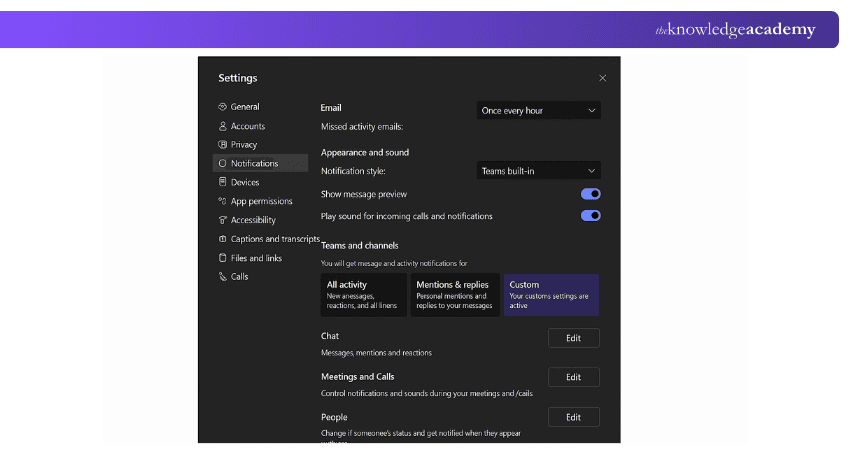
Managing notifications is essential to avoid distractions and stay focused. Customise your notification settings to receive alerts for messages and activities that are relevant to you. You can choose to be notified for all messages, only mentions, or even set specific keywords to trigger notifications. Remember to strike a balance between staying informed and not getting overwhelmed by excessive notifications.
3) Translation Features
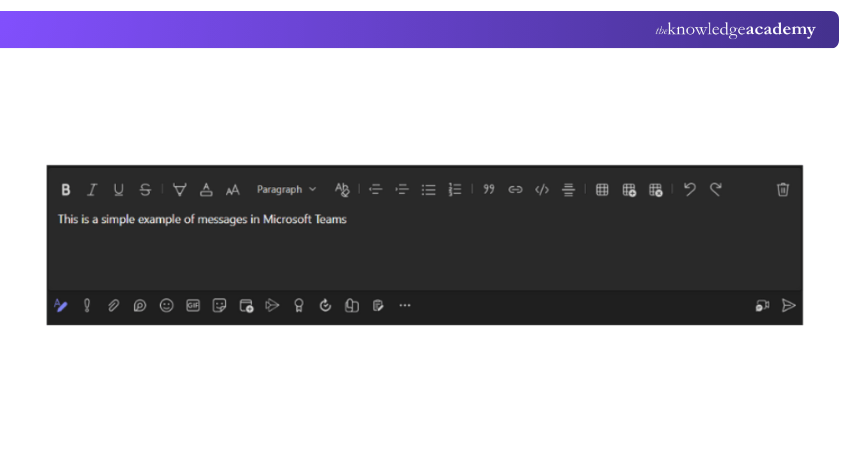
Teams also provide a variety of features to enhance your messaging experience. You can format text, add emojis and GIFs, and even translate messages into different languages. Experiment with these features to bring more personality and clarity to your messages, fostering a positive and engaging communication environment.
4) File sharing
Sharing files, documents, and media is a breeze in Microsoft Teams. Instead of searching through your email inbox or file storage systems, you can simply upload files directly to Teams. Take advantage of the "Files" tab within each channel to store and organise project-related documents. This way, everyone in the team has easy access to the latest versions of files, decreasing confusion and promoting collaboration.
In addition to basic file sharing, Teams also integrates with popular file storage platforms such as SharePoint and OneDrive. You can link these external storage locations to Teams channels, enabling seamless access to files and ensuring consistency across your organisation's file management practices.
Teams is not just limited to internal collaboration; it also enables external communication and collaboration with guests. You can invite clients, partners, or external collaborators to specific channels, granting them access to relevant conversations and files. This simplifies cross-organisational collaboration and eliminates the need for separate communication channels or tools.
Learn comprehensive access controls, encryption and threat detection capabilities. Join our Microsoft SharePoint Training now!
5) Shortcuts
Microsoft Teams offers a range of hidden features and shortcuts to further optimise your communication and collaboration. For instance, you can mark a channel as a favourite for quick access, use the "Save this message" feature to bookmark important messages, and create custom templates for frequently used messages or announcements.
Teams also integrate with other apps and services, allowing you to bring external tools directly into your Teams environment. Explore the Teams App Store to discover and install apps that suit your team's specific needs. From Project Management tools to productivity trackers, the app integrations can significantly enhance your collaboration experience within Teams.
Master Microsoft Teams interview questions! Prepare with expert tips and elevate your career. Explore Microsoft Teams interview questions today!
6) Create Your Own GIFs
Incorporating animated GIFs into chats can be a motivating element, especially for the younger members of your organisation. It adds an enjoyable and lively touch to your conversations with team members. Microsoft Teams provides a variety of animated GIFs that you can easily select and insert into your chats. You can create personalised animated GIFs using the Giphy app, bringing an extra layer of customisation to your team chat. To use Giphy, activation by the Teams administrator is required to ensure a seamless and personalised chat experience for you and your team.
7) Conduct Polls
Collecting opinions might seem laborious, but conducting polls becomes effortless with Teams. Select the ‘Forms’ icon below the message box to generate and dispatch a poll in Microsoft Teams. Proceed to formulate your poll.
Enter your question and the available answer options. If you want to allow multiple answers, toggle the ‘multiple answers’ option. You can also opt to share results after voting and maintain response anonymity automatically. After setting these preferences, click on ’send’.
8) Record and Transcribe Your Meetings
Capture and transcribe your meetings effortlessly. Utilise the recording feature during your Microsoft Teams meetings to create an audiovisual record of the discussion. Once the meeting concludes, access the transcription feature to convert spoken words into written text. This functionality enhances accessibility, facilitates review, and enables efficient information retrieval.
9) Ask T-bot for Help
T-Bot serves as the designated help bot for Microsoft Teams. Access T-Bot by clicking on ‘chat. Once there, you can type questions or keywords for prompt answers. If you prefer browsing, you will find answers under the ‘help’, ’videos’, and ’what’s new tabs’.
10) Connect to Your Cloud Storage
Effortlessly link Microsoft Teams to your cloud storage for streamlined data management. Follow the designated steps to connect your Microsoft Teams account securely with your preferred cloud storage service. This integration ensures smooth access to stored data directly within the Microsoft Teams platform, enhancing collaboration and simplifying file-sharing processes.
11) Download meeting transcription
While meeting notes are beneficial, taking them can be burdensome. With Microsoft Teams, that burden is lifted. After completing your meeting recording, select the ellipsis and open your video in Microsoft Stream. Then, navigate to the next ellipsis, click ’update video details,’ and go to the ’video language’ section. Choose ’autogenerate a caption file’ and click ‘update.’
Upon completion, you can download the transcription of your meeting from the Microsoft Streams section, making the process more convenient and efficient.
Learn the details of SharePoint with the Microsoft SharePoint End User Fundamentals Course- Join today!
Optimising Meetings and Video Conferencing
Microsoft Teams offers tools to plan and manage meetings effectively. Using practical Microsoft Teams Tips and tricks before, during, and after meetings improves collaboration and engagement. The sections below show key ways to optimise meetings and video conferencing in Teams:
1) Scheduling Meetings in Teams and Outlook
Meetings can be scheduled in Microsoft Teams or Outlook, with automatic syncing when using the same Microsoft 365 account. From the Calendar tab, add the title, date, time, participants, and agenda. Teams also highlights schedule conflicts and suggests alternative times.
2) Preparing Agendas and Sharing Files in Advance
Sharing the agenda before the meeting helps participants prepare. Once a meeting is scheduled, documents can be added through the Files tab, while Meeting Notes provide a space to capture key discussion points and action items in an organised way.
3) Managing Presenters and Editing During Meetings
Assign presenters to allow screen sharing and real-time updates during the meeting. If invitees are late, the Request to Join feature helps prompt them to join quickly. Recording and transcription features ensure important discussions can be reviewed later.
4) Using Screen Sharing and Collaborative Whiteboards
Screen sharing enables presenters to display slides, documents, or live content, keeping everyone aligned. The digital whiteboard supports real-time brainstorming, allowing participants to draw, write, and collaborate visually during meetings.
5) Improving Accessibility with Live Captions and Transcripts
Live captions display spoken content in real time, supporting hearing-impaired users and non-native speakers. Transcripts create a written record of meetings, making it easier to revisit decisions and discussions after the session.
6) Recording Meetings and Ensuring Compliance
Recording meetings is useful for those who cannot attend live or need future reference. Always inform participants beforehand and ensure compliance with organisational privacy and data protection policies when recording sessions.
7) Using Breakout Rooms for Group Collaboration
Breakout rooms allow large meetings to be divided into smaller groups for focused discussions or activities. This feature encourages participation, teamwork, and deeper collaboration during workshops or brainstorming sessions.
8) Enhancing Video Meetings with Backgrounds and Shortcuts
Custom virtual backgrounds help maintain a professional appearance, especially when working remotely. Shortcuts such as Raise Hand help manage discussions and ensure orderly participation during meetings.
Streamlining Workflows and Productivity
Microsoft Teams unifies communication, tasks, files, and automation to improve efficiency. Using smart Microsoft Teams Tips helps teams stay organised, reduce manual work, and boost productivity. The sections below show key ways to streamline workflows in Teams:
1) Integrating Apps and Services in Microsoft Teams
Microsoft Teams supports workflow optimisation through seamless app integrations. Using the Teams App Store, teams can add tools for Project Management, time tracking, and document collaboration directly into their workspace, reducing the need to switch between applications.
2) Managing Tasks Within Channels
Teams enables task creation and management using the built-in Tasks app or third-party tools. Users can assign tasks, set due dates, track progress, and discuss updates within channels, keeping task-related communication centralised and accessible.
3) Collaborating on Files in Real Time
File management in Teams lets users store, access, and collaborate on documents within channels. Features like version control, co-authoring, and real-time editing reduce duplication, while SharePoint and OneDrive integration ensure seamless file access across Microsoft 365.
4) Automating Repetitive Workflows
Microsoft Power Automate enables teams to create automated workflows that connect apps and services. Automations such as saving email attachments to channels or triggering notifications for specific events help reduce manual effort and improve efficiency.
5) Capturing Meeting Notes with OneNote
Teams integrates with OneNote to support real-time meeting note-taking. Teams can document key discussion points, decisions, and action items during meetings, ensuring shared visibility and better follow-up.
6) Co-authoring Documents and Presentations
Multiple team members can work on documents simultaneously using Teams’ co-authoring capabilities. Real-time editing minimises version control issues and supports efficient collaboration, especially for time-sensitive projects.
7) Finding Information Quickly with Search
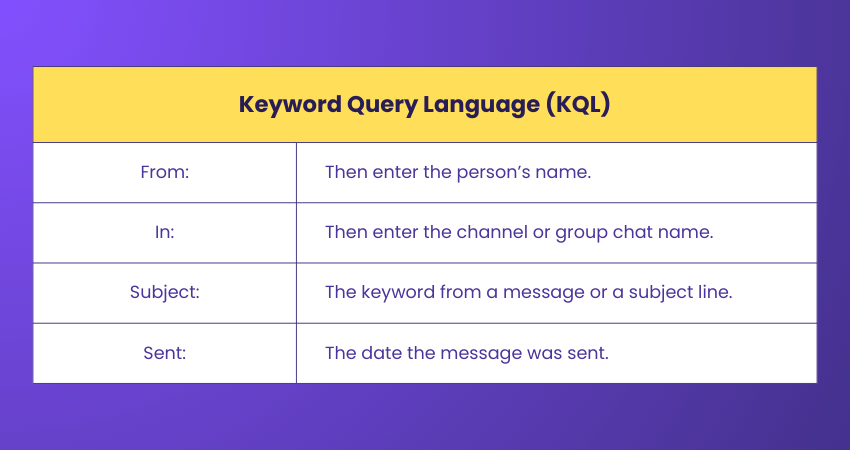
The Teams search function allows users to quickly locate messages, files, channels, and contacts using keywords and filters. This reduces time spent searching and keeps workflows moving smoothly.
8) Centralising Resources with Custom Tabs
Custom tabs within channels provide quick access to frequently used apps, websites, or documents. Centralising essential resources in one place reduces context switching and improves overall productivity.
Become familiar with email etiquette, viruses, message flags, and task views with our Microsoft Outlook Training – Join now!
Security and Privacy Best Practices
Maintaining the security and privacy of your team's communication and data is paramount when using Microsoft Teams. Some practices you can follow to ensure the security and privacy of your team's communication and data are as follows:
1) Enable Multi-factor Authentication (MFA): Require users to verify their identity using multiple authentication methods, such as a password and a one-time code, to strengthen account security.
2) Implement Conditional Access Policies: Control access to Teams based on conditions like user location, device compliance, or network security to reduce unauthorised access.
3) Educate Users on Security Awareness: Train users to recognise phishing attempts, create strong passwords, and share information securely within Microsoft Teams.
4) Manage Guest Access Carefully: Monitor external users and ensure guests have only the permissions required to collaborate, limiting access to sensitive data.
5) Use Secure Channels and External Sharing Controls: Encourage private channels for sensitive discussions and configure external sharing settings to manage external interactions safely.
6) Apply Data Loss Prevention (DLP) Policies: Prevent accidental sharing of sensitive information, such as personal or financial data, using DLP controls within Teams.
7) Enable Encryption for Data at Rest and in Transit: Ensure data stored in Teams and data shared between devices and Microsoft datacenters is encrypted to protect confidentiality.
8) Monitor User Activity and Audit Logs: Regularly review audit logs to detect unusual activity and respond quickly to potential security incidents.
How to Use Microsoft Teams?
Using Microsoft Teams involves several basic steps, including setting up a team, creating channels, and collaborating with your team members. Here's a general instructions on how to use Microsoft Teams:
Accessing Microsoft Teams
1 You can access Microsoft Teams through a web browser or by downloading the desktop or mobile application.
2) If you are using Microsoft 365, you may already have access to Teams through your subscription.
Logging in
1) Log in using your Microsoft 365 credentials.
Navigating the Interface
1) Familiarise yourself with the Teams interface, including the left sidebar where teams and channels are listed, the main dashboard where conversations and activities are displayed, and the command bar at the top for accessing different features.
Creating or Joining a Team
1) You can either create a new team or join an existing one.
2) To create a team, click "Teams" in the sidebar, then click "Join or create a team" at the bottom. Follow the prompts to set up your team.
Adding Channels
1) Within a team, you can create channels to organise conversations and files.
2) Click on the ellipsis (...) next to the team's name, then select ’add channel.’
Starting Conversations
1) Navigate to the channel where you want to start a conversation.
2) Type your message in the ’start a new conversation" box in the conversation tab and hit Enter.
Sharing Files
1) Click on a channel's ’files’ tab to access and share files.
2) You can upload files or create new ones directly within Teams.
Scheduling Meetings
1) Click on the ’calendar’tab to schedule and manage meetings.
2) Use the 'meetings’ button to schedule new meetings and invite participants.
Learn essential skills for productivity in workplace environments with our Microsoft Office 365 Training – Register today!
Benefits of Microsoft Teams
Now that you know Microsoft Teams Tips and tricks, it's time to know about the benefits of Microsoft Teams. The following are the benefits of Microsoft Teams:
Streamlining Workflows and Productivity
Microsoft Teams offers a wide range of tools and integrations to streamline workflows and maximise productivity. In this section, we'll explore strategies and techniques to help you make the most of these features and optimise your work processes within Teams.
1) Streamlined Communication
Microsoft Teams facilitates streamlined communication through a range of tools. Instant messaging allows real-time chat, promoting quick decision-making. Threaded conversations keep discussions organised, and @Mentions ensure targeted notifications. Presence and status features help track team members' availability. Audio and video calls enable virtual face-to-face conversations. Seamless integration with Outlook and mobile accessibility further enhances communication efficiency.
2) Enhanced Collaboration
Teams empower teams with collaborative features. Real-time document sharing and co-authoring enable simultaneous editing. Team channels provide dedicated spaces for focused discussions. Office 365 integration, persistent chat history, and collaboration on mobile devices streamline workflows. Third-party app integration broadens collaboration possibilities, while expert-led courses offer comprehensive training.
3) Seamless Integration
Microsoft Teams seamlessly integrates with various applications and services. As part of the Microsoft 365 suite, it integrates with Office 365 applications like SharePoint and OneDrive. Collaboration with Microsoft Office apps allows real-time document creation. Third-party app integration and custom App Development provide flexibility. Bots and automation tools further enhance the integration capabilities.
4) Improved Productivity
Teams serve as a central hub for collaboration, eliminating the need to switch between tools. Real-time communication, seamless document collaboration, and task management features contribute to increased productivity. Integration with tools like Planner and Microsoft Power Automate streamlines tasks and workflows.
5) Remote Work Enablement
Teams support effective collaboration regardless of physical location. Seamless communication tools, file sharing, and collaboration capabilities keep teams connected. Virtual meetings and webinars offer interactive online communication. The mobile app enables productivity on the go. Security and compliance measures prioritise a secure remote work environment.
6) Cost-effectiveness
Teams offer a cost-effective, all-in-one solution for communication and collaboration. It eliminates or reduces costs associated with traditional phone systems, conference calls, and travel expenses. Consolidating communication and collaboration needs within Teams leads to significant cost savings for organisations.
Conclusion
Incorporating these Microsoft Teams Tips will enable you to maximise productivity and collaboration within your team. From getting started to optimising meetings, streamlining workflows, and prioritising security, Teams offers a robust platform for successful teamwork, including managing Workstreams in Project Management seamlessly.
Collaborate seamlessly using Microsoft Office's ubiquitous software suite with our Microsoft Office Training – Join today!
Frequently Asked Questions
How Do I Get Better at Microsoft Teams?

To get better at Microsoft Teams, learn the core features, customise notifications, use shortcuts, favourite key channels, and set Do Not Disturb (DND) for focus. Use @mentions, urgent messages, polls, and app integrations regularly to communicate faster, stay organised, and collaborate more effectively.
How do You Effectively Use Microsoft Teams?
To effectively use Microsoft Teams, apply practical Microsoft Teams Tips such as organising teams and channels clearly, customising notifications, and favouriting key channels. Use shortcuts, focused meetings, @mentions, polls, and app integrations to communicate faster, stay organised, and collaborate efficiently in one workspace.
What are the Other Resources and Offers Provided by The Knowledge Academy?
To optimise MS Teams usage, establish clear communication norms. Utilise threaded conversations for organised discussions and persistently store chat history. Foster collaboration through real-time document sharing and co-authoring. Leverage Office 365 integration for seamless access to files and tasks. Customise your experience with third-party app integrations and explore custom app development—Prioritise security and compliance measures for remote collaboration. Enhance productivity by centralising collaboration in Teams, utilising task management tools, and embracing automation. Regularly update your skills and stay informed about Teams' evolving features.
What is The Knowledge Pass, and How Does it Work?
The Knowledge Academy takes global learning to new heights, offering over 3,000 online courses across 490+ locations in 190+ countries. This expansive reach ensures accessibility and convenience for learners worldwide.
Alongside our diverse Online Course Catalogue, encompassing 17 major categories, we go the extra mile by providing a plethora of free educational Online Resources like Blogs, eBooks, Interview Questions and Videos. Tailoring learning experiences further, professionals can unlock greater value through a wide range of special discounts, seasonal deals, and Exclusive Offers.
What are the Related Courses and Blogs Provided by The Knowledge Academy?
The Knowledge Academy offers various Microsoft Office Training, including the Microsoft Teams Training, Microsoft Outlook Training, and the Microsoft Planner Training. These courses cater to different skill levels, providing comprehensive insights into Schedule an Email in Outlook.
Our Office Applications Blogs cover a range of topics related to Microsoft Teams Tips, offering valuable resources, best practices, and industry insights. Whether you are a beginner or looking to advance your Office Applications skills, The Knowledge Academy's diverse courses and informative blogs have got you covered.

The Knowledge Academy


Global Training Provider
The Knowledge Academy is a world-leading provider of professional training courses, offering globally recognised qualifications across a wide range of subjects. With expert trainers, up-to-date course material, and flexible learning options, we aim to empower professionals and organisations to achieve their goals through continuous learning.

Upcoming Office Applications Resources Batches & Dates
Date
 Microsoft Teams Training
Microsoft Teams Training
Fri 17th Jul 2026
Microsoft Teams Training
Fri 16th Oct 2026

 If you wish to make any changes to your course, please


