


 Top Rated Course


We may not have the course you’re looking for. If you enquire or give us a call on + 800 908601 and speak to our training experts, we may still be able to help with your training requirements.
Top 20 CorelDraw Interview Questions With Answers
Sophia Ellis 24 February 2026Unlock the secrets of CorelDraw with our Top 20 Interview Questions and Answers! Explore the fundamental concepts, explore advanced design techniques, and master tools like Bezier, Blend, and Extrude. Whether you're a novice or a pro, elevate your graphic design prowess and ace your CorelDraw interview with confidence!

Training Outcomes Within Your Budget!
We ensure quality, budget-alignment, and timely delivery by our expert instructors.
Table of Contents

Embarking on a career in Graphic Design demands proficiency in industry-leading tools like CorelDraw. To gauge your readiness as a candidate, CorelDraw Interview Questions play a pivotal role. This introduction sets the stage for an insightful exploration of the top 20 questions and answers, ensuring aspiring designers are well-prepared to showcase their expertise in this powerful vector graphics editor. This blog provides a curated collection of CorelDRAW Interview Questions tailored to assess your proficiency and empower you to tackle your next design challenge.
Table of Contents
1) List of the best CorelDraw Interview Questions
a) What is CorelDraw? For what purpose can this software be used?
b) What is the use of Fountain Fill?
c) What is the use of the Extrude tool?
d) What is the use of the Blend tool?
e) What is a shape? How do we use shapes in CorelDraw?
f) What is the Pen Tool? How do we trace an alphabet or image in CorelDraw?
g) What is the use of Tab in text formatting?
h) What is the default Paper type & size when we open CorelDraw windows?
i) What is the use of the Text tool?
j) What is the usethe of Graph Paper & 3-Point Ellipse tool?
2) Conclusion
List of the best CorelDraw Interview Questions
CorelDraw stands as a versatile vector graphics editor, empowering designers to craft intricate visual masterpieces with precision. Renowned for its user-friendly interface and robust feature set, it seamlessly blends creativity and functionality.
From Bezier tools for precise curves to advanced 3D object manipulation, CorelDraw caters to diverse design needs. Preparing interview questions for CorelDraw candidates is paramount. It not only assesses their fundamental knowledge of the software but also gauges their problem-solving skills and creativity.
A well-prepared candidate not only navigates the technical intricacies of CorelDraw but also demonstrates a profound understanding of design principles, ensuring a seamless integration into any creative team. Below is a curated list of the best CorelDraw Interview Questions:

Q1) What is CorelDraw? For what purpose can this software be used?
CorelDraw is a robust vector graphics editor employed for graphic design and illustration. Its purpose lies in enabling users to create and manipulate visual elements with precision. Designers utilise CorelDraw for crafting logos, illustrations, and various types of graphics, thanks to its versatile tools and features.
Moreover, from vector-based drawing to advanced colour management, CorelDraw facilitates the production of high-quality designs suitable for print, web, and multimedia applications. In essence, it serves as a comprehensive platform for unleashing creativity, making it an indispensable tool for professionals in the graphic design and illustration fields.
Q2) What is the use of Fountain Fill?
Fountain Fill in CorelDraw is a powerful tool used to create dynamic and gradient-filled shapes or objects. It allows designers to apply smooth transitions of colour, creating visually appealing gradients that blend seamlessly across an object. Whether enhancing backgrounds, adding depth to illustrations, or customising text, Fountain Fill adds depth and dimension to designs.
With customisable options for colour, transparency, and direction, it empowers users to achieve a wide range of creative effects. Overall, Fountain Fill is an essential feature, elevating the aesthetic quality of designs and providing a versatile means to express artistic vision in various graphic projects.
Q3) What is the use of the Extrude tool?
The Extrude tool in CorelDraw serves to transform 2D objects into dynamic 3D forms, adding depth and realism to designs. By extruding selected shapes, users can generate three-dimensional elements, enhancing the visual impact of illustrations or logos.
This tool allows manipulation of depth, direction, and perspective, providing a versatile means to create lifelike graphics. Designers leverage the Extrude tool for diverse applications, such as crafting realistic product mock-ups, architectural visualisations, or captivating text effects.
In essence, the Extrude tool is instrumental in elevating the dimensionality of designs, offering a dynamic and engaging visual experience in Graphic Design.
Q4) What is the use of the Blend tool?
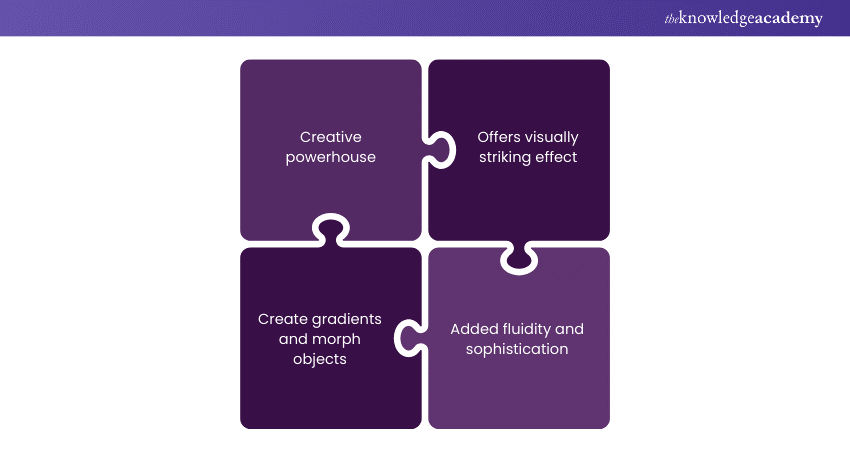
The Blend tool in CorelDraw is a creative powerhouse, seamlessly connecting two or more objects with smooth transitions. Its primary purpose is to generate a gradual blend of shapes, colours, or both, offering a visually striking effect.
Additionally, designers employ the Blend tool to create gradients, morphing one object into another effortlessly. Whether crafting intricate patterns, dynamic colour transitions, or enhancing visual continuity, the Blend tool is indispensable for achieving seamless and aesthetically pleasing designs.
More importantly, its versatility makes it a go-to feature for artists aiming to add fluidity and sophistication to their illustrations, setting it apart as a key element in graphic design.
Q5) What is a shape? How can shapes be used in CorelDraw?
In CorelDraw, a shape refers to a two-dimensional geometric figure, such as a rectangle, ellipse, or polygon, forming the foundation of graphic elements. Shapes serve as building blocks for designs, offering a structured canvas for creative expression.
Further, CorelDraw provides an array of tools for creating, modifying, and combining shapes, enabling designers to craft intricate illustrations and logos with precision. Whether it's designing logos, customising icons, or forming the basis for complex graphics, shapes in CorelDraw serve as versatile elements, manipulated through tools like the Shape tool and various shaping operations to bring artistic visions to life.
Master the latest animation trends by signing up for our Animation Course now!
Q6) What is the Pen Tool? How can you trace an alphabet or image in CorelDraw?
The Pen Tool in CorelDraw is a fundamental instrument for precise vector-based drawing. It allows users to create and edit paths with unparalleled control, making it ideal for tracing intricate alphabets or images.
Further, to trace an alphabet, one selects the Pen Tool, clicks along the outline of each character, and adjusts nodes to match the shape. For images, the Bezier curves of the Pen Tool meticulously follow contours.
More importantly, this method ensures accurate, scalable reproductions. The Pen Tool's versatility and precision make it an indispensable feature for designers aiming to replicate and enhance intricate details in their CorelDraw projects.
Q7) What is the use of Tab in text formatting?

In text formatting, the Tab key in CorelDraw serves as a valuable tool for precise alignment and spacing. It allows users to create consistent and visually appealing layouts by setting tab stops and defining the exact position for text elements.
Whether aligning text within columns, creating organised lists, or formatting tables, the Tab key ensures uniform spacing and enhances the readability of documents. By strategically utilising tabs, designers achieve a polished and professional appearance in their text-based designs, showcasing CorelDraw's commitment to facilitating meticulous control over layout and typography for a seamless user experience.
Q8) What is the default paper type & size when you open CorelDraw windows?
The default paper type and size when opening CorelDraw windows is typically set to "Letter" size. In the United States, Letter size paper dimensions are 8.5 inches by 11 inches (216 mm by 279 mm). This standard setting aligns with common printing preferences and is widely used for various design projects, including brochures, flyers, and documents.
However, users can easily customise these settings based on their specific requirements by accessing the Page Setup options within CorelDraw, ensuring flexibility to accommodate diverse international paper standards and project specifications.
Q9) What is the use of the Text tool?
The Text Tool in CorelDraw is an essential feature often discussed in graphic design interview questions for adding and manipulating text in designs. It enables users to input, format, and stylise text, offering a range of font options, sizes, colours, and styles.
Designers utilise the Text Tool to seamlessly integrate typography into illustrations, logos, or layouts. Whether creating captivating headlines, informative paragraphs, or stylised textual elements, this tool provides precise control over text placement and formatting.
With the ability to curve, warp, and adjust text attributes, the Text Tool is instrumental in achieving diverse typographic effects, enhancing the overall visual impact of graphic designs in CorelDraw.
Q10) What is the use of Graph Paper & 3-Point Ellipse tool?
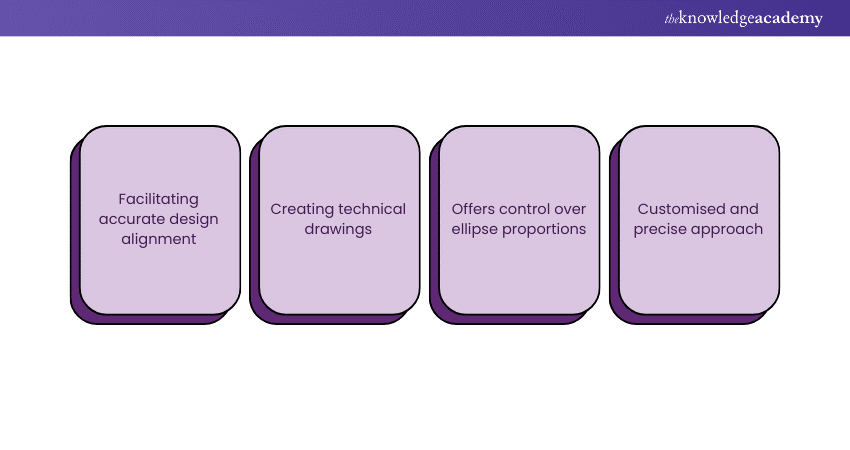
Graph Paper in CorelDraw serves as a visual aid, facilitating accurate design alignment and measurements. It's particularly useful for creating technical drawings, floor plans, or designs that require precision.
Additionally, the 3-Point Ellipse tool, on the other hand, allows users to draw ellipses by specifying three key points that define the ellipse's bounding box. This tool provides greater control over ellipse proportions and orientation.
Moreover, Designers leverage the 3-Point Ellipse tool for crafting ellipses with specific dimensions and angles, ensuring a more customised and precise approach to incorporating ellipses into their CorelDraw projects.
Crop, transform, and translate geometric figures by signing up for our Sketchbook Essential Training now!
Q11) How will you use the Eraser Tool?
The Eraser Tool in CorelDraw is employed to selectively remove portions of vector or bitmap objects, allowing for intricate editing and refining of designs. By clicking and dragging the Eraser Tool over unwanted areas, designers can precisely delete or modify details, providing control over intricate shapes and lines.
This tool is particularly useful for fine-tuning illustrations, adjusting contours, or refining intricate patterns. With adjustable eraser sizes and shapes, it offers flexibility for both broad strokes and detailed touch-ups. The Eraser Tool stands as a valuable asset for achieving precision and perfection in the editing process within CorelDraw.
Q12) How will you trace a logo in CorelDraw?
To trace a logo in CorelDraw, use the powerful tracing features available. This process ensures a precise, scalable vector representation of the original logo, allowing for further customisation and manipulation within CorelDraw's versatile design environment. Here are the steps described:
a) Import the logo: Open CorelDraw and import the logo image into your workspace.
b) Lock the image layer: Lock the image layer to prevent accidental movements.
c) Create a new layer: Add a new layer for your traced elements to maintain organisation.
d) Use the Bezier and Pen tools: Utilise the Bezier and Pen Tools to trace the key outlines of the logo.
e) Adjust nodes: Refine the traced paths by adjusting nodes for precision.
f) Add colours and details: Apply colours and additional details to match the original logo.
g) Group and arrange: Group traced elements and arrange them for a cohesive, accurate representation of the logo.
Q13) Is it possible to combine shapes in CorelDraw?
Absolutely, CorelDraw facilitates seamless shape combination through various methods:
a) Shape Union: Use the "Union" operation to merge overlapping shapes into a single, cohesive form.
b) Shape Intersection: Employ "Intersection" to retain only the overlapping area of shapes.
c) Shape Combine: The "Combine" function merges shapes, keeping the overlapping and non-overlapping areas intact.
d) Shape Weld: "Weld" fuses shapes into a single object, eliminating overlapping lines.
These operations empower designers to create intricate forms, customise designs, and enhance the versatility of their compositions by effortlessly combining and manipulating shapes in CorelDraw.
Q14) Why is the Blend tool used?
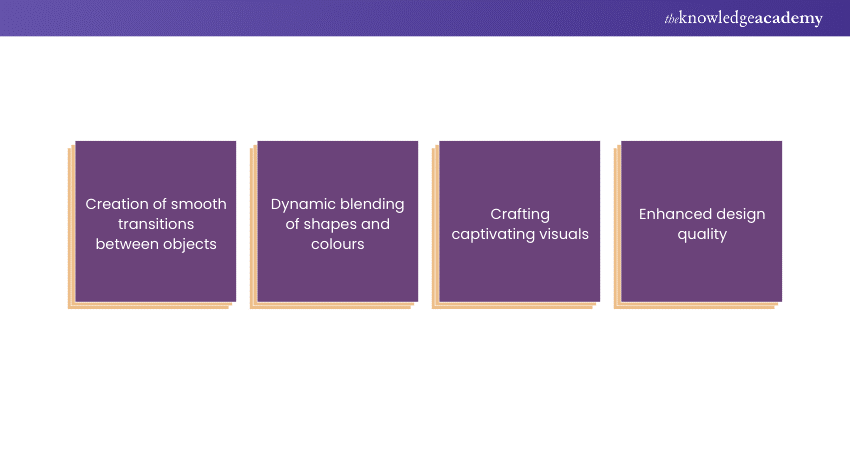
The Blend tool in CorelDraw is a pivotal instrument for creating smooth transitions between two or more objects. It facilitates dynamic blending of shapes, colours, or both, fostering visually appealing and seamless gradients.
Designers leverage the Blend tool to craft captivating visual effects, such as morphing one shape into another or generating intricate colour blends. This tool's versatility enhances the aesthetic quality of designs, enabling the creation of sophisticated transitions and patterns.
In essence, the Blend tool is indispensable for artists seeking to add fluidity, continuity, and artistic flair to their illustrations, setting it apart as a key feature in graphic design.
Understand the basics of design patterns by signing up for our Design Patterns Training now!
Q15) How is the drop shadow tool used?
The Drop Shadow tool in CorelDraw is a powerful feature employed to add depth, dimension, and a sense of realism to objects within a design. The Drop Shadow tool is versatile, enhancing visual impact by simulating the interplay of light and shadow.
Whether for text, logos, or graphics, it elevates designs, providing a professional touch and making elements stand out against backgrounds. Here are the steps to use the Drop Shadow tool:
a) Select the object: Choose the object or text to which you want to add a drop shadow.
b) Access the Drop Shadow tool: Navigate to the Effects menu, choose Drop Shadow, and then Shadow to activate the tool.
c) Adjust Shadow settings: Modify parameters such as offset, blur, transparency, and colour to customise the shadow's appearance.
d) Preview and apply: Preview the shadow in real-time and apply the effect when satisfied.
Q16) How is the extrude tool used?
The Extrude tool in CorelDraw is a potent feature that transforms 2D objects into dynamic 3D shapes, adding depth and realism to designs. The Extrude tool is instrumental in creating lifelike 3D graphics, from text with depth to intricate geometric shapes.
Moreover, Designers leverage it for diverse applications, such as product mock-ups, architectural visualisations, and dynamic text effects. The tool enhances visual appeal, bringing a new dimension to CorelDraw projects and showcasing the software's capacity for dynamic and engaging design capabilities.
Here are the steps to utilise the Extrude tool effectively:
a)Select the object: Choose the 2D object you wish to extrude.
b) Access the Extrude tool: Navigate to the Effects menu, select 3D Effects, and choose Extrude.
c) Adjust Extrusion settings: Modify parameters such as depth, direction, and perspective to tailor the extrusion effect.
d) Preview and apply: Preview the 3D effect in real-time and apply when satisfied.
Q17) Name a few alternatives to the CorelDraw software.
Choosing among these alternatives depends on factors like workflow preferences, feature requirements, and budget considerations, ensuring designers find a tool that aligns with their specific needs and enhances their creative capabilities. Several Alternatives to CorelDraw cater to diverse design needs and preferences:
a) Adobe Illustrator: A robust vector graphics editor with extensive design tools, ideal for professionals and artists.
b) Inkscape: An open-source vector graphics editor offering powerful features, suitable for beginners and advanced users.
c) Affinity Designer: A professional-grade vector graphics editor with a focus on speed and precision.
d) Sketch: A vector-based design tool with a user-friendly interface, popular among UI/UX designers.
e) Gravit Designer: A cross-platform vector design application accessible both online and offline.
f) Xara Designer Pro: A comprehensive design software combining vector illustration, photo editing, and desktop publishing.
Manage your documents and shapes by signing up for our Inkscape Training now!
Q18) Name six types of fill tools in CorelDraw.
CorelDraw offers a versatile array of fill tools, empowering designers to add vibrancy and texture to their creations. These fill tools collectively enhance the creative potential of CorelDraw, providing designers with a spectrum of options to bring their visions to life:
a) Uniform Fill: Fills an object with a single, solid colour, providing a simple and clean look.
b) Fountain Fill: Creates a gradient effect, transitioning smoothly between two or more colours for dynamic and visually appealing designs.
c) Pattern Fill: Applies a pattern or texture to an object, offering a range of pre-defined patterns or allowing users to import custom patterns.
d) Postscript Fill: Utilises PostScript fonts to fill an object with detailed and intricate patterns.
e) Texture Fill: Incorporates bitmap images as textures to fill objects, adding realistic surfaces and depth.
f) Interactive Mesh Fill: Enables precise control over colour transitions by placing nodes on an object and adjusting their colour and intensity, ideal for complex shading effects.
Understand colour theory and image editing by signing up for our CorelDRAW Training now!
Q19) What is the use of the interactive fill tool?
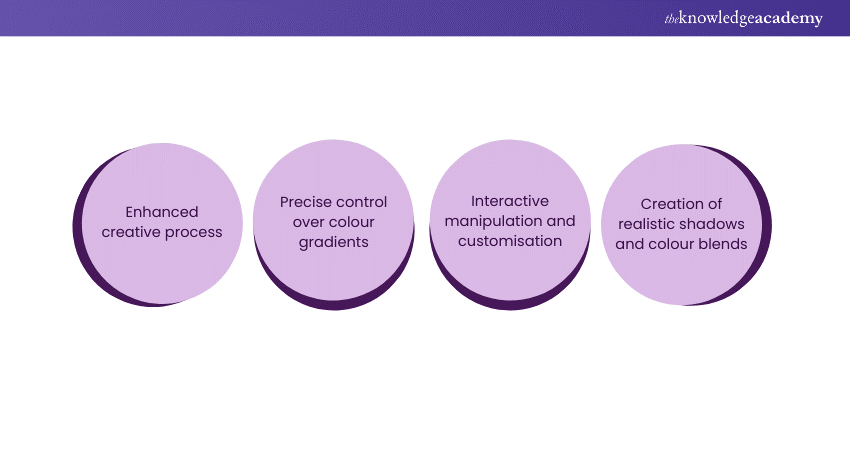
The Interactive Fill tool in CorelDraw is a dynamic feature designed to enhance the creative process by providing precise control over colour gradients within objects. With this tool, designers can interactively manipulate and customise the fill within shapes, allowing for seamless adjustments in colour, transparency, and intensity.
Users place nodes directly on the object and manipulate their positions, creating intricate shading effects, vibrant colour transitions, and nuanced gradients. The Interactive Fill tool is invaluable for artists seeking to achieve sophisticated and visually appealing designs with precision.
Whether creating realistic shadows, complex colour blends, or dynamic backgrounds, this tool elevates the level of control designers have over the aesthetic aspects of their illustrations, contributing to the overall versatility and artistic potential of CorelDraw.
Q20) How is the uniform fill applied?
Applying a Uniform Fill in CorelDraw is a straightforward process, ideal for achieving a clean and consistent appearance in objects. This method is effective for creating solid-coloured backgrounds, text, or shapes, ensuring a consistent and professional look in CorelDraw designs. The simplicity of the Uniform Fill tool makes it a fundamental choice for various design applications, providing a quick and efficient way to add colour to objects:
a) Select the Object: Choose the object or shape to which you want to apply the uniform fill.
b) Access the Fill tool: Navigate to the Fill Tool in the toolbox or use the shortcut 'G' to activate the Fill Tool.
c) Choose the Colour: Click on the colour swatch in the colour palette to select the desired fill colour.
d) Apply the Fill: Click inside the object, and the uniform fill is instantly applied, filling the entire shape with the chosen colour.
Conclusion
In conclusion, mastering CorelDraw is crucial for designers, and understanding key concepts through comprehensive CorelDraw Interview Questions is indispensable. These questions help you deep dive into the software's features, tools, and techniques, ensuring candidates are well-equipped to navigate the world of Graphic Design with confidence and expertise.
Frequently Asked Questions
What are some essential features of CorelDraw that every graphic designer should be familiar with?

CorelDraw offers a wide range of features, but some essential ones include vector graphics creation, text manipulation, shape tools, layers, colour management, and the ability to export designs in various formats. Additionally, knowledge of the Pen tool and Bezier curves can be valuable for creating intricate designs efficiently.
How can the transparency and gradients be managed effectively in CorelDraw?
You can use the Transparency and Gradient tools to manage transparency and gradients in CorelDraw. You can adjust the opacity of objects using the Transparency Docker or by modifying the object's properties. You can also use the Interactive Fill tool, which allows you to apply linear, radial, and conical gradients to objects.
What are the other resources and offers provided by The Knowledge Academy?
The Knowledge Academy takes global learning to new heights, offering over 3,000+ online courses across 490+ locations in 190+ countries. This expansive reach ensures accessibility and convenience for learners worldwide.
Alongside our diverse Online Course Catalogue, encompassing 17 major categories, we go the extra mile by providing a plethora of free educational Online Resources like Blogs, eBooks, Interview Questions and Videos. Tailoring learning experiences further, professionals can unlock greater value through a wide range of special discounts, seasonal deals, and Exclusive Offers.
What is Knowledge Pass, and how does it work?
The Knowledge Academy’s Knowledge Pass, a prepaid voucher, adds another layer of flexibility, allowing course bookings over a 12-month period. Join us on a journey where education knows no bounds.
What are related Animation and Design courses and blogs provided by The Knowledge Academy?
The Knowledge Academy offers various Animation and Design Courses, including Animation Course, CorelDRAW Training, Inkscape Training and more. These courses cater to different skill levels, providing comprehensive insights into the 12 Benefits of Drawing.
Our Office Applications Blogs cover a range of topics related to CorelDRAW, offering valuable resources, best practices, and industry insights. Whether you are a beginner or looking to advance your Animation and Design skills, The Knowledge Academy's diverse courses and informative blogs have you covered.

 If you wish to make any changes to your course, please


