


 Top Rated Course

We may not have the course you’re looking for. If you enquire or give us a call on + 1-866 272 8822 and speak to our training experts, we may still be able to help with your training requirements.
What is a Linux File Manager? Features, Uses and Examples
Sienna Roberts 06 May 2026A Linux File Manager is a user-friendly tool that helps you browse, organise, and manage files efficiently, using either a graphical interface or terminal-based layout. It Includes top tools and key features. It's crucial to discover its overview, how it works, and why it’s essential for navigating and managing files on your Linux system.
Home
 Resources
IT Infrastructure & Networking
What is a Linux File Manager? Features, Uses and Examples
Resources
IT Infrastructure & Networking
What is a Linux File Manager? Features, Uses and Examples
Resources
IT Infrastructure & Networking
What is a Linux File Manager? Features, Uses and Examples

Training Outcomes Within Your Budget!
We ensure quality, budget-alignment, and timely delivery by our expert instructors.
Table of Contents
If hunting through directories has you feeling like a digital detective, it’s time to meet your new best friend, the Linux File Manager. These tools make navigating your system easier (and yes, a lot more fun). It's time to stick around and find the one that clicks with your style.
Whether you’re a visual thinker who loves drag-and-drop or a keyboard ninja who prefers something faster than fast, there’s a file manager just waiting to make your life easier. In this blog, we’ll explore what Linux File Managers are, how they work, and which ones are absolute game-changers for your workflow.
Table of Contents
1) What is a Linux File Manager?
2) How Do Linux File Managers Work?
3) Common Uses of Linux File Managers
4) Top Linux File Managers to Explore
5) Key Factors to Consider When Selecting a Linux File Manager
6) Terminal vs GUI File Managers in Linux: A Comparison
7) Conclusion
What is a Linux File Manager?
A Linux File Manager is a Software application that allows users to interact with the file system in a visual or structured way. It helps users locate, open, move, copy, delete, and organise files and directories without needing to rely solely on command-line operations.
Key Features:
1) File previews and metadata
2) Multi-pane browsing
3) Mounting external drives
4) Integration with remote servers (FTP, SSH)
5) Permissions editing and file searching

How Do Linux File Managers Work?
File managers communicate with system utilities and file APIs to perform these tasks. Many also support plugins or scripts, extending their power even further. Linux File Managers act as a bridge between you and the system and allows users to:
1) Browse directories like you would in Windows Explorer or macOS Finder
2) View file properties, permissions, and sizes
3) Perform operations like copy, paste, delete, rename, and create
4) Mount or unmount external drives
5) Access remote file systems via FTP, SSH, or network shares
Common Uses of Linux File Managers
Here are the common uses of them in your everyday activities:
1) Everyday File Browsing: Navigate your directories with ease
2) Bulk File Management: Move, copy, or rename hundreds of files in seconds
3) Archive Handling: Extract or compress ZIP, TAR, RAR, and more
4) Remote Access: Connect to servers via FTP, SFTP, SMB
5) File Search: Find files quickly with filters and indexing
6) Preview Media: View images, PDFs, and videos right from the manager
7) Permissions Management: Modify file ownership and access settings
8) Split Views and Tabs: Work with multiple directories at once
Unlock the power of Linux with UNIX Fundamentals Training - Build, manage, and secure systems confidently!
Top Linux File Managers to Explore
Let’s explore some of the most popular and powerful file managers Linux has to offer:
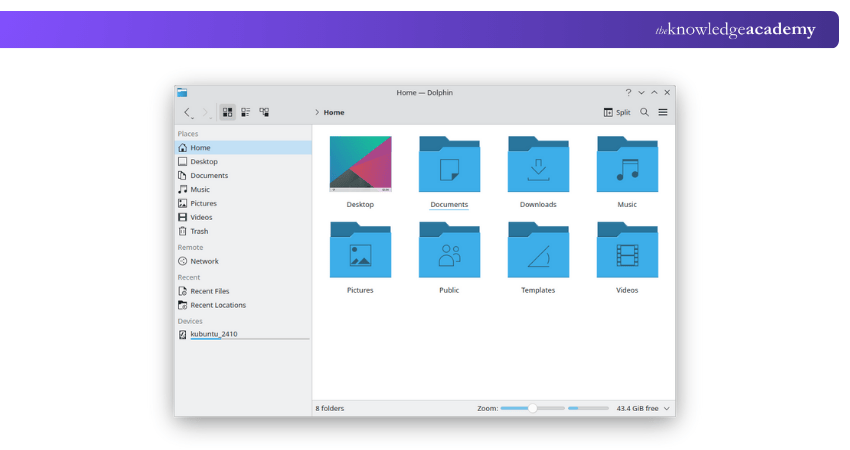
1) Dolphin
It is considered as KDE’s default file manager. Dolphin is sleek, feature-rich, and user-friendly. It supports split views, previews, tagging, and version control integration. Its customisable interface makes it ideal for both casual users and power users alike.
2) Konqueror
Konqueror is also a web browser and considered more than a file manager. It is ideal for those who love an all-in-one tool in the KDE ecosystem. With support for file management, web browsing, and document viewing, it offers a unified experience in one powerful application.
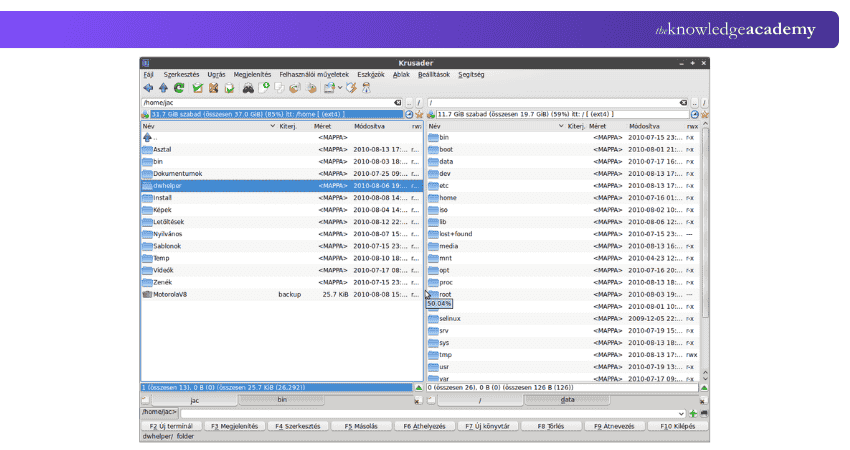
3) Krusader
This is said to be a twin-panel file manager for power users. This manager offers FTP access, archive handling, advanced search, and customisable User Interface (UI). Its keyboard-driven navigation and scripting support make it a favourite among advanced users and developers.
4) PCManFM
It is the default file manager for LXDE, lightweight, fast, and simple. This manager is said to be great for older hardware or minimal setups. It's ideal for users seeking speed and simplicity without sacrificing essential file management features.
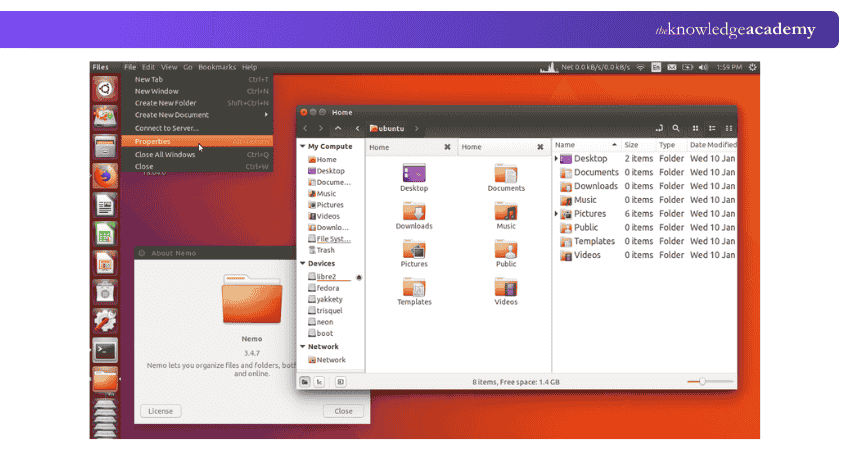
5) Nemo
Nemo is developed for the Cinnamon desktop. It balances simplicity and functionality and supports plugins and remote server access. Nemo is a great choice for users who want familiar, efficient, and extensible file management experience.
6) Polo
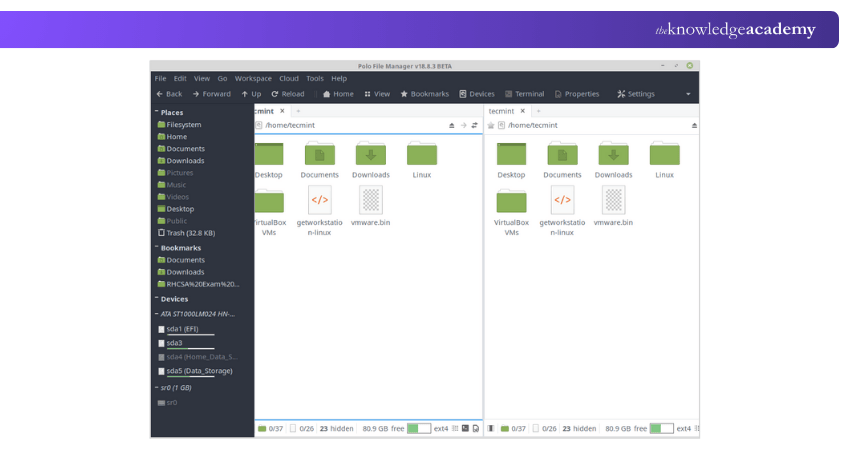
Polo is modern and modular with support for multiple panes, tabs, and even cloud integration. It is still under development but very promising. With built-in support for archives, terminals, and device management, Polo aims to be an all-in-one powerhouse for advanced users.
7) Thunar
It can be considered XFCE’s default, lightweight, snappy, and straightforward. Thunar is ideal for users who want performance without sacrificing usability. It supports custom actions, bulk renaming, and is known for its speed and low resource usage
8) Ranger
Terminal-based and keyboard-centric, Ranger is perfect for users who prefer working in the terminal but want a visual layout. It features a minimal yet powerful interface with VI keybindings, preview support, and extensibility through custom commands and scripts.
9) X File Explorer (Xfe)
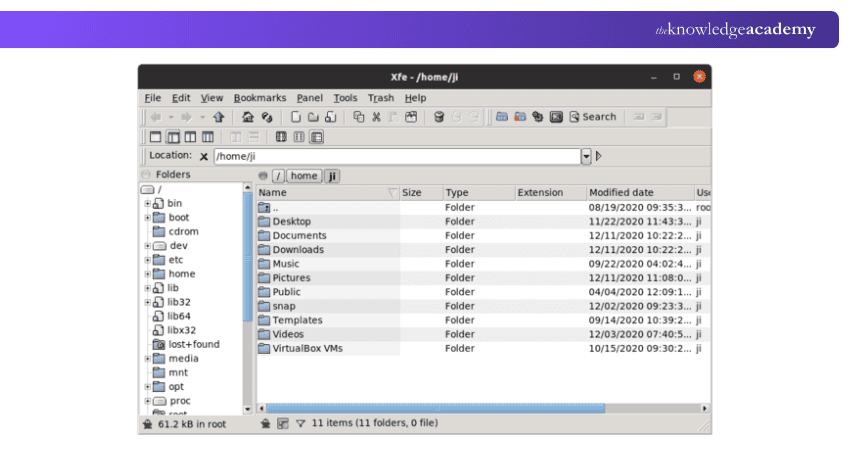
Xfe is fast and efficient built with simplicity and performance in mind. It is best suited for older systems or minimalist users. Despite its lightweight design, it offers essential features like tabbed browsing and a clean, easy-to-navigate interface.
10) Midnight Commander (MC)
A classic terminal-based manager with a text UI. Robust, fast, and widely loved by sysadmins for server-side File Management. With features like dual-pane navigation, FTP support, and built-in text editing, it remains a trusted tool for power users.
Key Factors to Consider When Selectinga Linux File Manager
Not all file managers are created equal. Here’s what to consider before choosing one:
User Interface Design
A clean, intuitive interface can significantly enhance your productivity. Key areas:
1) Choose between minimalist layouts or feature-rich interfaces
2) A clean UI enhances ease of use, especially for beginners
3) Power users might lean toward more detailed layouts with maximum control
Visual Appearance
Looks matter, when you spend hours navigating your system. Here are the key factors:
1) Look for theme support, dark mode, and customisable icons
2) A visually pleasant UI improves user experience during long sessions
Drag-and-drop Support
If you’re working in a GUI environment, drag-and-drop functionality is a must.
1) Essential for GUI users who prefer intuitive, click-and-move controls
2) Speeds up file transfers between folders, drives, and apps
From beginner to pro – Get Fedora Linux Training and boost your tech potential today!
Extra Features and Tools
Here are the ways you can use to add extra tools and features:
1) Seek features like split panes, tabs, archive support, and file previews
2) Tools like Krusader and Polo offer advanced file operations and search filters
Customisation Capabilities
Everyone looks for a file manager that allows you to customise keyboard shortcuts.
1) Ability to modify toolbars, keybindings, plugins, and UI layout
2) Power users may benefit from scriptable or extensible managers
Local and Remote File Handling
It's important to make sure your file manager supports protocols. Key areas:
1) Ensure support for FTP, SFTP, SMB, or cloud storage protocols
2) Ideal for users who work with remote servers or NAS drives
Community and Developer Support
Developed file managers are more likely to receive new features, regular updates that need to be fixed.
1) Active development ensures updates, bug fixes, and feature enhancements
2) Strong community means better documentation, forums, and help resources
Integration with Version Control Systems
Here are the common features that managers can use to speed up the delivery:
1) Useful for developers who want Git or SVN status indicators and actions
2) Speeds up coding workflows by eliminating the need to switch tools
Compatibility with Desktop Environments
Many file managers are tailored to specific desktop environments (DEs) for better performance.
1) Use file managers designed for your DE for better integration:
a) Dolphin: KDE
b) Nemo: Cinnamon
c) Thunar: XFCE
d) PCManFM: LXDE
2) Ensures consistent theming and smooth performance
Harness the power of Alpine Linux Training, your tech career upgrade starts right here!
Terminal vs GUI File Managers in Linux: A Comparison
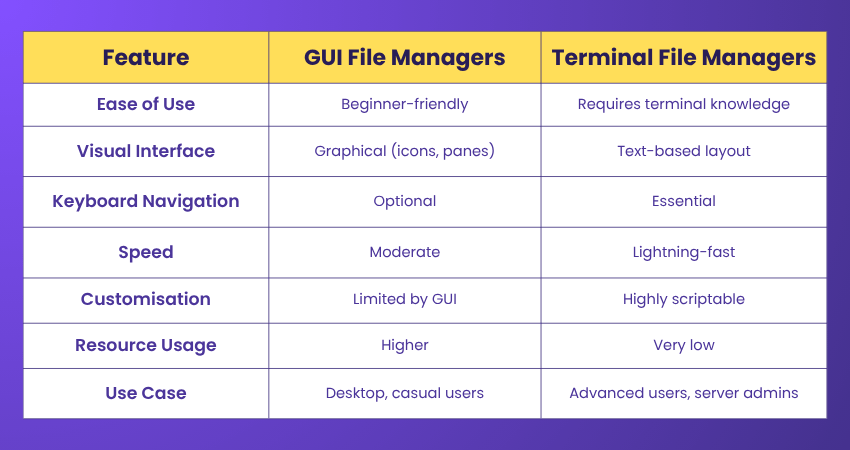
Here is a comparison between the two in a tabular format:
Conclusion
Choosing the right Linux File Manager might seem like a small decision, but it can seriously boost your productivity and comfort. From Dolphin and Nemo to Ranger and Midnight Commander, each option brings something unique to the table. Just consider what matters most to you, be it design, features, speed, or remote access and pick the one that fits your style. Happy file hunting!
Build rock-solid IT skills - Join in comprehensive CentOS Administration Training today!
Frequently Asked Questions
How to Browse Linux Files in Windows?

To browse Linux files in Windows, you can use tools like Linux Reader, Ext2Fsd, or enable WSL (Windows Subsystem for Linux). These allow access to Linux partitions or file systems from Windows. It makes it easy to view, copy, and manage Linux files without booting into Linux.
Is Linux Reader Free?
Yes, Linux Reader by DiskInternals is free for personal use. It allows Windows users to access and read Linux file systems like ext2, ext3, ext4, ReiserFS, and others. While the basic version is free, some advanced features like saving files to other drives may require a paid upgrade.
What are the Other Resources and Offers Provided by The Knowledge Academy?
The Knowledge Academy takes global learning to new heights, offering over 3,000+ online courses across 490+ locations in 190+ countries. This expansive reach ensures accessibility and convenience for learners worldwide.
Alongside our diverse Online Course Catalogue, encompassing 19 major categories, we go the extra mile by providing a plethora of free educational Online Resources like Blogs, eBooks, Interview Questions and Videos. Tailoring learning experiences further, professionals can unlock greater value through a wide range of special discounts, seasonal deals, and Exclusive Offers.
What is The Knowledge Pass, and How Does it Work?
The Knowledge Academy’s Knowledge Pass, a prepaid voucher, adds another layer of flexibility, allowing course bookings over a 12-month period. Join us on a journey where education knows no bounds.
What are the Related Courses and Blogs Provided by The Knowledge Academy?
The Knowledge Academy offers various Linux Certification, including the Administering Linux Systems, Peppermint OS Training and the Bash Scripts Training Course. These courses cater to different skill levels, providing comprehensive insights into IT Outsourcing.
Our IT Infrastructure & Networking Blogs cover a range of topics related to Business, offering valuable resources, best practices, and industry insights. Whether you are a beginner or looking to advance your decision-making skills, The Knowledge Academy's diverse courses and informative blogs have got you covered.
Upcoming IT Infrastructure & Networking Resources Batches & Dates
Date
 LINUX Fundamentals Course
LINUX Fundamentals Course
Thu 20th Aug 2026
LINUX Fundamentals Course
Thu 19th Nov 2026

 If you wish to make any changes to your course, please


