


 Top Rated Course

We may not have the course you’re looking for. If you enquire or give us a call on +357 26030221 and speak to our training experts, we may still be able to help with your training requirements.
What is Excel? | MS Excel Definition, Features and Uses
The Knowledge Academy 20 July 2026Are you wondering What is Excel and how it can transform your Data Management skills? It’s your digital assistant. Excel is a dynamic tool for Data Analysis, budgeting, and organising information. In this blog, we’ll explore Excel's key features, from basic functions to advanced formulas, to help you master this essential software.

Training Outcomes Within Your Budget!
We ensure quality, budget-alignment, and timely delivery by our expert instructors.
Table of Contents

If data is the currency of the modern world, Excel is the bank that manages it. However, the question that trends is, What is Excel, and why is it so essential? From tracking business profits to managing personal budgets, Excel is a powerful tool used across industries. It simplifies calculations, visualises data, and automates tasks, making it indispensable for professionals.
Whether you are in finance, marketing, or project management, Excel is at the heart of every operation. This blog explores What is Excel, how it enhances productivity, and how it helps you manage data efficiently for success in any field.
Table of Contents
1) What is Excel?
2) Common Excel Use Cases
3) Key Features of Microsoft Excel – Terminologies and Components
4) Advanced MS Excel Capabilities
5) Excel Alternative or Competitors
6) Excel Formulas and Functions
7) Conclusion
What is Excel?
Microsoft Excel is a powerful spreadsheet application by Microsoft. It is widely used to organise data, perform financial analysis, and create models for decision-making. Its main features include data input, management, modelling, and charting, making it indispensable for professionals in finance, accounting, project management, and more.
Excel also supports a wide range of functions, formulas, and shortcuts that enhance productivity and efficiency. These capabilities allow users to automate calculations, perform complex Data Analysis, and visualise information quickly and accurately. Excel's versatility makes it essential for budgeting, forecasting, financial reporting, and Data Analysis.

Common Excel Use Cases
Let's explore how this powerful tool transforms everyday business operations and enhances decision-making:
Uses of MS Excel in Real Time Domains
Here are the key applications of Excel in different business domains:
1) Business Analysis:
a) Identify trends and patterns in data
b) Forecast future performance and outcomes
c) Evaluate business strategies effectively
2) Human Resource Management:
a) Manage employee records and attendance
b) Process payroll and benefits calculations
c) Measure and track employee performance
3) Operations Management:
a) Track inventory levels and supply chains
b) Optimise production schedules and processes
c) Streamline day-to-day business operations
4) Performance Reporting:
a) Generate detailed reports on departmental performance
b) Monitor efficiency and track KPIs
c) Support decision-making with clear, visual data
Uses of MS Excel in Organisations
Below are the primary ways Excel supports organisational activities:
1) Data Collection and Validation:
a) Gather business data from multiple sources
b) Validate information for accuracy and reliability
c) Organise data for easy access and analysis
2) Business Data Analysis:
a) Analyse large datasets to uncover insights
b) Support strategic decision-making with real-time data
c) Create visual representations for better understanding
3) Big Data Storage:
a) Store and manage large data sets efficiently
b) Allow easy retrieval and modification of records
c) Ensure data is well-structured for analysis
4) Data Interpretation:
a) Identify trends and interpret data effectively
b) Make data-driven decisions confidently
c) Forecast future business scenarios with predictive analysis
5) Performance Reporting:
a) Track organisational KPIs and performance metrics
b) Create custom reports for management review
c) Highlight areas of improvement and success
Key Features of Microsoft Excel – Terminologies and Components
Microsoft Excel is packed with complex features that make it a cornerstone for data management and analysis. Understanding its key terminologies and components can help you leverage its full potential. Here are the essential elements you should know:
1) Workbook:
A file that contains one or more worksheets, serving as a container for all your data and analysis.
2) Worksheet:
An individual spreadsheet within a workbook where data is entered and organised in rows and columns.
3) Cell:
The basic unit in a worksheet is data is stored. Each cell is identified by its column letter and row number (e.g., A1, B5).
4) Range:
A selection of two or more cells. It can be a single row, a column, or a block of multiple cells.
5) Formula:
An expression used to perform calculations, like =SUM(A1:A5) for adding values.
6) Function:
Predefined formulas in Excel that perform specific calculations, such as SUM, AVERAGE, COUNT, and VLOOKUP.
7) Pivot Table:
A powerful feature that summarises large datasets, making it easy to sort, filter, and analyse information.
8) Chart:
A graphical representation of data that helps in visualising trends and comparisons.
9) Visual Basic for Applications (VBA):
A programming language designed to automate tasks and extend Excel's capabilities.
10) Data Validation:
A feature that ensures only specific types of data are entered into a cell, helping maintain data accuracy.
Advanced MS Excel Capabilities
Microsoft Excel is a powerful tool that not only helps store data but also performs complex computations and recovers data easily. It boasts several advanced features that enhance its functionality. Let’s explore some of these capabilities in detail:
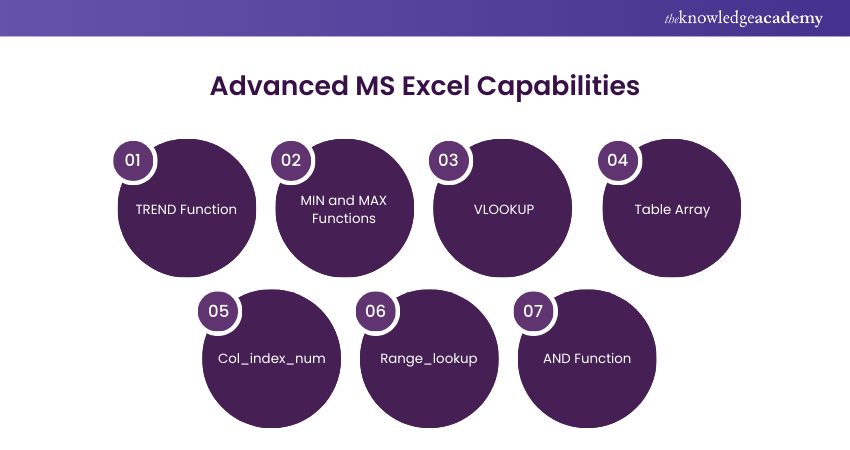
1) TREND Function: The TREND function is used to calculate linear trend lines through a set of Y or X values. This is particularly useful in industries for time series trend analysis or projecting future financial data. By identifying trends, businesses can make informed decisions based on historical data.
2) MIN and MAX Functions: These functions allow users to find the minimum and maximum values within a data set. The MIN function returns the smallest value, while the MAX function returns the largest. These excel functions are essential for Data Analysis, helping users quickly identify the range of their data.
3) VLOOKUP: The VLOOKUP (Vertical Lookup) function is designed to search for a value in the first column of a table and return a value in the same row from a specified column. This is incredibly useful for extracting data from large datasets and organising it into a new table. For example, you can use VLOOKUP to find a product price based on its ID.
4) Table Array: A Table Array consists of two or more tables with data and values that are linked and related to each other. It is a crucial component of the VLOOKUP function, as it defines the range of cells that VLOOKUP will search through to find the desired data.
5) Col_index_num: This parameter in the VLOOKUP function specifies the column number in the table array from which to retrieve the value. For instance, if you want to extract data from the third column of your table array, you will set the “col_index_num” to 3.
6) Range_lookup: The Range_lookup parameter in VLOOKUP determines whether you want an exact match or an approximate match. If set to TRUE, VLOOKUP will find the closest match to the lookup value. If set to FALSE, it will only find an exact match. This is useful when you need flexibility in your data searches.
7) AND Function: The AND function is used to include multiple criteria when searching for variables. It returns TRUE if all the conditions specified are met, and FALSE otherwise. The syntax for this function is “=AND(condition1, condition2, ...)”. This function is helpful in scenarios where you need to apply multiple conditions to filter your data.
Boost your decision-making with Excel- Sign up for our Business Analytics with Excel Course today!
Excel Alternative or Competitors
While MS Excel is a leading spreadsheet program, there are several alternatives that offer similar functions, which enhances competition in the market.
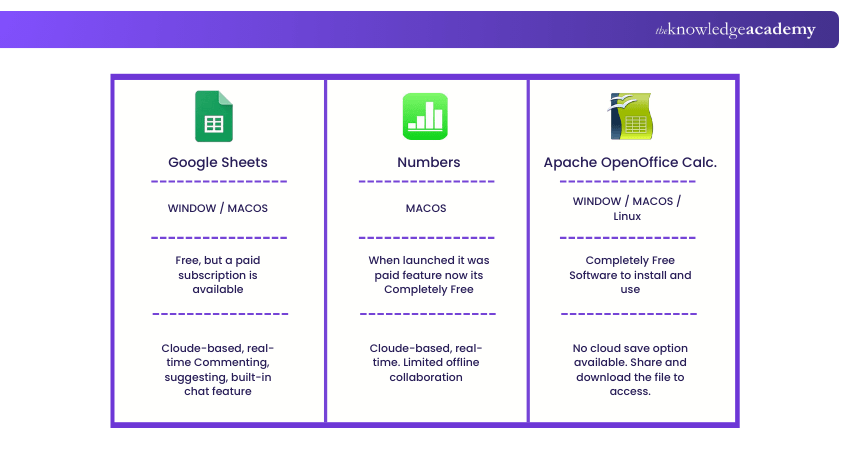
1) Google Sheets
Google Sheets is a strong competitor of Excel. It has similar and easily accessible layouts and features where multiple users can work together from numerous devices. Additionally, its cloud-based functionality allows real-time collaboration, automatic saving, and seamless integration with other Google Workspace tools.
Take your spreadsheet skills to the next level with our Google Sheets Course - Register now!
2) Numbers
It is an Apple Spreadsheet program that is free to users worldwide. Numbers cannot handle huge data sets, but it has the best graphics and charts. Also, it is only available for Apple devices.
3) Apache OpenOffice Calc.
It is a free, open-source spreadsheet software comprising multiple features such as natural language formulas, Data Pilot, style and formatting, and multiple-user collaboration. It is available for Windows as well as macOS platforms.
Excel Formulas and Functions
Microsoft Excel's formulas and functions simplify data storage, manipulation, and recovery. Understanding these features is essential for working efficiently with Excel. Let’s explore them:
1) SUM
a) Adds up a range of numbers.
b) Example: =SUM(A1:A5) – Adds the values from cells A1 to A5.
2) AVERAGE
a) Calculates the average of a selected range.
b) Example: =AVERAGE(B1:B10) – Finds the average of values in cells B1 to B10.
3) COUNT
a) Counts the number of numerical values in a range.
b) Example: =COUNT(C1:C10) – Counts the number of numeric entries in cells C1 to C10.
4) IF
a) Performs a logical test and returns one value for a TRUE result and another for a FALSE result.
b) Example: =IF(D1>50, "Pass", "Fail") – Displays "Pass" if the value in D1 is greater than 50, otherwise "Fail".
5) VLOOKUP
a) Searches for a value in the first column of a table and returns a value in the same row from another column.
b) Example: =VLOOKUP("John", A2:C10, 3, FALSE) – Looks for "John" in the first column and returns the value from the third column of the same row.
6) CONCATENATE (or CONCAT)
a) Combines multiple text strings into one.
b) Example: =CONCAT(A1, " ", B1) – Merges the contents of A1 and B1 with a space in between.
7) MAX
a) Finds the largest value in a range.
b) Example: =MAX(E1:E10) – Returns the maximum value from cells E1 to E10.
8) MIN
a) Finds the smallest value in a range.
b) Example: =MIN(F1:F10) – Returns the minimum value from cells F1 to F10.
9) LEN
a) Counts the number of characters in a text string.
b) Example: =LEN(G1) – Returns the length of the text in cell G1.
10) LEFT, RIGHT, MID
a) Extracts specific parts of a text string.
b) Example: =LEFT(H1, 5) – Extracts the first five characters from the text in H1.
Following is the basic Excel formulas used in Excel to perform various calculations and analyse data:
a) SUM: The SUM formula is used to add values of the selected cells.
Syntax: =SUM(number1, [number2], ...)
Example: =SUM(A1:A10) - This adds the values from A1 to A10.
b) COUNT: To get the number of entries in a range or numbers, use COUNT.
Syntax: =COUNT(value1, [value2], ...)
Example: =COUNT(A1:A10) - This counts the number of numeric entries in A1 to A10.
c) AVG: An AVG formula gets the average of the arguments selected. For example, if the range C1:C20 contains numbers, the average of these values will be calculated as =AVERAGE (C1:C20)
Syntax: =AVERAGE(number1, [number2], ...)
Example: =AVERAGE(C1:C20) - This calculates the average of values from C1 to C20.
d) COUNTA: COUNTA is used to count cells containing any information, such as error values and empty texts.
Syntax: =COUNTA(value1, [value2], ...)
Example: =COUNTA(A1:A10) - This counts the number of non-empty cells in A1 to A10.
e) LEN: It counts the characters present from the selected cells.
Syntax: =LEN(text)
Example: =LEN(A1) - This returns the number of characters in the text of cell A1.
Conclusion
Excel is more than a spreadsheet - it’s a powerful tool that transforms raw data into insights. From tracking finances to complex data modelling, it finds its application in various professional domains worldwide. Additionally, mastering What is Excel can further streamline data management and reporting efficiency.
Frequently Asked Questions
What Careers Would Use Excel?

Many careers rely on Excel, including Data Analysts, Accountants, Financial Planners, Marketers, Project Managers, and Business Consultants. It’s also essential for sales, HR, operations, and research roles, where organising, analysing, and visualising data is key to decision-making.
What are Some Useful Tips for Improving Productivity with Excel?
Key tips for improving productivity include using keyboard shortcuts, ready-made templates, and essential functions like VLOOKUP, PivotTables, and conditional formatting. Automate repetitive tasks with macros, keep your data structured with filters and tables, and stay updated with new Excel features to work smarter and faster.

The Knowledge Academy


Global Training Provider
The Knowledge Academy is a world-leading provider of professional training courses, offering globally recognised qualifications across a wide range of subjects. With expert trainers, up-to-date course material, and flexible learning options, we aim to empower professionals and organisations to achieve their goals through continuous learning.


 If you wish to make any changes to your course, please


