


 Top Rated Course

We may not have the course you’re looking for. If you enquire or give us a call on +44 1344 203999 and speak to our training experts, we may still be able to help with your training requirements.
How to Stop Chrome Notifications: A Detailed Guide
The Knowledge Academy 22 April 2026Explore How to Stop Chrome Notifications, block pop-ups, and manage extensions for a cleaner, distraction-free browsing experience across all devices. It also introduces advanced tools like Chrome Flags to create a quieter, safer, and more focused browsing experience. Take control of your browsing with easy, step-by-step instructions.

Training Outcomes Within Your Budget!
We ensure quality, budget-alignment, and timely delivery by our expert instructors.
Table of Contents
Struggling to focus because of endless Chrome Notifications? These constant interruptions tend to steal your attention and reduce productivity. You’re not alone in this. Millions of users struggle with unwanted Chrome Notifications every day. From auto-playing videos to sneaky ad prompts, these alerts can ruin your browsing flow and clutter your screen.
But here’s the good news! You can take back control in just a few simple steps. In this blog, you can learn How to Stop Chrome Notifications and manage notifications to suit your needs. Let’s begin for a more peaceful browsing experience!
Table of Contents
1) How to Stop Google Chrome Notifications?
2) How to Stop Google Chrome Notifications on Different Devices?
3) How to Block Website Notifications on Chrome?
4) Advanced Chrome Notification Settings for Better Control
5) Why Block Chrome Notifications?
6) Conclusion
How to Stop Google Chrome Notifications?
Chrome Notifications can be helpful, but only when they’re relevant. Too often, you will be receiving unwanted and irrelevant pop-ups, which can disturb your workflow and browsing experience. Here are some steps for you to stop such notifications:
1) Blocking Unwanted Cookie Pop-ups
Many websites show cookie messages because of the law. These messages ask if you agree to store cookies on your device. You can’t remove them completely, but here is how you can handle them with these two simple steps:
1) Open your Chrome settings, go to the Privacy and Security section, and open Third-party Cookies.

2) In that section, enable the option of Block third-party cookies. This will reduce cookie-related pop-ups in your Chrome.
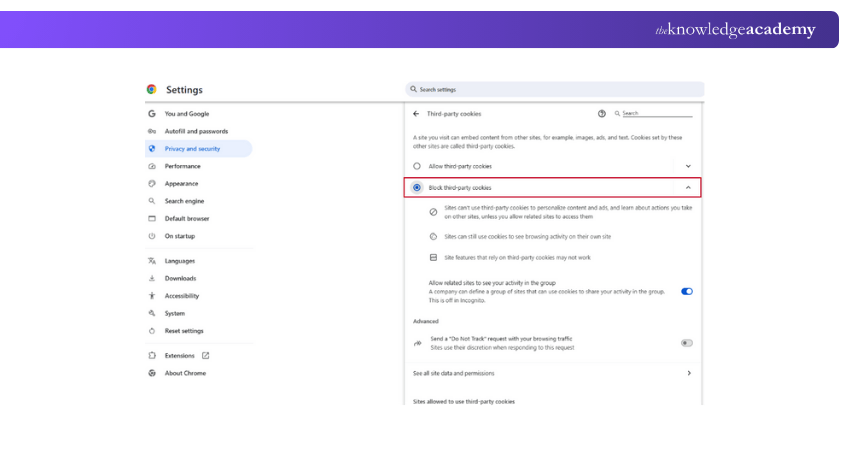
By following the above steps, you can be free from unwanted cookie pop-ups that have been disturbing you for so long.

2) Stopping Ads and Intrusive Pop-ups
Pop-up ads and redirect pages can ruin your experience. Chrome has a built-in way to block them with simple steps:
1) Go to your Chrome Settings, navigate to Privacy and Security, click Site Settings, and then go to the Pop-ups and Redirects section.
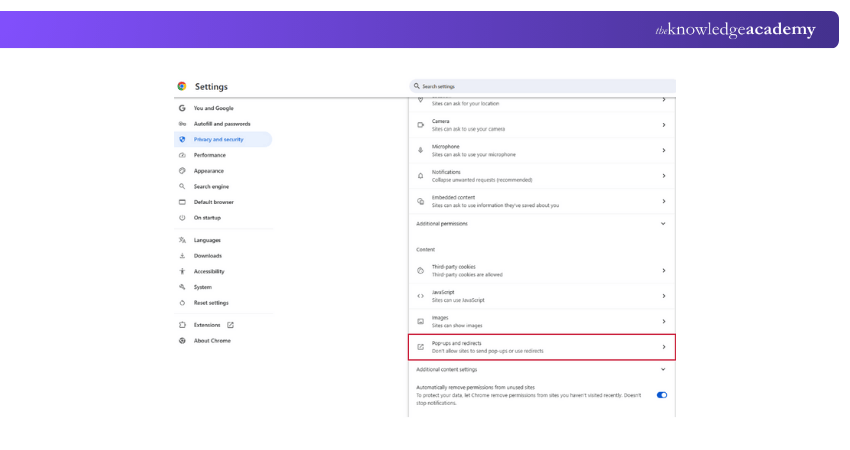
2) Check if the option of “Don’t allow sites to send pop-ups or use redirects” is enabled. If not, you can enable it.

3) Disabling Auto-playing Videos
Some websites play videos automatically, without asking. This can be loud and annoying sometimes. But never worry. You can disable it with the following steps:
1) Type chrome://flags/ in the address bar
2) Search for Autoplay policy
3) Set it to “Document user activation is required”
4) Disabling Site Notifications in Chrome Settings
You can turn off the website notifications by following the mentioned steps below:
1) Go to Site Settings and navigate to the Notifications section

2) Then, enable the option of "Don’t allow sites to send notifications."

5) Managing Notifications for Specific Sites
If you don’t want to block notifications from all websites and want them only from specific websites, you can do it. Here is how it can be done:
1) Go to the Notifications section mentioned above.
2) There, you have an option of “Customised behaviours.” You can add your preferred websites there.

How to Stop Google Chrome Notifications on Different Devices?
Stopping notifications is a little different depending on your device. Here’s how to do it on desktops, Android phones, and iPhones:
1) Block Chrome Notifications on Desktop (Windows and Mac)
You can block the notifications on the desktop as you do it for disabling site notifications. This helps you to stop receiving them on your desktop. There is no specific process to do it on Windows and mac.
2) Block Chrome Notifications on Mobile
There are two ways to block Chrome Notifications on your mobile phone. One is through the Chrome application, and the other is through your mobile settings. Let's check for both ways:
1) To block via the Chrome application, you can go to Settings, Site Settings and then to Notifications. There, you can turn off or block selective websites’ notifications.
2) If you want to do it through your mobile settings, go to Settings, then navigate to the Apps section. You need to search for Chrome. Once you click the Chrome app, you will get the option to disable notifications. With that, you can stop receiving Chrome Notifications.
Learn how to create a push notification with our Power Apps and Power Automate Training – Join today!
3) Block Chrome Notifications on iOS
1) Go to the Settings and then to the Notifications section
2) Search for Chrome under Notifications
3) Disable the option to send any kind of notifications
How to Block Website Notifications on Chrome?
As previously discussed, you can block the website notifications by navigating to the Site Settings section. However, if you want to block any websites that are already notification-allowed, you can follow these steps:
1) Disable the website notifications, and if you scroll down, you can see the Allowed to send notifications section.
2) There, you can see websites which can still send you notifications.
3) To block them, you need to click the three dots and select the remove option to block the notifications for them.
Advanced Chrome Notification Settings for Better Control
Here are some extra tools and tricks to have control over your Chrome Notifications:
Scheduling Notification Settings for Work and Personal Use
Chrome doesn’t have an in-built specification to set time limits for sending notifications. However, your computer or phone has such options. Let’s check how you can do it:
1) In Windows, you can enable Focus Assist mode. For that, you need to go to the settings of your system or laptop, go to the System options and allow the Priority only option.
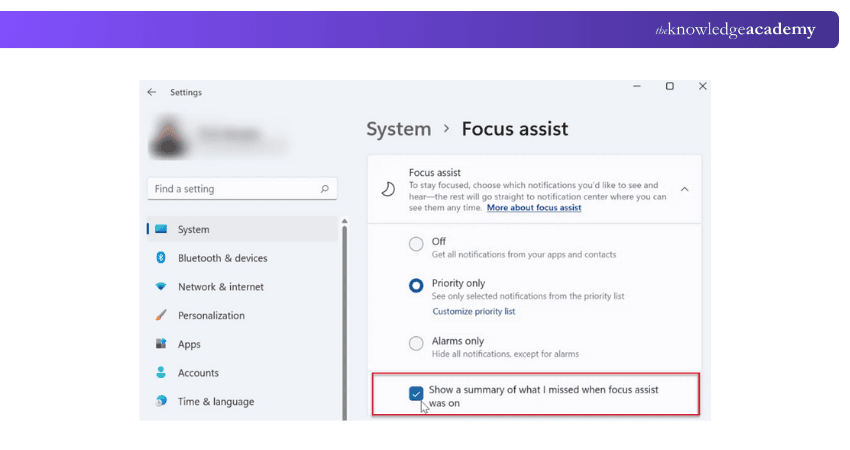
2) In macOS, you can choose Do Not Disturb mode. You need to go to system settings and select Focus to enable this option.
3) In Android, you can easily do it with Do Not Disturb mode, and in iOS, you can select Focus Mode.
Ready to create stunning documents with ease? Register for our Introduction to Mac Pages Course immediately!
Using Chrome Flags for Notification Management
Chrome Flags are special settings that let you try hidden features. Here's how you can do it:
1) Go to chrome://flags/ by searching for it on the address bar.
2) Search and enable the Quieter Notification Prompts option.
3) You can also click the option of Disable Notification Permission Prompt to stop websites from asking to disable it every time.
Why Block Chrome Notifications?
Too many notifications might become a problem. Here’s why you might want to good to block them:
1) Fewer Distractions: You can focus on your work or reading without being interrupted.
2) More Privacy: Some websites use notifications to track you or show ads.
3) Faster Browsing: Less activity in the background makes Chrome run better.
4) Better Safety: Fake notifications might lead to harmful websites or scams.
5) Longer Battery Life (Mobile): Fewer alerts mean less battery use on phones. i.e( iOS and Andriod)
Conclusion
Notifications shouldn’t control your browsing experience. Whether it's stopping cookie pop-ups or blocking intrusive site alerts, Chrome gives you all the tools to stay in charge. With this blog on How to Stop Chrome Notifications, it is evident that with a few easy changes, you can enjoy a faster, cleaner, and more peaceful time online. Take a moment today to adjust your settings and browse without interruptions.
Confidently navigate essential IT systems and tools with our End User Training – Be a part of it today!
Frequently Asked Questions
Why am I Suddenly Getting Notifications from Chrome?

You may suddenly receive Chrome Notifications because a website you visited recently asked for permission, and you accidentally clicked “Allow.” Chrome saves this preference, enabling that site to send alerts.
Is it Safe to Allow Notifications?
Allowing notifications is generally safe if you trust the website. However, enabling them on unfamiliar or suspicious sites can lead to spam or harmful content. To stay secure, you need to allow notifications from reputable sources only and regularly review your browser’s notification settings.
What are the Other Resources and Offers Provided by The Knowledge Academy?
The Knowledge Academy takes global learning to new heights, offering over 3,000 online courses across 490+ locations in 190+ countries. This expansive reach ensures accessibility and convenience for learners worldwide.
Alongside our diverse Online Course Catalogue, encompassing 19 major categories, we go the extra mile by providing a plethora of free educational Online Resources like Blogs, eBooks, Interview Questions and Videos. Tailoring learning experiences further, professionals can unlock greater value through a wide range of special discounts, seasonal deals, and Exclusive Offers.
What is The Knowledge Pass, and How Does it Work?
The Knowledge Academy’s Knowledge Pass, a prepaid voucher, adds another layer of flexibility, allowing course bookings over a 12-month period. Join us on a journey where education knows no bounds.
What are the Related Courses and Blogs Provided by The Knowledge Academy?
The Knowledge Academy offers various End User Training, including Computer Science Course, Introduction to Mac Pages Course and Introduction to Mac Numbers Training. These courses cater to different skill levels, providing comprehensive insights into How to Clear Cache and Cookies.
Our Office Applications Blogs cover a range of topics related to Chrome Notifications, offering valuable resources, best practices, and industry insights. Whether you are a beginner or looking to advance your Applications skills, The Knowledge Academy's diverse courses and informative blogs have got you covered.

The Knowledge Academy


Global Training Provider
The Knowledge Academy is a world-leading provider of professional training courses, offering globally recognised qualifications across a wide range of subjects. With expert trainers, up-to-date course material, and flexible learning options, we aim to empower professionals and organisations to achieve their goals through continuous learning.

Upcoming Office Applications Resources Batches & Dates
Date
 Computer Science Course
Computer Science Course
Fri 28th Aug 2026
Computer Science Course
Fri 11th Dec 2026

 If you wish to make any changes to your course, please


