


 Top Rated Course

We may not have the course you’re looking for. If you enquire or give us a call on +44 1344 203999 and speak to our training experts, we may still be able to help with your training requirements.
How to Connect Google Home to Wifi: A Complete Guide
John Davies 07 February 2026Are you curious about connecting Google Home to Wi-Fi? Discover the most straightforward method for configuring your smart devices. This blog walks you through the steps on how to connect Google Home to Wi-Fi and provides troubleshooting tips if a problem arises. Let's embark on a journey towards a smart and innovative world!

Training Outcomes Within Your Budget!
We ensure quality, budget-alignment, and timely delivery by our expert instructors.
Table of Contents

Have you ever struggled to get your Google Home online? Then, you're not alone. There are many on this list. Connecting your Google Home to Wi-Fi is the key to discovering its endless possibilities. In this blog, we'll walk you through crucial steps to understand "how to connect Google Home to Wi-Fi," troubleshoot common issues and ensure you always stay connected with your reliable Wi-Fi. Let’s dive in!
Table of Contents
1) How to Connect Google Home to Wi-Fi?
2) Troubleshooting Tips for Google Home
3) Updating Wi-Fi Password on Google Home
4) Conclusion
How to Connect Google Home to Wi-Fi?
Connecting your Google Home to Wi-Fi is a simple process that ensures your smart device can access all its features. Check out the below steps to get your Google Home running on your Wi-Fi network:
1) Plug in your Google Home device and wait for it to power on. You'll hear a chime indicating it's ready for setup. Meanwhile, you can download and open the Google Home app on your smartphone.
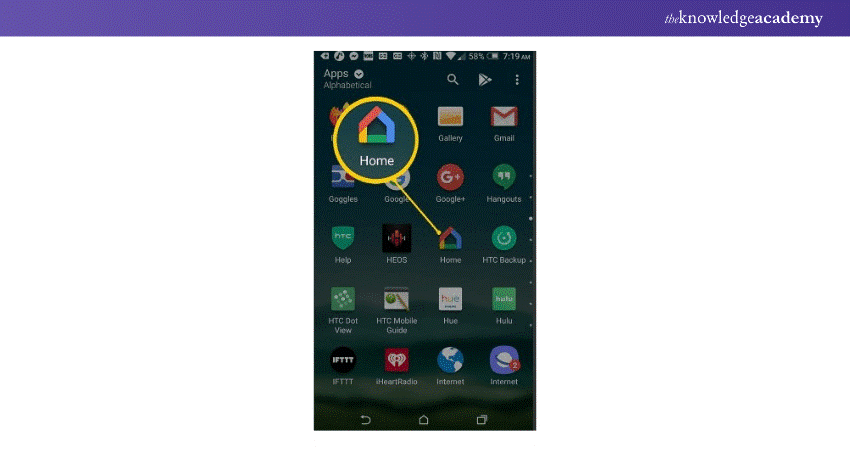
2) Tap the “+” icon in the top-left corner on that app and select "Set up device."
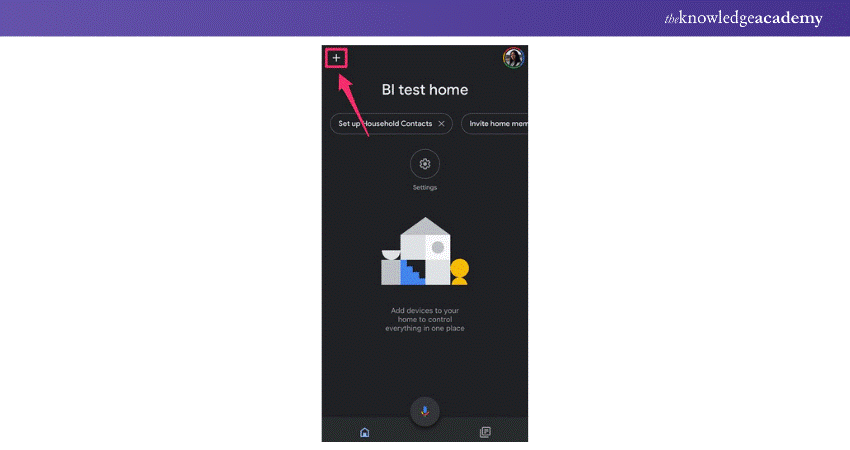
3) Choose “New devices" and select your home or create a new one.

4) The app will scan for your Google Home device. Once found, tap to select it.

5) Confirm the device's sound to ensure you're connecting to the right Google Home.
6) Select your Wi-Fi network from the list and enter your password.

7) Wait for the device to connect. Once it is done, you're ready to start using Google Home.

Troubleshooting Tips for Google Home
If you encounter issues with Google Home, these troubleshooting tips can help you restore normal functionality quickly:

1) Restart Google Home: A simple restart can often resolve connectivity issues. Unplug your device, wait a few seconds, and plug it back in.
2) Check Wi-Fi Connection: Ensure your Wi-Fi is functioning correctly. Verify that the Google Home network is connected, stable, and has strong signal strength.
3) Reboot Your Router: If connectivity issues persist, reboot your router to refresh the network.
4) Factory Reset Google Home: As a last solution, perform a factory reset. Hold the microphone button on the device for about 15 seconds until you hear a sound indicating the reset is complete.
5) Update Google Home App: To avoid compatibility issues, make sure you are using the latest version of the Google Home app.
Get certified in Wireless Networking – Begin Your CCNP Wireless Training today!
Updating Wi-Fi Password on Google Home
Updating the Wi-Fi password on your Google Home device is important to ensure uninterrupted connectivity through your smart home experience. Follow these steps to update the password:
1) Open the Google Home app on your smartphone.
2) Select the Google Home device you need to update.
3) Tap on the gear icon to access the device settings.
4) Choose "Wi-Fi," then tap "Forget This Network."
5.) Reconnect to your Wi-Fi by selecting the new network and entering the updated password.
6) Follow the on-screen prompts to complete the setup.
Step up your Cisco skills – Learn troubleshooting techniques with Troubleshooting and Maintaining Cisco IP Networks Training today!
Conclusion
Connecting your Google Home to Wi-Fi unlocks a world of possibilities, transforming your living space into a smart, interactive environment. By following the steps outlined in this blog, you can easily set up your device and enjoy seamless control over your home. Whether you’re troubleshooting a connection issue or updating your Wi-Fi password, this guide ensures you stay connected without a hitch. If you're unsure How to Connect Wifi Without Password, there are additional methods to explore.
Get certified, get ahead – Start Your CCNP Training today!
Frequently Asked Questions
How Many Google Wi-Fi Points Can You Have?

You can have up to five Google Wi-Fi points in a single network. This setup provides broad coverage and ensures a stable connection across your entire space.
How Do I See Devices Connected to My Wi-Fi?
To see devices connected to your Wi-Fi, open the Google Home app, tap on your Wi-Fi network, and select "Devices" to view the list. This feature allows you to monitor and manage all devices accessing your network, ensuring optimal performance and security.
What are the Other Resources and Offers Provided by The Knowledge Academy?
The Knowledge Academy takes global learning to new heights, offering over 3,000+ online courses across 490+ locations in 190+ countries. This expansive reach ensures accessibility and convenience for learners worldwide.
Alongside our diverse Online Course Catalogue, encompassing 19 major categories, we go the extra mile by providing a plethora of free educational Online Resources like Blogs, eBooks, Interview Questions and Videos. Tailoring learning experiences further, professionals can unlock greater value through a wide range of special discounts, seasonal deals, and Exclusive Offers.
What is The Knowledge Pass, and How Does it Work?
The Knowledge Academy’s Knowledge Pass, a prepaid voucher, adds another layer of flexibility, allowing course bookings over a 12-month period. Join us on a journey where education knows no bounds.
What are the Related Courses and Blogs Provided by The Knowledge Academy?
The Knowledge Academy offers various IT Support and Solution Courses, including the Introduction to Networking Training Course and the IT Fundamentals Course. These courses cater to different skill levels, providing comprehensive insights into12 Best Network Troubleshooting Tools for 2024.
Our IT Infrastructure & Networking Blogs cover a range of topics related to internet network, offering valuable resources, best practices, and industry insights. Whether you are a beginner or looking to advance your networking skills, The Knowledge Academy's diverse courses and informative blogs have got you covered.

John Davies


Cyber Security Governance & Assurance Specialist
John Davies is a cybersecurity expert specialising in governance, risk management, and compliance. With over 15 years in the field, he has led enterprise-wide security programmes across finance, healthcare and public sector organisations. His content provides practical guidance on building secure environments, managing risk and aligning with regulatory frameworks.

Upcoming IT Infrastructure & Networking Resources Batches & Dates
Date
 Introduction to Networking Training
Introduction to Networking Training
Fri 17th Jul 2026
Introduction to Networking Training
Fri 20th Nov 2026

 If you wish to make any changes to your course, please


