


 Top Rated Course

We may not have the course you’re looking for. If you enquire or give us a call on +1800812339 and speak to our training experts, we may still be able to help with your training requirements.
How to Transfer Contacts from Android to Iphone: Step-by-Step Guide
Richard Harris 17 February 2026Switching from Android to iPhone doesn't have to be a daunting task. This blog explores various methods on How to Transfer Contacts from Android to iPhone. Whether using simple tools or manual transfers, we have every process covered to help you move your contacts securely. Read along to smoothly transition into your new life with iOS.
Home
 Resources
Programming & DevOps
How to Transfer Contacts from Android to Iphone: Step-by-Step Guide
Resources
Programming & DevOps
How to Transfer Contacts from Android to Iphone: Step-by-Step Guide
Resources
Programming & DevOps
How to Transfer Contacts from Android to Iphone: Step-by-Step Guide

Training Outcomes Within Your Budget!
We ensure quality, budget-alignment, and timely delivery by our expert instructors.
Table of Contents
Did you just buy an iPhone, or are you considering doing so? But all your important contact details are on your old Android! If you are worried about losing contacts while transferring them from Android to iPhone, let's put an end to your worries. Our detailed blog offers multiple simple and reliable techniques on How to Transfer Contacts from Android to iPhone.
Whether you are technologically adept or a beginner, these strategies are designed to facilitate a hassle-free migration of your contacts. So, read this blog to learn How to Transfer Contacts from Android to iPhone to seamlessly integrate into the Apple ecosystem with your complete contact list intact.
Table of contents
1) How to Transfer Contacts from Android to iPhone?
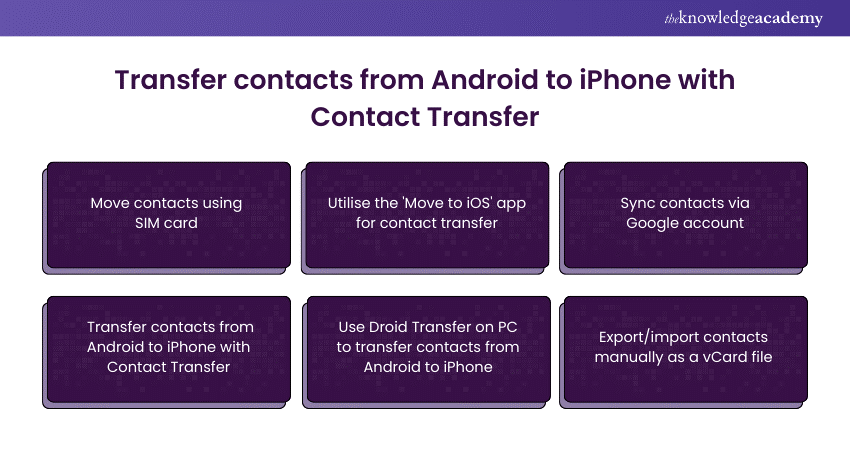
a) Move contacts using SIM card
b) Utilise the 'Move to iOS' app for contact transfer
c) Sync contacts via Google account
d) Transfer contacts from Android to iPhone with Contact Transfer
e) Use Droid Transfer on PC to transfer contacts from Android to iPhone
f) Export/import contacts manually as a vCard file
2) Conclusion
How to Transfer Contacts from Android to iPhone?
There are several different methods you can use to transfer your contacts from Android to iPhone, each designed to work seamlessly with iOS. Here is a list of the most trusted methods that are recommended with instructions on how to use them:
1) Move contacts using SIM card
Moving contacts via SIM card is a quick and easy option. First, open the Contacts app on your Android phone, navigate to the settings, and choose "Export.” This will enable you to save your contacts to your SIM card. After transferring the SIM card to your iPhone, go to Settings > Contacts and select the "Import SIM Contacts" option to integrate them into your iPhone’s contact list.
2) Utilise the 'Move to iOS' app for contact transfer
Apple’s 'Move to iOS' app simplifies Transferring Data from Android to iPhone during the setup of your new iPhone. Open the Google Play Store to install the app on your Android device, and while you're at it, you can also Create Your Google People Card to boost your online presence. Follow the on-screen instructions during your iPhone setup. The application will create a private Wi-Fi network to connect your devices and transfer your contacts and other data, such as photos and messages. If you're also looking to learn How to Transfer Photos from Android to iPhone, the 'Move to iOS' app ensures that your photos are moved over along with your contacts and other important data, making the transition smooth and effortless.
3) Sync contacts via Google account
Syncing via a Google account is efficient if your contacts are already stored in your Google account. On your new iPhone, navigate to Settings > Passwords & Accounts and add your Google account. Make sure to toggle on the switch for Contacts to synchronise your address book across the devices.
Want to build your own mobile application? If so, sign up for our Mobile App Development Course!
4) Transfer contacts from Android to iPhone with Contact Transfer
Using third-party applications like the Contact Transfer app provides a robust solution for transferring contacts. After installing the app on both devices and connecting them to the same Wi-Fi network, the app guides you through the process of transferring your contacts directly.
5) Use Droid Transfer on PC to transfer contacts from Android to iPhone
<>Droid Transfer is a versatile PC software that supports transferring contacts through a computer. Once you connect your Android device to your PC using a USB cable, open Droid Transfer and copy your contacts to the PC. Then, use iTunes to sync these contacts to your iPhone.
6) Export/import contacts manually as a vCard file
Export your contacts from your Android as a VCF (vCard) file for manual transfer. You can do this from your Contacts app using the share option. Email the file to yourself, open the email on your iPhone, and tap the VCF file to import your contacts into your iPhone’s contact list.
Learn to create apps for Androids with our Android App Development Course - sign up now!
Conclusion
This comprehensive blog makes sure that you are aware of How to Transfer Contacts from Android to iPhone efficiently and without hassle. Whether you're transitioning from Android to iOS or vice versa, each method provided here guarantees that you can start enjoying your new iPhone with all your essential contacts just a few taps away. Embrace your new beginning with all your important connections by your side and Congratulations on your upgrade!
Understand the process of building software! Sign up for our Software Development Lifecycle Training Course - Register now!
Frequently Asked Questions
Is it possible to transfer contacts from an Android to an iPhone without using a SIM card?

Absolutely! You can transfer your contacts through several methods that do not require a SIM card, including cloud-based syncing with your Google account, using Apple’s 'Move to iOS' app or various third-party applications designed for direct data transfer.
What should I do if my contacts aren't showing up on my iPhone after the transfer?
Ensure that you have correctly followed the instructions for your chosen method. If your contacts still don't appear, verify your network settings or to restart your iPhone. Also, check your iPhone’s settings to make sure that contact syncing is activated for your accounts. If the issue persists, re-attempt the transfer or use an alternative method outlined in this guide.
What are the other resources and offers provided by The Knowledge Academy?
The Knowledge Academy takes global learning to new heights, offering over 3,000+ online courses across 490+ locations in 190+ countries. This expansive reach ensures accessibility and convenience for learners worldwide.
Alongside our diverse Online Course Catalogue, encompassing 19 major categories, we go the extra mile by providing a plethora of free educational Online Resources like Blogs, eBooks, Interview Questions and Videos. Tailoring learning experiences further, professionals can unlock greater value through a wide range of special discounts, seasonal deals, and Exclusive Offers.
What is a Knowledge Pass, and how does it work?
The Knowledge Academy’s Knowledge Pass, a prepaid voucher, adds another layer of flexibility, allowing course bookings over a 12-month period. Join us on a journey where education knows no bounds.
What are related Business Skills courses and blogs provided by The Knowledge Academy?
The Knowledge Academy offers various Programming & DevOps, including Analysis & Design Using UML, AngularJS Developer and BlueGriffon Training. These courses cater to different skill levels, providing comprehensive insights into What is Firebase.
Our Programming & DevOps Blogs cover a range of topics related to Leadership, offering valuable resources, best practices, and industry insights. Whether you are a beginner or looking to advance your Project Management skills, The Knowledge Academy's diverse courses and informative blogs have you covered.

Richard Harris


Senior Full Stack Developer and Technology Educator
Richard Harris is a highly experienced full-stack developer with deep expertise in both frontend and backend technologies. Over his 12-year career, he has built scalable web applications for startups, enterprises and government organisations. Richard’s writing combines technical depth with clear explanations, ideal for developers looking to grow in modern frameworks and tools.

Upcoming Programming & DevOps Resources Batches & Dates
Date
 Mobile App Development Course
Mobile App Development Course
Fri 10th Jul 2026
Mobile App Development Course
Fri 13th Nov 2026

 If you wish to make any changes to your course, please


