




We may not have the course you’re looking for. If you enquire or give us a call on 01344203999 and speak to our training experts, we may still be able to help with your training requirements.
Benefits of Microsoft Teams to Maximise Productivity
ByGaurav KalitaLast updated on: 17 September 2026
Benefits of Microsoft Teams includes streamlined communication, better integration, boosted productivity, remote work access, and cost-effectiveness.

Here’s a checklist familiar to working professionals:
Find yesterday's important email thread
Check which version of a document is current
Send someone the meeting link again
Ask where the latest project file is stored
Switch between several apps to complete one task
This is something that plenty of teams have to put up with every day. So when conversations, meetings and files are scattered across different places, even straightforward work can become harder to manage.
Microsoft Teams aims to bring these activities into a more connected environment. From instant communication and shared documents to meetings and integrations, the Benefits of Microsoft Teams cover nearly every part of daily work.
What is Microsoft Teams?
Microsoft Teams is a workplace communication and collaboration platform. It combines capabilities such as chat, meetings, channels, file sharing and application integration. Teams can be used for one-to-one and group conversations, virtual meetings and collaborative work. Its integration with Microsoft 365 also enables users to work with applications and services such as Word, Excel, PowerPoint, SharePoint and OneDrive.
Some of its common uses include:
1) Chat and Messaging: Communicate with individuals or groups in real time.
2) Virtual Meetings: Conduct audio and video meetings with colleagues.
3) File Collaboration: Share and co-author documents.
4) Channel Organisation: Organise discussions and resources around teams, projects or topics.
5) Application Integration: Connect Microsoft 365 and supported third-party applications with everyday workflows.

Key Benefits of Microsoft Teams
Microsoft Teams can provide several benefits by connecting communication, collaboration and workplace tools. The value organisations gain depends on how Microsoft Teams is configured and used. Here are the main Benefits of Microsoft Teams:
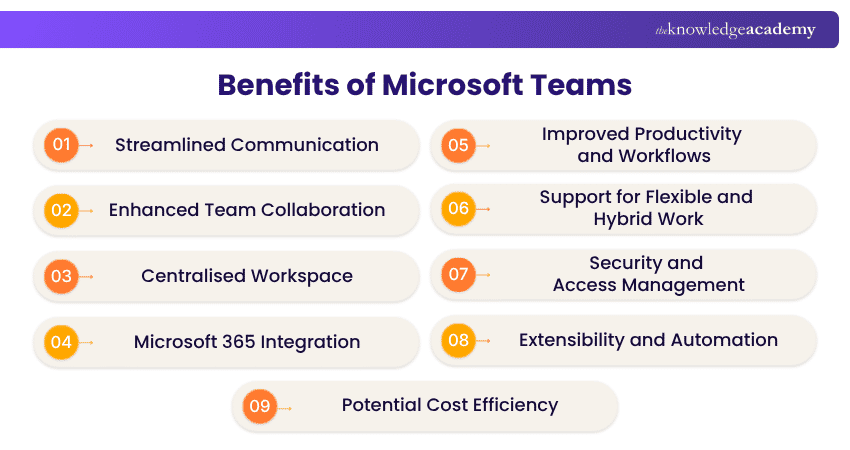
1) Streamlined Communication
Microsoft Teams provides several ways for colleagues to communicate, including individual chats, group conversations, channels and audio or video calls.
Channels can help keep conversations organised around particular teams, projects or topics. Features such as @mentions and presence information can also help users direct messages and understand colleagues' availability.
Example: A Project Manager can post an important update in the relevant project channel and use an @mention to draw the appropriate team members' attention to it.
2) Enhanced Team Collaboration
Teams can help employees work together on shared files and information. Multiple authorised users can collaborate on documents rather than repeatedly exchanging separate copies. Co-authoring allows team members to make changes to supported documents while shared channels provide a common location for related conversations and files.
Example: Instead of emailing several versions of a presentation, team members can work on a shared PowerPoint file and review each other's updates in the same document.
3) Centralised Workspace
Teams can bring conversations, meetings, files and connected applications into a more centralised environment. This can make project information easier to locate and reduce the need to move repeatedly between disconnected communication and collaboration tools. Persistent conversations can also help team members review earlier discussions and regain context.
Example: A marketing team can keep campaign discussions, meeting information and shared project files within a dedicated channel rather than storing them across unrelated conversations and locations.
Pro Tip
Create channels around clear projects, departments or workstreams. Too many overlapping channels can make information harder to find rather than easier.
4) Microsoft 365 Integration
Microsoft Teams integrates with Microsoft 365 applications and services, allowing users to access and collaborate on files and information within connected workflows. For instance, users can work with Word documents, Excel spreadsheets and PowerPoint presentations and access files through services such as OneDrive and SharePoint.
Example: A finance team can discuss a report in Teams while authorised members collaborate on the associated Excel workbook.
5) Improved Productivity and Workflows
Teams can support productivity by bringing communication and document collaboration together in one place. Built-in tools such as Planner help teams assign, track, and manage tasks without switching to a separate app, keeping work visible alongside the conversations it relates to.
However, simply introducing Teams does not automatically increase productivity. Poorly organised channels, unnecessary meetings, and excessive notifications can create additional distractions.
Example: A team can assign and track project tasks through connected tools rather than manually following up on every activity through separate messages.
Trainer's Insight
Teams improves productivity when it simplifies how work gets done. Avoid adding channels, apps or notifications unless they solve a genuine workflow problem.
Learn how to maximise the value of chats, meetings and file sharing with our Cisco Webex Teams Training - Sign up now!
6) Support for Flexible and Hybrid Work
Teams supports employees who need to communicate and collaborate from different locations. Users can participate in chats, audio and video meetings, access shared information and collaborate through supported mobile devices. These capabilities can help distributed teams maintain cExample:ommunication without requiring everyone to work from the same location.
A hybrid team can hold a project meeting with office-based and remote employees while sharing screens and discussing project information in the same workspace.
Pro Tip
Review notification settings and use status indicators effectively. This can help distributed teams stay informed without turning every message into an interruption.
7) Security and Access Management
Microsoft Teams includes security capabilities that can support organisational communication and collaboration, including data encryption and Multi-factor Authentication (MFA). However, using Teams does not automatically make all collaboration secure or compliant. Organisations still need appropriate identity management, permissions, policies and security configurations.
Example: An organisation can use access controls to help ensure that sensitive project information is available only to authorised users.
Important: Security depends on how Teams and the wider Microsoft environment are configured and governed. Organisations should align settings with their security, privacy and compliance requirements.
8) Extensibility and Automation
Teams supports third-party integrations, custom applications, bots and automation capabilities that can extend the platform according to organisational workflows. These integrations can help users access information or trigger certain activities without constantly leaving their collaboration environment.
Example: A team could use an automated workflow to notify a channel when a particular business process reaches an important stage.
9) Potential Cost Efficiency
Teams can support cost efficiency by consolidating some communication and collaboration activities within a connected platform. Virtual meetings may reduce certain travel requirements, while integration with existing Microsoft 365 services can help organisations make better use of their technology environment.
However, Teams does not automatically reduce costs. Actual expenditure depends on licensing, existing systems, integrations, administration and organisational requirements.
Example: A geographically distributed organisation could replace some in-person meetings with virtual meetings, potentially reducing certain travel requirements.
Pop Quiz
A project team keeps emailing different versions of the same spreadsheet. Team members frequently make changes to outdated copies, resulting in duplicated work.
Which Microsoft Teams capability would best address the underlying problem?
A) Presence statusB) Video meetingsC) Shared file access and co-authoringD) Mobile notificationsCorrect Answer: C) Shared file access and co-authoring
How to Get More Value From Microsoft Teams?
Having access to Teams features is only the starting point. Organisations also need clear practices for how employees communicate, collaborate and organise information. Here are some ways to improve Microsoft Teams usage:
1) Define Channel Purposes: Give every channel a clear purpose so employees know where conversations belong.
2) Set Communication Guidelines: Establish when to use channels, chats, meetings or other communication methods.
3) Manage Notifications: Encourage users to configure notifications around information that genuinely requires attention.
4) Organise Shared Files: Use consistent naming and storage practices to make documents easier to locate.
5) Review Access: Regularly check memberships, permissions and external access where appropriate.
6) Use Integrations Selectively: Add applications and automation only when they improve an existing workflow.
7) Review Inactive Workspaces: Archive or manage teams and channels that are no longer required according to organisational policies.
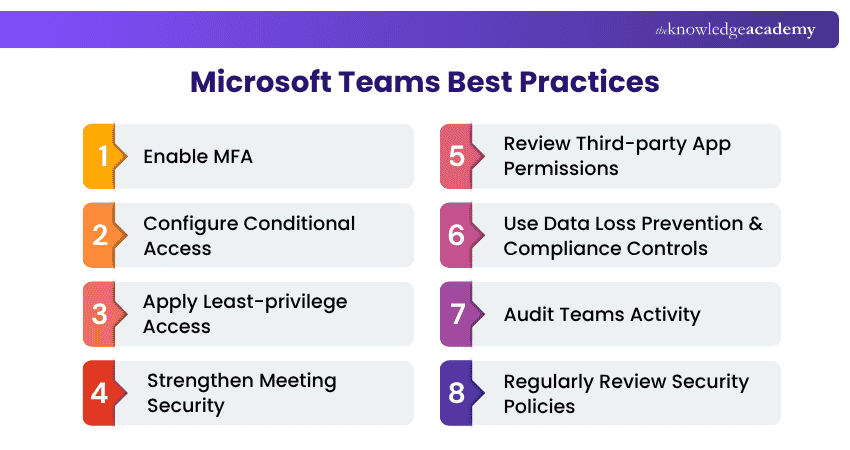
Here are some Microsoft Teams best practices you need to consider:
When is Microsoft Teams Most Useful?
Microsoft Teams can be particularly useful when employees need a connected environment for communication, meetings and collaborative work. It may be valuable when:
1) Teams work across different locations
2) Employees regularly collaborate on shared documents
3) Project discussions need clearer organisation
4) Organisations already use Microsoft 365 applications
5) Teams need virtual meeting and messaging capabilities
6) Workflows could benefit from connected apps or automation
Trainer's Insight
Successful Teams adoption depends as much on working practices as technology. Clear channel structures, permissions and communication guidelines can make the platform easier to use consistently.
Harness the power of Microsoft Office and become a powerhouse of workplace productivity. Sign up for our comprehensive range of Microsoft Office Courses today!

Gaurav Kalita is a Content Writer with 2+ years of experience in content development, research and storytelling. His background in English literature and teaching, combined with his growing interest in AI and Machine Learning, supports his writing across Business Skills and IT and Tech.
View Detail

 If you wish to make any changes to your course, please


