


 Top Rated Course

We may not have the course you’re looking for. If you enquire or give us a call on +44 1344 203999 and speak to our training experts, we may still be able to help with your training requirements.
What is Microsoft Clarity: A Complete Guide to Website Analytics
The Knowledge Academy 22 April 2026Microsoft Clarity is a free website analytics tool that helps you understand user behaviour through heatmaps, session recordings, and engagement metrics. You can easily spot issues and improve overall site performance. By tracking user behaviour, you can make smarter decisions and create a better experience for every visitor.
Home
 Resources
Microsoft Technical
What is Microsoft Clarity: A Complete Guide to Website Analytics
Resources
Microsoft Technical
What is Microsoft Clarity: A Complete Guide to Website Analytics
Resources
Microsoft Technical
What is Microsoft Clarity: A Complete Guide to Website Analytics

Training Outcomes Within Your Budget!
We ensure quality, budget-alignment, and timely delivery by our expert instructors.
Table of Contents

Have you ever cleaned your home before guests arrived, only to wonder later if they even noticed the little touches you added? That is exactly what managing a website can feel like. You spend hours choosing the right words, arranging buttons, and designing pages, but without knowing what visitors do, it is all guesswork. This is where Microsoft Clarity steps in, giving you a behind-the-scenes look at how people use your site.
In this blog, we will walk you through what Microsoft Clarity is, why it matters, how to set it up, and the ways it can transform the way you understand your website visitors. We will also compare it with Hotjar to highlight where each tool stands out.
Table of Contents
1) Introduction to Microsoft Clarity
2) Top Features of Microsoft Clarity
3) Steps to Set Up Microsoft Clarity
4) Microsoft Clarity Use Cases
5) Benefits of Using Microsoft Clarity
6) Microsoft Clarity vs Hotjar
7) Conclusion
Introduction to Microsoft Clarity
Microsoft Clarity is a website analytics tool launched by Microsoft. It is free to use and helps website owners track user behaviour on their sites. Unlike many other tools, Clarity focuses on visual insights. It shows you what users are doing by offering features like heatmaps and session replays. These visuals make it easier to spot user issues or areas where your site can be improved.
The best part about Clarity is that it does not slow down your site. It is lightweight and respects user privacy by being compliant with laws like GDPR and CCPA. If you have a website and want to improve how people experience it, Clarity is a great tool to get started with.

Top Features of Microsoft Clarity
Let us look at some of the most useful features that make Clarity a powerful tool for website owners:
Dashboard
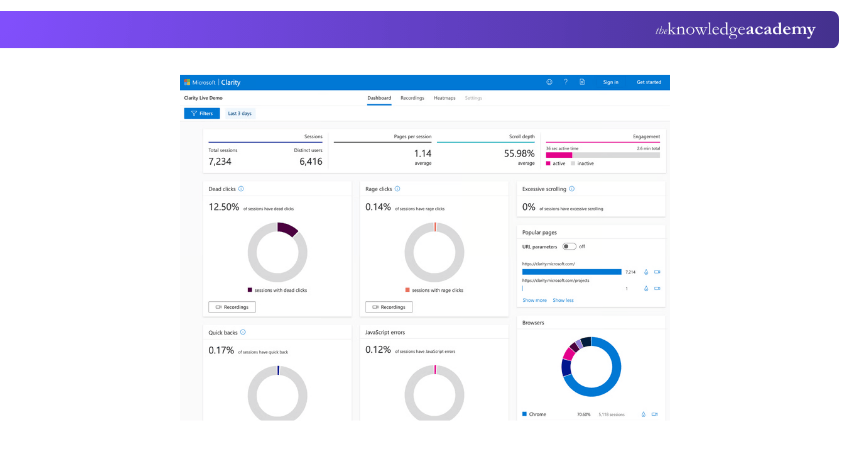
The Clarity dashboard gives you a quick overview of what is happening on your site. You can see how many people are visiting, how long they stay, and what devices they are using. You can also view bounce rates, click rates, and scroll depth. It is a simple way to track the performance of your website in one place.
Frustration Metrics
Clarity uses something called frustration signals to show you where users are having a bad experience. For example, it detects "rage clicks" which happen when someone clicks the same button or link many times because it is not working. It also flags "dead clicks" where users click on something that does not do anything. These signals help you identify problems that may be pushing users away.
Session Replays
Session replays are one of the most useful features in Clarity. They let you watch recordings of how real users move around your website. You can see where they click, scroll, and pause. This helps you understand how people are using your site and where they might be getting confused or stuck.
Heatmaps
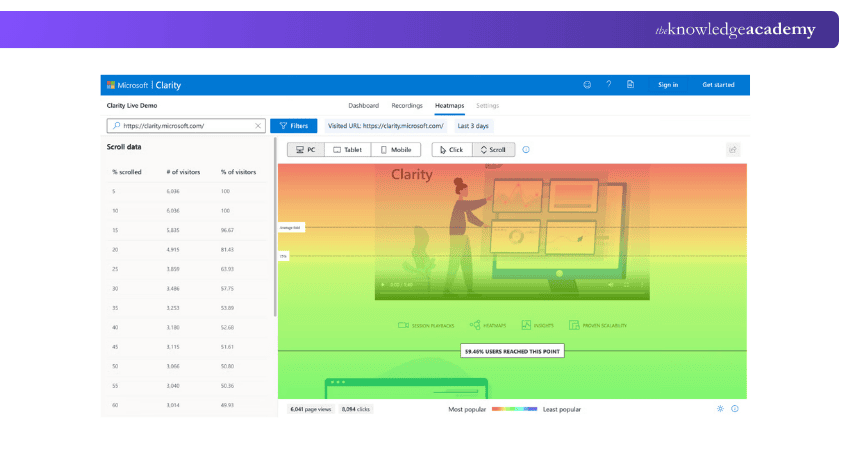
Heatmaps show you which parts of a page are getting the most attention. They use colours to highlight areas where users click or scroll. The hotter the colour, the more activity there is. With this, you can easily see which content or buttons are popular and which ones are being ignored.
Learn how Microsoft 365 improves productivity with our Microsoft 365 Fundamentals MS900 Course – Join today!
Steps to Set up Microsoft Clarity
Setting up Microsoft Clarity is quick and easy. You do not need to be a tech expert to get started. Here are the ways to set up:
Create a Clarity Account
First, go to the Microsoft Clarity website and sign up for a free account. You will need to log in with your Microsoft account or create one if you do not already have one.
Set up a Project
Once you are logged in, you can set up a new project. A project represents the website you want to track. You will need to enter the website name and URL. You can also name the project anything you like to help keep things organised.
Generate the Clarity Tracking Code
Once your project is created, Clarity provides you with a unique tracking code. This small snippet of code must be added to your website, where it will capture visitor data and send it to your Clarity dashboard.
Implement the Tracking Code on Your Site
Next, copy the tracking code and paste it into the header section of your website. If you use a Content Management System like WordPress, you can paste it in your theme’s header file. Some platforms also have plugins or built-in settings to help you add the code easily.
Verify Installation
Once the code is added, return to Clarity and verify the installation. It may take a few minutes for data to start showing up. After that, you can start exploring your Dashboard and checking visitor insights.
Microsoft Clarity Use Cases
Clarity is not just for one type of user. It can be helpful for many people and roles in a company. Here are some common use cases.
Marketing
Marketers can use Clarity to understand which pages are getting the most attention and which campaigns are driving traffic. Heatmaps and scroll tracking can help marketers know where to place call-to-action buttons and how to structure content for better engagement.
Sales
Sales teams can track how potential customers interact with product pages. If users are leaving a page quickly or not clicking the purchase button, the team can adjust the layout or messaging to improve conversions.
Accessibility
Clarity can highlight areas where users struggle to navigate or click. This can be especially useful for improving accessibility and making sure the site works for everyone, including users with disabilities.
Human Resources
HR departments that run career pages or internal portals can use Clarity to track engagement. They can see if employees or applicants are finding the right information or if the content needs better design or structure.
Learn ways to manage Loop workspaces with our Microsoft Loop Training Course – Join today!
Product Development
Product teams can use session replays to watch how users interact with new features or pages. This helps them understand if something is not working as expected and improve the user journey.
IT and Customer Support
If users keep getting stuck on a certain step or page, IT and support teams can identify the issue using frustration metrics or heatmaps. This helps fix bugs or provide better help guides.
Training and Development
Learning and development teams can see how users engage with training content. Are people completing the course? Are they skipping sections? Clarity helps fine-tune educational content.
Understand how to manage users with our Microsoft 365 Administrator Training MS102 – Join now!
Benefits of Using Microsoft Clarity
There are many reasons why people choose Clarity over other tools. Let us look at the key benefits:
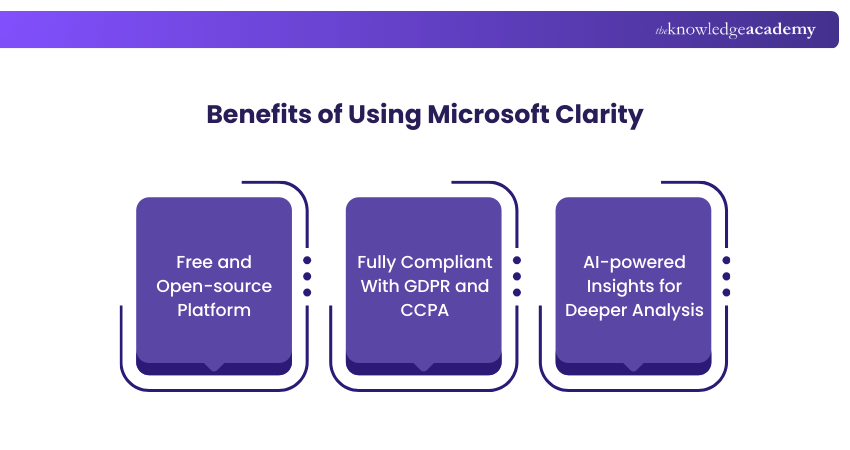
Free and Open-source Platform
Clarity is completely free. There are no limits on the number of users, sessions, or pages you can track. It is also open source, which means you can view and understand how it works behind the scenes.
Fully Compliant With GDPR and CCPA
Clarity follows privacy rules like GDPR and CCPA. It masks sensitive data and gives users control over how their information is collected. This makes it a safe and responsible choice for businesses of all sizes.
AI-powered Insights for Deeper Analysis
Clarity uses smart analysis tools to automatically highlight problems, like rage clicks or quick exits. You do not need to dig through endless data. Instead, it gives you helpful alerts and suggestions based on real user behaviour.
Microsoft Clarity vs Hotjar
Clarity and Hotjar are both website analytics tools, but they offer different things. Let us compare them on a few key points:
1) Price: Microsoft Clarity is completely free with no data limits, whereas Hotjar has a free plan with restrictions, and its advanced features are available only on paid plans.
2) Ease of Use: Clarity is simple to set up and integrates quickly into any site. On the other hand, Hotjar is also user-friendly but requires more configuration to access advanced features.
3) Features: Clarity focuses on core features like unlimited heatmaps, session replays, and behaviour insights, all at no cost. In contrast, Hotjar provides additional tools such as surveys, polls, and user feedback, which Clarity does not offer.
4) Privacy: Both tools prioritise data protection, whereas Clarity stands out with automatic data masking and full compliance with GDPR and CCPA built into its design.
If you are just starting out or want something simple and cost-free, Clarity is a good choice. If you need more advanced tools like user surveys, you may consider Hotjar or use both together.
Conclusion
We hope you have understood how Microsoft Clarity can help you track, analyse, and improve your website. With its simple tools and visual insights, it takes the guesswork out of enhancing user experience. Clarity empowers you to make smarter, data-driven decisions that improve both engagement and performance. Best of all, it is free, quick to set up, and ready to show you exactly what your visitors see.
Learn to utilise Microsoft 365 tools in your work tasks with our Microsoft 365 Training – Join today!
Frequently Asked Questions
What Does the Clarity Tool do?

Microsoft Clarity helps you understand how users behave on your website. It records sessions, tracks clicks, and highlights user pain points through visual tools.
Is Clarity an ERP System?
Clarity is not an ERP system. It is a free tool designed to track and analyse website visitor activity, giving you visual insights into how people interact with your pages. ERP systems manage wider business processes, while Clarity is focused only on website performance.
What are the Other Resources and Offers Provided by The Knowledge Academy?
The Knowledge Academy takes global learning to new heights, offering over 3,000+ online courses across 490+ locations in 190+ countries. This expansive reach ensures accessibility and convenience for learners worldwide.
Alongside our diverse Online Course Catalogue, encompassing 17 major categories, we go the extra mile by providing a plethora of free educational Online Resources like Blogs, eBooks, Interview Questions and Videos. Tailoring learning experiences further, professionals can unlock greater value through a wide range of special discounts, seasonal deals, and Exclusive Offers.
What is The Knowledge Pass, and How Does it Work?
The Knowledge Academy’s Knowledge Pass, a prepaid voucher, adds another layer of flexibility, allowing course bookings over a 12-month period. Join us on a journey where education knows no bounds.
What are the Related Courses and Blogs Provided by The Knowledge Academy?
The Knowledge Academy offers various Microsoft 365 Training, including the Microsoft 365 Fundamentals MS900 Course, Microsoft Loop Training and Microsoft Clarity for Web Analysis Training. These courses cater to different skill levels, providing comprehensive insights into What is Microsoft Sway?.
Our Microsoft Technical Blogs cover a range of topics related to Microsoft Clarity, offering valuable resources, best practices, and industry insights. Whether you are a beginner or looking to advance your Microsoft knowledge, The Knowledge Academy's diverse courses and informative blogs have got you covered.

The Knowledge Academy


Global Training Provider
The Knowledge Academy is a world-leading provider of professional training courses, offering globally recognised qualifications across a wide range of subjects. With expert trainers, up-to-date course material, and flexible learning options, we aim to empower professionals and organisations to achieve their goals through continuous learning.

Upcoming Microsoft Technical Resources Batches & Dates
Date
 Microsoft Clarity for Web Analysis Training Course
Microsoft Clarity for Web Analysis Training Course
Fri 31st Jul 2026
Microsoft Clarity for Web Analysis Training Course
Fri 2nd Oct 2026

 If you wish to make any changes to your course, please


