


 Top Rated Course

We may not have the course you’re looking for. If you enquire or give us a call on +44 1344 203 999 and speak to our training experts, we may still be able to help with your training requirements.
What Is Power BI Desktop? Features, Uses and Benefits
The Knowledge Academy 14 July 2026Power BI Desktop is a free, standalone Business Analytics tool from Microsoft designed for creating and designing interactive reports and data visualisations. This blog explores the Power BI Desktop essentials, including the installation process and requirements. Read on to learn what makes it an asset for Data Analysts!

Training Outcomes Within Your Budget!
We ensure quality, budget-alignment, and timely delivery by our expert instructors.
Table of Contents

In a world full of data, it is sometimes more difficult to understand the data than to collect it. Well, the solution is here, turn your raw data into easy-to-understand and impressive insights with Power BI Desktop. The application was made for both novices and experienced analysts.
No matter whether you are digging into the trends, checking the performance, or constructing the dashboards, Desktop Power BI is the one that will make it possible. In this blog, we will learn how it can be done and the unique features you get after installation.
Table of Contents
1) Understanding What is Power BI Desktop
2) Requirements for Power BI Desktop
3) How to Install Power BI Desktop?
4) How Does Power BI Desktop Work?
5) How to Update Power BI Desktop?
6) What are the Key Features of Power BI Desktop?
7) Can I Use Power BI Desktop Without Coding Knowledge?
8) Conclusion
Understanding What is Power BI Desktop
Power BI Desktop is a strong and free tool for Windows users. It is a part of Microsoft Power BI and is used by many companies. It is the main tool in Microsoft’s business analytics system. This tool lets business users and analysts who work with data bring in information from different places. They can then organise and study the information and make detailed reports and visuals.
With Power BI Desktop, you can:
1) Get data from different places like Excel, SQL Server, the internet, and the cloud
2) Organise and set up information using useful tools like Power Query and DAX
3) Create compelling pictures and reports that you can share with others in Desktop Power BI
This tool is made for people and businesses. It supports rapid development of data insights while maintaining governance and scalability when paired with the Power BI service.

Requirements for Power BI Desktop
Before installing Power BI Desktop, ensure your system meets the minimum Power BI system requirements listed below:

1) Operating System: Windows 8.1, Windows Server 2012 R2, or any later version is required.
2) NET Framework: Version 4.7.2 or higher must be installed on your system.
3) Browser Support: Internet Explorer is not supported. It is recommended to use Microsoft Edge for compatibility.
4) Memory (RAM): A minimum of 2 GB RAM is required, though 4 GB or more is strongly recommended for better performance.
5) Display Resolution: Your system must support at least 1440 × 900 or 1600 × 900 (16:9). Lower resolutions such as 1024 × 768 or 1280 × 800 are not supported.
6) Display Scaling: Windows display settings should be set to 100%. You can adjust this by navigating to Settings > System > Display and setting the scaling slider to 100%.
7) Processor: A 1 GHz or faster 64-bit (x64) processor is recommended.
WebView2: If not automatically installed with Power BI Desktop, WebView2 must be installed separately for proper functionality.Enhance DAX skills with our Microsoft Power BI Data Analyst PL300 Course- Join Now!
How to Install Power BI Desktop?
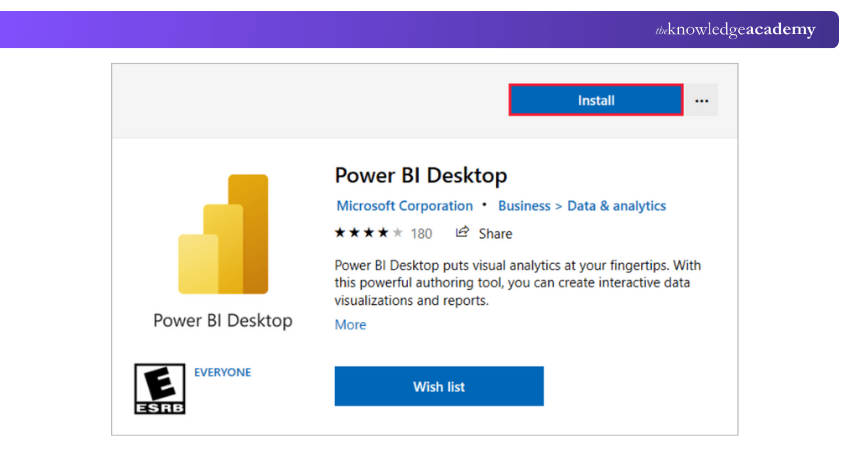
Once you have confirmed that your system meets the required specifications, you can proceed with installing Power BI Desktop. You can download it from the Microsoft Store or directly from the official Microsoft website. Follow the steps below to complete the installation process successfully:
1) Step 1: Download Page Navigation
Go to the official Microsoft Power BI Desktop page and choose your preferred installation option, either downloading it from the Microsoft Store or selecting the standalone installer file.
2) Step 2: Choose the Correct Version
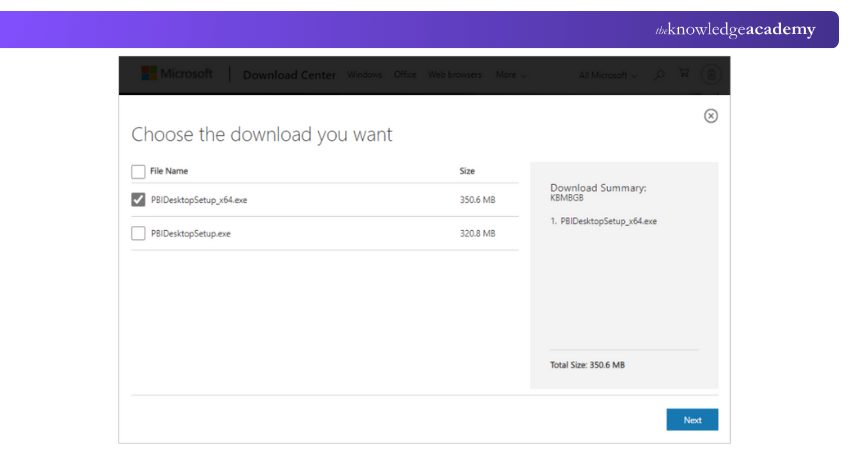
If manual downloading is done, then go for the 64-bit installer because the 32-bit one is outdated and not supported anymore.
3) Step 3: Installer Download
To your computer, save the .exe setup file by clicking on the download button.
4) Step 4: Run the Installation File
Double-click the downloaded file and proceed with the installation by accepting the license terms and completing the installation process.
5) Step 5: Power BI Desktop Launching
Post installation, either open Power BI Desktop from the Start menu or the desktop. The Welcome screen will show up, and you may start making reports.
How Does Power BI Desktop Work?
Power BI Desktop follows a structured workflow that enables users to connect, transform, model, and visualise data efficiently. It converts raw data into interactive and meaningful reports through a clear, step-by-step process, outlined below:
1) Connecting to Data Sources
Power BI Desktop provides a connection to a wide variety of data sources, including Excel, CSV files, online services, and cloud platforms, according to your business requirements. You are allowed to import data that does not exceed the 10 GB limit, and larger datasets may need Power BI Pro or direct querying.
2) Transforming Data and Crafting Models
Power BI’s Power Query Editor is a powerful tool that allows you to work with data in ways such as removing errors, changing the shape of columns, and setting conditions. DAX can be applied to improve calculations, thereby making modelling more advanced yet not very difficult at the same time.
3) Creating Visuals
Power BI Desktop provides you with the means to create charts, graphs, maps, and KPIs, all with the simple drag-and-drop facility. These visuals are the principal elements of dashboards and reports, and they help you reveal insights very fast.
4) Generating and Sharing Reports
Reports bring together various images and dashboards to present a comprehensive picture of your data. When you are done, you can share the reports online with your colleagues, in a way that you are not only displaying your talents but also reinforcing your Power BI resume.
Boost your professional growth with a Microsoft Power BI Course now!
How to Update Power BI Desktop?
Microsoft Power BI Desktop is a widely used Data Analytics and Visualisation tool. Microsoft regularly releases updates, including new features and connectors, every month.
If you’ve installed Power BI Desktop following the instructions from a previous section, you’ll need to update the software manually. Alternatively, updates will occur automatically if installed via the Microsoft Store, though this method may occasionally introduce minor bugs.
a) To manually update Power BI Desktop, follow these steps:
b) Launch Power BI Desktop.
c) Navigate to File > Options and Settings > Options.
d) In the Options window, go to the Updates section.
e) Check the option to receive updates.
f) Click OK to confirm.
By enabling this setting, Microsoft will notify you of available updates, allowing you to keep your software up to date with the latest enhancements.
Learn the concepts of logging and configuration with our Microsoft BI Training – Sign up now!
What are the Key Features of Power BI Desktop?
The Power BI Desktop comes along with an array of features that are powerful and the main reason to make the data analysis seamless and intuitive:
Power BI Desktop is a powerful, locally installed application that enables users to create detailed data models and interactive reports before publishing them to the Power BI Service. Its features are designed to support end-to-end data analysis and reporting:
1) Extensive Data Connectivity: Import data from various sources such as Excel, SQL Server, CSV files, and cloud-based services.
2) Advanced Data Modelling: Build relationships between tables and create structured models to perform accurate and meaningful analysis.
3) Data Preparation and Transformation: Clean, shape, and refine raw data using built-in transformation tools before building reports.
4) Rich Visual Reporting: Design interactive reports using a wide range of visuals, including charts, maps, tables, and custom visuals.
5) Interactive Report Creation: Combine multiple visuals into dynamic report pages with filters, slicers, and drill-through capabilities.
6) Natural Language Q&A: Use natural language queries to quickly generate insights and visual representations of data.
7) Publishing to Power BI Service: Share reports by publishing them to the cloud-based Power BI Service for broader access and collaboration.
8) Mobile Viewing Support: Access and interact with published reports via Power BI mobile applications.
9) Built-in Analytics and AI Capabilities: Leverage advanced analytics features to uncover trends, patterns, and deeper business insights.
Develop necessary skills for Data Analysis with our comprehensive Business Intelligence Reporting Course – Register now!
Can I Use Power BI Desktop Without Coding Knowledge?
Yes, you can use Power BI Desktop without any coding experience, which makes it perfect for beginners and non-technical users. The drag-and-drop interface of Power BI allows students, professionals, and big data enthusiasts to analyse and visualise data in a simple way. To some extent, experts might find DAX helpful for getting more insights, but it is not a prerequisite for the initial stage.
Conclusion
Power BI Desktop is more than a reporting tool; it’s a complete ecosystem that empowers you to understand, shape, and showcase data with confidence. From dynamic visuals to intuitive data modelling, it opens the door to deeper insight and sharper decision-making. Whether you're an analyst, a student, or a business leader, Power BI Desktop equips you to turn complexity into clarity.
Take control of data insights with our Business Intelligence Reporting Courses, Sign up Now!
Frequently Asked Questions
How Does Power BI Desktop Differ from Power BI Service?

Power BI Desktop is a free, downloadable tool for Data Analysis and report creation on your local computer. It allows extensive data modelling and report design. Power BI Service is a cloud-based platform that facilitates collaboration and report sharing but has limited data modelling capabilities.
What Types of Visualisations can be Created in Power BI Desktop?
Power BI Desktop supports many visualisations, including area, bar, column, line, pie, doughnut charts, and more. It also offers advanced AI visuals like decomposition trees for multidimensional analysis and custom visuals available through Microsoft AppSource.

The Knowledge Academy


Global Training Provider
The Knowledge Academy is a world-leading provider of professional training courses, offering globally recognised qualifications across a wide range of subjects. With expert trainers, up-to-date course material, and flexible learning options, we aim to empower professionals and organisations to achieve their goals through continuous learning.


 If you wish to make any changes to your course, please


