


 Top Rated Course

We may not have the course you’re looking for. If you enquire or give us a call on +44 1344 203 999 and speak to our training experts, we may still be able to help with your training requirements.
How to Use PowerPoint: Your Ultimate Guide
The Knowledge Academy 05 February 2026Discover the art of effective presentations with our comprehensive blog on How to Use PowerPoint to unlock your presentation potential. Continue reading to elevate your presentation skills, leave a lasting impression on your audience, and deliver impactful presentations. Read this blog to learn How to Use PowerPoint.

Training Outcomes Within Your Budget!
We ensure quality, budget-alignment, and timely delivery by our expert instructors.
Table of Contents

Presentations can make or break the way your ideas are received, and Microsoft PowerPoint remains the go-to tool for creating impactful slides. From classroom lectures to boardroom meetings, mastering PowerPoint empowers you to convey your message clearly, professionally, and memorably.
This blog will take you through everything you need to know, starting from the basics of How to Use PowerPoint, animations, and collaboration tools, so you can craft presentations that captivate, inform, and inspire your audience every time.
Table of Contents
1) What is PowerPoint?
2) How to Create a PowerPoint Presentation?
3) How to Use Microsoft PowerPoint?
4) Tips and Tricks for a Great Presentation
5) What are the Best Uses of PowerPoint?
6) What are the Components of PowerPoint Workspace?
7) Conclusion
What is PowerPoint?
As a part of Microsoft 365, Microsoft PowerPoint is a flexible presentation application that allows users to build professional slides by combining text, images, graphics, videos, and other tools to create an impressive presentation. Through the years, it has developed supporting both Windows and macOS as well as iOS and Android, along with PowerPoint online, making it available virtually anytime.
The online version is also compatible with Word and Excel, which enables real-time collaboration in the cloud, and hence, users can edit presentations at the same time without the possibility of losing work. This makes How to Use PowerPoint an effective means for individual and team projects.
How to Create a PowerPoint Presentation?
When making a PowerPoint presentation, one has to start by opening the software and then choosing a blank presentation or opting to start with a professionally designed template. After creating your base, it will be possible to add slides, content, and layouts to create your deck successfully. Follow these following steps to create a presentation:
1) Open PowerPoint and go to New and use a blank presentation or template
2) With New Slide button add new slides and select layouts that match your content
3) Add and customise text boxes, pictures, charts, or shapes to your slides
4) The Insert tab will enable the use of such media as pictures or SmartArt
5) Frequently save the presentation to ensure your progress
How to Use Microsoft PowerPoint?
Microsoft PowerPoint is a widely used application for creating engaging presentations. Below, we have listed the steps to use Microsoft PowerPoint to achieve the required results.
1) Working With Slides
The control of slides assists in the development of a logically structured and visual presentation. Microsoft PowerPoint enables users to add, edit, re-order, and personalise slides so that the content will flow and aid in delivering the overall message. To be able to work with slides, it is necessary to follow these steps:
1) Use the New Slide option to add slides or the Delete Slide to remove unwanted ones
2) Select Layout to modify slides in accordance with your content needs
3) Rearrange the slides by dragging them on the slide pane or slide sorter view
4) Add texts, illustrations, tables, and multimedia content by using coherent themes to make the content look professional
2) Adding Charts and Tables
Properly made slides assist in the clarity of information and in maintaining the attention of the audience. PowerPoint gives a user an opportunity to insert and arrange the contents effectively by choosing the right slide layouts and placeholders. To insert content into slides, follow the following steps:
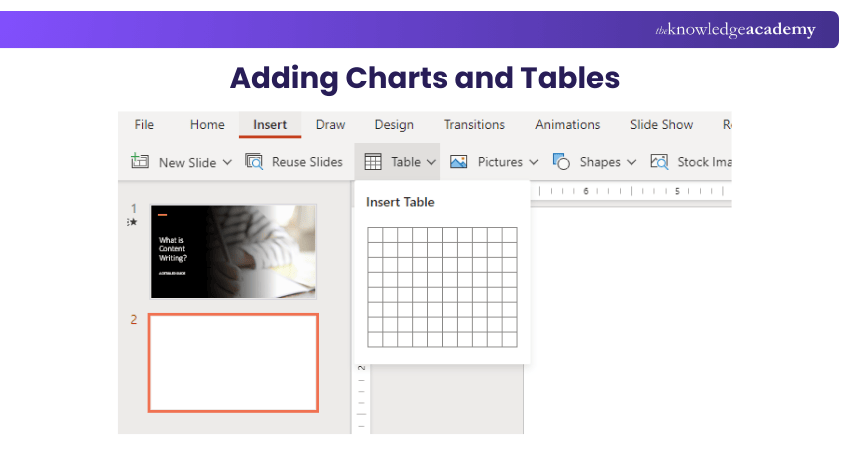
1) Choose the slide upon which you wish to add something
2) Select a layout slide through the Layout option
3) To add text, tables, or visual elements, click within placeholders
4) Adjust formatting and alignment to ensure clarity and consistency
3) Incorporating Multimedia
The visual elements make the slides attractive and enable them to convey information. PowerPoint allows users to directly add images and graphics to a PowerPoint slide and customise them to their needs to display during a presentation. In order to add pictures and graphics, do the following steps:
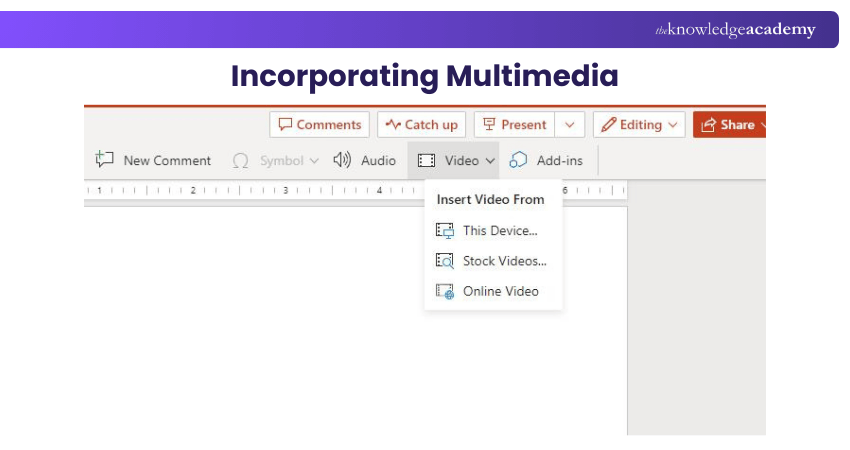
1) Open the slide where you want to insert the image
2) Go to the Insert tab and select Pictures
3) Choose an image from your device or online source and click Insert
4) Resize, position, and format the image to complement your slide content
4) SmartArt and Shapes
PowerPoint offers SmartArt graphics and shapes that allow you to represent concepts, processes, and relationships in a visually appealing way. To insert SmartArt, perform the following steps:
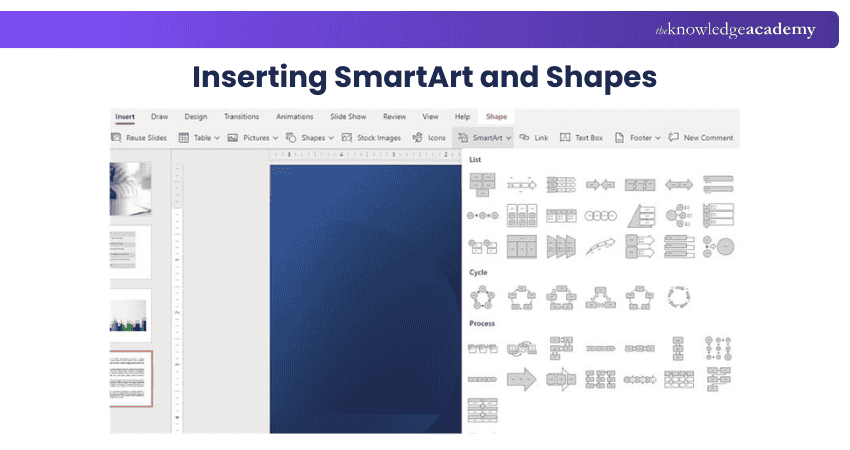
a) Go to the "Insert" tab
b) Click on the "SmartArt" button
c) Choose the desired SmartArt graphic and enter your text
5) Apply Themes and Templates
Templates are pre-designed slide layouts that you can customise to meet your specific needs, saving you time and effort. PowerPoint includes a large number of pre-designed themes and templates to choose from. Follow these steps to perform the actions:
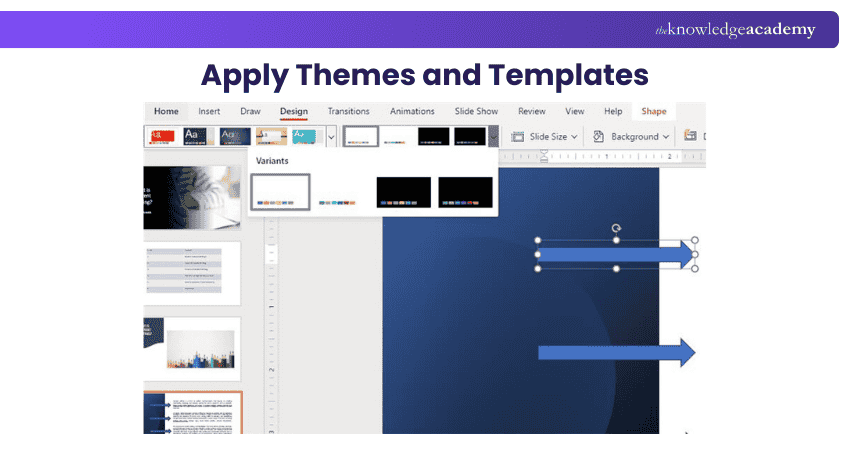
a) Go to the "Design" tab in the Ribbon
b) Explore the available options
c) Select a theme that aligns with your content and enhances its visual impact
6) Add Transitions and Animations
Transitions and animations can add a dynamic element to your presentation, making it more visually appealing and engaging. To apply transitions between slides, navigate to the following steps:
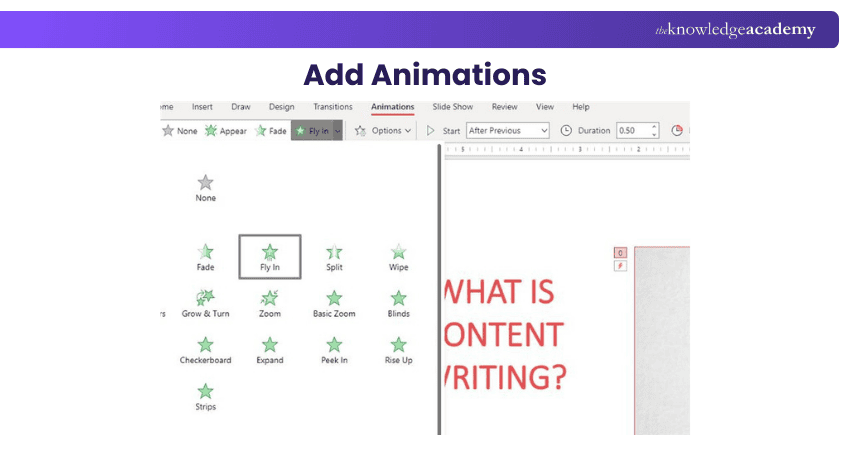
a) Go to the "Transitions" tab in the ribbon
c) Choose from a variety of transition effects
c) Customise their duration and timing
Build, manage, and collaborate on secure business sites with our Microsoft SharePoint Training – Join now!
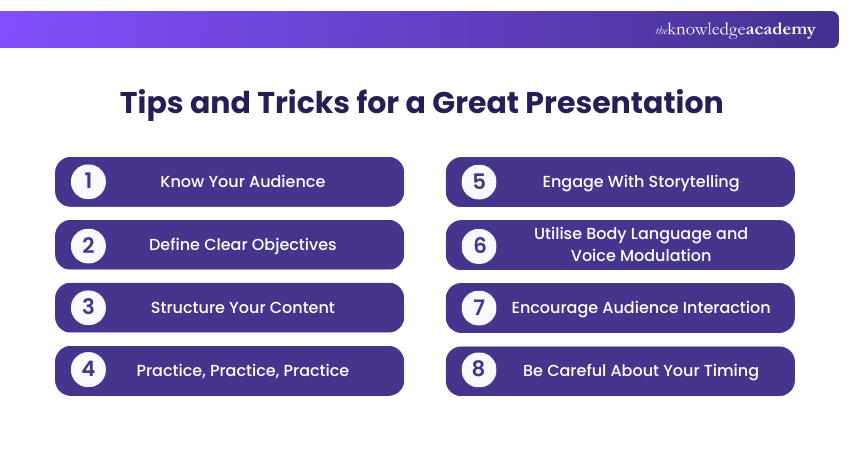
Tips and Tricks for a Great Presentation
Delivering a great presentation requires careful planning, effective communication, and the ability to engage your audience. Below mentioned are some PowerPoint Tips and tricks that will help you create an impactful and memorable presentation:
1) Know your Audience
Understanding your audience is essential for tailoring your presentation to their needs and interests. Research their background, knowledge level, and expectations. This knowledge will enable you to tailor your content, language, and examples to effectively connect with them.
2) Define Clear Objectives
What do you want your audience to learn, feel, or do from your presentation? Setting specific goals will help you structure your content and guide your delivery. Keep your objectives in mind throughout the presentation to stay focused and achieve the desired outcomes.
3) Structure Your Content
Start with an attention-grabbing introduction and provide an overview of what you'll cover. Then, divide your presentation into sections or key points, using clear transitions between them. Conclude with a memorable conclusion that reinforces your main message and leaves a lasting impression.
4) Practice, Practice, Practice
Rehearse your presentation multiple times to build confidence and familiarise yourself with the content. Practice speaking clearly, maintaining a good pace, and using appropriate intonation. Time yourself to ensure that you stay within the allotted timeframe.
5) Engage With Storytelling
Weaving storytelling elements into your presentation can captivate your audience and make your message more memorable. Use anecdotes, personal experiences, or case studies to illustrate key points or demonstrate the real-life applications of your topic. Storytelling creates an emotional connection with the audience and helps them relate to the information you share.
6) Utilise Body Language and Voice Modulation
Non-verbal communication is a powerful tool for engaging your audience. Maintain good posture, make eye contact, and use natural gestures to emphasise key points. Vary your vocal tone and volume to convey enthusiasm, emphasis, and emotions. A confident and expressive delivery enhances credibility and helps maintain your audience’s interest.
7) Encourage Audience Interaction
Ask thought-provoking questions, conduct polls, or engage in brief discussions. This involvement keeps your audience engaged, fosters active learning, and allows for different perspectives and insights. Encouraging questions and feedback also demonstrate that you value your audience’s input.
8) Be Careful About Your Timing
Respect your audience's time by completing your presentation within the timeframe specified. To make sure you don't rush through or go over the allotted time, plan your content and delivery.
Work smarter with cloud-based Microsoft tools and collaboration features through our Microsoft Office 365 Training – Sign up now!
What Are the Best Uses of PowerPoint?
Microsoft PowerPoint is employed largely to prepare professional presentations and interactive and attractive presentations that include text, media, and slide screens, which makes it ideally suitable during conferences, meetings, seminars, and training classes. It comes with drawing, imaging, outlining, etc., features, and word processing in a single platform, which makes the user communicate ideas with clarity and effectiveness.
Both professionals and learners refer to PowerPoint to organise the information logically, highlight the main points, and support the messages on the graphic level. Its easy-to-use set of features can include videos, pictures, charts, and transitions, and this makes it an effective tool not only in an educational but also in a business world where efficient communication is crucial.
Create, manage, and analyse databases efficiently with our Microsoft Access Training – Join today!
What Are the Components of PowerPoint Workspace?
PowerPoint workspace comprises various main interface objects that enable you to create and edit presentations effectively. The menu tabs and Ribbon are at the top and group tools by task i.e. Home, Insert, Design and View. Under these, there is the slide thumbnails pane, the active slide workspace, and the pane that contains the notes under the slide area.
The Ribbon also has tabs with various commands, which are grouped based on certain tasks, such as text formatting or adding pictures. The space also highlights the alternative views and tools like gridlines and rulers, which can be used to bring the content to the centre, giving ease in creating a fine piece of work.
Conclusion
PowerPoint plays a vital role in creating clear, engaging, and professional presentations across business, education, and training environments. Understanding How to use PowerPoint effectively helps structure ideas, enhance visual appeal, and communicate messages with confidence. By applying the right tools, layouts, and design techniques, presentations become more impactful and easier to follow. Consistent practice ensures every presentation delivers clarity, credibility, and strong audience engagement.
Enhance your productivity across Word, Excel, PowerPoint, and more with our Microsoft Office Training – Join now!
Frequently Asked Questions
How Can I Introduce Myself in a PowerPoint Presentation?

To introduce yourself in a PowerPoint presentation, start with your name and relevant background. Highlight your expertise and briefly outline the presentation’s key points. Lastly, explain the reasons behind the topic to the audience, using engaging visuals and clear, confident communication.
How do you Rehearse a PowerPoint Presentation?
To rehearse a PowerPoint presentation, open your presentation and select Slide Show > "Rehearse with Coach." Follow the on-screen guidance to improve pacing and pitch and reduce filler words. After rehearsing, review the feedback report for suggestions on how to enhance your delivery.
What are the Other Resources and Offers Provided by The Knowledge Academy?
The Knowledge Academy takes global learning to new heights, offering over 3,000+ online courses across 490+ locations in 190+ countries. This expansive reach ensures accessibility and convenience for learners worldwide.
Alongside our diverse Online Course Catalogue, encompassing 19 major categories, we go the extra mile by providing a plethora of free educational Online Resources like Blogs, eBooks, Interview Questions and Videos. Tailoring learning experiences further, professionals can unlock greater value through a wide range of special discounts, seasonal deals, and Exclusive Offers.
What is The Knowledge Pass, and How Does it Work?
The Knowledge Academy’s Knowledge Pass, a prepaid voucher, adds another layer of flexibility, allowing course bookings over a 12-month period. Join us on a journey where education knows no bounds.
What are the Related Courses and Blogs Provided by The Knowledge Academy?
The Knowledge Academy offers various Microsoft Office Training, including Microsoft PowerPoint Training, Microsoft SharePoint Training, Microsoft Office 365 Training and Microsoft Access Training. These courses cater to different skill levels, providing comprehensive insights into 15 Must-Read Microsoft Office Books.
Our Office Applications Blogs cover a range of topics related to PowerPoint, offering valuable resources, best practices, and industry insights. Whether you are a beginner or looking to advance your Microsoft Office skills, The Knowledge Academy's diverse courses and informative blogs have you covered.

The Knowledge Academy


Global Training Provider
The Knowledge Academy is a world-leading provider of professional training courses, offering globally recognised qualifications across a wide range of subjects. With expert trainers, up-to-date course material, and flexible learning options, we aim to empower professionals and organisations to achieve their goals through continuous learning.

Upcoming Office Applications Resources Batches & Dates
Date
 Microsoft PowerPoint Training
Microsoft PowerPoint Training
Fri 29th May 2026
Microsoft PowerPoint Training
Fri 28th Aug 2026
Microsoft PowerPoint Training
Fri 27th Nov 2026

 If you wish to make any changes to your course, please


