


 Top Rated Course

We may not have the course you’re looking for. If you enquire or give us a call on 44 1344 203 999 and speak to our training experts, we may still be able to help with your training requirements.
How to Create a Drop-Down List in Excel: A Quick Guide
Richard Harris 19 February 2026To create a dropdown in Excel, select the cell(s), go to the "Data" tab, click "Data Validation", select "List" in "Allow", and enter the source range or values. This feature ensures consistent data entry, reduces errors, and allows users to pick from a predefined set of values. It's especially useful for forms, surveys, and data tracking sheets.

Training Outcomes Within Your Budget!
We ensure quality, budget-alignment, and timely delivery by our expert instructors.
Table of Contents

Ever felt like your Excel sheet is getting out of hand with random entries? Whether you're organising a list of project statuses or just trying to keep data clean, there's a simple trick that can tidy things up in seconds. That trick is the drop-down list - a powerful yet easy-to-use feature built right into Excel. If you've been wondering How to Create a Drop-down List in Excel, you're about to discover a game-changing feature that even beginners can use with ease.
In the next steps, we’ll walk you through How to Create a Drop-down List in Excel quickly and effortlessly. Once you’ve got the hang of it, you’ll wonder how you ever managed without it!
Table of Contents
1) What is a Drop-Down List in Excel?
2) How to Create a Drop-Down List in Excel?
3) How to Create a Drop-Down List Using a Different Sheet?
4) How to Create a Drop-Down List Using a Different Workbook?
5) Conclusion
What is a Drop-down List in Excel?
A drop-down list in Excel is a built-in data validation feature that allows users to select a value from a predefined set of options. Instead of typing manually, users can click a small arrow and choose from the list. This not only speeds up data entry but also reduces the likelihood of errors, making it an invaluable tool for maintaining consistency in spreadsheets.
Commonly used in forms, task trackers, and project dashboards, these lists ensure that only valid entries are made. Whether you're managing inventory, assigning tasks, or organising survey responses, drop-down lists provide a cleaner, more efficient way to handle data. They enhance the interactivity and user-friendliness of spreadsheets, especially when shared with others.

How to Create a Drop-down List in Excel?
Creating a drop-down list in Excel is a simple yet powerful way to ensure data consistency and streamline data entry. In this section, we’ll walk you through the steps to create a basic drop-down list within the same worksheet.
Step 1. Select the Cell(s):
Click on the cell where you want to insert the drop-down list.
Step 2. Go to the Data Tab:
In the Excel ribbon, click on the ‘Data’ tab.
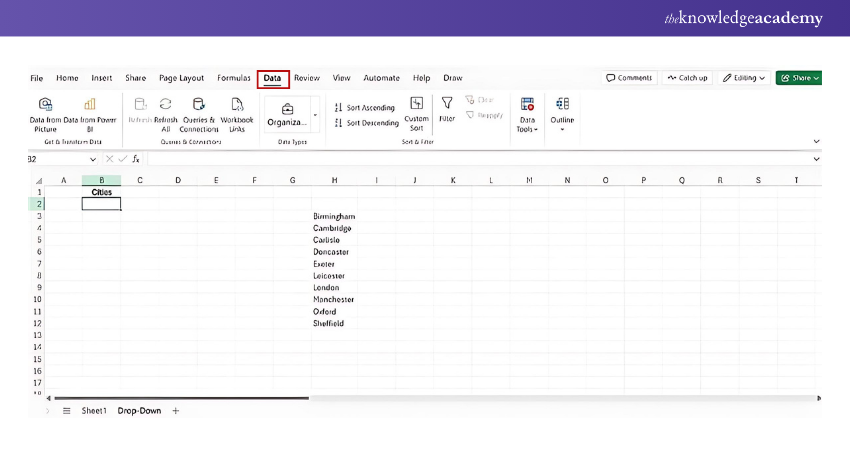
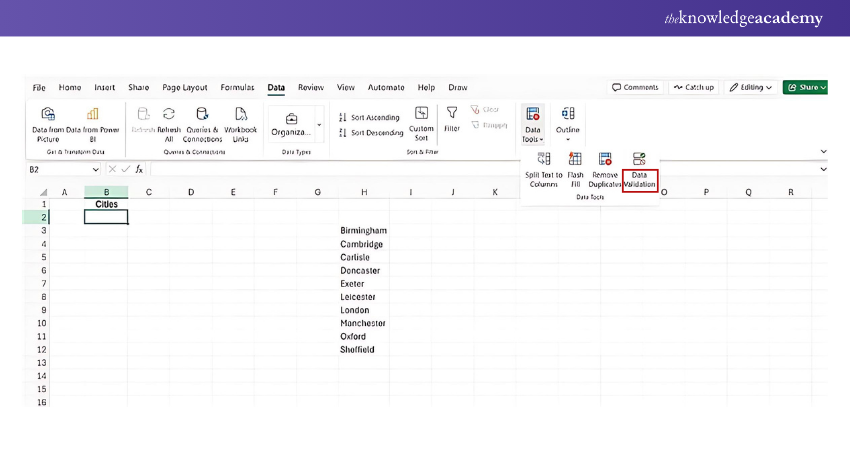
Step 3. Click on Data Validation:
In the Data Tools group, click on ‘Data Validation’.
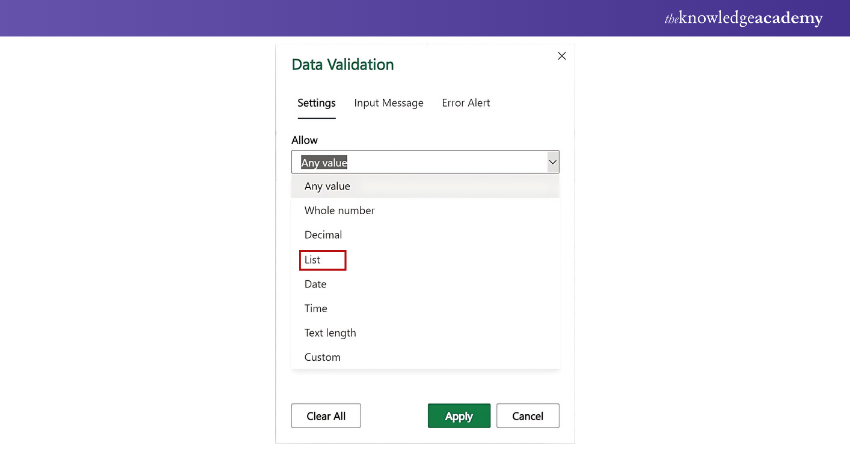
Step 4. Set Up the List:
In the Data Validation dialogue box, under the Settings tab, choose ‘List’ from the Allow drop-down menu.
Step 5. Enter the Source:
In the Source box, type the items for your drop-down list, separated by commas (e.g., Option 1, Option 2, Option 3).
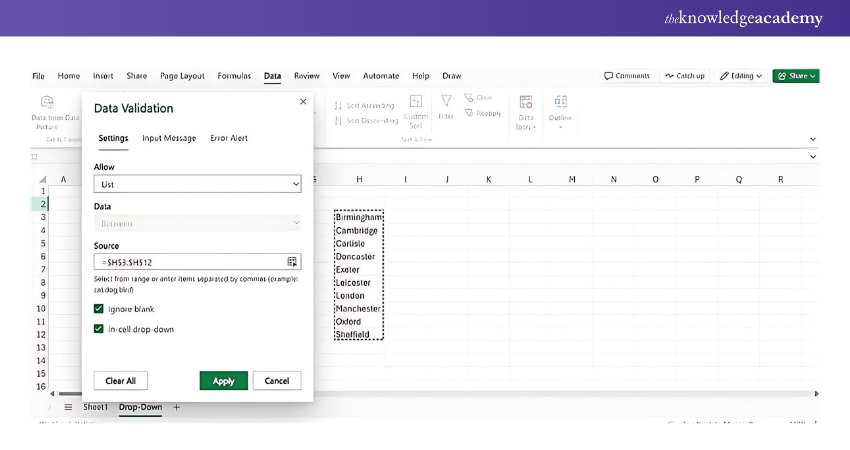
Step 6. Confirm and Create:
Click ‘Apply’ to create the drop-down list. You should now see a small arrow in the cell, indicating the drop-down list.
Transform raw data into actionable insights with our Business Analytics with Excel Course - sign up today!
How to Create a Drop-down List Using a Different Sheet?
Sometimes, you may want to keep your data organised by placing your drop-down list items on a different sheet. This section will guide you on How to Create a Drop-down List in Excel using data from another sheet, and even automate the process with an Excel VBA For Loop to dynamically update the list.
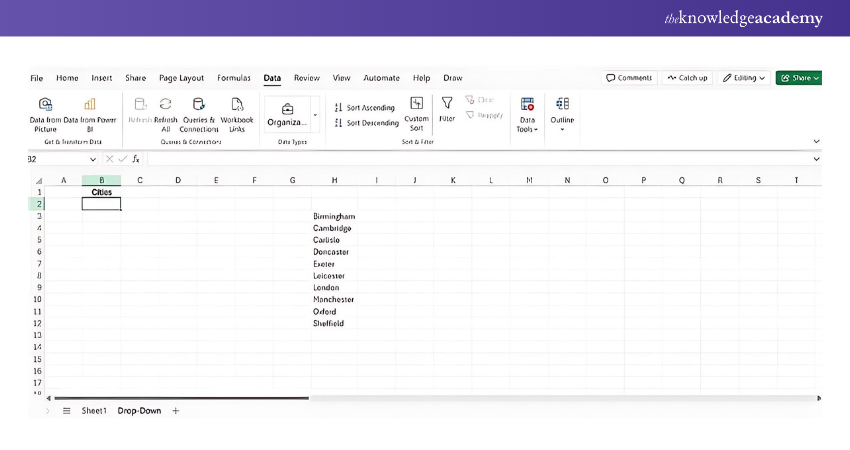
Step 1. List the Items:
Go to a different sheet within the same workbook and enter the items for the drop-down list in a single column or row.

Step 2. Select the Cell(s):
Go back to the sheet where you want the drop-down list and select the cell(s) where you want the list to appear.
Step 3. Go to the Data Tab:
Click on the ‘Data’ tab in the Excel ribbon.
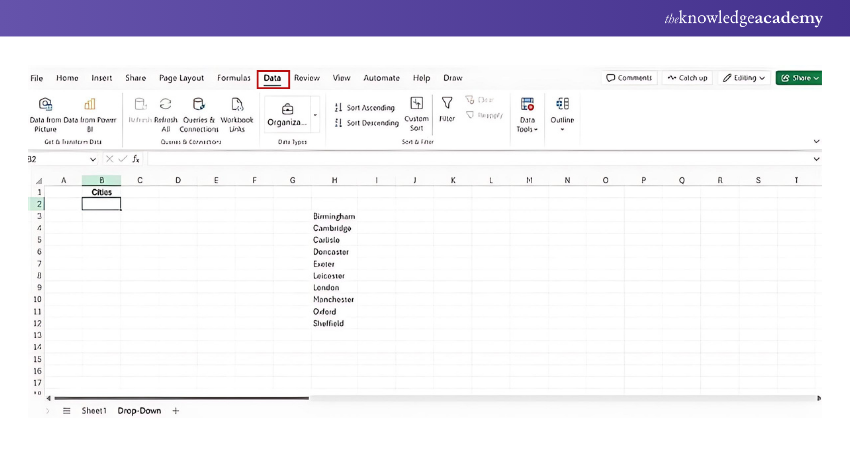
Step 4. Click on Data Validation:
Choose ‘Data Validation’ from the Data Tools group.
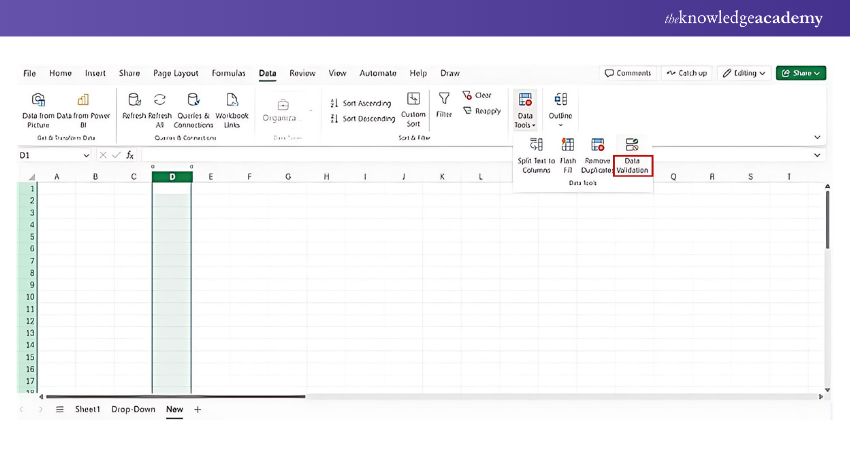
Step 5. Set Up the List:
In the Data Validation dialogue box, select ‘List’ from the Allow drop-down menu.
Step 6. Select the Source:
In the Source box, click on the icon to the right, navigate to the sheet with your list, and select the range of cells containing your list items
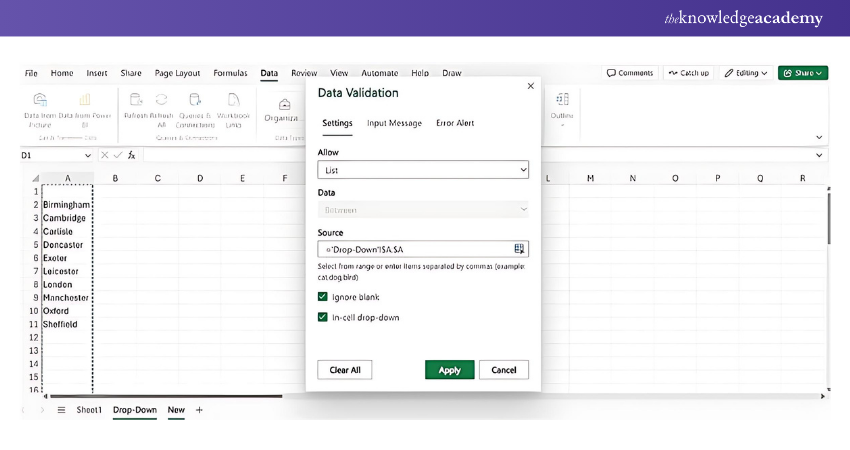
Step 7. Confirm and Create:
Click ‘Apply’ to create the drop-down list using the data from the other sheet.
Enhance your Excel skills with Excel Training With Gantt Charts. Sign up today for Excel mastery!
How to Create a Drop-down List Using a Different Workbook?
For more advanced Data Management, you might need to create a drop-down list that pulls data from a different workbook. In this section, we’ll show you how to set up a drop-down list in Excel using data from an external workbook.
Step 1. Prepare the Source Workbook:
a) Open the workbook that contains the data you want to use for the drop-down list.
b) Select the range of cells that contain the list items.
c) Go to the Formulas tab and click on ‘Name Manager’ < ‘Define Name’.
d) In the New Name dialogue box, enter a name for the range (e.g., Cities) and click ‘Save’.
Step 2. Prepare the Target Workbook:
a) Open the workbook where you want to create the drop-down list.
b) Go to the Formulas tab and click on Define Name.
c) In the New Name dialogue box, enter a name (e.g., ExternalList).
d) In the Refers to box, enter the reference to the named range in the source workbook. The format should be:
='[SourceWorkbook.xlsx]SheetName'!RangeName
e) For example:
='[ProductData.xlsx]Sheet1'!Cities
f) Click ‘OK’.
Step 3. Create the Drop-Down List:
a) Select the cell where you want the drop-down list.
b) Go to the Data tab and click on Data Validation.
c) In the Data Validation dialogue box, set the Allow field to List.
d) In the Source field, enter the name you defined in the target workbook (e.g., =ExternalList).
e) Click ‘Apply’.
Elevate your Excel skills and transform data into powerful insights- sign up for our Microsoft Excel Courses today!
Conclusion
Creating a drop-down list in Excel may seem like a minor task, but it can significantly enhance the cleanliness, organisation, and manageability of your data. Whether you're working on forms, trackers, or reports, this straightforward tool helps minimise errors and saves valuable time. Now that you know How to Create a Drop-down List in Excel, go ahead and give your spreadsheets a smart, user-friendly upgrade!
Join Microsoft Excel VBA and Macro Training - Register now to elevate your spreadsheet automation skills today!
Frequently Asked Questions
How Do I Create a Yes/No Drop-Down in Excel?

To create a Yes/No drop-down in Excel, select the cell, go to the `Data` tab, click on `Data Validation`, choose `List` from the Allow menu, and enter `Yes, No` in the Source box. Click `OK` to apply.
How to Create a Drop-down List and Autofill it in Excel?
To create a drop-down list in Excel and autofill it, use `Data Validation` to set up the list, then drag the fill handle across adjacent cells. Excel will automatically replicate the drop-down list in those cells.
What are the Other Resources and Offers Provided by The Knowledge Academy?
The Knowledge Academy takes global learning to new heights, offering over 3,000+ online courses across 490+ locations in 190+ countries. This expansive reach ensures accessibility and convenience for learners worldwide.
Alongside our diverse Online Course Catalogue, encompassing 19 major categories, we go the extra mile by providing a plethora of free educational Online Resources like Blogs, eBooks, Interview Questions and Videos. Tailoring learning experiences further, professionals can unlock greater value through a wide range of special discounts, seasonal deals, and Exclusive Offers.
What is The Knowledge Pass, and How Does it Work?
The Knowledge Academy’s Knowledge Pass, a prepaid voucher, adds another layer of flexibility, allowing course bookings over a 12-month period. Join us on a journey where education knows no bounds.
What are the Related Courses and Blogs Provided by The Knowledge Academy?
The Knowledge Academy offers various Microsoft Excel Courses, including Microsoft Excel Course, Microsoft Excel VBA And Macro Training, Excel For Accounting Course and Business Analytics With Excel Course. These courses cater to different skill levels, providing comprehensive insights into Create a Heat Map in Excel.
Our Office Applications Blogs cover a range of topics related to Microsoft Excel, offering valuable resources, best practices, and industry insights. Whether you are a beginner or looking to advance your Excel skills, The Knowledge Academy's diverse courses and informative blogs have you covered.

Richard Harris


Senior Full Stack Developer and Technology Educator
Richard Harris is a highly experienced full-stack developer with deep expertise in both frontend and backend technologies. Over his 12-year career, he has built scalable web applications for startups, enterprises and government organisations. Richard’s writing combines technical depth with clear explanations, ideal for developers looking to grow in modern frameworks and tools.

Upcoming Office Applications Resources Batches & Dates
Date
 Microsoft Excel Course
Microsoft Excel Course
Fri 3rd Jul 2026
Microsoft Excel Course
Fri 6th Nov 2026

 If you wish to make any changes to your course, please


