


 Top Rated Course


We may not have the course you’re looking for. If you enquire or give us a call on +61 1-800-150644 and speak to our training experts, we may still be able to help with your training requirements.
How to Use Python in Excel: A Complete Guide with Examples
The Knowledge Academy 17 February 2026Python in Excel allows users to integrate Python code directly into Excel spreadsheets for data analysis, leveraging the power of Python libraries. You can use Python within Excel to clean data, create charts, and automate reports. This feature combines the power of both Excel and Python for smarter workflows.

Training Outcomes Within Your Budget!
We ensure quality, budget-alignment, and timely delivery by our expert instructors.
Table of Contents

Both Excel and Python are powerful tools, but when they are combined, working with data becomes even easier and smarter. The Python in Excel feature allows you to analyse, clean, and visualise data by writing Python code right within the spreadsheet without any external software.
In this blog, you will learn step-by-step how to use Python in Excel. Whether you are a beginner or have some experience, this guide will show you, through simple examples and easy tips, how you can automate and improve your daily Excel tasks using Python.
Table of Contents
1) What is Python in Excel?
2) Benefits of Using Python in Excel
3) How to Use Python in Excel
4) ython Function in Excel
5) Excel Plots in Python
6) What can I do with Python in Excel?
7) What License do you need for Python in Excel?
8) Conclusion
What is Python in Excel?
Python in Excel means running Python code within Excel. This integration lets you analyse, clean, visualise, and automate data without leaving Excel. The simple interface of Excel and the powerful libraries of Python together make your work very easy and fast.
This feature is especially useful for people who work with large datasets. You can read, update and format Excel sheets by writing Python code. For example, the Openpyxl library helps you perform tasks such as reading/writing cells, creating charts, and conditional formatting. Python in Excel automates repetitive work which otherwise takes a lot of time to do manually.

Benefits of Using Python in Excel
Using Python in Excel can significantly enhance your ability to analyse data, automate tasks, and create advanced models. Here are some key benefits:
Advanced-Data Analysis
Python offers powerful libraries like pandas, numpy, and matplotlib that can handle complex data manipulations, statistical analysis, and visualisations, which Excel alone may not manage efficiently.
Automation
Python can automate repetitive tasks in Excel, such as data cleaning, updating reports, or generating charts. This reduces manual effort and saves time.
Integration with Other Tools
Python allows you to integrate Excel with other tools and platforms (e.g., APIs, databases, web scraping) to enhance data collection, update reports from live data, and share insights across various systems.
Custom Functions
You can write custom functions in Python that are not natively available in Excel. This opens up opportunities for solving complex problems that require more than just standard formulas.
Enhanced Data Visualisation
Python libraries like matplotlib, seaborn, and Plotly can create sophisticated, interactive visualisations beyond Excel's built-in charting capabilities.
Handling Large Datasets
Python can handle larger datasets more efficiently than Excel, especially when dealing with data that exceeds Excel’s row or column limits.
Machine Learning and AI
Python allows you to build and deploy Machine Learning models directly within Excel, providing advanced predictive analytics and AI capabilities without leaving the Excel environment.
Code Reusability
Python scripts can be saved and reused, allowing for the easy replication of workflows and processes without re-entering formulas or steps in Excel.
Increased Flexibility
Python enables Excel users to handle tasks like web scraping, Natural Language Processing, and even complex financial modelling that would be challenging to do in Excel alone.
Collaborative and Scalable
Python allows for code sharing and version control, which helps improve collaboration in teams and supports scalable solutions for data analysis, making Excel workflows more robust and efficient.
How to Use Python in Excel
To start using Python in Excel:
1) Install Python: Download from python.org
2) Install Libraries: Install essential libraries using:

3) Choose an Integration Method:
a) xlwings: Enables Python interaction with Excel. Install xlwings and the Excel add-in.
b) Python in Excel (Microsoft): Available for Microsoft 365 users to run Python code directly in Excel.
c) PyXLL: A paid tool for seamless integration.
d) Jupyter Notebooks: For data manipulation outside Excel using pandas.
4) Write Python Scripts: Example with xlwings:
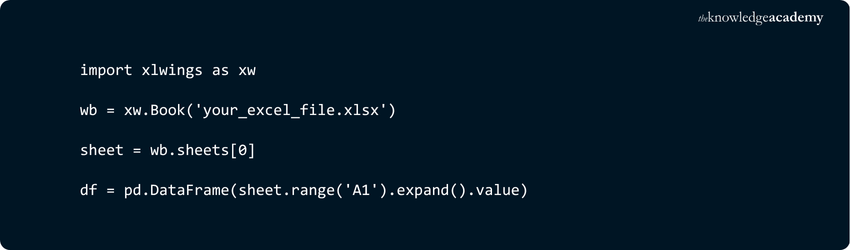
5) Use pandas for Excel File Manipulation:
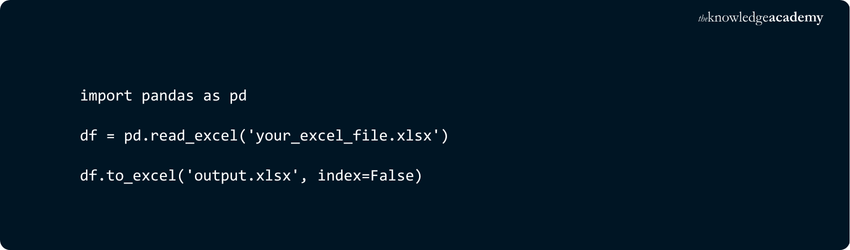
6) Integrate with VBA (Optional): Use VBA to call Python functions

Python Function in Excel
Using the Python function in Excel means that you can write Python code from within an Excel cell. This allows you to analyse data, automate tasks, and create smart reports – all without leaving Excel.
If you know how to use Excel formulas such as VLOOKUP or Pivot Table, you will find the PY function even more helpful. You can easily do calculations, charts, and data cleanup with Python directly within an Excel sheet.
Utilising the PY Function in Excel
The PY function is just like an Excel formula, except that you write Python code. With this function, you can:
1) clean data
2) Create quick summaries like sum, mean, and max.
3) Create graphs using Python libraries
4) Join two data lists like Excel's VLOOKUP
You just write =PY("...") and enter Python code in it. Excel will run that code and give the result. This makes the combo of Excel and Python super useful.
Leveraging Pandas with the PY Function
Pandas is a popular Python library that works with tabular data just like Excel. By using Pandas with PY function, you can:
1) Import CSV file with .read_csv()
2) do work like VLOOKUP with .merge()
3) Create pivot table with .pivot_table()
4) Do analysis like SumIF or CountIF with .groupby()
5) See quick stats with .describe()
Pandas is faster and more flexible than Excel. You can easily handle large data, create reports, and save time.
Become an expert in Python with our Python Course – register now!
Excel Plots in Python
Creating plots in Excel using Python involves leveraging Python’s data visualisation libraries, such as Matplotlib or Seaborn, within the Excel environment. These libraries enables you to generate a wide range of static, interactive, and animated visualisations directly from your data.
Here’s how you can create plots in Excel with Python:
a) Prepare Your Data: Organise your data within Excel, ensuring it’s ready for analysis.
b) Write Python Code: Use the Python scripting area in Excel to write your plotting code.
c) Use Plotting Libraries: Import libraries like Matplotlib or Seaborn to create the plots.
d) Visualise: Execute the Python code to render the plot. The visualisation can then be embedded into your Excel workbook.
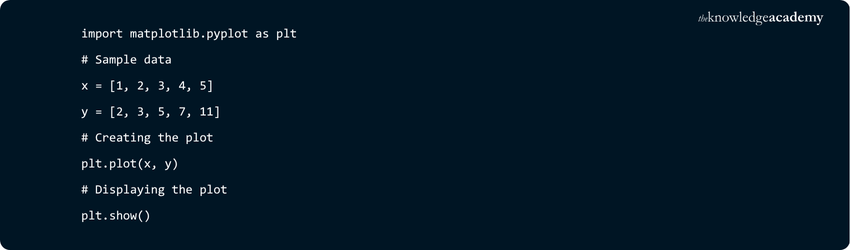
For example, to create a simple line plot, you might use the following Python code:
What can I do with Python in Excel?
With Python in Excel, you can automate tasks, perform advanced data analysis, build statistical models, clean data, and generate visualisations like graphs and charts—all within your spreadsheet.
What License do you need for Python in Excel?
Python in Excel is available through Microsoft 365 with a suitable subscription, providing access to Python integration directly within Excel.
Do you want to learn more about Programming Languages? Register now for our Programming Training!
Conclusion
Python in Excel significantly enhances your ability to automate processes, analyse complex data, and develop custom solutions. By leveraging tools like xlwings and pandas, you can seamlessly integrate Python into Excel, streamlining workflows and improving productivity. This combination empowers you to unlock advanced capabilities, transforming Excel into a more robust and efficient data analysis and reporting tool.
Make progress in your career with Perl – register now for our Basic Perl Programming Training
Frequently Asked Questions
Is Python in Excel Faster Than VBA?

Python in Excel is generally faster than VBA for complex data analysis and calculations due to Python's efficient libraries and processing power, especially for larger datasets or advanced tasks.
Is Python in Excel Suitable for Beginners?
Yes, Python in Excel is suitable for beginners, especially with its simple syntax and powerful libraries. It enhances Excel's functionality, making it easier for newcomers to perform data analysis and automation tasks with minimal coding experience.
What are the Other Resources and Offers Provided by The Knowledge Academy?
The Knowledge Academy takes global learning to new heights, offering over 3,000+ online courses across 490+ locations in 190+ countries. This expansive reach ensures accessibility and convenience for learners worldwide.
Alongside our diverse Online Course Catalogue, encompassing 19 major categories, we go the extra mile by providing a plethora of free educational Online Resources like Blogs, eBooks, Interview Questions and Videos. Tailoring learning experiences further, professionals can unlock greater value through a wide range of special discounts, seasonal deals, and Exclusive Offers.
What is The Knowledge Pass, and How Does it Work?
The Knowledge Academy’s Knowledge Pass, a prepaid voucher, adds another layer of flexibility, allowing course bookings over a 12-month period. Join us on a journey where education knows no bounds.
What are Related Courses and Blogs Provided by The Knowledge Academy?
The Knowledge Academy offers various Microsoft Excel Courses. These courses cater to different skill levels, providing comprehensive insights into How To Clear Cache and Cookies?
Our Office Applications Blogs cover a range of topics related to Microsoft 365, offering valuable resources, best practices, and industry insights. Whether you are a beginner or looking to advance your Excel Skills, The Knowledge Academy's diverse courses and informative blogs have got you covered.

The Knowledge Academy


Global Training Provider
The Knowledge Academy is a world-leading provider of professional training courses, offering globally recognised qualifications across a wide range of subjects. With expert trainers, up-to-date course material, and flexible learning options, we aim to empower professionals and organisations to achieve their goals through continuous learning.


 If you wish to make any changes to your course, please


