


 Top Rated Course


We may not have the course you’re looking for. If you enquire or give us a call on 800969236 and speak to our training experts, we may still be able to help with your training requirements.
Bootstrap Buttons: How to Create and Classes Explained
The Knowledge Academy 06 February 2026Bootstrap buttons are responsive, pre-styled UI elements built with the .btn class and modifiers to define type, size, style, and state for web actions. They improve design efficiency while maintaining adaptability across devices and screen sizes.

Training Outcomes Within Your Budget!
We ensure quality, budget-alignment, and timely delivery by our expert instructors.
Table of Contents

In Web Development, creating cohesive and engaging user interfaces can be challenging, often leading to design inconsistencies and longer development times. Learning how to create Bootstrap Buttons can help mitigate these issues. Bootstrap Buttons not only enhance the User Experience (UX) but also ensure visual consistency across web projects.
In this blog, you’ll discover everything you need to know about Bootstrap Buttons, from their creation to the various classes available. Let’s dive in!
Table of Contents
1) What are Bootstrap Buttons
2) How to Create a Button in Bootstrap?
3) Bootstrap Button Classes
4) How to Use Bootstrap Button Classes with Other Elements
5) Bootstrap Button Styles
6) Best Practices for easy use of Bootstrap Buttons Styles
7) Conclusion
What are Bootstrap Buttons?
Bootstrap buttons are predefined, stylish, and responsive button components included in the Bootstrap framework. They allow developers to quickly create buttons with consistent design, functionality, and responsiveness without writing custom CSS. These buttons adapt to different devices and screen sizes, making them ideal for modern web applications.
In Bootstrap, buttons can be easily customised with classes like .btn-primary, .btn-success, or .btn-danger to represent different states or actions. Developers can also adjust sizes, add icons, or use outline styles to match the overall website theme. With minimal coding, Bootstrap buttons enhance both usability and aesthetics, streamlining web design and development.
How to Create a Button in Bootstrap?
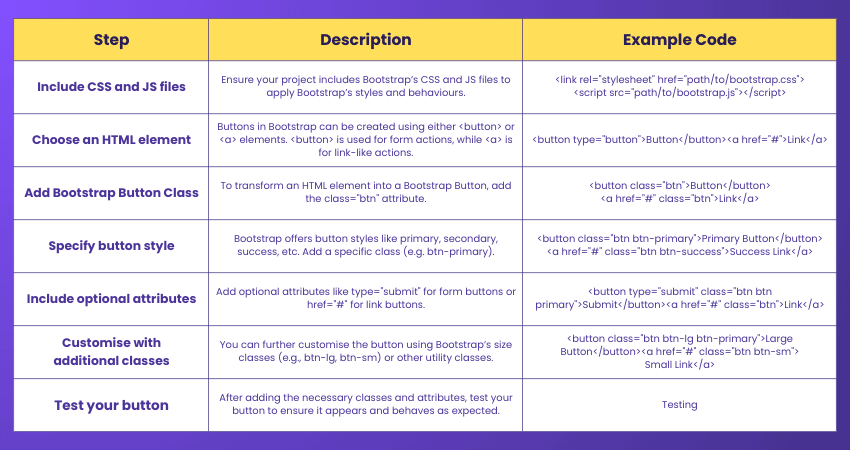
Creating a button in Bootstrap is straightforward and involves using HTML elements combined with Bootstrap's predefined classes. Here's a step-by-step guide:
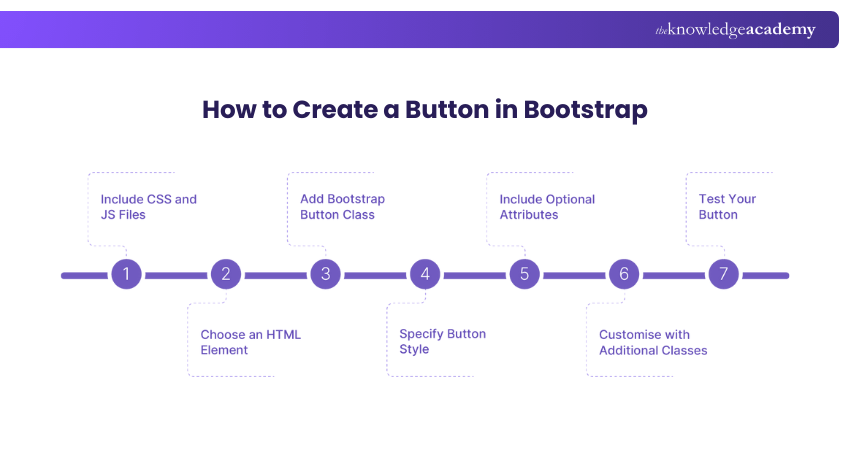
These steps will help you seamlessly integrate Bootstrap Buttons into your web projects, enhancing both functionality and aesthetics.
Bootstrap Button Classes
Bootstrap provides the .btn base class that forms the foundation for buttons. To make buttons more meaningful and visually distinct, modifier classes are applied. These classes not only style the buttons but also help users identify the purpose of an action at a glance. Below are the nine default modifier classes explained in detail.
.btn-primary
The .btn-primary class represents the main call-to-action on a page. It’s styled with a bold colour to stand out as the most important button. For example, on an e-commerce website, the “Buy Now” or “Sign Up” button would typically use .btn-primary. It signals to users where their main attention should be directed.
.btn-secondary
The .btn-secondary class is used for less critical actions that support the primary one. It often appears next to a primary button to offer an alternative. For instance, if the .btn-primary is “Subscribe”, then .btn-secondary might be “Learn More”. It balances visibility without overshadowing the primary action.
.btn-success
The .btn-success class indicates positive outcomes or confirmations. It is often green in colour and communicates success, approval, or completion. A common use case is a “Submit” button at the end of a form or a “Payment Successful” confirmation action. It reassures users of a positive result.
.btn-danger
The .btn-danger class highlights risky or destructive actions. Usually styled in red, it warns users before they proceed. Examples include “Delete Account”, “Remove File”, or “Cancel Subscription”. This strong visual cue helps prevent unintentional mistakes by prompting users to think before clicking.
.btn-warning
The .btn-warning class is used to draw attention to cautionary actions. Typically yellow or orange, it signals that the user should proceed carefully. For example, a “Retry Upload” or “Check Details” button may use .btn-warning to alert the user of potential issues or incomplete actions.
.btn-info
The .btn-info class communicates neutral or informational actions. It’s often styled in light blue and is helpful for secondary actions like “View Details”, “Edit Profile”, or “More Info”. It doesn’t indicate urgency but provides users with additional options.
.btn-light
The .btn-light class creates light-coloured buttons, which are perfect for websites with dark backgrounds. It ensures readability and visual contrast while maintaining a soft, subtle design. For example, a button styled with .btn-light can be used on a dark-themed footer or navigation bar.
.btn-dark
The .btn-dark class is the opposite of .btn-light, providing a bold dark-styled button. It works well on light or minimal backgrounds, ensuring that the button remains clearly visible. It’s often used for stylistic contrast or neutral actions like “Close” or “Back”.
.btn-link
The .btn-link class transforms a button into something that looks like a hyperlink while still behaving like a button. It’s useful when you want to de-emphasise an action. For example, secondary navigation like “Forgot Password?” or “Read More” can use .btn-link to reduce visual weight while staying functional.
Want to master PHP Programming and build dynamic websites? Join our PHP Course now!
How to Use Bootstrap Button Classes with Other Elements?
Although Bootstrap button classes are commonly used with the < button > element, they can also be applied to < a > and < input > elements. This means you can style links and input fields as buttons, making them consistent with your site’s design.
For example, applying button classes to an tag allows you to link to a new page or section within the same page while still maintaining the look and feel of a button. In cases where links trigger on-page interactions, such as collapsing content, it’s important to add role = " button ". This ensures accessibility by letting assistive technologies like screen readers correctly identify the link as a button
Bootstrap Button Styles
Bootstrap lets you go beyond its default button classes by mixing or replacing them to create custom colours, sizes, and states. These options give you flexibility in styling buttons for different layouts and user interactions.
Bootstrap Button Colors
Default classes such as .btn-danger and .btn-warning apply predefined colour schemes. For example, .btn-danger makes the button red with white text, while .btn-warning makes it yellow with black text. You can also customise colours with your own CSS.
Example:

Bootstrap Outline Buttons
Outline buttons use .btn-outline-* classes to display coloured borders and text without a filled background. This style looks cleaner and works well on lighter pages.
Example:

Bootstrap Button Size
You can adjust button size with .btn-lg for larger buttons or .btn-sm for smaller ones. This is useful for emphasising calls-to-action or fitting buttons into compact layouts.
Example:

Bootstrap Button States
Buttons can appear pressed or disabled depending on their state. Use .active to show a pressed effect, and disabled or .disabled for making them unclickable.
Example:

Bootstrap Toggle Buttons
Toggle buttons allow users to switch between states when clicked. Adding data-bs-toggle="button" creates a button that remains active until clicked again.
Example:

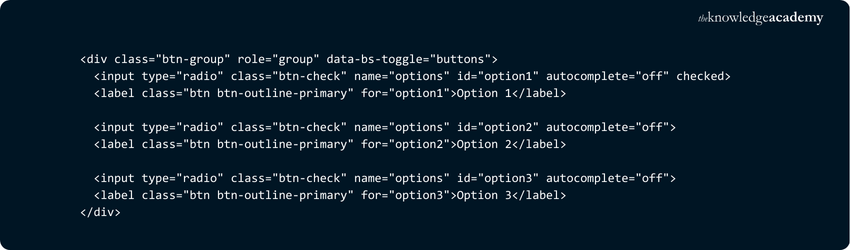
Bootstrap Radio Buttons
Radio buttons in Bootstrap allow grouped selections. Only one option can be chosen at a time. Wrap inputs with tags and add .btn classes to style them like buttons.
Example:
Level up your skills with Swift Training today!
Best Practices for easy use of Bootstrap Buttons Styles
Bootstrap buttons are highly flexible, but following best practices ensures they remain user-friendly, visually appealing, and accessible across all devices. By combining Bootstrap’s built-in classes with a few design guidelines, you can create effective buttons for any website or application.
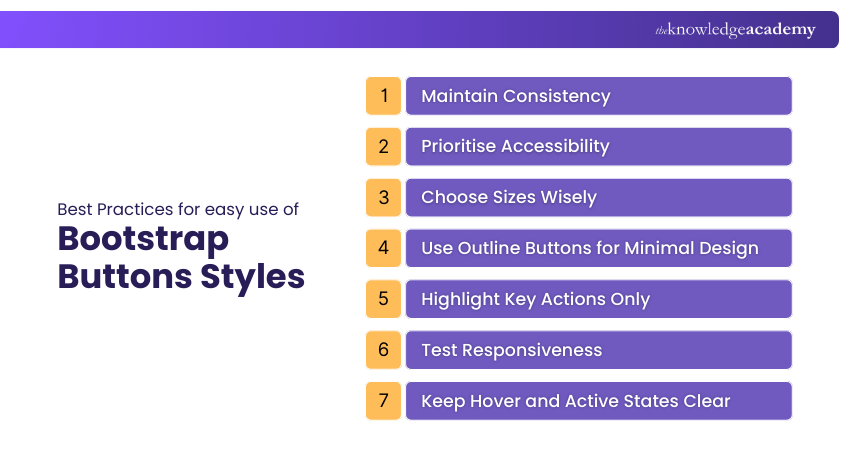
1) Maintain Consistency: Use button styles consistently across your project. Reserve .btn-primary for main actions, .btn-secondary for secondary options, and use other styles sparingly to avoid confusing users.
2) Prioritise Accessibility: Always include descriptive text within buttons, avoid using colour alone to convey meaning, and add role = " button " when applying button classes to links (< a > tags ). This ensures compatibility with assistive technologies.
3) Choose Sizes Wisely: Select .btn-lg for call-to-action buttons and .btn-sm for compact designs. Avoid overusing size variations on the same page, as this can disrupt visual hierarchy.
4) Use Outline Buttons for Minimal Design: Leverage .btn-outline -* classes where a lighter, more modern design is needed. These work particularly well on minimal layouts or darker backgrounds without overwhelming the page.
5) Highlight Key Actions Only: Limit .btn-primary or .btn-success styles to one or two key actions per page. This helps users quickly identify the most important task without distraction.
6) Test Responsiveness: Always test buttons across devices and browsers to ensure they scale, align, and function correctly in responsive layouts. Combine Bootstrap’s grid system with button classes for seamless responsiveness.
7) Keep Hover and Active States Clear: Make sure hover, active, and disabled states are easy to recognise. For example, .active should visibly look pressed, while .disabled should clearly indicate an inactive button.
Conclusion
Mastering Bootstrap Buttons is essential for creating visually consistent and user-friendly web interfaces. By understanding the different types of buttons and their specific uses, you can enhance the user experience and maintain a cohesive design across your projects. Whether you’re using primary buttons for important actions, contextual buttons to convey meaning, or neutral buttons for less prominent tasks, Bootstrap provides a versatile toolkit to meet your needs. If you’re new to web development, you can also install Bootstrap to get started quickly with ready-made components. You can also explore resources on Bootstrap Interview Questions to deepen your understanding and showcase your expertise. You can also explore resources on Bootstrap Interview Questions to deepen your understanding and showcase your expertise.
Transform your career with our Bootstrap Training – Sign up now!
Frequently Asked Questions
How do I Change the size of Bootstrap Buttons?

The default size is medium. You can very easily change the button size by adding btn-lg or btn-sm class to it. These classes modify the button's padding and also the font size, and the CSS border radius.
How do I add icons to Bootstrap buttons?
To add icons, include an icon library like Bootstrap Icons or Font Awesome. Use the tag inside the button element with the appropriate icon class. Combine it with Bootstrap spacing classes for proper alignment and visual spacing.
What are the Other Resources and Offers Provided by The Knowledge Academy?
The Knowledge Academy takes global learning to new heights, offering over 3,000+ online courses across 490+ locations in 190+ countries. This expansive reach ensures accessibility and convenience for learners worldwide.
Alongside our diverse Online Course Catalogue, encompassing 19 major categories, we go the extra mile by providing a plethora of free educational Online Resources like Blogs, eBooks, Interview Questions and Videos. Tailoring learning experiences further, professionals can unlock greater value through a wide range of special discounts, seasonal deals, and Exclusive Offers.
What is The Knowledge Pass, and How Does it Work?
The Knowledge Academy’s Knowledge Pass, a prepaid voucher, adds another layer of flexibility, allowing course bookings over a 12-month period. Join us on a journey where education knows no bounds.
What are The Related Courses and Blogs Provided by The Knowledge Academy?
The Knowledge Academy offers various Programming Courses, including Bootstrap, Object Oriented Programming (OOPs) and Python with Machine Learning. These courses cater to different skill levels, providing comprehensive insights into Data Discrepancy.
Our Programming and DevOps blogs cover a range of topics related to Bootstrap, offering valuable resources, best practices, and industry insights. Whether you are a beginner or looking to advance your Programming skills, The Knowledge Academy's diverse courses and informative blogs have you covered.

The Knowledge Academy


Global Training Provider
The Knowledge Academy is a world-leading provider of professional training courses, offering globally recognised qualifications across a wide range of subjects. With expert trainers, up-to-date course material, and flexible learning options, we aim to empower professionals and organisations to achieve their goals through continuous learning.


 If you wish to make any changes to your course, please


