


 Top Rated Course

We may not have the course you’re looking for. If you enquire or give us a call on +0800 780004 and speak to our training experts, we may still be able to help with your training requirements.
How to Install Python on Mac
Lily Turner 27 February 2026Install Python on Mac step-by-step using Homebrew, Pyenv, or python.org with this easy, beginner-friendly guide for developers and learners. Ideal for new developers. This guide helps you choose the best method for your setup. Follow the steps to start coding confidently on macOS with ease and clarity, supporting smooth learning progress.
Training Outcomes Within Your Budget!
We ensure quality, budget-alignment, and timely delivery by our expert instructors.
Table of Contents
Related Courses

Python is a leading programming language that has gained a lot of popularity among professionals and beginners. It is mostly used for web development, data analysis, and automation. Knowing how to set it up correctly would save time and prevent configuration problems. In this blog, we will provide a detailed insight into how to install Python on Mac.
Table of Contents
1) What is Python?
2) Check for Existing Python Installations
3) Update Xcode Command Line Tools
4) Install Python Using the official Python website
5) Verify Your Python Installation
6) Install and set up Visual Studio Code on Mac
7) How to Write a Python Script in VS Code?
8) Installing Python on Mac with Pyenv
9) How to Install Packages in Python on MacOS?
10) Common Issues and Troubleshooting when Installing Python on Mac
11) Conclusion
What is Python?
Python, crafted by Guido van Rossum, is an interpreted, high-level programming language known for its emphasis on readable code. Its syntax is clean, and it utilises significant whitespace to enhance clarity, making it an excellent choice for both novices and seasoned developers.
The Python language stands out for its adaptability. It boasts a comprehensive standard library and a wealth of third-party modules, allowing for the rapid development and deployment of sophisticated software.
One of Python’s key strengths is its cross-platform nature, enabling it to operate across various operating systems. This feature, coupled with its robust community support and ongoing development, renders Python a favoured option. It’s a dependable language for software projects, offering longevity and adaptability for the future.
Check for Existing Python Installations
Before you begin, check if Python is already installed on your Mac. Macs typically come with a pre-installed version of Python. Open your terminal and run the following command:

If you see a version number, it means Python is already installed on your system. However, the version included may be a different version, and you might still want to install a more recent version.
Update Xcode Command Line Tools
To compile and install Python and its packages on your Mac, you will need the Xcode Command Line Tools. Before proceeding with the update of Xcode Command Line Tools on your Mac, it is crucial to verify their status. Open your terminal and run the command xcode-select --version to check the currently installed version. If they are not installed or if you are working with an outdated version, it is time to update.
If you have not installed them already, you can do so by running the following command in your terminal:

This will initiate the installation process, and you should follow the on-screen instructions to complete it.
Ready to dive into the world of programming languages? Sign up for our Programming Courses now!
Install Python Using the Official Python Website
Another option for installing Python on your Mac is to download and install it directly from the official Python website. Here's how to do that:
1) Visit the Python download page at.
2) You will find a list of available macOS installers. Choose the version you want to install (usually the latest stable version).
3) Download the installer appropriate for your macOS version. Most Mac users will opt for the macOS 64-bit installer.
4) Once the installer is downloaded, open the file. This will launch the Python installation process.
5) Complete the Python installation procedure by following the on-screen instructions.
6) You might also be required to input your Mac password as confirmation of your consent to proceed with the Python installation.
7) Note: For Apple M1 Mac users, it is essential to install Rosetta. Rosetta facilitates the compatibility of Intel-based functionalities on Apple silicon Macs.
Installing Python via the official website provides you with the official Python distribution. However, it might require more manual work when it comes to managing Python packages and updates.
Want to master PHP Programming and build dynamic websites? Join our PHP Course now!
Verify Your Python Installation
After installing Python on your Mac, it is important to confirm that the installation was successful. You can do this by conducting a few simple commands in your terminal. To check the Python version, use the following command:

You should see the version number of the Python you have installed. You can run a Python interactive shell to ensure Python is working correctly. Type:

This should start the Python interactive shell, and you can type Python commands to test its functionality. To exit the Python shell, type exit() or press Ctrl+D.
To further confirm that Python is working correctly, you can run a simple Python script by following the below steps:
1) Open a text editor or integrated development environment (IDE) like Visual Studio Code (VS Code).
2) Write a basic Python script, such as:

3) Save the script with a .py extension, for example, verify_python.py.
4) Open your terminal and navigate to the directory where you saved the script.
5) Run the script using the Python command:

If you see the script's output in the terminal, such as "Python is working!" it confirms that Python is correctly installed and operational on your system.
Understand the application lifecycle for efficient application development with our Python Django Training and stay ahead of the curve!
Install and set up Visual Studio Code on Mac
You have the option to initiate Python coding either through the command line or take advantage of a source code editor, significantly enhancing your coding experience. With a source code editor, you gain access to features like syntax highlighting, code folding, and intelligent code completion.
There are numerous source-code editors available for Mac users. Among the top choices is Microsoft's Visual Studio Code (VS Code), which, notably, is entirely cost-free for Mac users. You can install VS Code on your Mac by following the below steps. Additionally, if you need to capture any installation steps for reference, knowing How to Screenshot on Mac can be helpful.
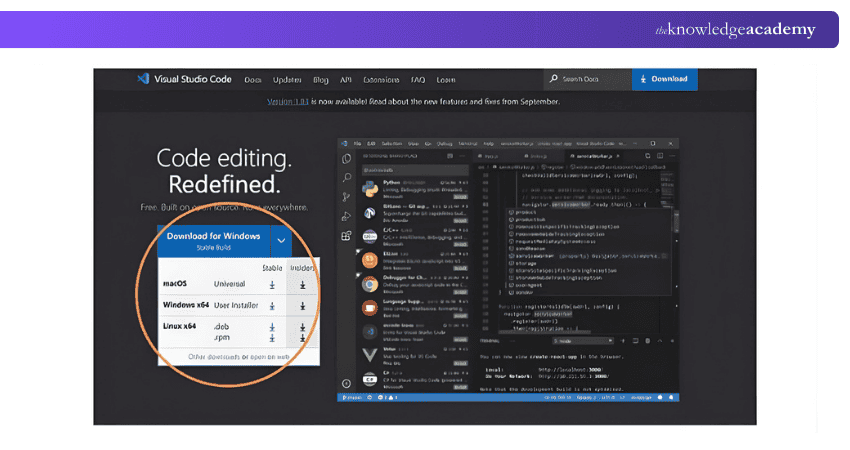
1) To access the download page on Microsoft's website, please click the link Visual Studio Code - Code Editing. Redefined.
2) Select 'Download Mac Universal'.
3) Once the download finishes, VS Code will automatically extract from the zip archive.
4) If, for any reason, it does not, you can manually double-click the zip file. Move VS Code into your Applications folder by dragging it.
To prepare for Python coding in VS Code, you will need to create a script and install a Python extension. The following are the steps to accomplish that:
1) Open VS Code from your Applications folder.
2) Within the Get Started window, opt for 'New File.'
3) Enter the desired file name into the top text box and append the .py extension to it.
4) Click 'New file' beneath the text box and select your preferred location for saving it. Then, click 'Create File.'
5) Proceed to install the Python extension by selecting the default Python extension and clicking 'Install' at the bottom of the window. VS Code will handle the installation of the Python extension, allowing you to commence your Python script writing.
How to Write a Python Script in VS Code?
You are ready to begin writing Python code now that you have set up VS Code. Here is how to create a Python script:
1) Select the tab corresponding to the recently created file.
2) Write Python Code: Enter the following code: print ("Hello, world!") or start typing your Python code in the new file. VS Code provides features like code autocompletion, syntax highlighting, and code formatting to make coding easier.
3) Play: Click on the play button situated in the upper-right corner of the VS Code window. The outcome of the script, which is the words 'Hello, world!' printed in the Terminal, will be visible in the lower section of the VS Code window.
4) Save Your Script: After writing your code, make sure to save the script by clicking on "File" and selecting "Save" or using the shortcut Cmd + S.
Installing Python on Mac with Pyenv
Here’s a simplified step-by-step process on how to install Python using Pyenv.
1) Update macOS and install Xcode Command Line Tools

This ensures your system is ready for building Python versions.
2) Install Homebrew (if not already installed)

Homebrew will manage the Pyenv package and dependencies.
3) Install Pyenv via Homebrew

This gives you the tools to install and switch Python versions easily.
4) Configure your shell profile
Add the following to your ~/.zshrc (or ~/.bash_profile) for Zsh:

Then reload the shell: exec $SHELL or source ~/.zshrc.
5) Install your chosen Python version and set it globally

Use pyenv versions to see installed versions and pyenv local
6) Verify your setup

These should reflect the version installed via Pyenv, not the system Python.
By applying these steps, you are getting a clean, project-safe Python installation on macOS with Pyenv which is free from the system Python conflicts and allowing easy version management.
How to Install Packages in Python on MacOS?
To install Python packages on macOS, just follow these steps:
Step 1: First, check that Python and pip are present and operating correctly. This can be tested by executing the below commands and the output should resemble the one indicated in the example below.

Step 2: In the terminal run following commands to install a package:

Common Issues and Troubleshooting when Installing Python on Mac

Common issues that arise while installing Python on Mac are as follows:
1)“command not found: python” Error: There are situations where Python command is not recognised, which is usually caused by the installation not being in the system’s path. It is possible that you’ll have to find the Python binary and make changes to your shell profile (.zprofile, .zshrc) accordingly.
2) Out-of-date Python Version: In case you are using an outdated version (like 3.9.x), then you probably do not have the latest functions or compatibility with the up-to-date packages. It is good practice to install the newest stable Python version and modify your PATH or version-manager settings accordingly.
3) Using the System-installed Python: macOS typically comes with a system Python that is meant for internal use by the OS and development tools. If you use this version for your projects, you might face conflicts. It is a better practice to install a separate version (through the official website, Homebrew, or a version manager).
4) Missing Pip or Pip Command Errors: Even with Python installed, you might still encounter errors such as zsh: command not found: pip. This typically indicates that pip is not in the PATH or that you are using a different Python installation. Often, the problem can be resolved by running python -m ensurepip --upgrade or by making sure your version manager is set up properly.
5) Package Installation Errors (e.g., “error: externally-managed-environment”): If you install packages globally without isolation and a version manager, it can create version conflicts. The recommendation is to either set up a virtual environment with venv or use pyenv as a version manager, thus keeping dependencies isolated for each project.
Conclusion
There might be minor setup or compatibility issues when you Install Python on Mac. Being aware of the frequent problems and their resolutions will help you to prevent errors during the installation. By performing some troubleshooting steps, you can have a hassle-free setup and be able to use Python effectively right away.Develop your knowledge on how to build a multithreaded web server with our Rust Programming.
Frequently Asked Questions
Can Over-commenting in Python be a Problem in Professional code?

Over-commenting in Python can clutter the code, making it harder to read and maintain. Excessive comments can distract from the actual logic and may lead to outdated or misleading information if not kept in sync with the code.
How can Mastering Python Data Types Help in Data Science?
Mastering Python data types enhances efficiency in data science by ensuring optimal data manipulation, storage, and processing. Understanding data types allows you to select the most appropriate structures and methods, improving performance and clarity in your analyses.
What are the Other Resources and Offers Provided by The Knowledge Academy?
The Knowledge Academy takes global learning to new heights, offering over 3,000+ online courses across 490+ locations in 190+ countries. This expansive reach ensures accessibility and convenience for learners worldwide.
Alongside our diverse Online Course Catalogue, encompassing 17 major categories, we go the extra mile by providing a plethora of free educational Online Resources like Blogs, eBooks, Interview Questions and Videos. Tailoring learning experiences further, professionals can unlock greater value through a wide range of special discounts, seasonal deals, and Exclusive Offers.
What is The Knowledge Pass, and How Does it Work?
The Knowledge Academy’s Knowledge Pass, a prepaid voucher, adds another layer of flexibility, allowing course bookings over a 12-month period. Join us on a journey where education knows no bounds.
What are Related Courses and Blogs Provided by The Knowledge Academy?
The Knowledge Academy offers various Programming Trainings, including the Python Course, Python Django Training and Rust Programming Course. These courses cater to different skill levels, providing comprehensive insights into Programming.
Our Programming & DevOps Blogs cover a range of topics related to Python Programming, offering valuable resources, best practices, and industry insights. Whether you are a beginner or looking to advance your Programming skills, The Knowledge Academy's diverse courses and informative blogs have got you covered.

Lily Turner


Senior AI/ML Engineer and Data Science Author
Lily Turner is a data science professional with over 10 years of experience in artificial intelligence, machine learning, and big data analytics. Her work bridges academic research and industry innovation, with a focus on solving real-world problems using data-driven approaches. Lily’s content empowers aspiring data scientists to build practical, scalable models using the latest tools and techniques.
View Detail
Upcoming Batches & Dates
Date


 If you wish to make any changes to your course, please


