


 Top Rated Course

We may not have the course you’re looking for. If you enquire or give us a call on +0800 780004 and speak to our training experts, we may still be able to help with your training requirements.
How to Resolve Git Merge Conflict: A Detailed Explanation
Richard Harris 10 February 2026A Git Merge Conflict arises when changes from separate branches clash, preventing Git from merging them automatically. Resolving these conflicts needs human intervention. This blog will cover Git Merge types, Git Commands, and how you can resolve Git Merge Conflict and make the code look clean respectively.

Training Outcomes Within Your Budget!
We ensure quality, budget-alignment, and timely delivery by our expert instructors.
Table of Contents
Encountering a Git Merge Conflict is a frequent issue in version control. When changes from separate branches conflict, Git is unable to merge them automatically. This can interrupt the flow of work and lead to tasks being postponed. However, handling these conflicts can be done with the correct approach, so there's no need to worry.
In this blog post, we will explain the concept of a Git Merge Conflict and offer helpful tips on how to address it. Understanding how to manage Merge Conflict is crucial for effective collaboration and enhancing your proficiency. Let's delve into the specifics and ensure you're ready for your upcoming Git Merge Conflict.
Table of Contents
1) What is a Git Merge Conflict?
2) Types of Merge Conflicts
3) Resolving a Merge Conflicts Using the Command Line
a) Competing Line Change Merge Conflicts
b) Removed File Merge Conflicts
4) Git Commands to Resolve Conflicts
5) Conclusion
What is a Git Merge Conflict?
A Git Merge Conflict arises when Git is unable to automatically reconcile inconsistencies between two commits. This usually occurs when the modifications are made to the identical lines or files. Git can automatically merge changes only when they are on separate lines or branches.
Here is an easy illustration:
Picture Developer A and Developer B both retrieve the same code file from a remote repository. Each of them modifies the file in their own way. Developer A proceeds to upload the altered file to the remote repository. Developer B faces a conflict when trying to push their version due to the file being modified in the remote repository.
Developers frequently work in separate branches to prevent conflicts. The Git Merge Command merges branches together, resolving conflicting edits.
Now, let's delve into the various conflict types to further discuss the fundamentals of Git Merge Conflict.

Types of Merge Conflicts
A Merge can face conflicts at two separate points: when starting the Merge and while the Merge is happening. This section will talk about how to address each of these conflict situations:
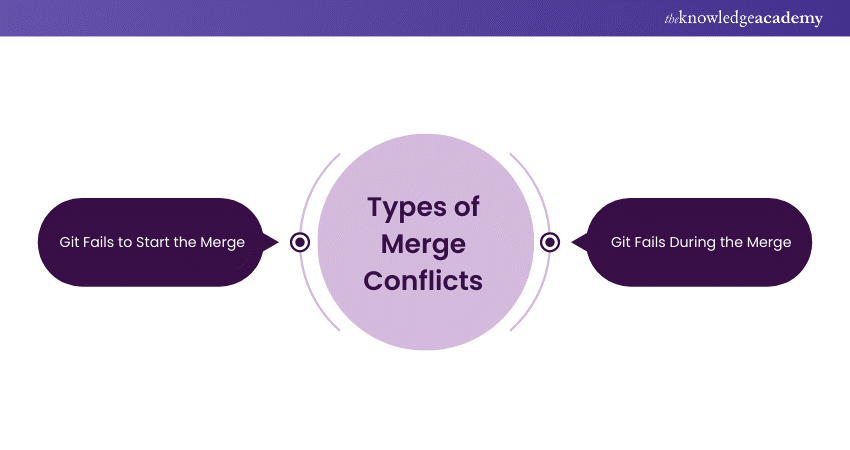
1) Git Fails to Start the Merge
A merge might not start if Git finds modifications in the working directory or staging area of the current project. This issue arises when the pending modifications may be replaced by the merging commits. The problem isn't caused by clashes with other developers but by clashes with your own pending changes.
To fix this issue, you need to stabilise the current state by utilising commands such as git stash, git checkout, git commit, or git reset. If a merge does not begin successfully, an error message may appear.
|
error: Entry ' |
2) Git Fails During the Merge
A merge failure is caused by a clash between the current branch and the one being merged, usually because of conflicting modifications made by another developer. Although Git aims to automatically merge files, it may still result in unresolved conflicts that need manual resolution. If a failure occurs during a mid-merge, you will see this error message.
|
error: Entry ' |
Master version control with our Git and GitHub Fundamentals Course - Start your journey today!
Resolving a Merge Conflict Using the Command Line
Merge conflicts happen when different changes are made to the same line of a file or when one person edits a file while another deletes it. Let's discuss Merge Conflicts further to learn more about them.
1) Competing Line Change Merge Conflicts
To resolve a Merge Conflict caused by competing line changes, you must decide which changes to include in a new commit.
For instance, if both you and another person edited the same lines in the file ‘styleguide.md’ in different branches, a Merge Conflict error will occur. You must resolve this conflict with a new commit before merging the branches.
1) Open Git Bash and navigate to the local Git repository with the merge conflict:
|
cd REPOSITORY-NAME |
2) Creating a list of files affected by the conflict. In this case, ‘styleguide.md’ has a Merge Conflict:
|
$ git status # On branch branch-b # You have unmerged paths. # (fix conflicts and run "git commit") # # Unmerged paths: # (use "git add # # both modified: styleguide.md # no changes added to commit (use "git add" and/or "git commit -a") |
Open the file with your chosen text editor, like Visual Studio Code. Locate the conflict markers by searching for ‘<<<<<<<’. The changes from the HEAD or base branch shows after ‘<<<<<<<’ HEAD. Next, you’ll see ‘=======’, separating your changes from those in the other branch, followed by ‘>>>>>>>’ BRANCH-NAME.
Determine whether to keep your branch's changes and the other branch's changes or merge both. Eliminate the conflict markers (‘<<<<<<<’, ‘=======’, ‘>>>>>>>’) and make your final changes. For example, you might combine both changes like this:
If you have questions, please open an issue or ask in our IRC channel if it’s more urgent.
3) Stage your changes:
|
git add . |
4) Save your changes with a message:
|
git commit -m "Resolve merge conflict by incorporating both suggestions" |
You have the option to merge the branches using the command line or push your changes to the remote repository to merge through a pull request.
2) Removed File Merge Conflicts
When facing a Merge Conflict from conflicting changes, such as one person deleting a file while another person edits it, you need to choose between preserving or removing the file in a fresh commit.
If you made changes to a file called ‘README.md’ and someone else deleted the same file in another branch, you will face a merge conflict error when you try to merge the branches. A new commit is needed to resolve this conflict and merge the branches successfully.
1) Open Git Bash
2) Go into the local Git repository that has the Merge Conflict
|
cd REPOSITORY-NAME |
3) Create a list of files affected by the conflict. In this example, the ‘README.md’ file has a Merge Conflict:
|
$ git status # On branch main # Your branch and 'origin/main' have diverged, # and have 1 and 2 different commits each, respectively. # (use "git pull" to merge the remote branch into yours) # You have unmerged paths. # (fix conflicts and run "git commit") # # Unmerged paths: # (use "git add/rm # # deleted by us: README.md # # no changes added to commit (use "git add" and/or "git commit -a") |
4) Next, open the file in your chosen text editor, such as Visual Studio Code, to review the latest changes. If you decide to keep the file, add it back to your repository:
|
git add README.md |
5) If you choose to remove the file from your repository, use:
|
git rm README.md |
6) Save your changes with an appropriate message:
|
git commit -m "Resolve merge conflict by keeping README.md file" # [branch-d 6f89e49] Merge branch 'branch-c' into branch-d |
You have the option to either combine the branches using the command line or you can push your changes to the remote repository and merge by creating a pull request.
Unlock your creative potential with our Website Design Course – Register now!
Git Commands to Resolve Conflicts
Specific commands in Git are useful for effectively identifying and resolving Merge Conflicts. Below are key Git commands to help streamline conflict resolution.
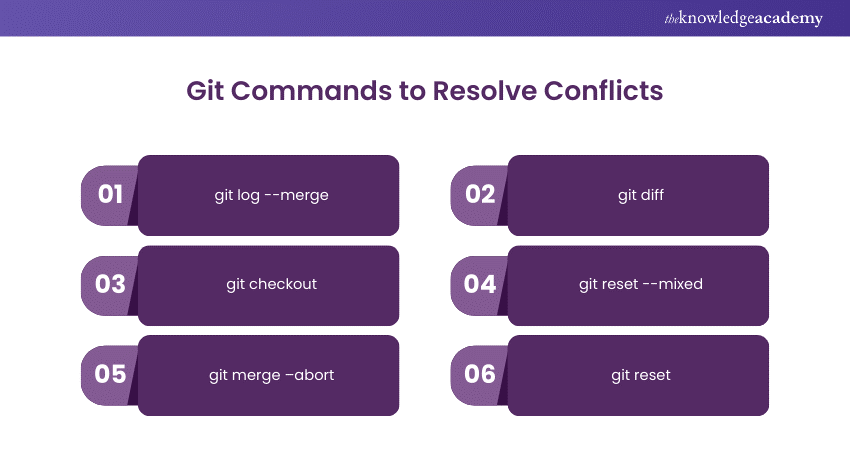
1) git log --merge
This instruction produces a list of commits that are responsible for the conflict during a merge.
2) git diff
Utilise this instruction to distinguish variations in file statuses or versions within the repository.
3) git checkout
This instruction is utilised to eliminate modifications in a document or transition between different branches.
4) git reset --mixed
This instruction reverses alterations made in both the working directory and staging area.
5) git merge –abort
Employ this prompt to terminate the merger operation and return to the state before the merging process.
6) git reset
In the event of a Merge Conflict, this action restores conflicted files to their initial condition.
Conclusion
Mastering Git Merge Conflict resolution is vital for effective teamwork. By learning key commands and strategies, you can manage conflicts smoothly and keep your workflow efficient. It's not just about fixing errors; it's about successfully integrating everyone's contributions. With practice, resolving conflicts becomes routine, ensuring a conflict-free codebase.
Build the next big app with our Mobile App Development Course today!
Frequently Asked Questions
Can Merge Conflicts Occur in Different Branches or Only in the Main Branch?

Merge Conflicts may arise in any branch, not limited to the main branch. They occur when modifications in separate branches contradict each other, regardless of the branch being merged. Handling conflicts is vital for every branch within a Git repository.
How do I Handle Conflicts in Binary Files or Non-textual Data?
Resolving conflicts in binary files or non-textual data necessitates manual input. Git is unable to resolve these conflicts automatically. You must decide whether to retain a specific file version or combine alterations with tools made for binary files. This frequently requires completely replacing the file.
Can Merge Conflicts be Prevented in Git?
Although Merge Conflicts cannot be completely avoided, they can be reduced. Consistently merging branches, keeping in touch with team members, and utilising separate feature branches decrease the chances of conflicts. Effective planning and coordination are crucial to prevent recurring Merge Conflicts in Git.
What are the Other Resources and Offers Provided by The Knowledge Academy?
The Knowledge Academy takes global learning to new heights, offering over 3,000+ online courses across 490+ locations in 190+ countries. This expansive reach ensures accessibility and convenience for learners worldwide.
Alongside our diverse Online Course Catalogue, encompassing 19 major categories, we go the extra mile by providing a plethora of free educational Online Resources like Blogs, eBooks, Interview Questions and Videos. Tailoring learning experiences further, professionals can unlock greater value through a wide range of special discounts, seasonal deals, and Exclusive Offers.
What is The Knowledge Pass, and How Does it Work?
The Knowledge Academy’s Knowledge Pass, a prepaid voucher, adds another layer of flexibility, allowing course bookings over a 12-month period. Join us on a journey where education knows no bounds.
What are the Related Courses and Blogs Provided by The Knowledge Academy?
The Knowledge Academy offers various App & Web Development Training, including the Git & GitHub Fundamentals, Website Design Course, and Mobile App Development Course. These courses cater to different skill levels, providing comprehensive insights into Git vs GitHub.
Our Programming & DevOps Blogs cover a range of topics related to Git, offering valuable resources, best practices, and industry insights. Whether you are a beginner or looking to advance your Programming & DevOps skills, The Knowledge Academy's diverse courses and informative blogs have got you covered.

Richard Harris


Senior Full Stack Developer and Technology Educator
Richard Harris is a highly experienced full-stack developer with deep expertise in both frontend and backend technologies. Over his 12-year career, he has built scalable web applications for startups, enterprises and government organisations. Richard’s writing combines technical depth with clear explanations, ideal for developers looking to grow in modern frameworks and tools.

Upcoming Programming & DevOps Resources Batches & Dates
Date
 Git & GitHub Fundamentals
Git & GitHub Fundamentals
Fri 11th Sep 2026
Git & GitHub Fundamentals
Fri 11th Dec 2026

 If you wish to make any changes to your course, please


