


 Top Rated Course


We may not have the course you’re looking for. If you enquire or give us a call on +64 98874342 and speak to our training experts, we may still be able to help with your training requirements.
How to Render in Blender Using Cycles and Eevee Engines
Richard Harris 03 March 2026Rendering in Blender starts with setting up your scene, adjusting render settings, and exporting your final image or animation with ease.. Understand the complete rendering workflow to transform your 3D models and animation ideas into lifelike visuals. Perfect for professionals aiming for photorealistic results.

Training Outcomes Within Your Budget!
We ensure quality, budget-alignment, and timely delivery by our expert instructors.
Table of Contents

When you render raw models, it’s when your 3D models look stunning and become like a realistic scene. Blender has two different types of rendering engines called Cycles and Eevee. Each of them offers different strengths depending on the creative 3D models you are working on.
Whether you are looking for a preview or a cinematic effect, rendering is an important aspect of showing your creativity at its best. In this blog, we will walk you through How to Render in Blender, a detailed process on turning your vision into professional visuals.
Table of Contents
1) What is Rendering?
2) Various Processes of Blender Rendering
3) Steps on How to Render in Blender
4) How You Can Preview Your Render in Blender
5) Common Rendering Mistakes and How to Avoid Them
6) What’s the Difference Between Eevee and Cycles in Blender?
7) Conclusion
What is Rendering?
Rendering is the last step of making 3D images. It turns models, lights, and materials into realistic pictures or videos. Strong rendering engines change digital models into detailed images. In Blender, this step mixes art and technology to make realistic visuals. Rendering is used in movies, games, and architectural design to turn ideas into real-life pictures.
Blender Rendering can be done using engines such as Cycles and Eevee for fast previews. Each render captures details such as reflections, shadows, and textures with precision. By adjusting settings like samples, lighting, and resolution, creators can achieve quality visuals tailored to any project.

Various Processes of Blender Rendering
Let us look at the various processes of Blender Rendering:

1) Image Render in Blender
An image Render in Blender is the process of converting a 3D scene into a 2D image, employing engines like Cycles and Eevee. It involves the configuration of elements such as lighting, camera perspective, materials, and textures to create a lifelike or stylised visual representation, used widely in various creative industries.
Here is a list giving a detailed description of image rendering in in Blender, as shown below:
a) Rendering Engine Selection: Blender provides different engines like Cycles and Eevee, each with unique qualities.
b) Scene Setup: This involves placing objects, applying materials, and setting up lighting to create a lifelike scene.
c) Camera Configuration: The camera's perspective is chosen, framing the scene and determining the viewpoint for the render in Blender.
d) Lighting Control: Lighting can be adjusted to create different moods in Blender, much like a film set.
e) Materials and Textures Application: Materials and textures add realism, defining how surfaces look and feel.
f) Resolution Setting : Users can select the desired image size and quality.
g) Render preview : Blender enables a quick view of the final image for you to check for any necessary adjustments.
h) Render Settings Configuration : Detailed controls like sampling rates, noise reduction, and ray tracing are adjusted here.
i) Image Format Selection : The output can be saved in various formats like JPEG, PNG, or TIFF.
j) Rendering Execution : The actual process of creating the image in Blender, transforming the 3D scene into a 2D representation.
k) Post-processing Options : Tools to enhance or adjust the rendered image, including colour correction or adding effects.
l) File Saving and Export : The final rendered image can be saved to the computer or exported to different platforms.
Join our Motion Graphics Course to create dynamic visuals that captivate and inspire.
2) Animation Render in Blender
An animation Render in Blender is the process of turning 3D scenes into moving visuals. It encompasses setting up frames, configuring timelines, selecting rendering engines, and applying effects. The result is a fluid sequence that brings models to life, widely utilised in filmmaking, gaming, and other creative digital industries.
Here is a list giving a detailed description of How to Render Animation in Blender, as shown below:

a) Frame Setup: Animation rendering in Blender involves setting up multiple frames to create motion.
b) Timeline Configuration: Users set keyframes on a timeline to define movement, transitions, and effects.
c) Render Engine Selection : Options like Cycles and Eevee in Blender offer different rendering styles for animation.
d) Camera Movement: The camera can be animated to follow the action or provide various angles.
e) Lighting Dynamics: Animating lights adds depth and realism to the scene in Blender
f) Materials and Textures: Applying these creates believable surfaces, enhancing the visual appeal.
g) Particle Systems and Effects: Blender supports complex particle simulations and effects for added dynamism.
h) Resolution and Frame Rate : Selecting the appropriate resolution and frame rate is crucial for smooth playback.
i) Batch Rendering: Blender allows the automatic rendering of multiple frames, essential for animation.
j) Preview Renders: Quick previews help in refining animation before the final render.
k) Post-processing and Compositing: Combining rendered sequences with effects or other media in the compositor.
l) Real-time Previews with Eevee: Eevee enables real-time previews, aiding in the animation design process.
m) Integration with Sound: Soundtracks and sound effects can be synchronised with the animation in Blender
n) 3D to Motion Translation: Transforming 3D objects and scenes into moving visuals.
Learn the importance of modular level design, by signing up for the Blender 3D Modeling For Unity Course now!
Steps on How to Render in Blender
Here are the various steps you can follow on How to Render in Blender:

1) Scene Preparation
Preparing a scene in Blender involves positioning 3D objects, setting up lighting, applying materials and textures, and configuring the camera's perspective. These elements work together to create a virtual environment that mirrors real-world spaces, setting the stage for rendering an image or animation that achieves the desired visual effect.
2) Render Engine Selection
In Blender, selecting a render engine is crucial for achieving the desired visual output. Options like ‘Cycles’ offer photorealistic rendering, while Eevee provides real-time results. The choice depends on the project's needs and the effect sought, impacting factors such as lighting, materials, and overall processing time.
3) Rendering Process Launch
Launching the rendering process in Blender involves finalising the scene setup, choosing the render engine, and configuring settings like resolution and output format. Once everything is aligned, the render button is pressed, initiating the intricate calculations that transform the 3D scene into a 2D image or animated sequence.
4) Patience is Key
Depending on your work and the settings you have chosen, the rendering process takes time to complete. While waiting, you can see the progress in the bottom left corner of the interface. If you are satisfied with the results, you can stop the rendering process, as it shows the present sample count.
5) Save your Render
In Blender, after completing the rendering process, you can save the render by navigating to the 'Image' menu and selecting 'Save As'. You can then choose your desired file format and location, ensuring that your visual creation is safely stored for future use or editing.
How You Can Preview Your Render in Blender
Here are the steps that you can follow to preview your Render in Blender, as shown below:
a) Viewport Shading: By switching to the Rendered mode in the viewport, users can see a real-time preview.
b) Render Preview Button: Clicking this provides a quick rendered preview of the scene.
c) Preview Region: Users can render only a portion of the view for a faster preview.
d) Eevee Engine: Utilising Eevee for real-time preview allows users to see how lighting and materials interact.
e) Material Preview: This shows how materials will appear in the final render.
f) Resolution Settings: Adjusting these allows previews at different quality levels.
Common Rendering Mistakes and How to Avoid Them
Even a perfectly designed 3D model can lose its impact if rendered incorrectly. Here are some common rendering mistakes and simple ways to avoid them for professional, polished results.
a) Unrealistic Lighting Setups: Balance your light sources and study real-world lighting to maintain natural illumination and depth.
b) Low-resolution Textures: Use high-quality textures and adjust material properties like roughness and reflection for realism.
c) Ignoring Scale and Proportions: Always verify object dimensions and use human or environmental references for accurate scaling.
d) Over-editing During Post-production: Keep compositions clean by focusing on essential elements and optimising geometry for faster renders.
e) Poor Camera Placement: Use cinematic angles, the rule of thirds, and focal length adjustments to create visually engaging shots.
f) Skipping Test Renders: Run low-resolution test renders to identify lighting, material, or compositional issues before the final pass.
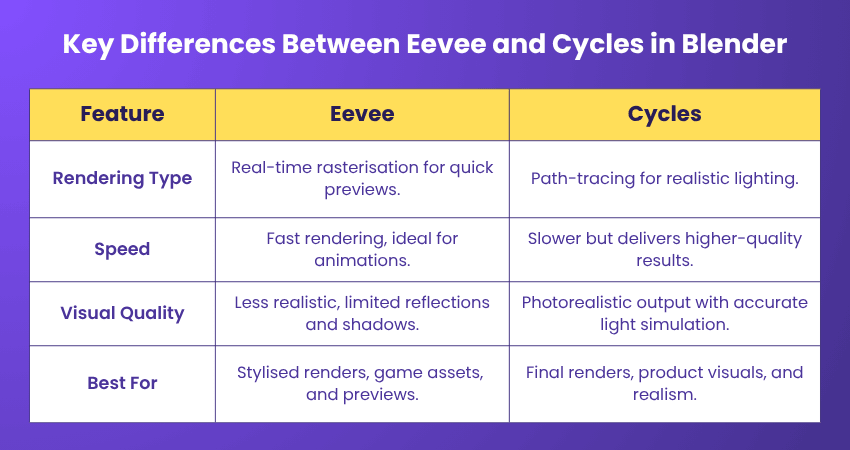
What’s the Difference Between Eevee and Cycles in Blender?
Here is the key differential between both rendering engines of Blender:
Conclusion
Learning How to Render in Blender Scene makes your creative artwork turn real into something amazing to look at. Using proper approaches, a little bit of technical grasp, and a creative flair, you can make the rendering part simpler. So, what are you waiting for? Dive into Blender's tools and start creating the magic.
Gain the skills to craft mesmerising storylines in our comprehensive Animation and Design Training - Sign up now!
Frequently Asked Questions
Can I Render in Blender using GPU?

Yes, Blender supports GPU rendering, allowing your graphics card to handle most of the rendering workload, which often results in significantly faster performance compared to using the CPU alone.
What Sample Rate Should I Use for Rendering in Blender?
Choosing the right sample rate ensures clean renders without wasting time
a) Start with a balanced Max Samples, higher values reduce noise but slow rendering
b) Use Adaptive Sampling with a Noise Threshold around 0.1–0.001 for efficiency
c) Test ranges (100–500 for animations, higher for stills) to achieve optimal quality
What are the Other Resources and Offers Provided by The Knowledge Academy?
The Knowledge Academy takes global learning to new heights, offering over 3,000+ online courses across 490+ locations in 190+ countries. This expansive reach ensures accessibility and convenience for learners worldwide.
Alongside our diverse Online Course Catalogue, encompassing 17 major categories, we go the extra mile by providing a plethora of free educational Online Resources like Blogs, eBooks, Interview Questions and Videos. Tailoring learning experiences further, professionals can unlock greater value through a wide range of special discounts, seasonal deals, and Exclusive Offers.
What is The Knowledge Pass, and How Does it Work?
The Knowledge Academy’s Knowledge Pass, a prepaid voucher, adds another layer of flexibility, allowing course bookings over a 12-month period. Join us on a journey where education knows no bounds.
What are Related Courses and Blogs Provided by The Knowledge Academy?
The Knowledge Academy offers various Animation and Design Courses, including 3D Printing Course, 2D Animation Course and Video Production Training Course. These courses cater to different skill levels, providing comprehensive insights into What Is Blender? An Exclusive Guide.
Our Office Applications Blogs cover a range of topics related to Animation and Design Training, offering valuable resources, best practices, and industry insights. Whether you are a beginner or looking to advance your Animation and Designing skills, The Knowledge Academy's diverse courses and informative blogs have got you covered.

Richard Harris


Senior Full Stack Developer and Technology Educator
Richard Harris is a highly experienced full-stack developer with deep expertise in both frontend and backend technologies. Over his 12-year career, he has built scalable web applications for startups, enterprises and government organisations. Richard’s writing combines technical depth with clear explanations, ideal for developers looking to grow in modern frameworks and tools.


 If you wish to make any changes to your course, please


