


 Top Rated Course

We may not have the course you’re looking for. If you enquire or give us a call on + 1-866 272 8822 and speak to our training experts, we may still be able to help with your training requirements.
How to Use Microsoft Word: A Complete User Guide
The Knowledge Academy 05 March 2026Microsoft Word lets you create documents, format text, insert images and tables, save work, undo changes, and collaborate using tools like spell check. To use Microsoft Word, open the application, choose a blank document or a suitable template, and start typing your content. You can use the Home tab for content formatting, and the File tab to save, print or share your work.

Training Outcomes Within Your Budget!
We ensure quality, budget-alignment, and timely delivery by our expert instructors.
Table of Contents
According to Statista, over a million companies use Office 365 globally, making Microsoft Word an essential workplace skill. Yet many users only know the basics. Learning How to Use Microsoft Word effectively can improve your productivity, enhance document quality, and strengthen your career prospects.
Whether you're a student or a professional, this Microsoft Word skill can greatly benefit you. In this blog, you will learn How to Use Microsoft Word and how to create and format documents with some useful tricks. Let's get started!
Table of Contents
1) Getting Started With Microsoft Word
2) Creating and Formatting Documents
3) Using Advanced Features and Techniques
4) Useful Tips and Tricks of Microsoft Word
5) What are the 20 Shortcut Keys in Microsoft Word?
6) What is the Fastest Way to Learn Microsoft Office?
7) Conclusion
Getting Started With Microsoft Word
Microsoft Word, or MS Word, is a word processing application developed by Microsoft that allows users to create, edit, and format documents with simple and easy steps. It offers several features such as text styling, templates, tables, images, spell check, and collaboration tools, making it suitable for students, professionals, and businesses alike.
Steps to Use Microsoft Word
Now, let’s check the steps involved in How to Use Microsoft Word:
Step 1: Download and install Microsoft Word from the official website or app store.
Step 2: Locate and launch the MS Word application on your device.
Step 3: Once you open, you can see the options to select a new document or work on templates.
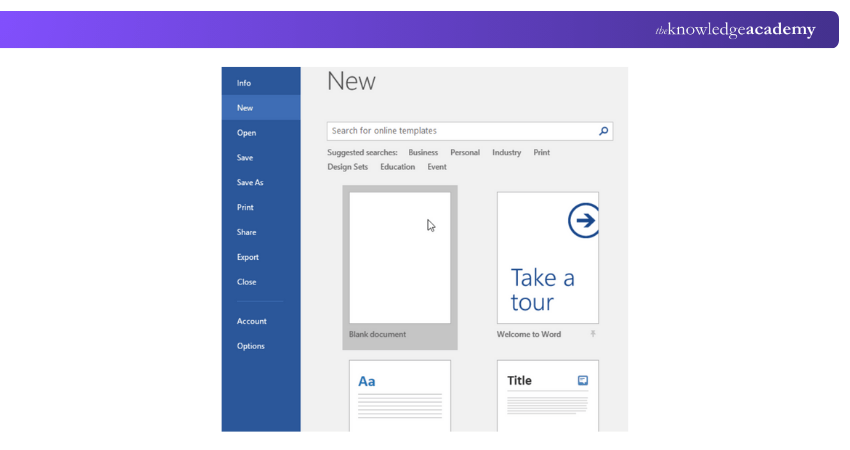
Step 4: You can open a new document and start typing your content or explore the features of Microsoft Word. The blank document will look like this:
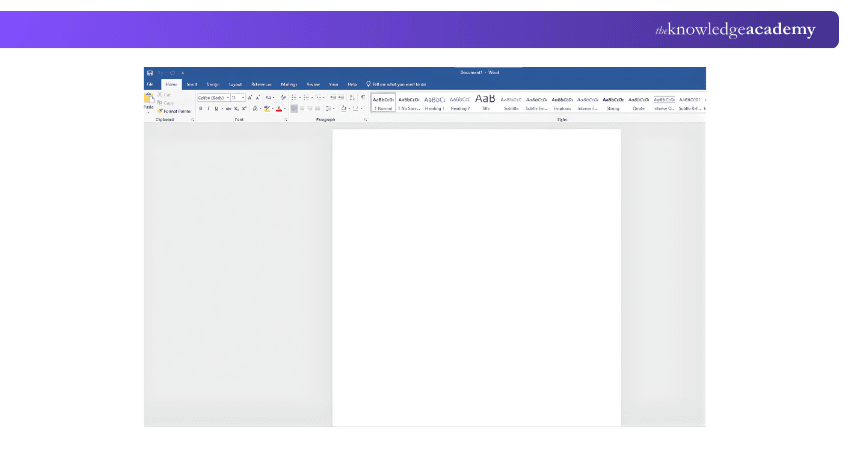
Step 5: You can use the toolbar at the top of the MS Word window to format text, select fonts, and apply styles.
Step 6: Get familiar with the Microsoft Word interface, including the Quick Access Toolbar, Ribbon, and the document window. The ribbon section contains several tabs for fonts, styles, and more.
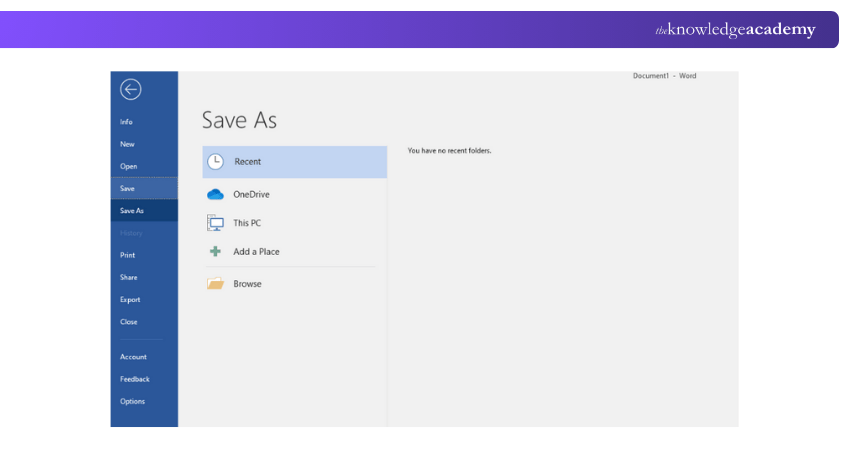
Step 7: You can save MS Word documents by clicking "File" and selecting "Save" or "Save As" for different names or locations.
Creating and Formatting Documents
Creating and formatting documents in Microsoft Word allows users to produce clear, organised, and professional-looking content. Whether you start with a blank document or use a built-in template, following the right approach in How to Use Microsoft Word ensures better readability and presentation. Here are the things that you can try:
1) Choose the Right Page Layout and Fonts
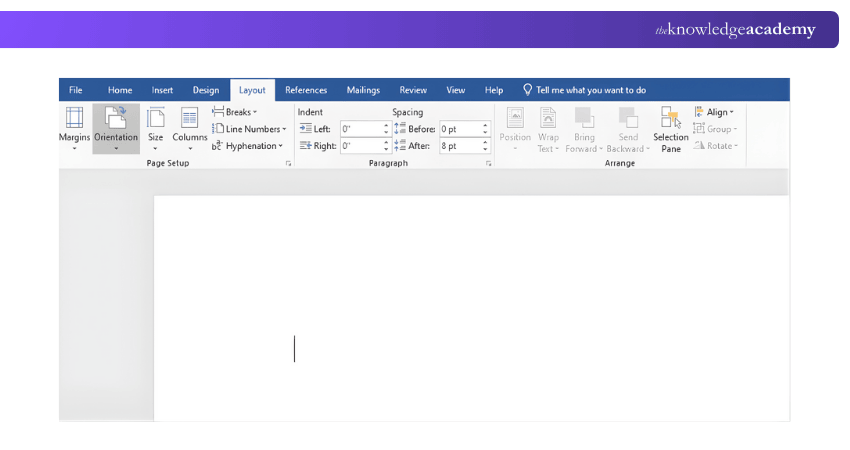
Select a suitable page layout by adjusting margins, orientation, and page size, and choose fonts that enhance readability and match the document’s purpose.
How to Implement it: Go to the Layout tab to set margins and orientation, then use the Home tab to select font style and size.
2) Organise Content Using Headings and Sections
Structure your document with headings, subheadings, and sections to improve flow and navigation. Adding headers, footers, or page numbers further enhances organisation.
How to Implement it: Use the Styles group in the Home tab to apply heading levels, and insert headers or footers from the Insert tab.
3) Apply Text Formatting for Visual Impact
Formatting text helps emphasise key information and improves visual appeal. Adjust font styles, sizes, colours, and use lists to make content easier to read.
How to Implement it: Select the text and apply formatting options such as bold, italics, bullets, or numbering from the Home tab.
4) Adjust Alignment, Spacing, and Indentation
Proper alignment and spacing create a clean and consistent layout. Line spacing and indentation help separate sections and improve readability.
How to Implement it: Use the Paragraph group in the Home tab to adjust alignment, line spacing, and indentation.
5) Maintain Consistency with Styles and Themes
Using styles and themes ensures uniform formatting across the document, giving it a professional appearance.
How to Implement it: Apply built-in styles from the Home tab and choose themes from the Design tab to maintain a consistent look.
Enhance productivity and streamline workflows with our Microsoft SharePoint Training – Register now!
Using Advanced Features and Techniques
Microsoft Word offers a wide range of advanced features on Microsoft Word that can elevate your document creation and editing capabilities. Here, we will explore some of these powerful features and provide you with tips on how to make the most out of them.
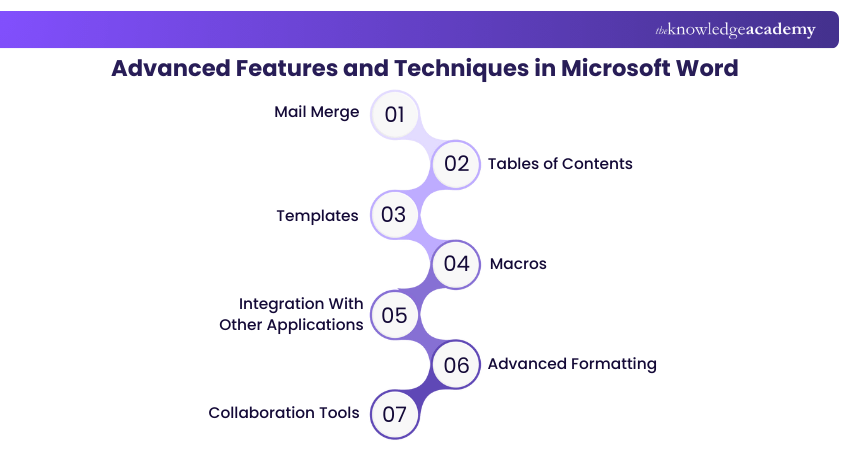
1) Mail Merge: Mail merge is an advanced tool that allows you to create personalised documents, such as letters or labels, by merging data from a database or spreadsheet. Learning how to set up and execute a mail merge to streamline your mass communication efforts can be a valuable skill.
2) Tables of Contents: When working on longer documents, creating a table of contents can help your readers navigate through the content easily. Familiarise yourself with how to generate a table of contents automatically based on your document's headings to make it easier to read.
3) Templates: Word offers a wide range of pre-designed templates for various document types, such as resumes, newsletters, and flyers. Tap into the power of these templates to instantly enhance the visual appeal and structure of your documents.
4) Macros: Macros allow you to automate repetitive tasks in Word by recording a series of actions and playing them back with a single click.
5) Integration With Other Applications: Microsoft Word seamlessly integrates with other applications in the Microsoft Office suite, such as Excel and PowerPoint.
6) Advanced Formatting: Take your document formatting to the next level by exploring advanced formatting options in Word. You can create and modify styles, apply advanced page layouts, and customise headers and footers.
7) Collaboration Tools: Word offers robust collaboration tools to concurrently leave comments and track changes. Familiarise yourself with these collaboration features to streamline teamwork and enhance document review processes.
By exploring these advanced features and techniques in Microsoft (MS) Word, you can unleash the full potential of the software and create professional, visually appealing, and efficiently structured documents.
Useful Tips and Tricks of Microsoft Word
Let's explore some useful tips and tricks on How to Use Microsoft Word and enhance your productivity:
1) Master Keyboard Shortcuts
Save time and work faster by using keyboard shortcuts such as Ctrl + C (copy), Ctrl + V (paste), Ctrl + Z (undo), and Ctrl + B (bold). These shortcuts help you navigate and edit documents without relying on the mouse. Some lesser-known shortcuts include Shift + F5, which allows you to jump to your most recent edit.
2) Use Templates
Instead of starting from the beginning, choose a template when creating a new document. Templates for reports, letters, resumes, and more ensure consistent formatting and save time.
3) Apply Styles for Consistency
Use built-in heading and text styles to keep formatting uniform. Styles also make it easier to create a table of contents and organise long documents efficiently.
4) Find and Replace
Quickly locate or update text throughout your document using Ctrl + H or using the find and replace option. This is especially helpful for correcting repeated errors or updating terms.
5) Track Changes and Comments
When collaborating, use the Track Changes feature and add comments so others can review edits without altering the original content.
6) Show Formatting Marks
Reveal hidden characters like spaces or paragraph breaks using the Show/Hide ¶ button. This helps with precise layout and spacing adjustments.
7) Insert and Format Headers, Footers, and Page Numbers
Enhance document structure by adding headers, footers, and page numbers from the Insert tab.
8) Customise the Quick Access Toolbar
Add your most-used tools to the Quick Access Toolbar for faster access without searching through the ribbon.
By implementing these tips and tricks, you'll work more efficiently, save time, and unlock hidden features in Microsoft Word. With practice, you'll become a proficient user of Microsoft Word.
Create powerful business and academic presentations with our Microsoft PowerPoint Training – Join soon!
What are the 20 Shortcut Keys in Microsoft Word?
Here are 20 commonly used Microsoft Word shortcut keys that help improve speed and efficiency:
1) Ctrl + N: Create a new document
2) Ctrl + O: Open an existing document
3) Ctrl + S: Save the document
4) Ctrl + P: Print the document
5) Ctrl + C: Copy selected text
6) Ctrl + V: Paste copied or cut content
7) Ctrl + X: Cut selected text
8) Ctrl + Z: Undo the last action
9) Ctrl + Y: Redo the last action
10) Ctrl + A: Select all content
11) Ctrl + B: Bold selected text
12) Ctrl + I: Italicise selected text
13) Ctrl + U: Underline selected text
14) Ctrl + F: Find text in the document
15) Ctrl + H: Find and replace text
16) Ctrl + K: Insert a hyperlink
17) Ctrl + L: Align text to the left
18) Ctrl + E: Centre align text
19) Ctrl + R: Right align text
20) Ctrl + M: Increase paragraph indent
What is the Fastest Way to Learn Microsoft Office?
The fastest way to learn MS Office is through hands-on practice combined with structured learning. Start by using the applications regularly and exploring basic features such as formatting, shortcuts, and templates. Practising shortcuts, recreating sample documents, and using Office tools in daily work helps reinforce learning and build confidence quickly.
Conclusion
Microsoft Word is a powerful and user-friendly tool that plays an essential role in everyday academic, professional, and business tasks. By understanding its core features, formatting options, shortcut keys, and helpful tips, you become an expert with How to Use Microsoft Word. With regular practice and exploration of its tools, MS Word becomes easier to use, improves productivity, and presents your ideas with clarity and confidence.
Discover the secrets of Microsoft Office 365 and become a productivity powerhouse with our Microsoft Office 365 Training – Sign up today!
Frequently Asked Questions
What are the Five Basic Uses of Microsoft Word?

Microsoft Word offers several crucial functions to enhance the versatility and efficiency of your business. Some of its basic uses include sending mail and letters, creating forms and documents, producing promotional materials, preparing professional reports and resumes, and brand promotion.
How to Draw in MS Word?
You need to follow the below steps to draw in MS Word:
a) Click on the “Insert” tab
b) Select “Shapes” to choose the desired ones
c) Drag on the document to draw the pattern
d) You can use the “Format” tab to resize, change colours, and add other effects
What are the Other Resources and Offers Provided by The Knowledge Academy?
The Knowledge Academy takes global learning to new heights, offering over 3,000+ online courses across 490+ locations in 190+ countries. This expansive reach ensures accessibility and convenience for learners worldwide.
Alongside our diverse Online Course Catalogue, encompassing 17 major categories, we go the extra mile by providing a plethora of free educational Online Resources like Blogs, eBooks, Interview Questions and Videos. Tailoring learning experiences further, professionals can unlock greater value through a wide range of special discounts, seasonal deals, and Exclusive Offers.
What is the Knowledge Pass, and How Does it Work?
The Knowledge Academy’s Knowledge Pass, a prepaid voucher, adds another layer of flexibility, allowing course bookings over a 12-month period. Join us on a journey where education knows no bounds.
What are the Related Courses and Blogs Provided by The Knowledge Academy?
The Knowledge Academy offers various Microsoft Office Trainings, including Microsoft PowerPoint Training, Microsoft SharePoint Training, and Microsoft Word Course. These courses cater to different skill levels, providing comprehensive insights into the best Excel Skills for Accountants.
Our Office Applications Blogs cover a range of topics related to Microsoft Word, offering valuable resources, best practices, and industry insights. Whether you are a beginner or looking to advance your Office Application skills, The Knowledge Academy's diverse courses and informative blogs have got you covered.

The Knowledge Academy


Global Training Provider
The Knowledge Academy is a world-leading provider of professional training courses, offering globally recognised qualifications across a wide range of subjects. With expert trainers, up-to-date course material, and flexible learning options, we aim to empower professionals and organisations to achieve their goals through continuous learning.

Upcoming Office Applications Resources Batches & Dates
Date
 Microsoft Word Course
Microsoft Word Course
Fri 12th Jun 2026
Microsoft Word Course
Fri 21st Aug 2026
Microsoft Word Course
Fri 4th Dec 2026

 If you wish to make any changes to your course, please


